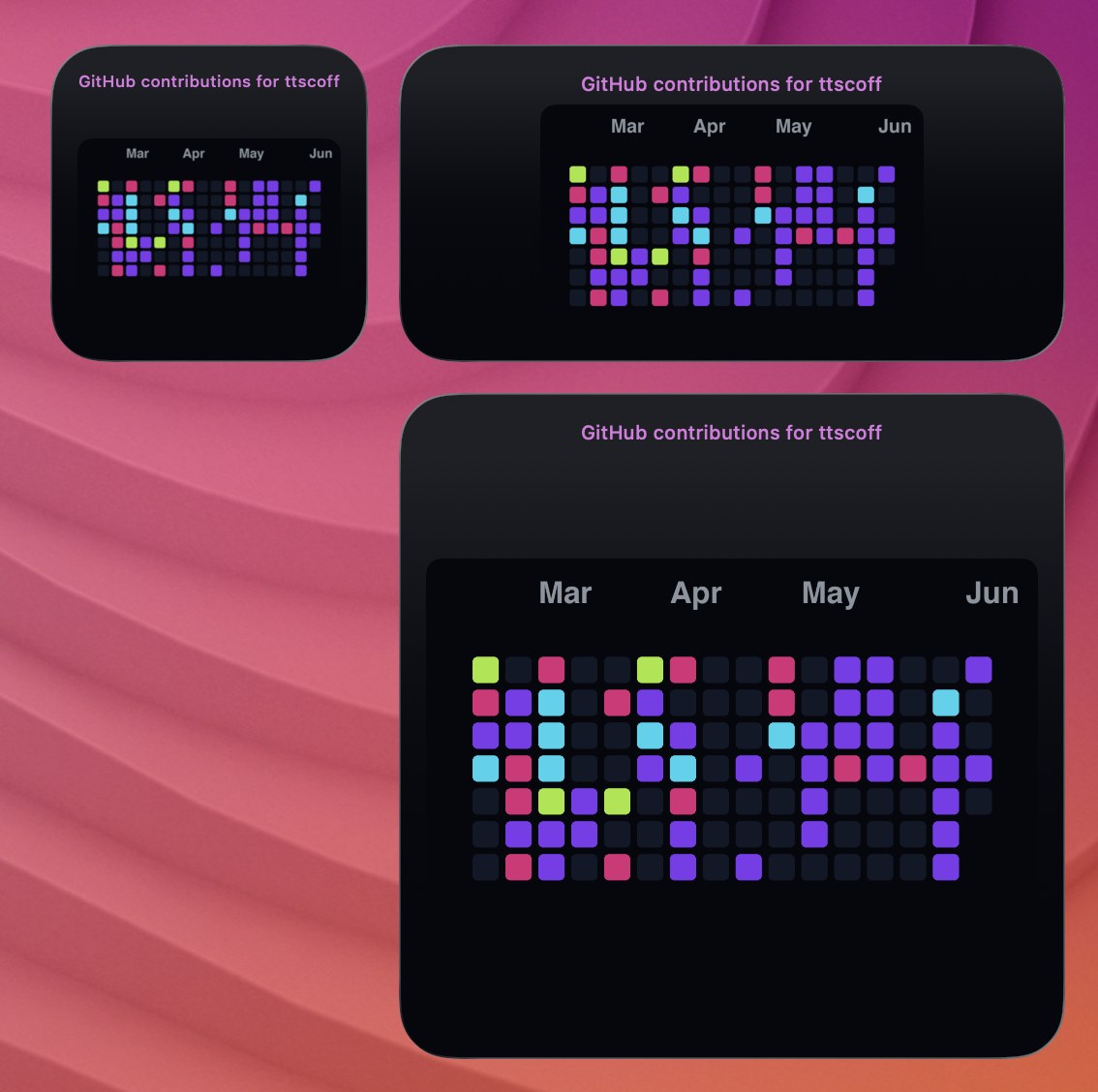
GitHub Contributions Widget widget screenshot

Shortcut

GitHub Contributions Widget

by Brett Terpstra

A Shortcut that uses Brett's "Contrib" API to generate a PNG of your github contributions, then display it as an image widget.

  1. Enter your GitHub username at the top of the shortcut
  2. Create a medium or large TerminalWidget widget with the id "github-contrib".

Download this Shortcut

Running on a schedule

Suggested interval: 1 day (StartInterval = 86400 seconds on macOS).

1. Install the Shortcut

  1. Download GitHub Contributions Widget.shortcut from this page.
  2. Open it in Shortcuts.app (double-click on macOS, or use Share on iOS/iPadOS).
  3. Review every action, then add it to your library.
  4. Keep the Shortcut name as GitHub Contributions Widget so it matches the downloaded filename and the commands below.
  5. Run it once manually to confirm the widget updates and grant any permissions it requests.

2. macOS: launchd with shortcuts run

On macOS you can run the Shortcut headlessly from a user Launch Agent. Test from Terminal first, then install the plist:

mkdir -p ~/Library/LaunchAgents
# Test the Shortcut first:
shortcuts run 'GitHub Contributions Widget'

cat > ~/Library/LaunchAgents/com.terminalwidget.github-contributions-widget.plist <<'EOF'
<?xml version="1.0" encoding="UTF-8"?>
<!DOCTYPE plist PUBLIC "-//Apple//DTD PLIST 1.0//EN" "http://www.apple.com/DTDs/PropertyList-1.0.dtd">
<plist version="1.0">
<dict>
  <key>Label</key>
  <string>com.terminalwidget.github-contributions-widget</string>
  <key>ProgramArguments</key>
  <array>
    <string>/usr/bin/shortcuts</string>
    <string>run</string>
    <string>GitHub Contributions Widget</string>
  </array>
  <key>RunAtLoad</key>
  <true/>
  <key>StartInterval</key>
  <integer>86400</integer>
  <key>StandardOutPath</key>
  <string>/tmp/com.terminalwidget.github-contributions-widget.log</string>
  <key>StandardErrorPath</key>
  <string>/tmp/com.terminalwidget.github-contributions-widget.err</string>
</dict>
</plist>
EOF
launchctl bootstrap "gui/$(id -u)" ~/Library/LaunchAgents/com.terminalwidget.github-contributions-widget.plist

Example Launch Agent plist (runs /usr/bin/shortcuts run on the interval above):

<?xml version="1.0" encoding="UTF-8"?>
<!DOCTYPE plist PUBLIC "-//Apple//DTD PLIST 1.0//EN" "http://www.apple.com/DTDs/PropertyList-1.0.dtd">
<plist version="1.0">
<dict>
  <key>Label</key>
  <string>com.terminalwidget.github-contributions-widget</string>
  <key>ProgramArguments</key>
  <array>
    <string>/usr/bin/shortcuts</string>
    <string>run</string>
    <string>GitHub Contributions Widget</string>
  </array>
  <key>RunAtLoad</key>
  <true/>
  <key>StartInterval</key>
  <integer>86400</integer>
  <key>StandardOutPath</key>
  <string>/tmp/com.terminalwidget.github-contributions-widget.log</string>
  <key>StandardErrorPath</key>
  <string>/tmp/com.terminalwidget.github-contributions-widget.err</string>
</dict>
</plist>

launchd requires macOS and a logged-in user session. Logs are written to /tmp/com.terminalwidget.github-contributions-widget.log and /tmp/com.terminalwidget.github-contributions-widget.err.

For a GUI editor and troubleshooting, see LaunchControl from soma-zone.

3. Shortcuts automations (macOS, iOS, and iPadOS)

Without launchd, use a personal automation in Shortcuts.app:

  1. Open ShortcutsAutomation (or the Automations tab).
  2. Create a Personal Automation.
  3. Choose a trigger that matches your interval—for example Time of Day (daily or hourly repeats) or another trigger that fits this recipe.
  4. Add the Run Shortcut action and select GitHub Contributions Widget.
  5. Turn off Ask Before Running (or enable Run Immediately on iOS/iPadOS) so updates happen unattended.

On iPhone and iPad, background timing is handled by Shortcuts automations—not launchd. Some triggers still require confirmation unless Run Immediately is enabled.

4. Home app (optional)

If you use a Home hub (HomePod, Apple TV, or iPad as home hub), you can add a Home automation that runs this Shortcut on a time-based or accessory trigger. In the Home app, create an automation → add a Run Shortcut action → choose GitHub Contributions Widget.

← All recipes