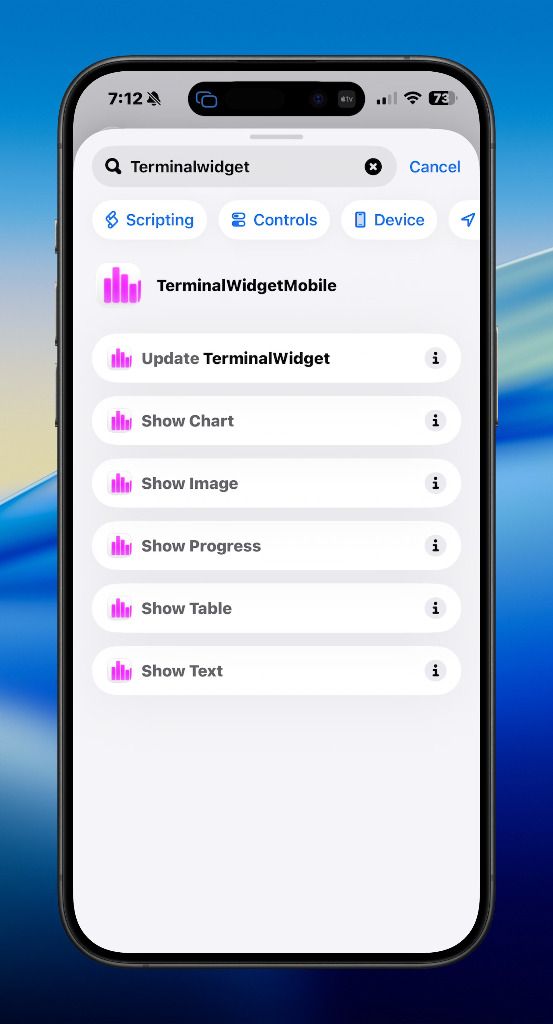
Use TerminalWidget’s App Intents in Shortcuts.app for native automation that does not require shell commands or manual URL encoding.
Add a widget first. Shortcuts only update widgets you place yourself (Desktop or Home Screen) after you set Edit Widget → Target name to match the action’s Target field. See Integrations → Getting Started.

Available Shortcuts Actions
TerminalWidget exposes intent actions for common update types:
- Render Widget: full payload action (text, icon, progress, chart, image or background image, colors, theme, layout)
- Render Text: quick text/icon update
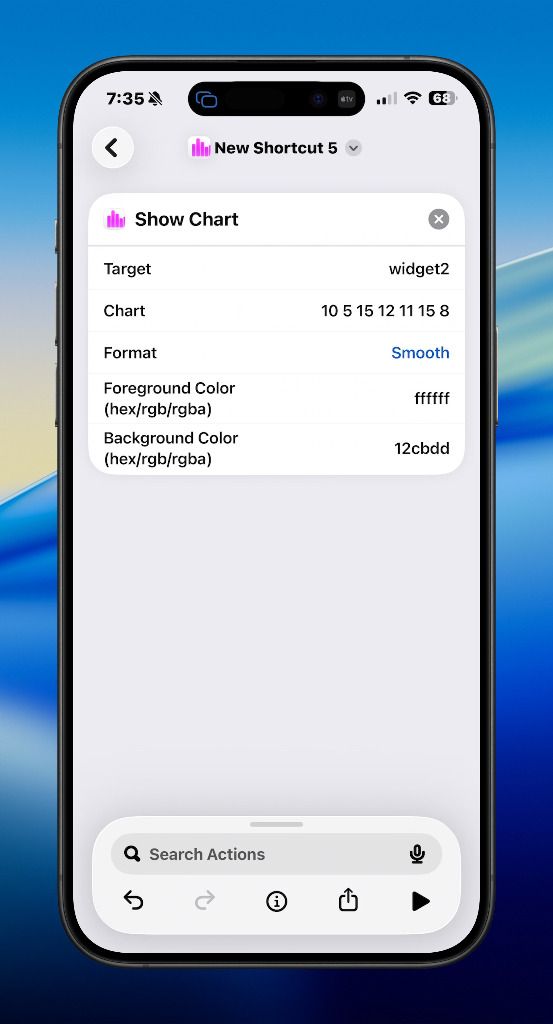
- Render Chart: chart update with format options
- Render Progress: progress update with style options
- Render Image: image update with optional filters/layout controls
- Render Table: table render from CSV/TSV/JSON data source
These map to the same validation/rendering pipeline used by CLI, AppleScript, and URL scheme updates. Text fields may include CommonMark-style [label](url) links; the widget renders them as tappable buttons (same rules as CLI --text). Launcher button grids (including button-columns layout and button-border / per-button border styling) are set via structured JSON buttons through CLI --json (or any JSON payload path), not individual Shortcut fields in v1. See Widgets for the button and border field reference.
On Render Widget (Update TerminalWidget), optional Background Image places a full-bleed image behind text, icons, progress, charts, or tables. It is mutually exclusive with the content Image field, and Filter alpha:0-100 can fade it. The same field is available on Render Text, Render Chart, Render Progress, and Render Image. Combine Table and Background Image on Render Widget; the dedicated Render Table action does not include a background-image field. Optional Title, Title Alignment (Left, Center, Right; default Center when Title is set), Title Color, and Caption Text accept GitHub :emoji: shortcodes (for example :rocket:, :white_check_mark:), same as Text and Icon. Caption Text implies Caption and replaces auto [min/max] or [n%] text. Optional Label Y adds a left y-axis to numeric charts, and Timestamp shows the last CLI/URL update time at the bottom (with or without Caption / Caption Text). Chart accepts space-separated numbers, slash-separated grouped sparkline/bar or multi-series line groups (for example 0 1 5 2/1 2 5 3, up to four series), rangebar low-high pairs, pie label:value[:color] tokens (for example CPU:45 Memory:30 Disk:25), or JSON (flat, nested numeric, named series, or pie slices). Use Chart Format sparkline/bar for grouped slash input, Series Lines for overlapping line charts with a bottom legend, or Pie for categorical slices. Optional Append adds chart columns (same syntax as Chart) or text lines to the existing target without replacing other settings; optional Limit keeps the last N chart columns or text lines (persisted; 0 clears the soft limit). Append cannot be combined with Chart or Text in the same action. Comma-separated Foreground colors use the first value for text/icons and the rest for series or slice colors. Chart Bar Style Glass applies to sparkline/bar, waveform, range bar, matrix, and delta charts, and to circle progress rings when Progress Format is Circle (chart data not required for circle glass). Optional Chart Key controls legend placement (Auto, Inline/Left, Bottom, External, None). Chart Series Labels sets comma-separated series names. Key Target writes the legend to a second widget (pair with Chart Key External; the key widget inherits colors from the chart update). Render Text, Render Chart, Render Progress, and Render Image expose the same title, alignment, title color, caption text, and timestamp fields where they apply. Render Chart and Render Progress also expose chart and bar-style fields where applicable (progress can use Caption for [n%] and Timestamp for the update time). Optional Notify on change persists in the widget payload (syncs via iCloud); Notify once fires a local notification only when this action changes display content and does not change the saved setting. Grant notification permission when prompted.
On Render Widget, optional action fields can assign what happens when the widget is tapped or clicked:
- Action Kind:
open-url,open-app,run-shortcut, orrun-command - Action Value: the URL, macOS bundle identifier, Shortcut name, or shell command
- Clear Action: removes the saved tap/click action for the target
Actions are saved with the target payload and sync through iCloud. On macOS, all four action kinds are supported. On iOS, URL and Shortcut actions are supported; synced macOS-only app and shell actions fall back to the normal widget open/update behavior.
Auto-update (Run Every)
On Render Widget / Update TerminalWidget, optional Run Every, Run Every Unit, and Shortcut Name store a Mac-only auto-update recipe on that target. While the Terminal Widget menu-bar app is open (or set to Open at Login), it re-triggers that Shortcut on the interval.
- Removing the Desktop widget does not clear the recipe.
- Later updates that omit Run Every leave the existing recipe in place.
- To stop it: turn on Clear Auto-Update in an Update TerminalWidget action, run
terminal-widget --target YOUR_TARGET --clear-auto-update, or use Info/Debug → Auto-update in the menu bar app. - If iCloud sync is on, also clear (or delete the cloud record) so a reinstall does not restore the recipe.
Build Your First Shortcut
- Open Shortcuts.app and create a new shortcut.
- Add the Render Widget action from TerminalWidget.
- Set Target (for example
widget1). - Fill any fields you want to update (
Text,Icon,Progress, etc.). - Run the shortcut and confirm the widget refreshes.
Passing Data Into Actions
Shortcuts variables can drive any field in the action.
From Input Prompt
- Add Ask for Input (
Prompt:Widget text). - Add Render Text.
- Set
Targettowidget1. - Set
Textto Provided Input.
From Dictionary/Data
- Build a Dictionary with keys like
target,text,progress. - Add Get Dictionary Value actions.
- Feed each result into Render Widget parameters.
From Web/API Data
- Add Get Contents of URL.
- Parse JSON fields (for example status or numeric metrics).
- Convert/format values if needed.
- Pass results into Render Widget, Render Chart, or Render Progress.
Pattern Examples
Daily Status Widget
- Trigger: Time of Day automation
- Actions:
Get Contents of URL(status endpoint)Get Dictionary Value(message,progress)Render Widget(target: widget1, text frommessage, progress fromprogress)
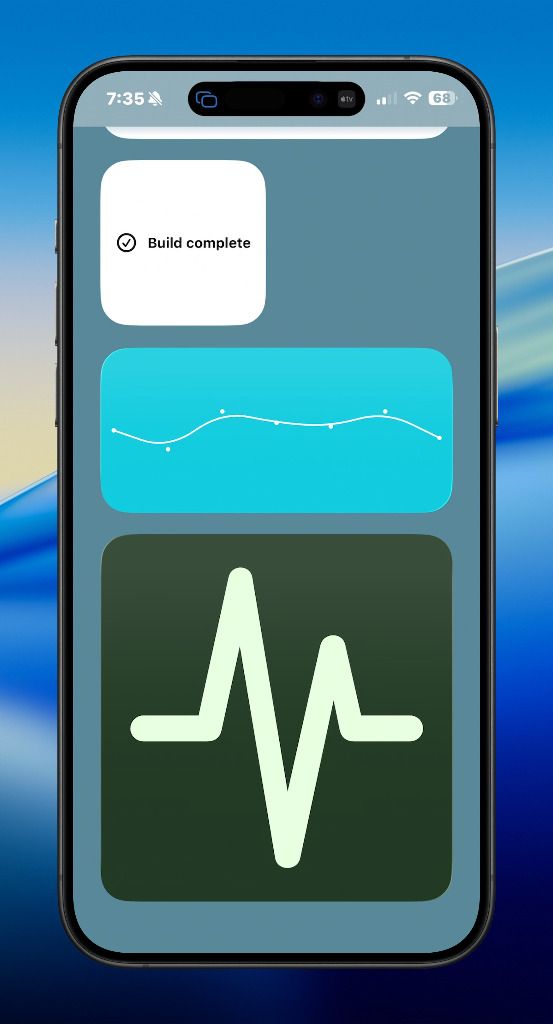
Build Result Widget
- Trigger: run from Share Sheet, Finder Quick Action, or manual run
- Actions:
Run Script over SSHorGet Filemetadata- conditional branch (
If) Render Textwithiconset to success/failure symbol
Chart Snapshot Widget
- Trigger: schedule every 15 minutes
- Actions:
- fetch metrics
- build list of numbers
- join numbers as chart input
Render Chartwith chosenchart formatand optional caption. Userangebarwith values like1-3 2-3 1-4for range bars.
Grouped Sparkline Widget
- Trigger: manual or scheduled
- Actions:
Render ChartwithChartset to0 1 5 2/1 2 5 3,Chart FormatBarorSparkline, optionalForeground#cc0000,#00cc00,#0000cc, optionalAnnotationandChart Bar StyleGlass.
Multi-Series Line Chart Widget
- Trigger: manual or scheduled
- Actions:
Render ChartwithChartset to1 4 9 3/2 5 8 4/6 7 5 2,Chart FormatSeries Lines,Chart Series LabelsCPU,Memory,Disk, optionalForeground#f87171,#4ade80,#60a5fa.
Pie Chart Widget
- Trigger: manual or scheduled
- Actions:
Render ChartwithChartset to pie literals such asCPU:45 Memory:30 Disk:25,Chart FormatPie,Chart KeyInline, optional comma-separatedForegroundfor slice colors.- For a dedicated key widget: set
Chart KeytoExternal,Key Targettocpu-key(must match Edit Widget → Target name on the key widget).
Circle Progress with Glass Ring
- Actions:
Render ProgresswithProgress72,Progress FormatCircle,Chart Bar StyleGlass, optionalCaption.
Launcher Widget
- Trigger: manual run from Shortcuts
- Actions:
- Add
Render Widget - Set
Targettowidget1 - Set
TextandIconfor the visible widget state - Set
Action Kindtoopen-url - Set
Action Valueto the destination URL
- Add
Use run-shortcut with a Shortcut name to make the widget run another Shortcut when tapped. Use open-app with a macOS bundle identifier or run-command with a shell command for macOS-only launcher widgets.
Data Formatting Notes
- Progress expects
0...100. - Chart values should be numeric and in display order. For grouped sparkline/bar columns, separate series with
/(for example10 20 30/12 18 25); use Chart Format sparkline or bar. For multi-series line charts, use Chart Format Series Lines with the same slash syntax. For pie charts, use Chart Format Pie withlabel:value[:color]tokens (for exampleCPU:45 Memory:30 Disk:25). Up to four series and 128 points per series for line/sparkline modes. - Chart Bar Style
Glassworks with sparkline/bar, waveform, range bar, matrix, delta charts, and with Progress FormatCircle(no chart field needed for circle glass). - Foreground comma-separated lists: first color for text/icons, remaining colors for grouped chart series or pie slice colors.
- Chart Key, Chart Series Labels, and Key Target on Update TerminalWidget and Show TerminalWidget Chart control legend placement, series names, and external key widgets (same behavior as CLI
--chart-key,--chart-series-labels, and--key-target). - Colors accept hex/rgb/rgba style values.
- Table input should point to readable CSV/TSV/JSON content.
- Table Layout is
Auto(content-sized; leftover space after the last column),Fill(stretch measured columns to widget width), orEqual. - Table Align is a comma-separated list of
left,center, orright(one value per column; remaining columns repeat the last value). - Center Table centers an auto-sized table horizontally. It only applies to auto layout and is ignored for equal and fill.
- Image and Background Image can be local files or remote URLs, but cannot both be set in one action. Background images are always full-bleed and can accompany text, progress, charts, and tables.
- Action Kind accepts
open-url,open-app,run-shortcut, orrun-command. - Action Value must match the kind: URL for
open-url, bundle identifier foropen-app, Shortcut name forrun-shortcut, or shell command forrun-command.
If optional fields are omitted, those values are left unchanged (or reset by intent defaults where applicable).
Mixing with URL Scheme and CLI
You can combine integrations in one workflow:
- Use Shortcuts for user input and scheduling.
- Use URL scheme links for quick launcher-style actions.
- Use CLI in shell-centric workflows (build scripts, cron, CI agents).
Related docs:
iOS Shortcuts
All Shortcut actions are also available on iOS.
On iPhone and iPad, open TerminalWidget once after install and allow notifications when prompted (that is what adds TerminalWidget under Settings > Notifications). The app relies on push notifications to pull iCloud widget updates in the background; without permission, Home Screen widgets may not refresh until you open the app. The same permission is required for notify-on-change alerts.