


TerminalWidget is a Mac, iPhone, and iPad app that shows text, progress bars, charts, and images in widgets, used by developers and power users to monitor scripts and automations at a glance.
Use this page as a visual checklist for every widget style. Each section includes sample commands you can run as-is, plus screenshot slots for macOS, iOS/iPadOS, and watchOS.
Widgets are not automatic. Place a TerminalWidget on the Desktop or Home Screen yourself, then set Edit Widget → Target name so sample commands (and any automation) can reach it. Setup steps: Integrations → Getting Started.
Diagnostics widget (twdiags): on Mac, iPhone, and iPad, set the Target name to twdiags to show recent failures and warnings from that device (device-local log — Mac events do not appear on iPhone and vice versa). On Mac you can also use the CLI log subcommand or Info/Debug; on iOS the widget is the viewer. Full details: CLI → Diagnostics.
Click a screenshot to zoom and you’ll see the command that generated it beneath it.
macOS Widget Gallery
Example output for each widget style:
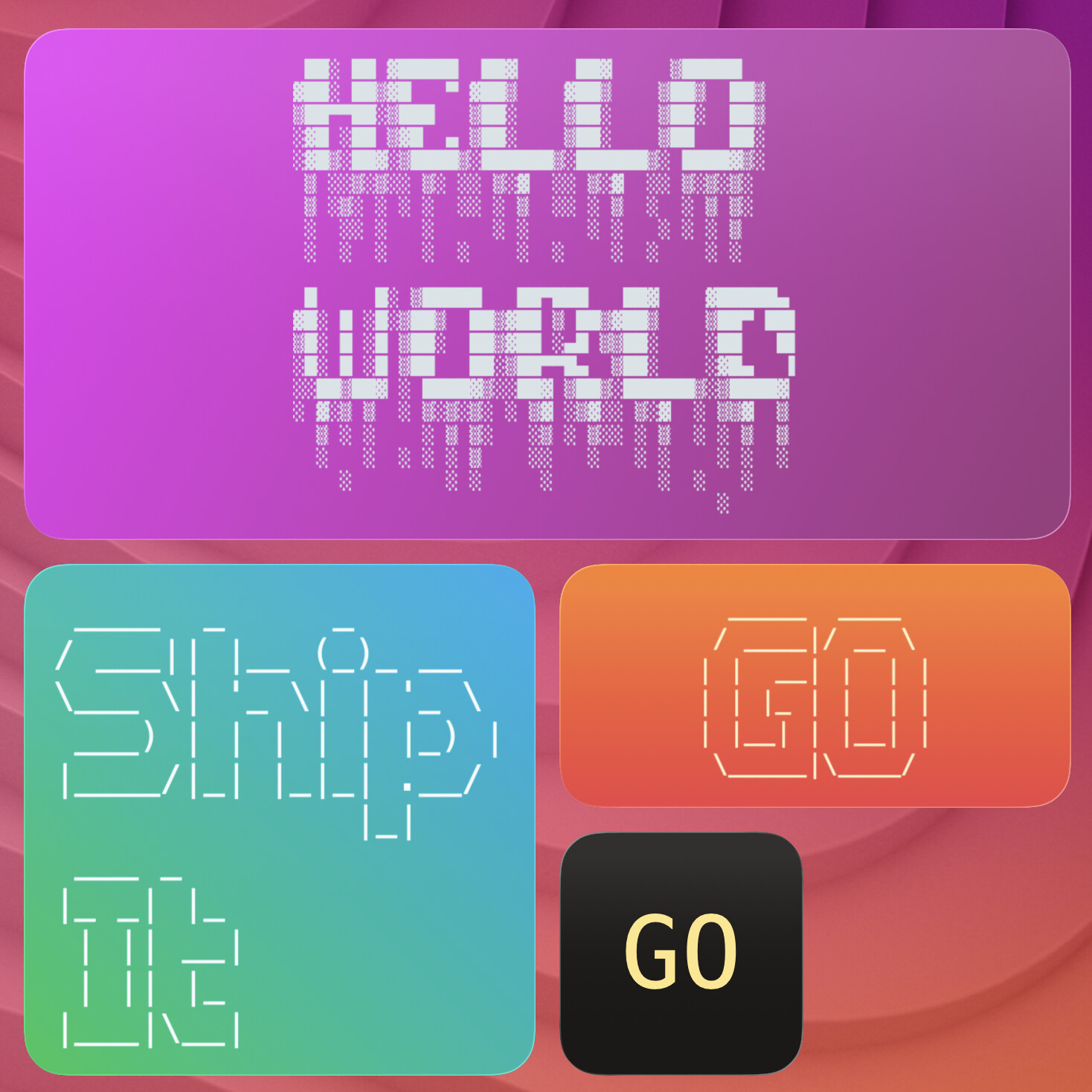
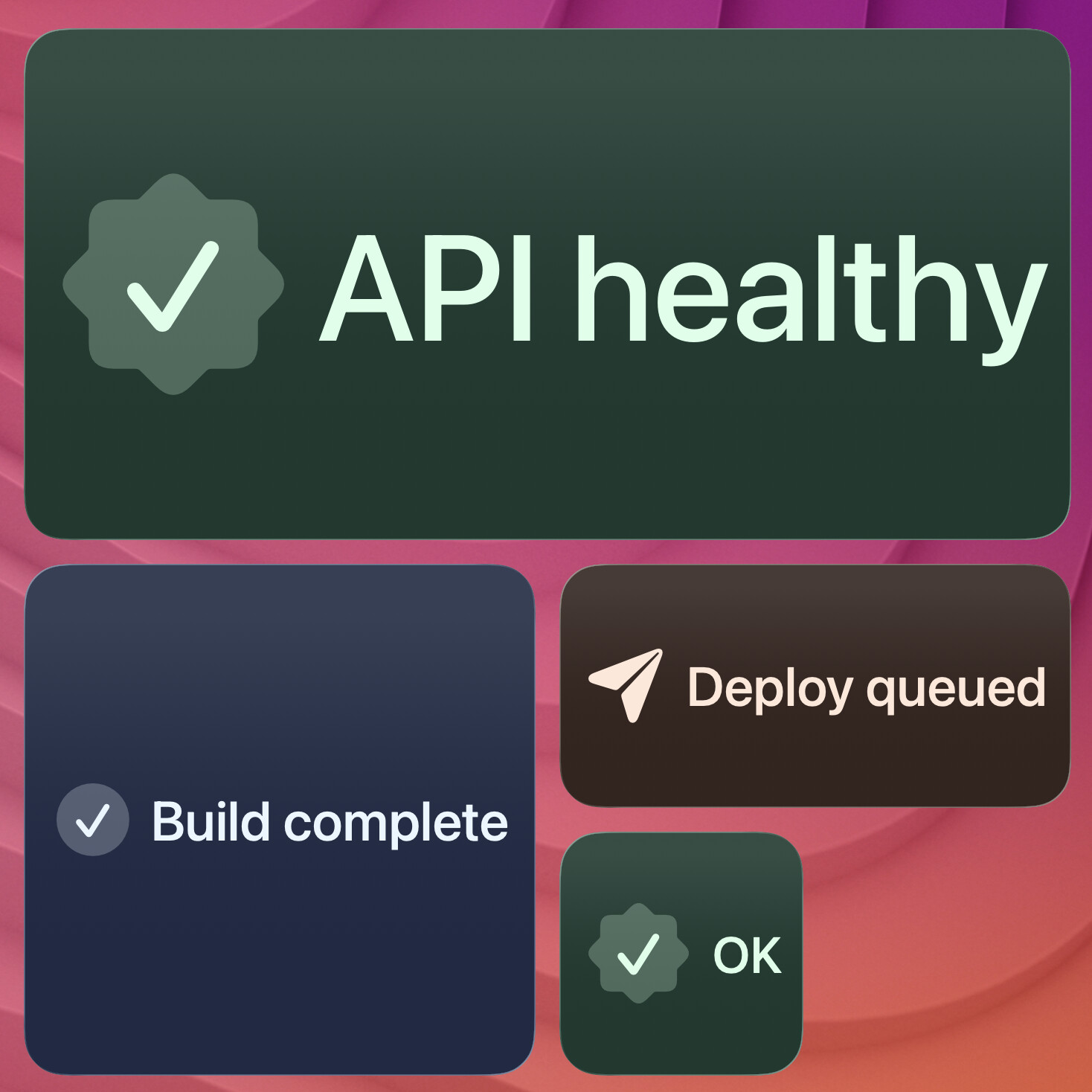
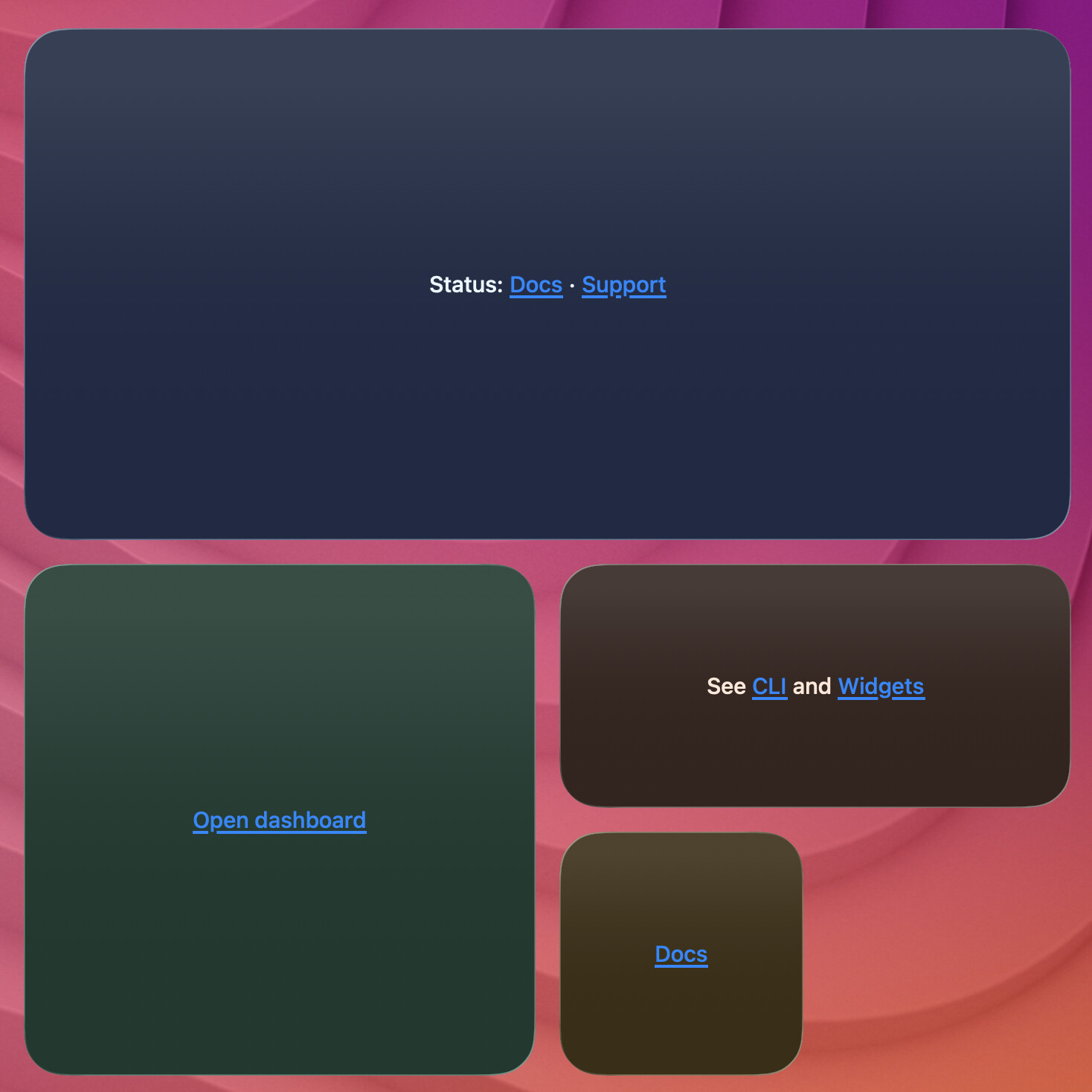
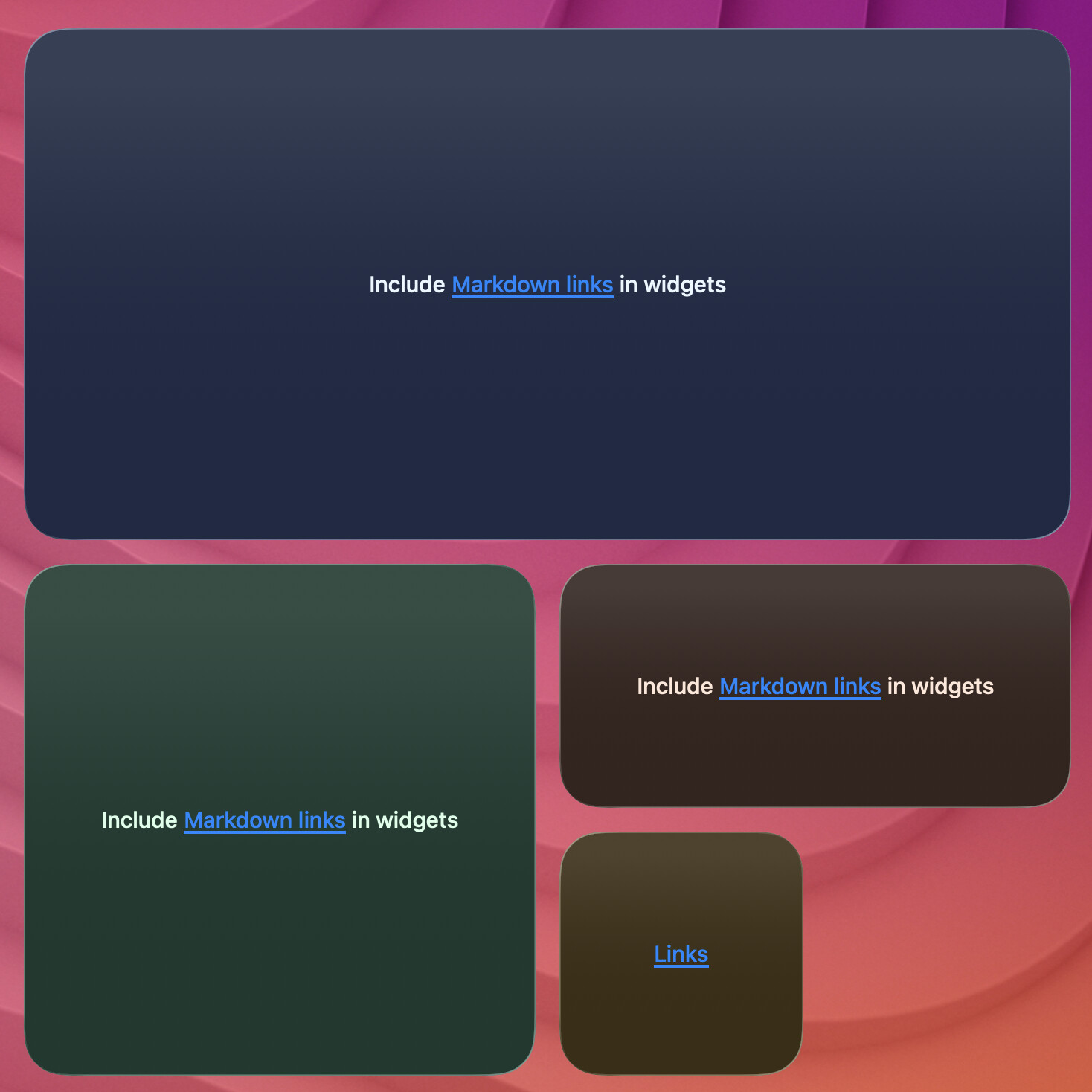
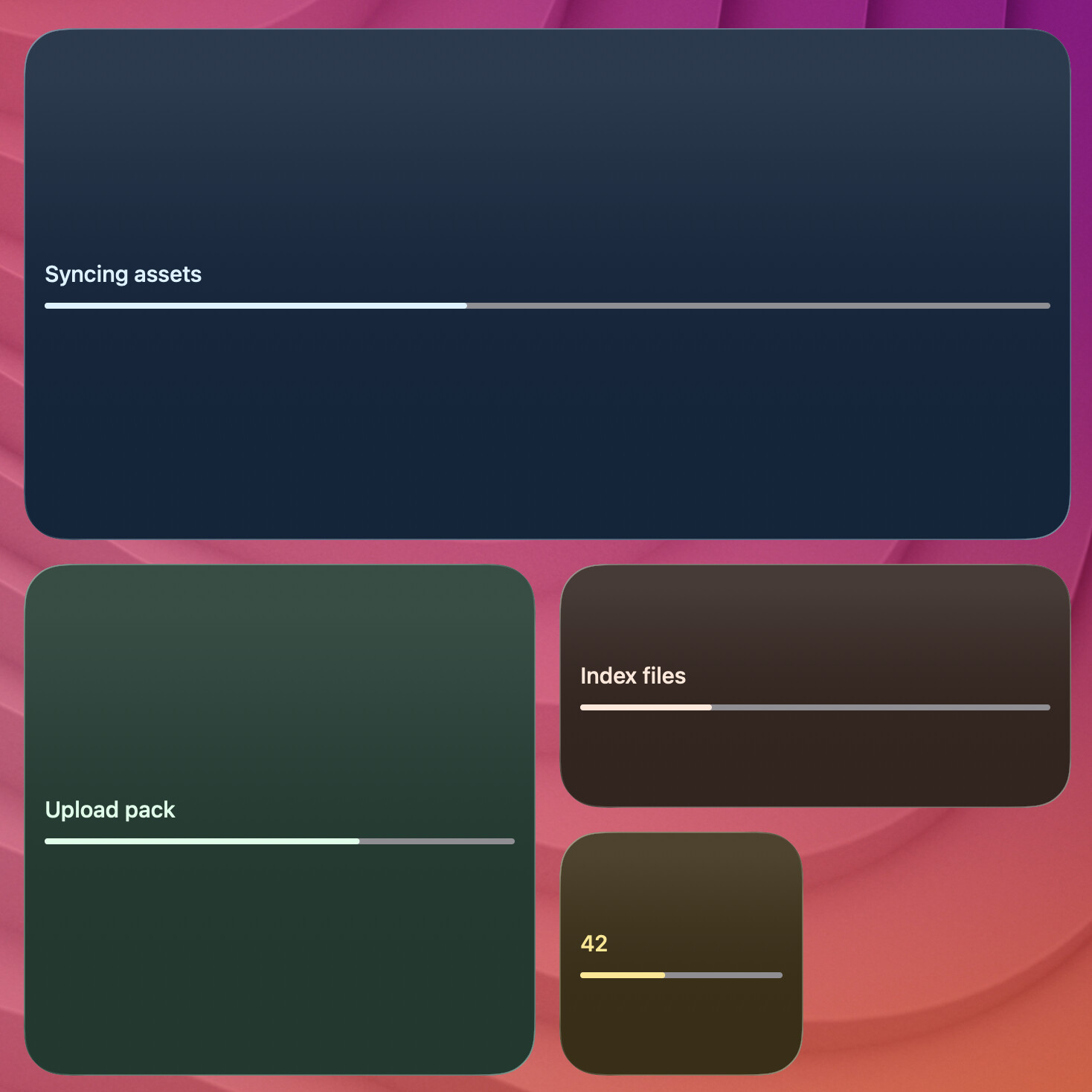
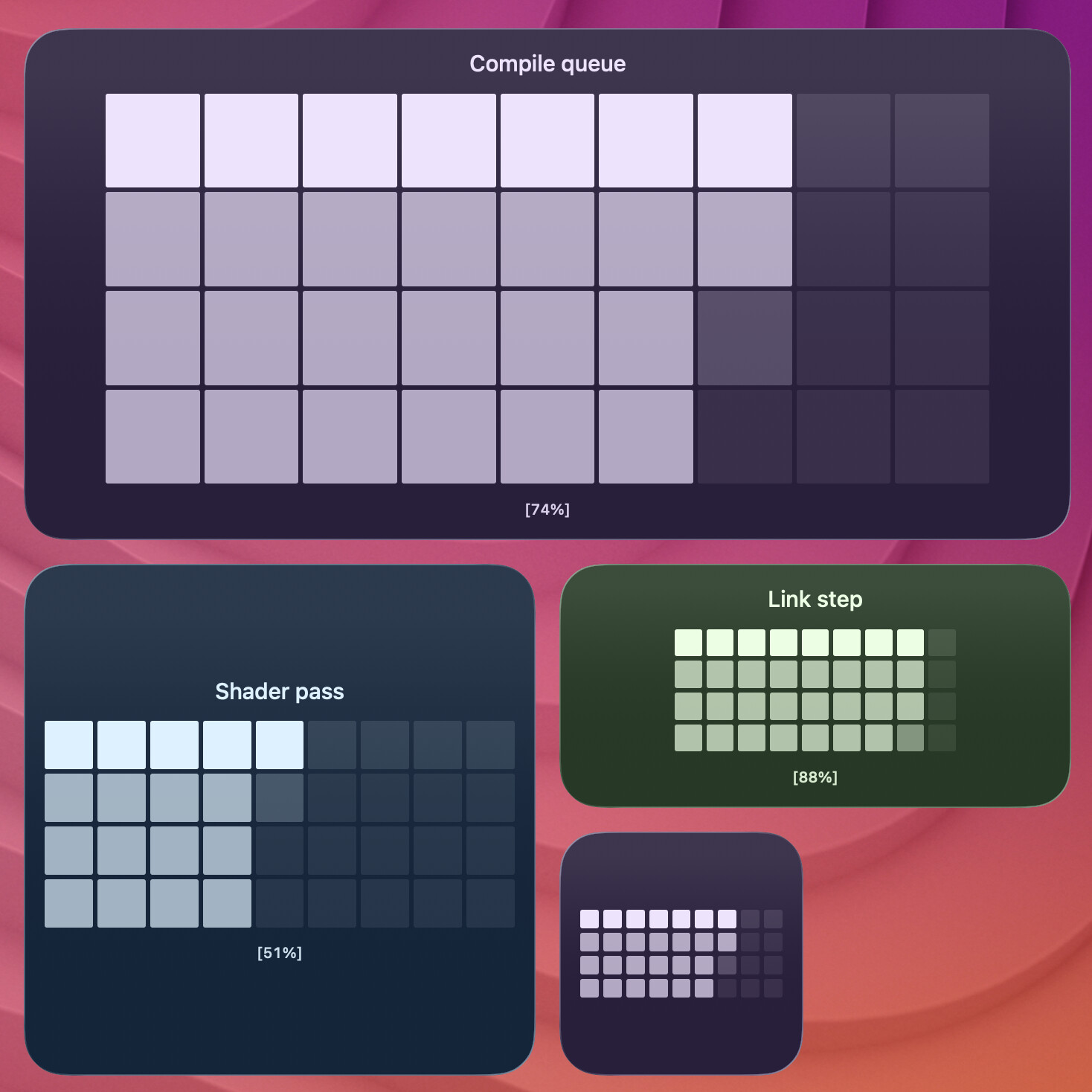
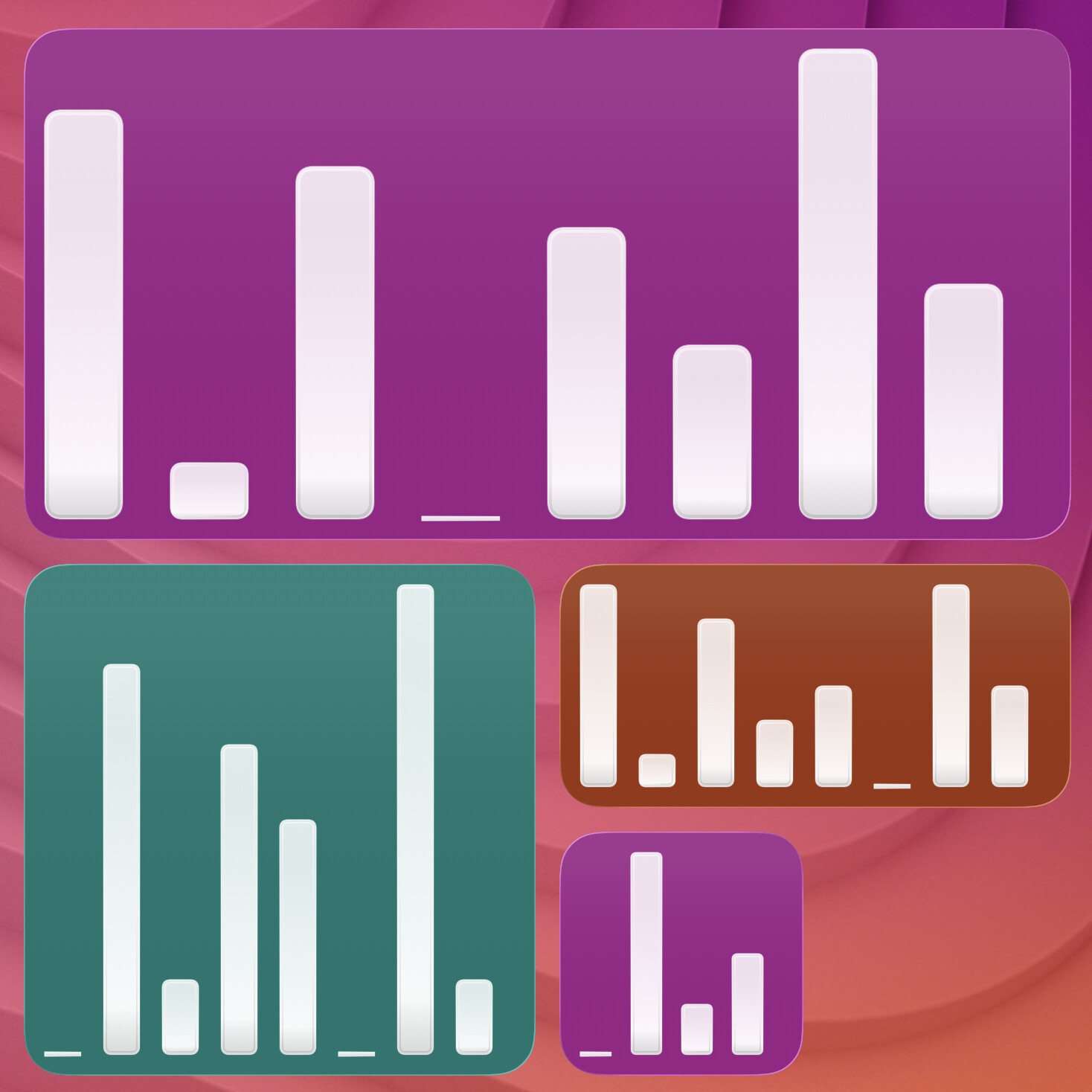
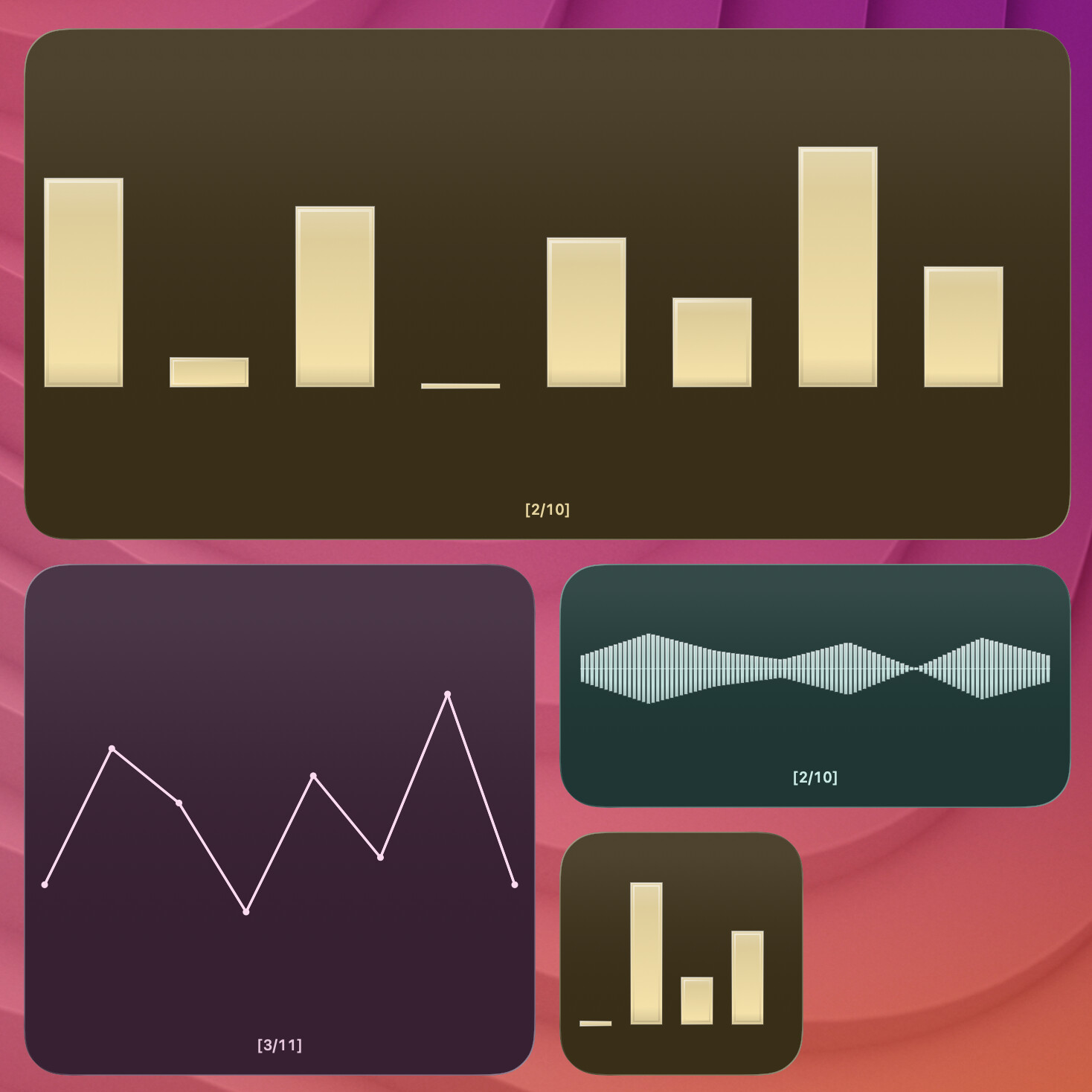
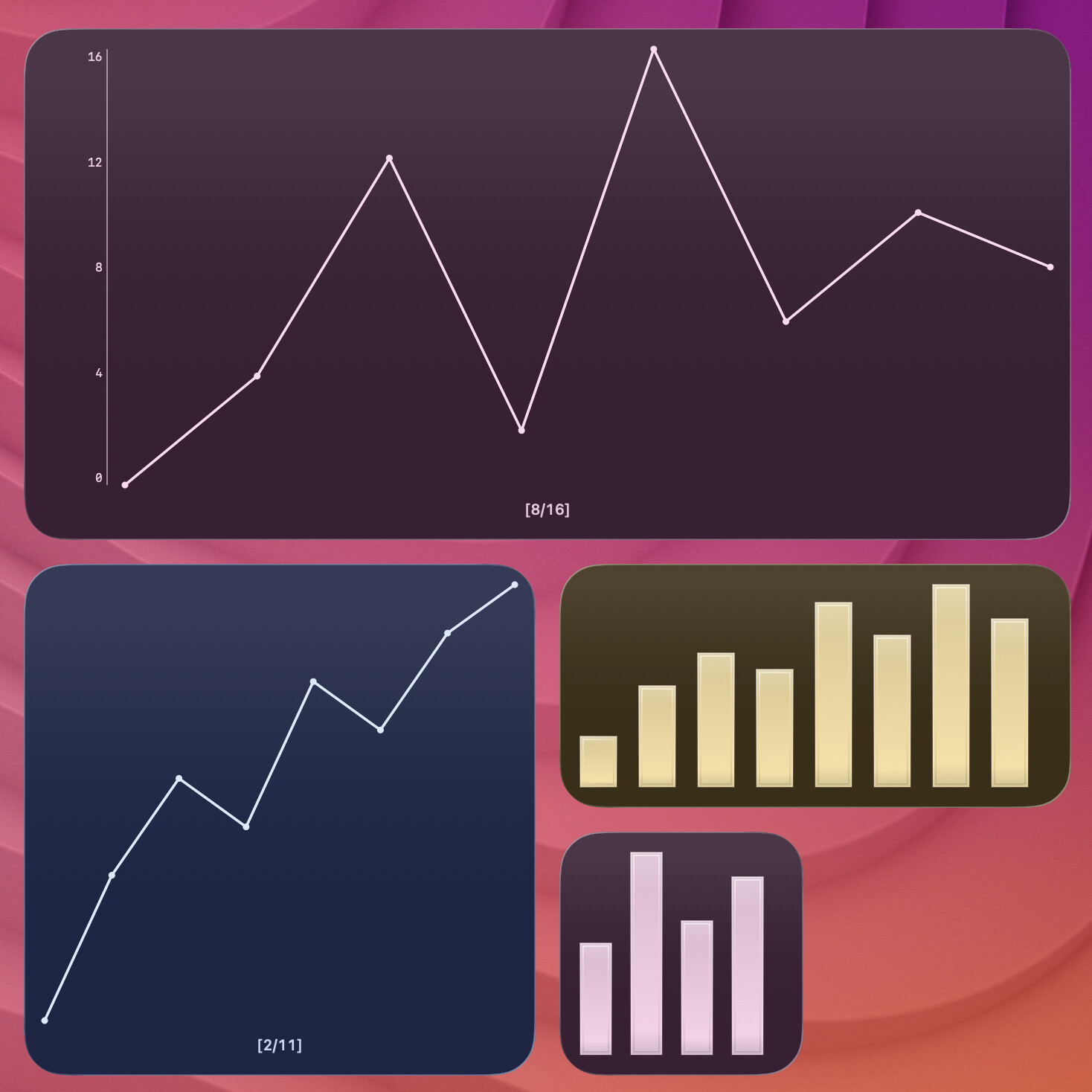
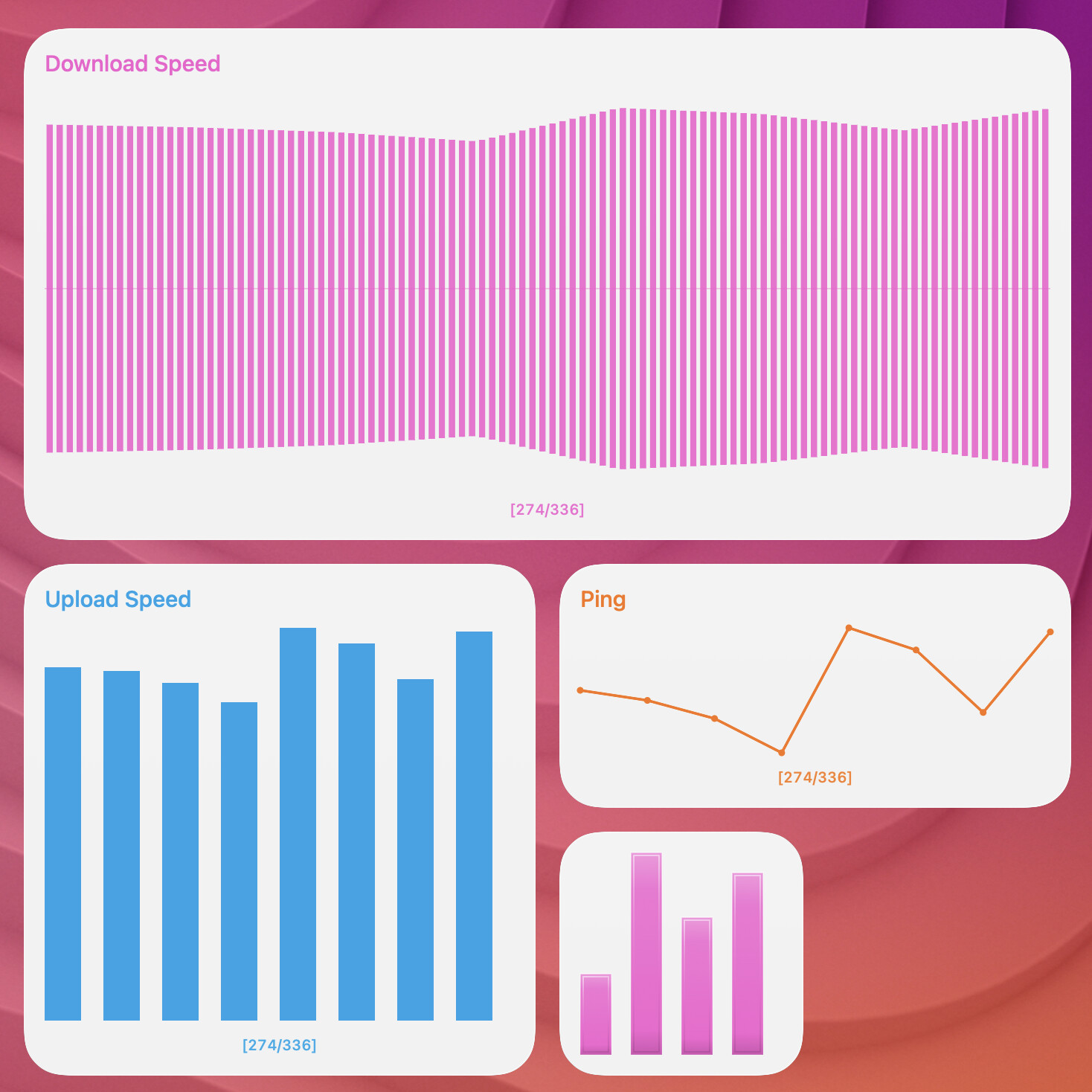
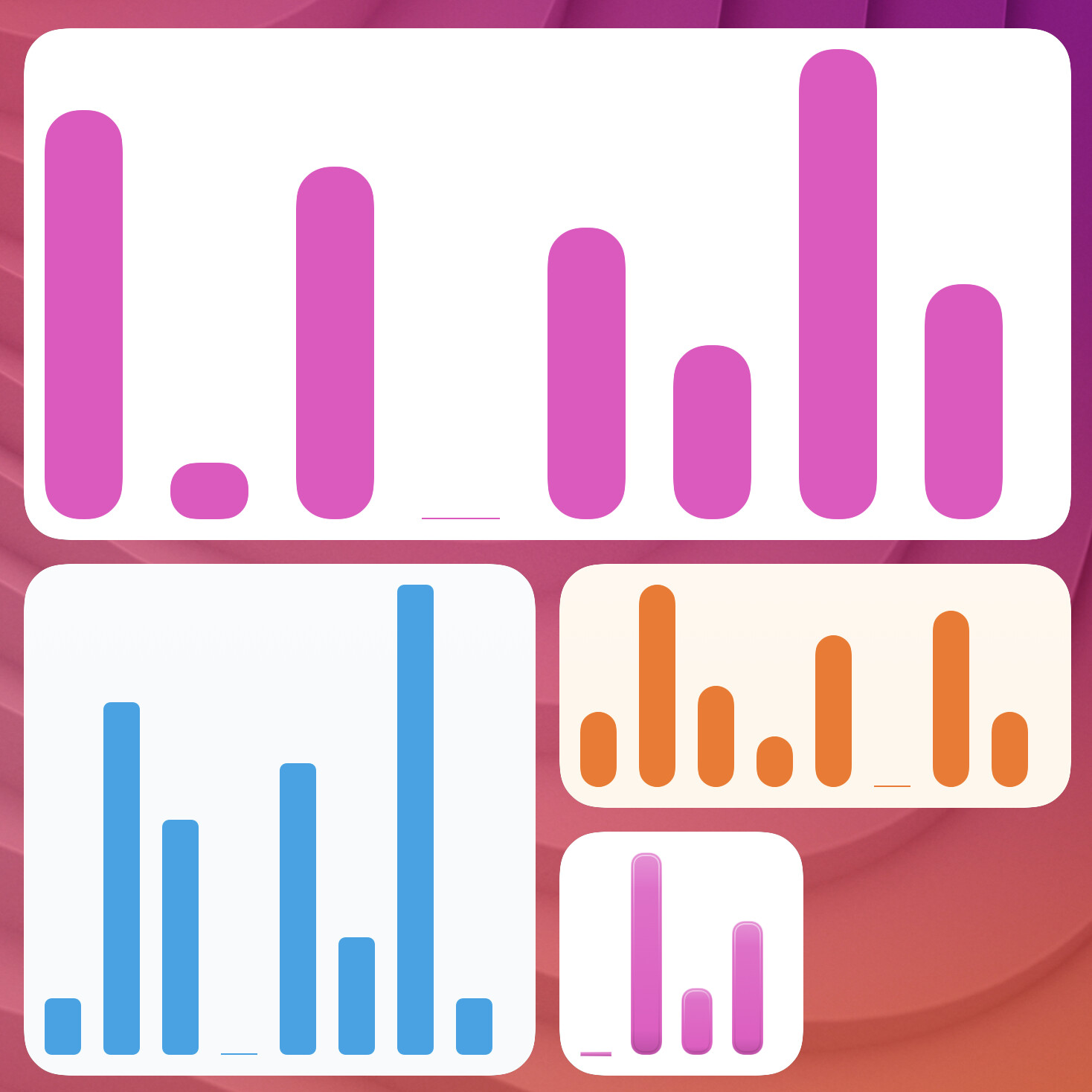
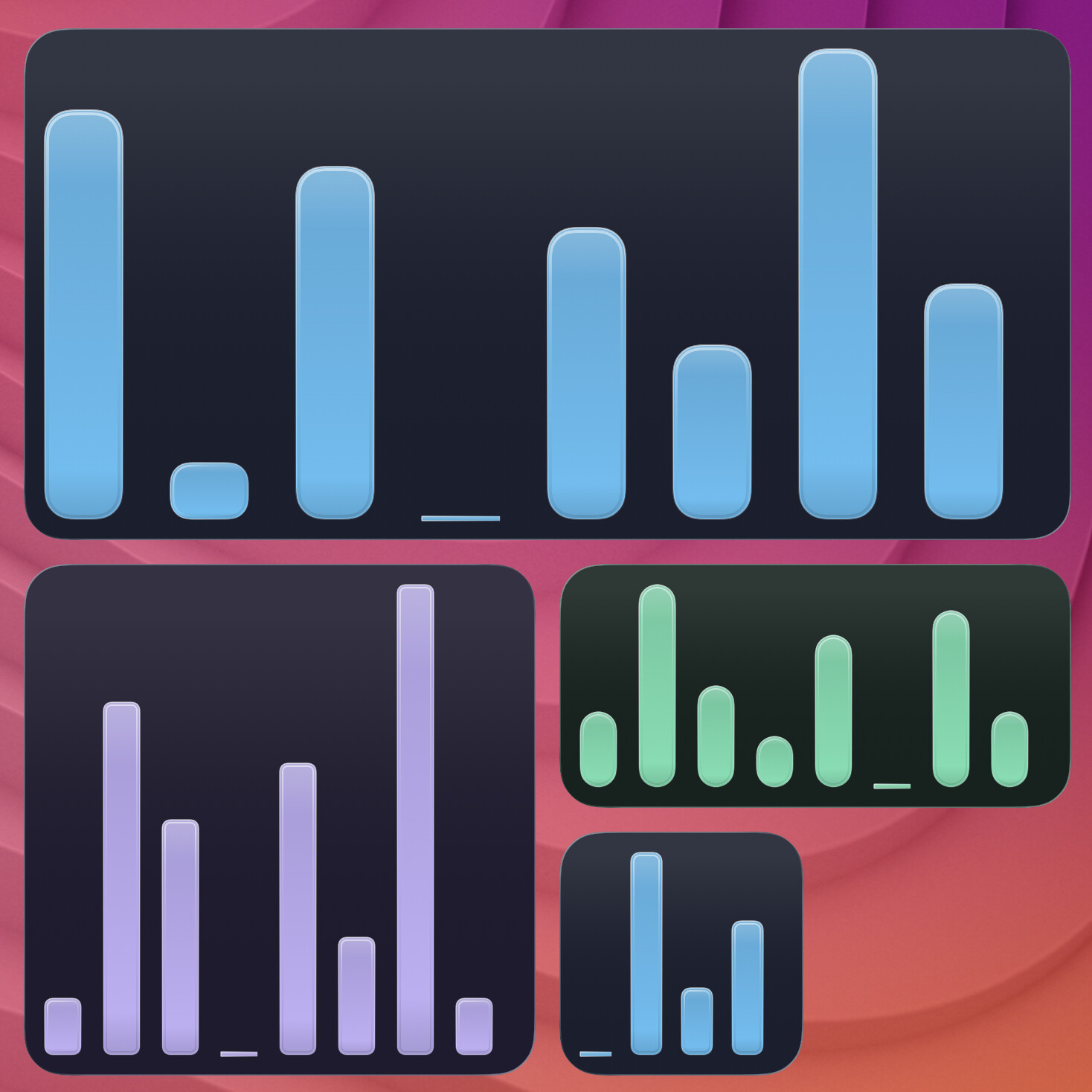
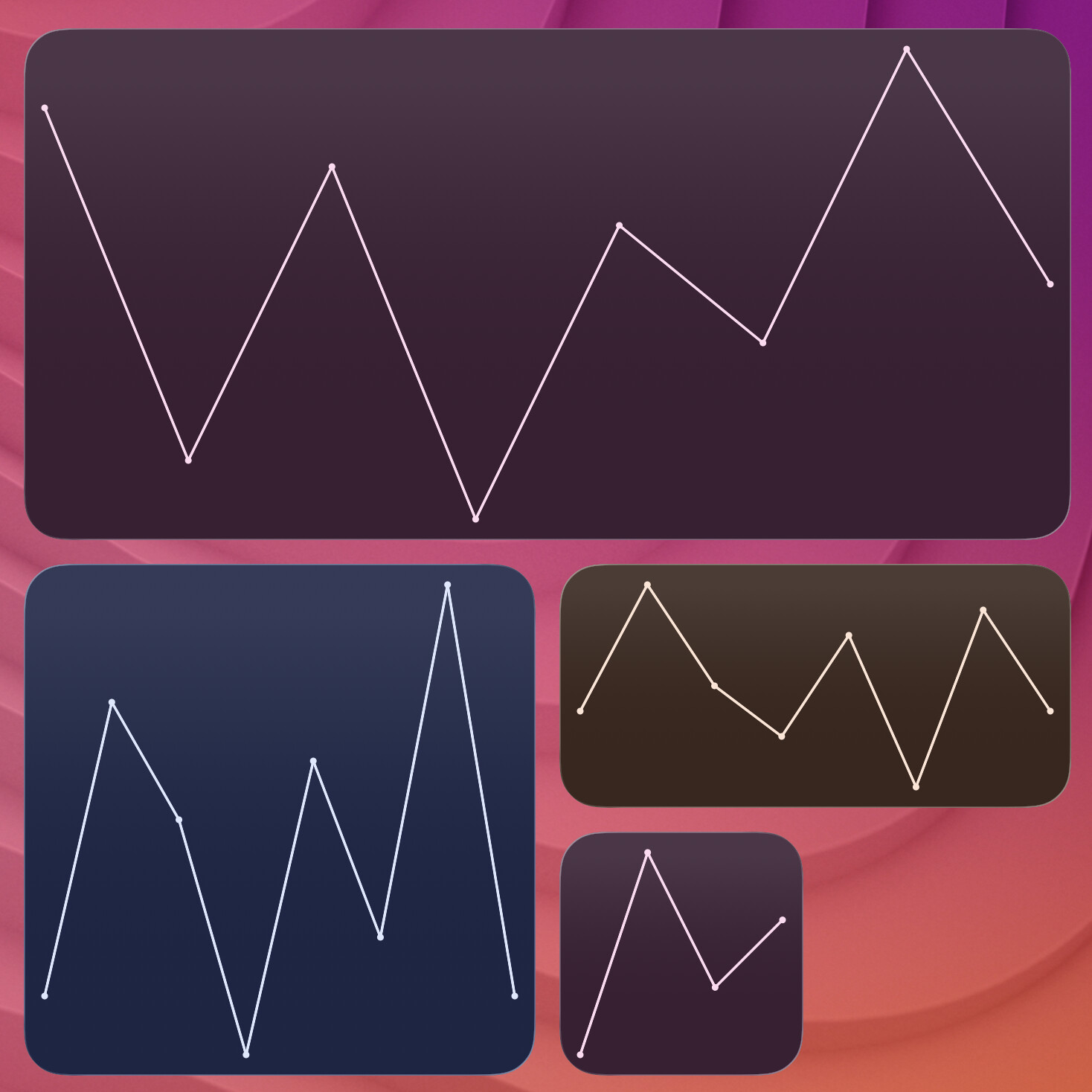
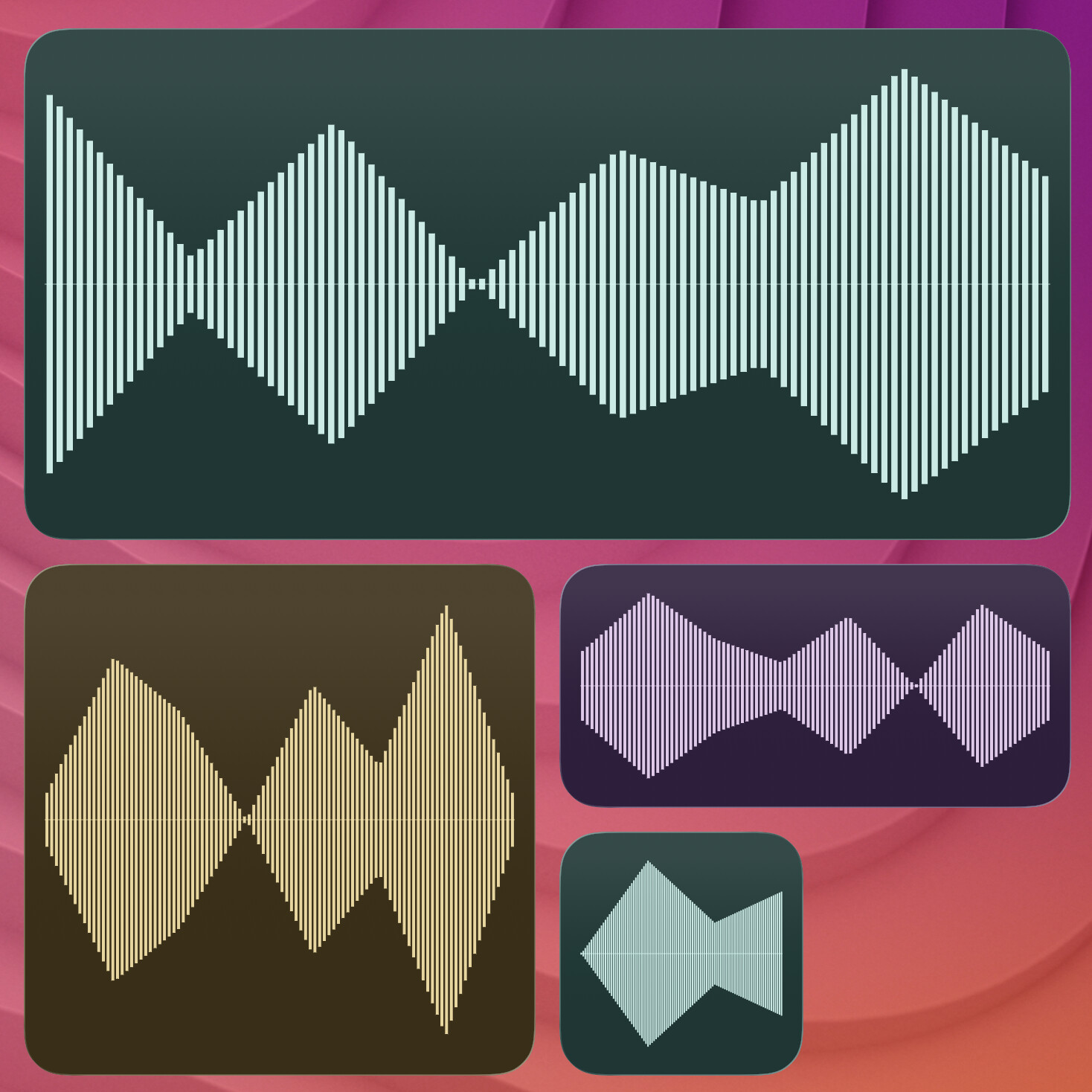
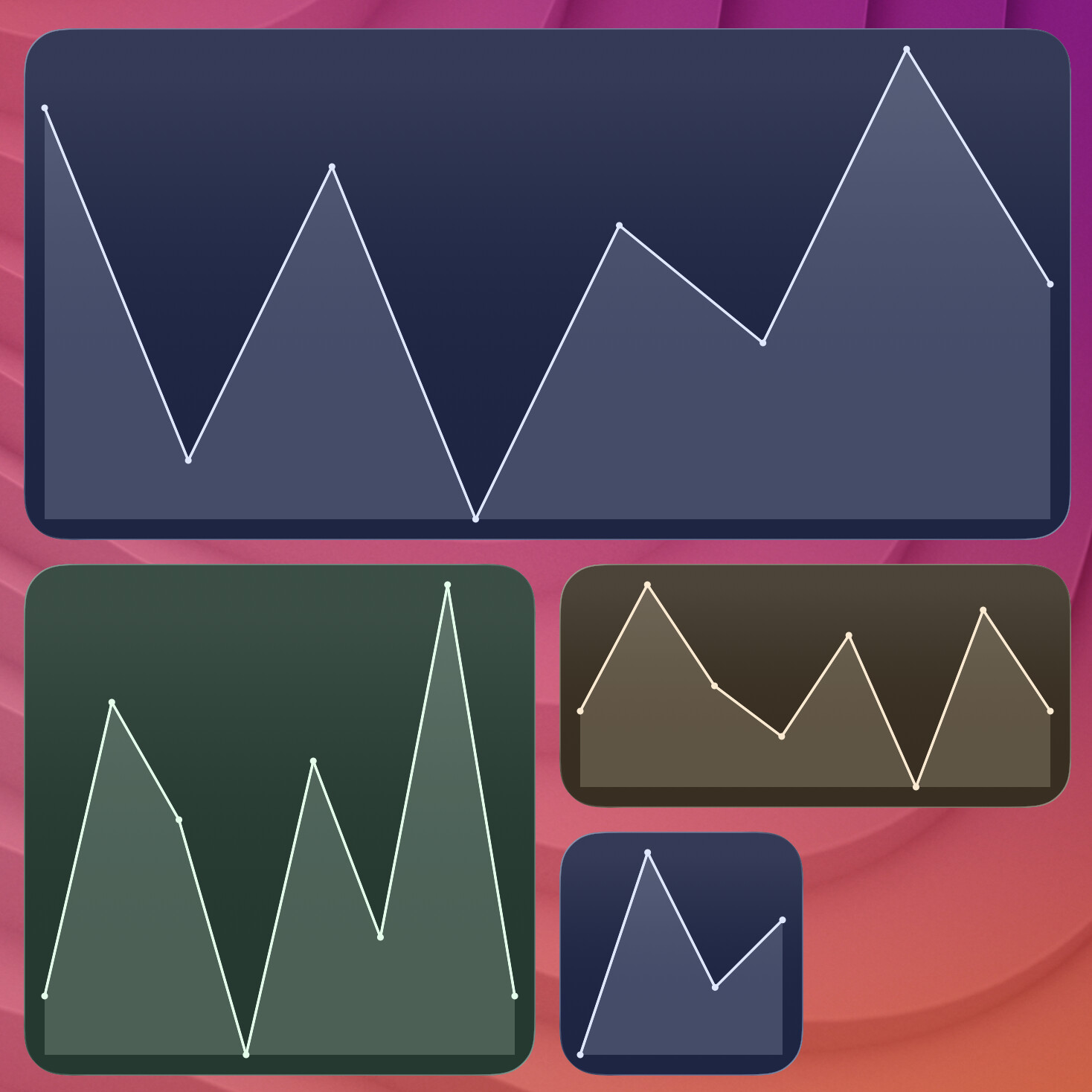
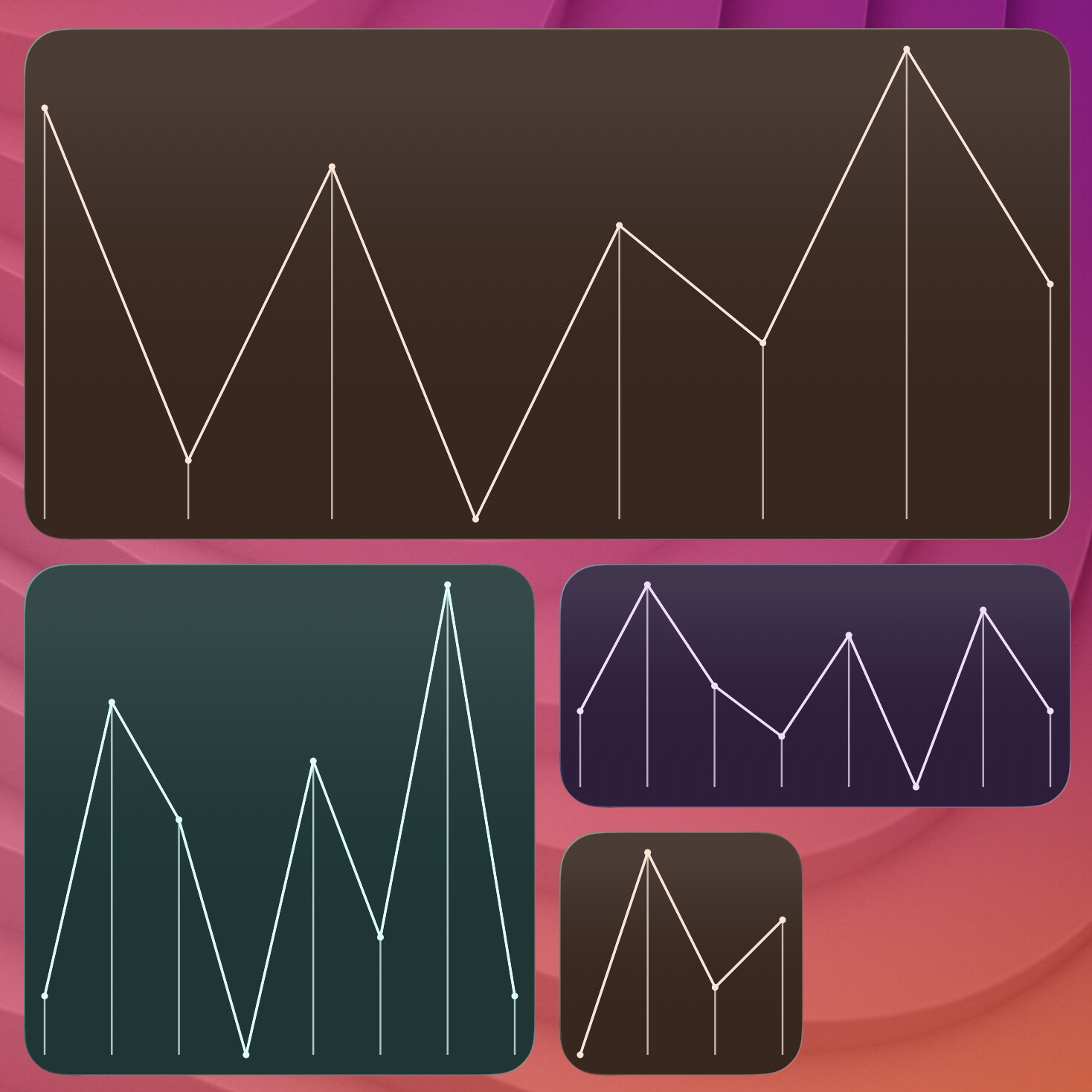
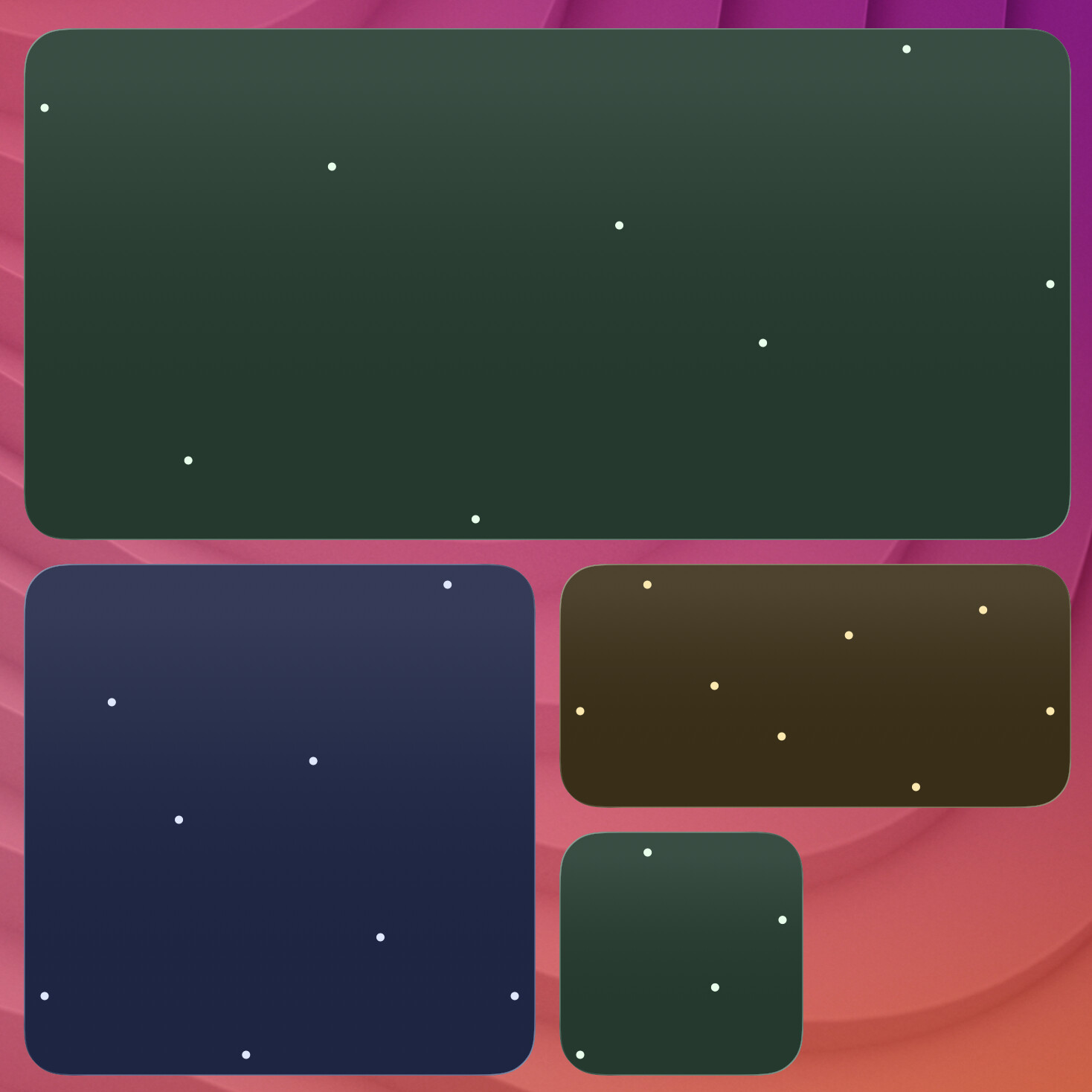
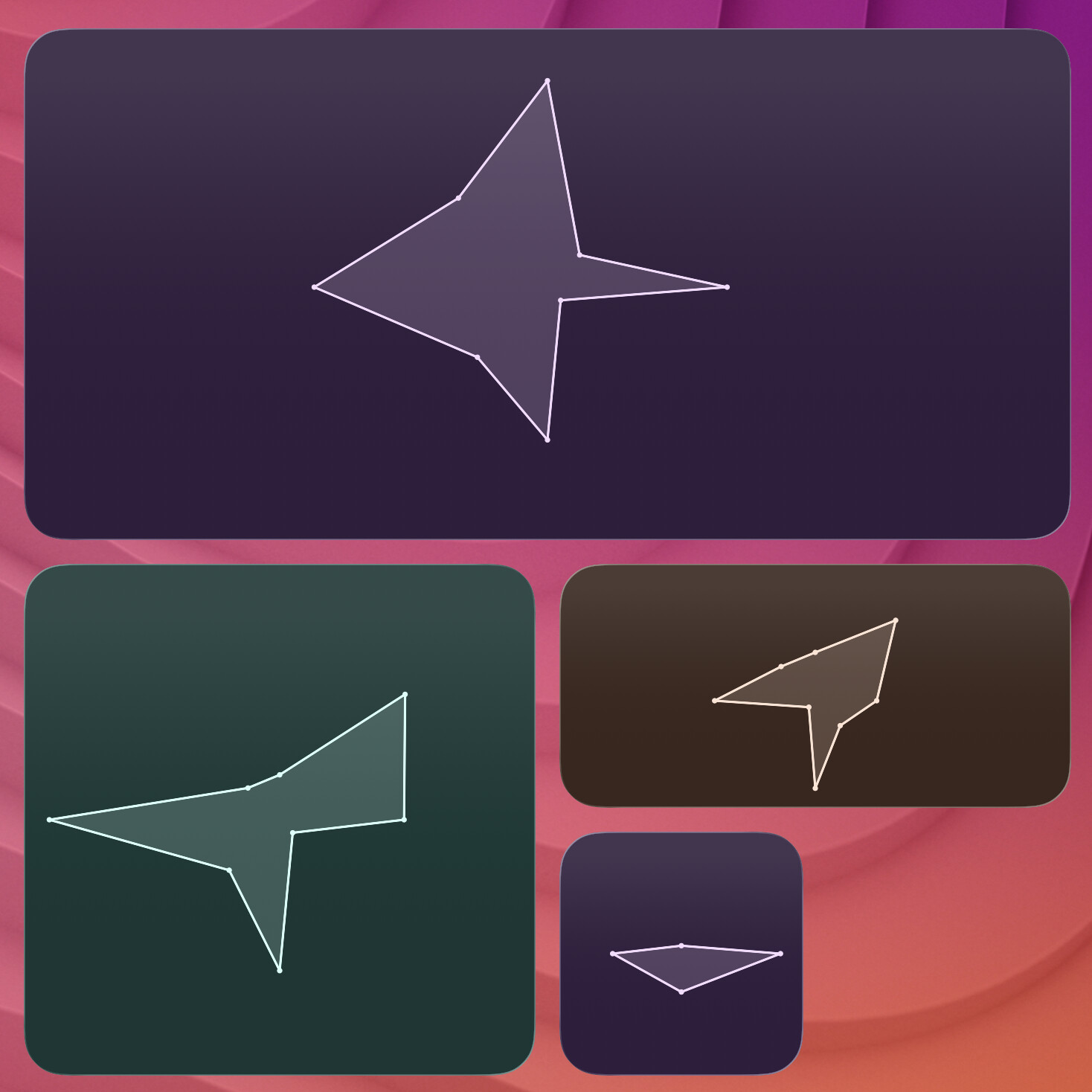
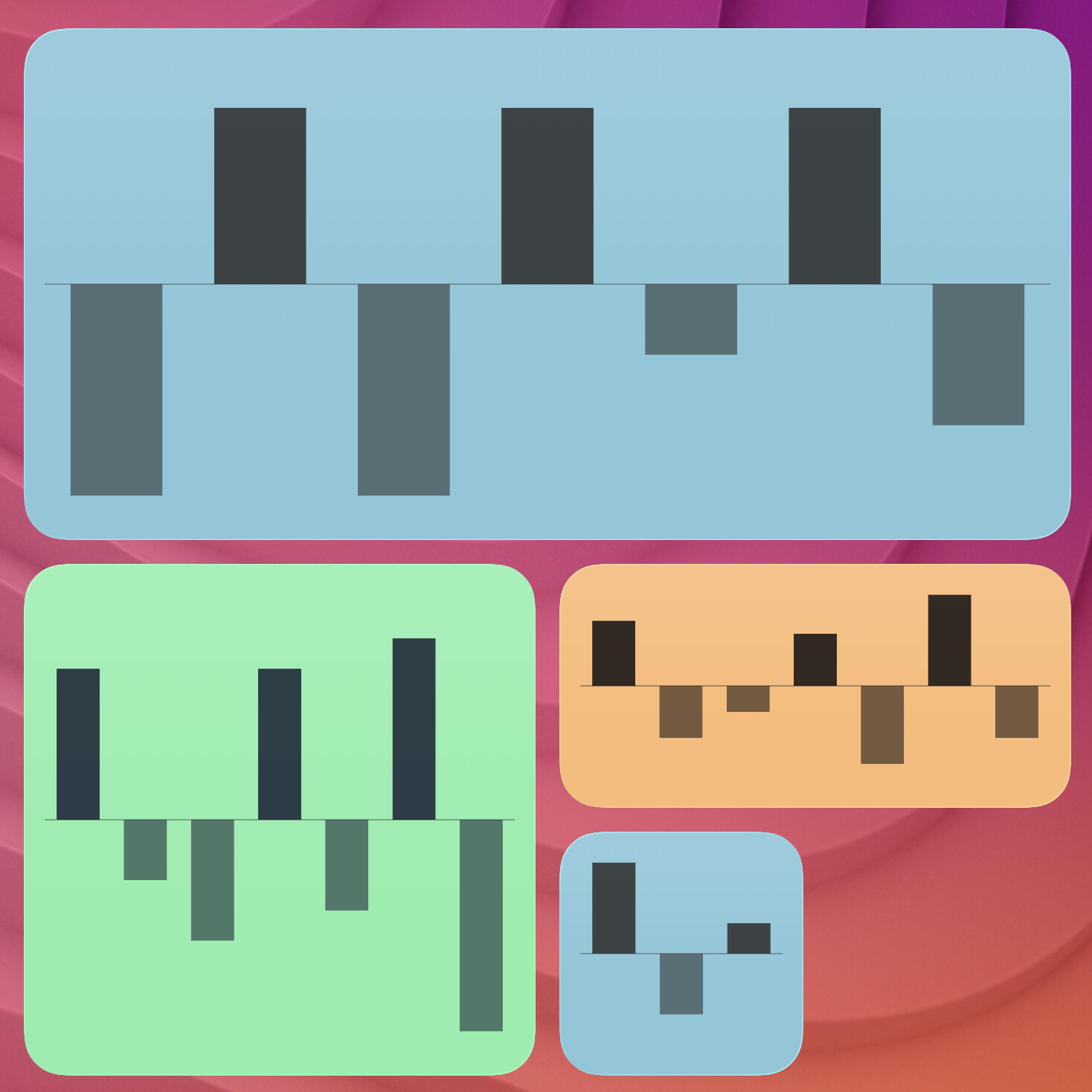
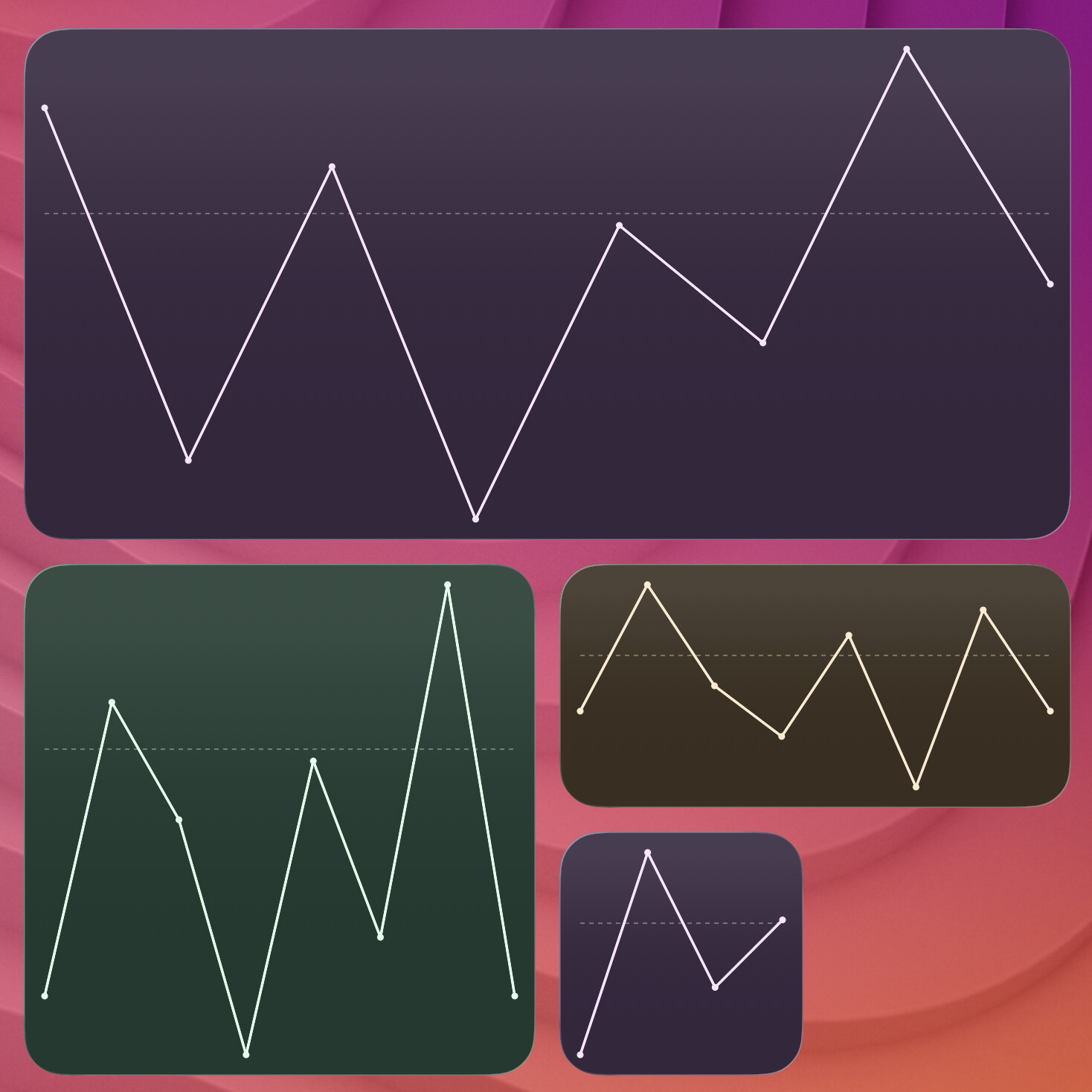
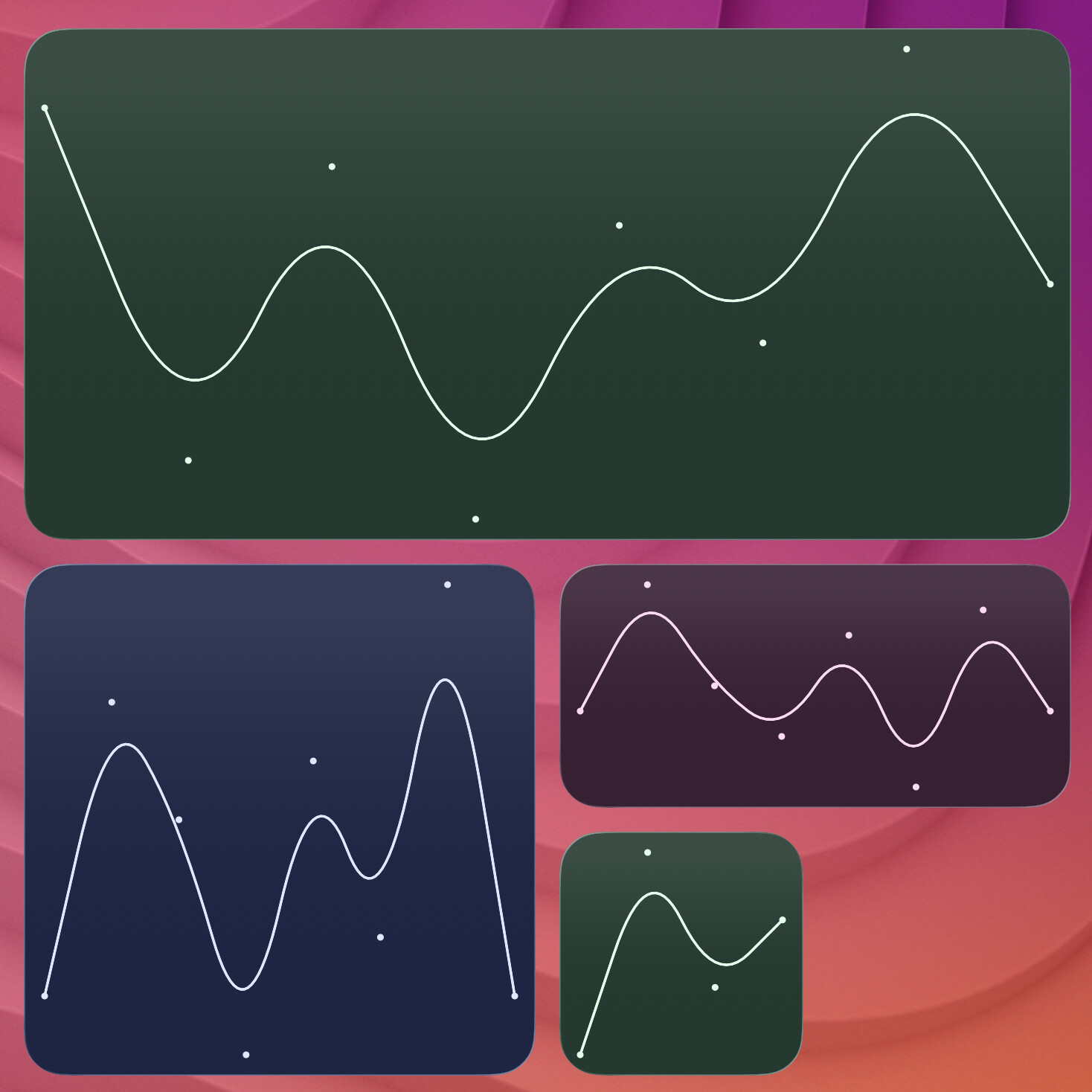
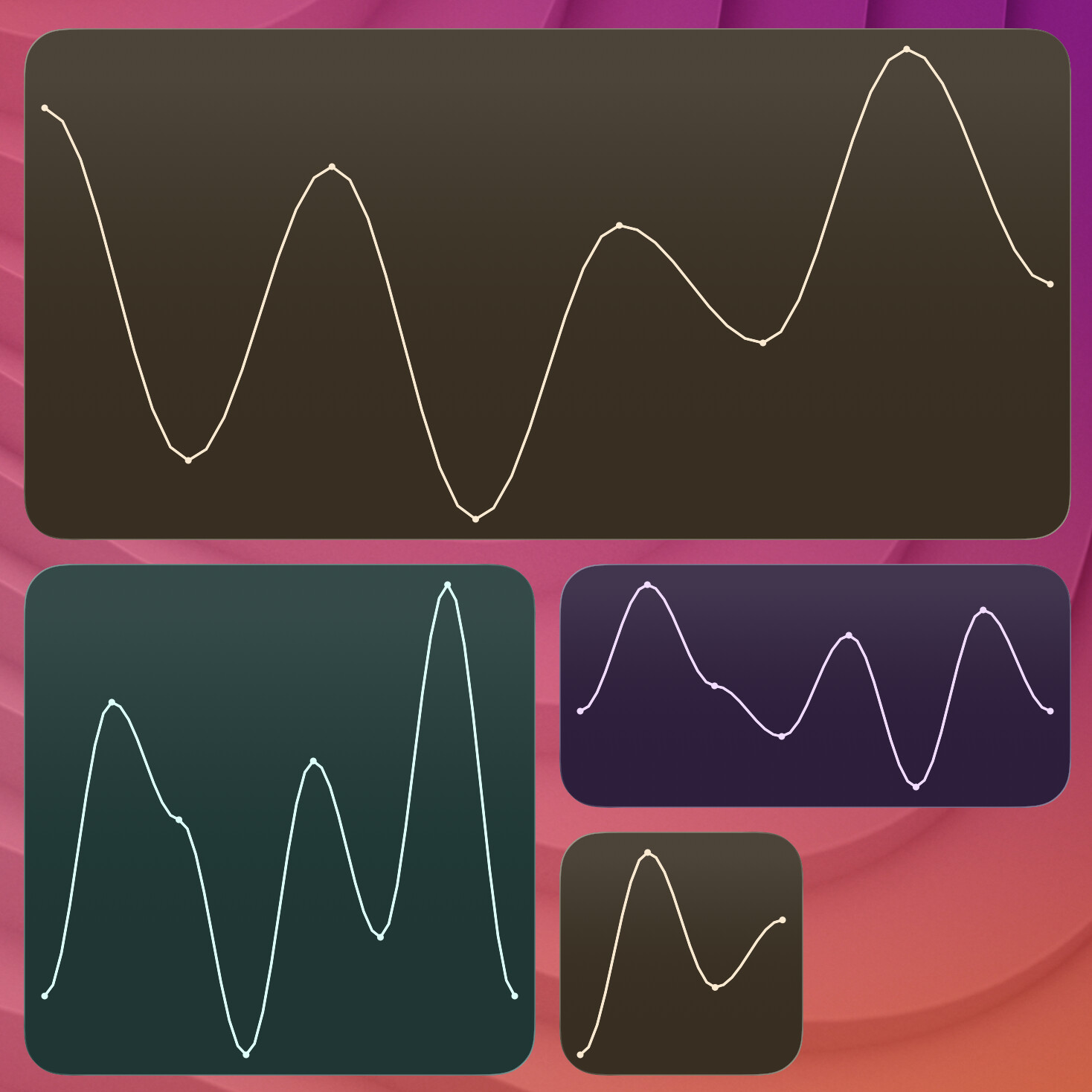
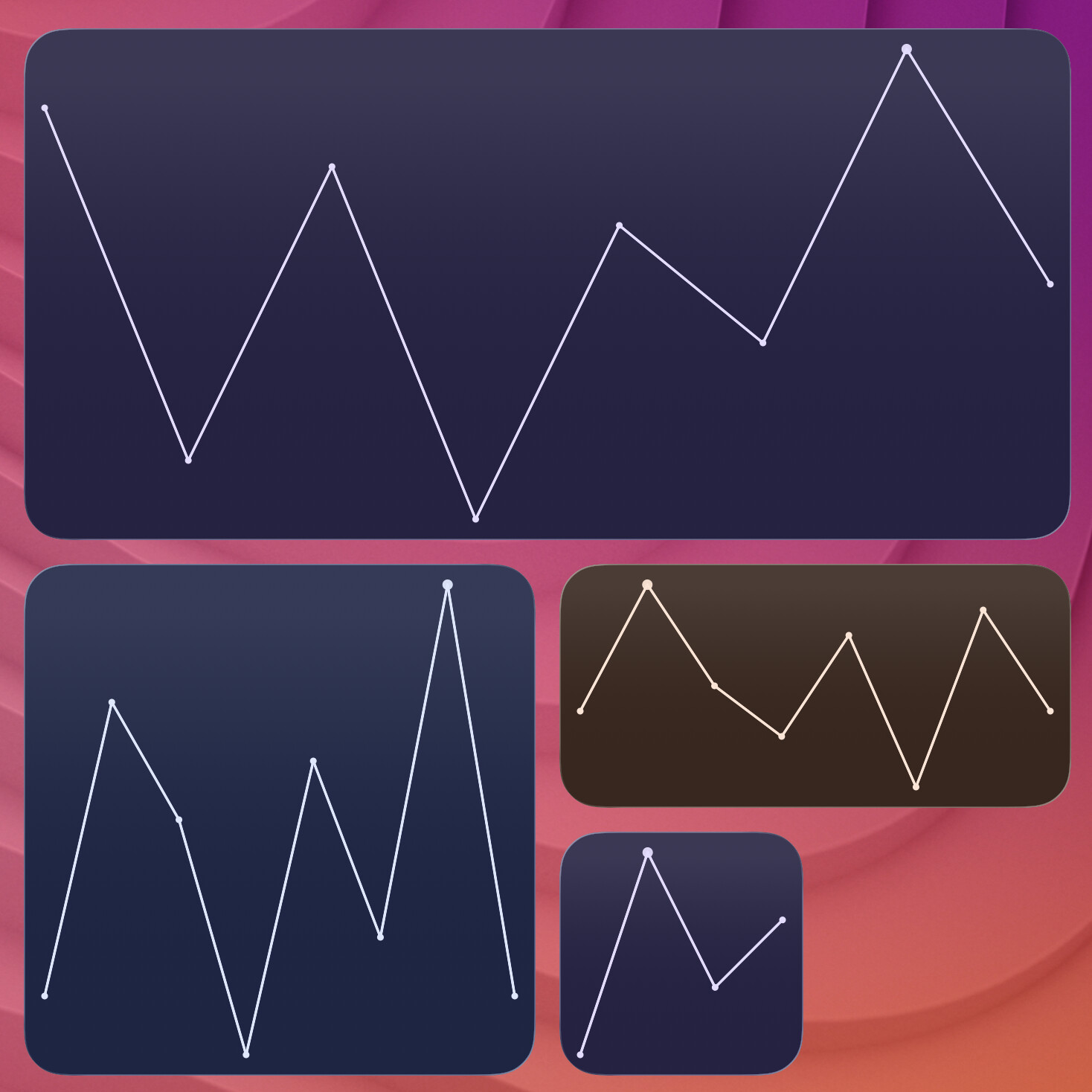
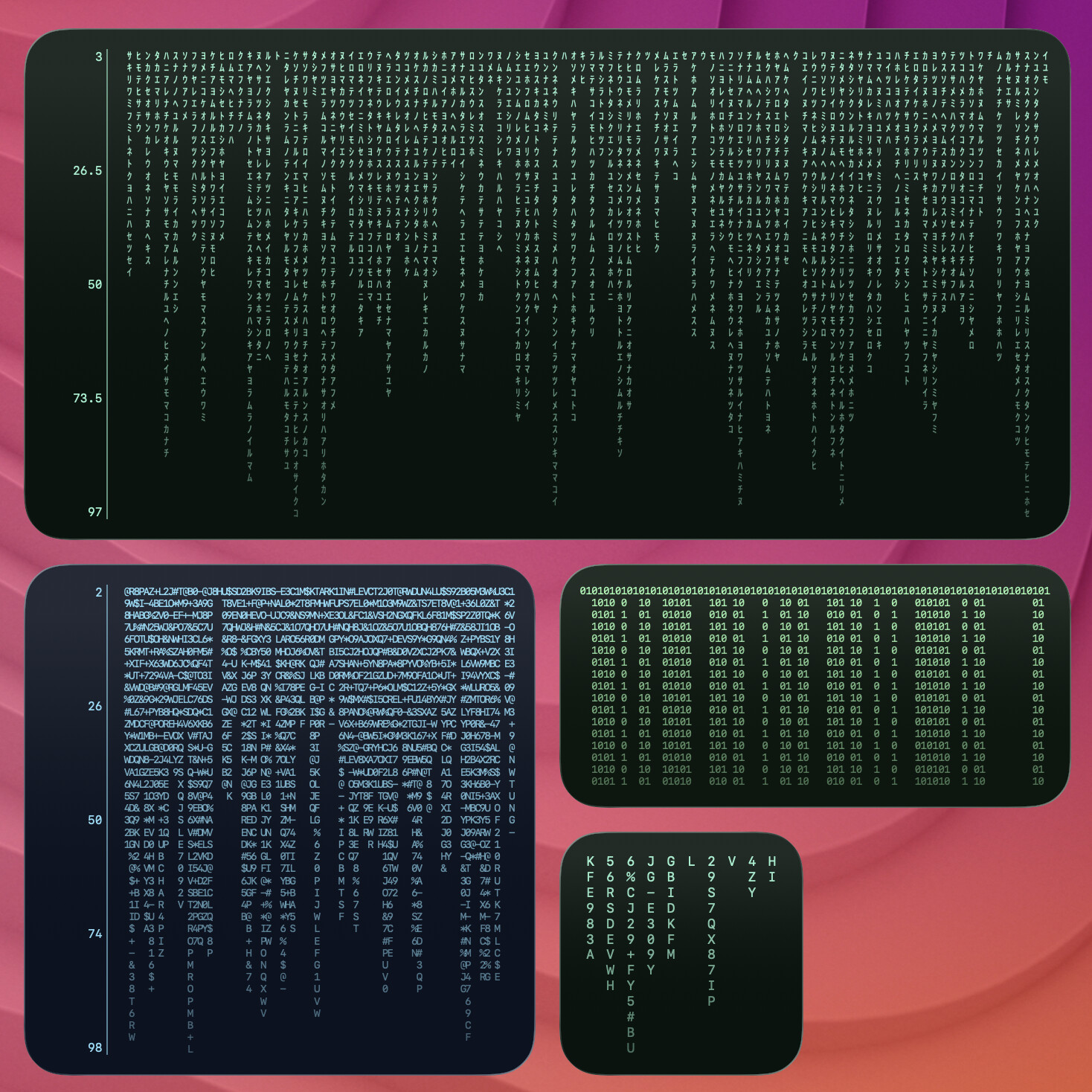
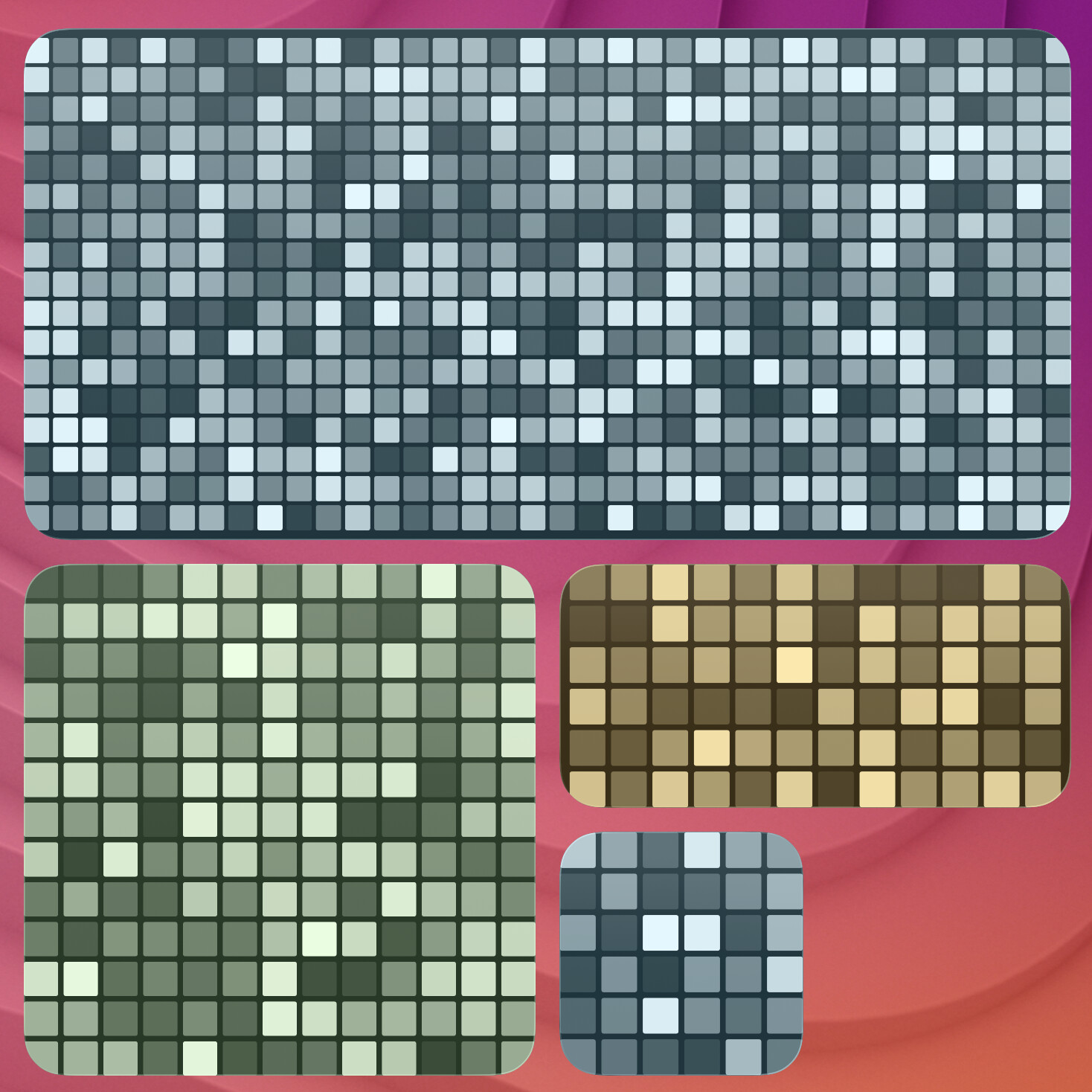
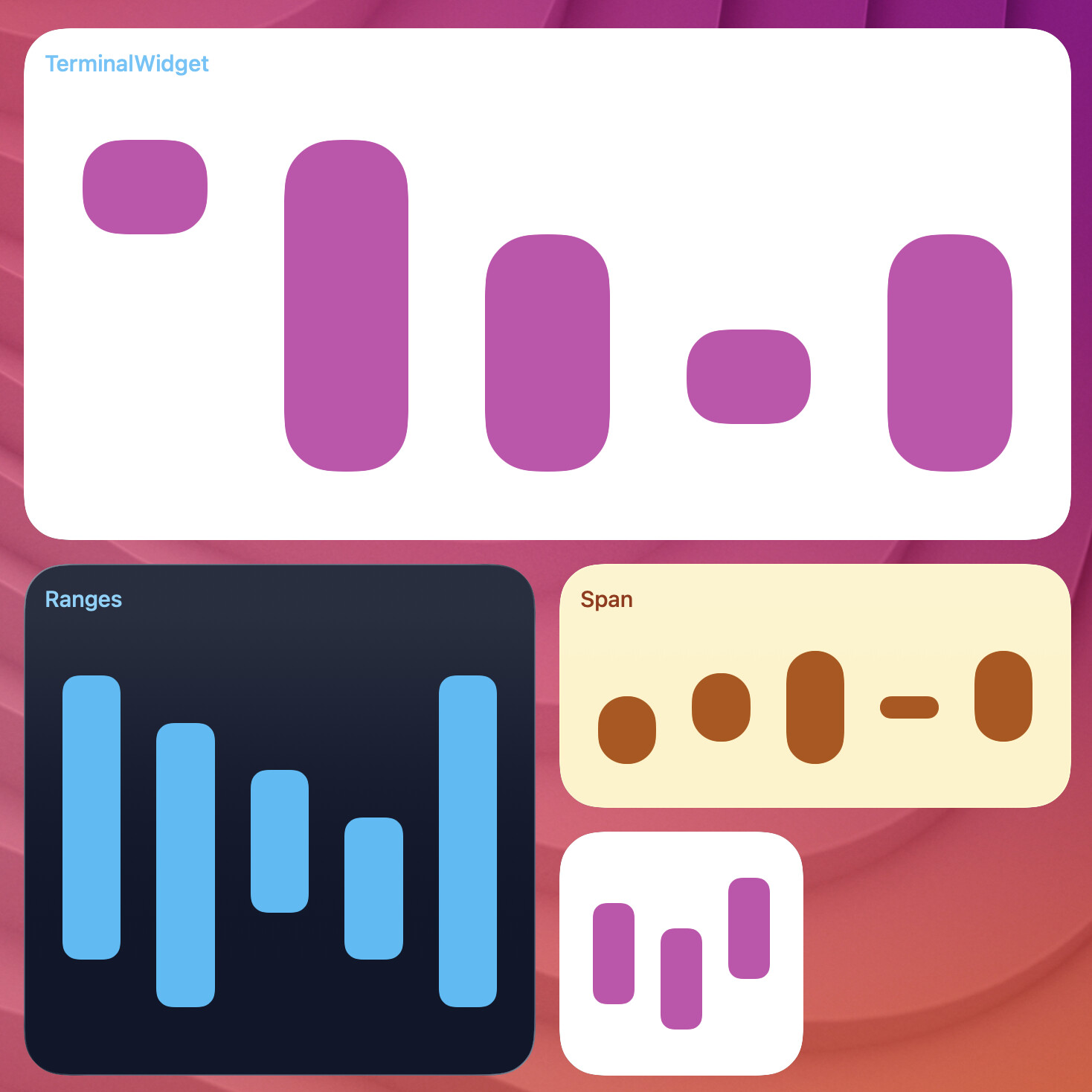
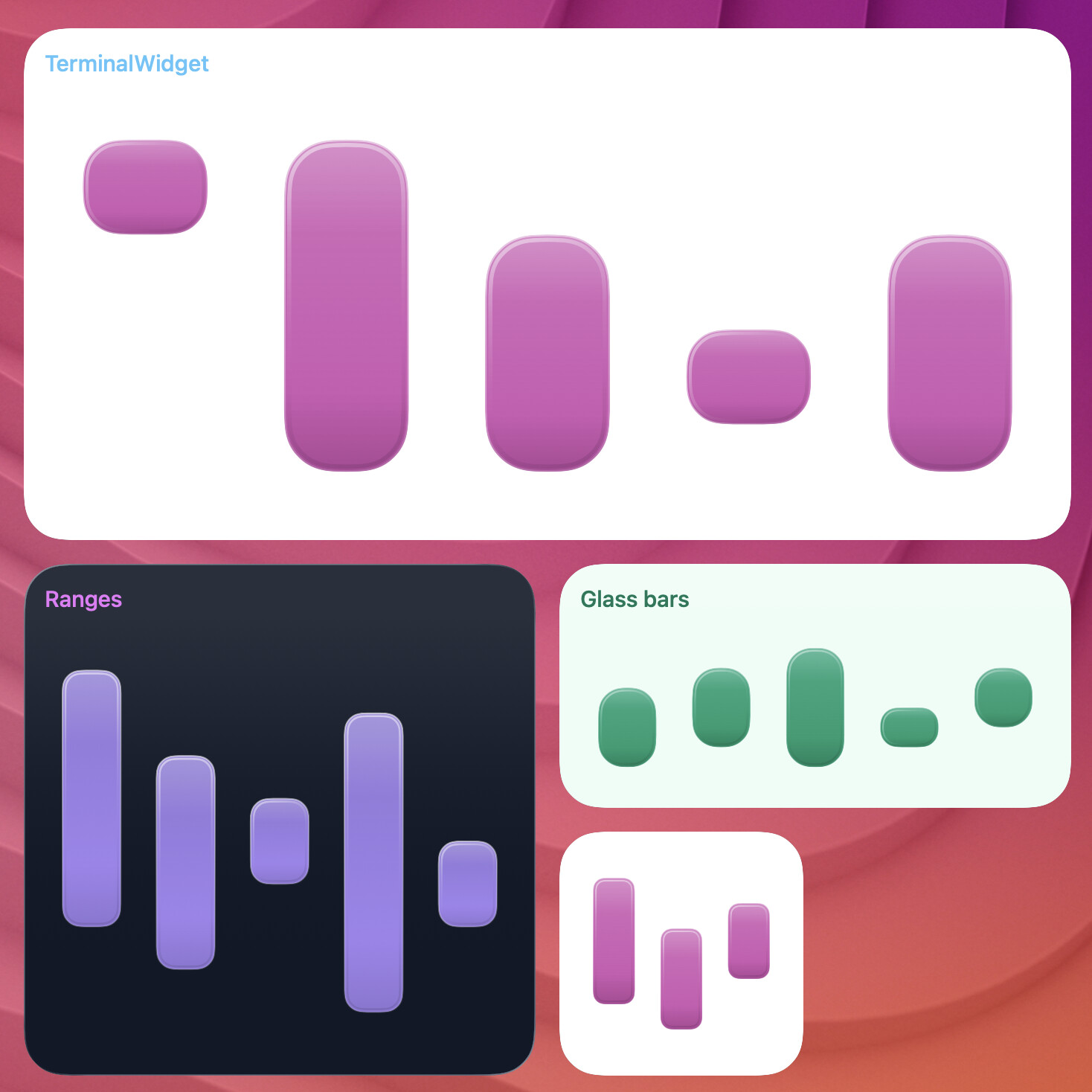
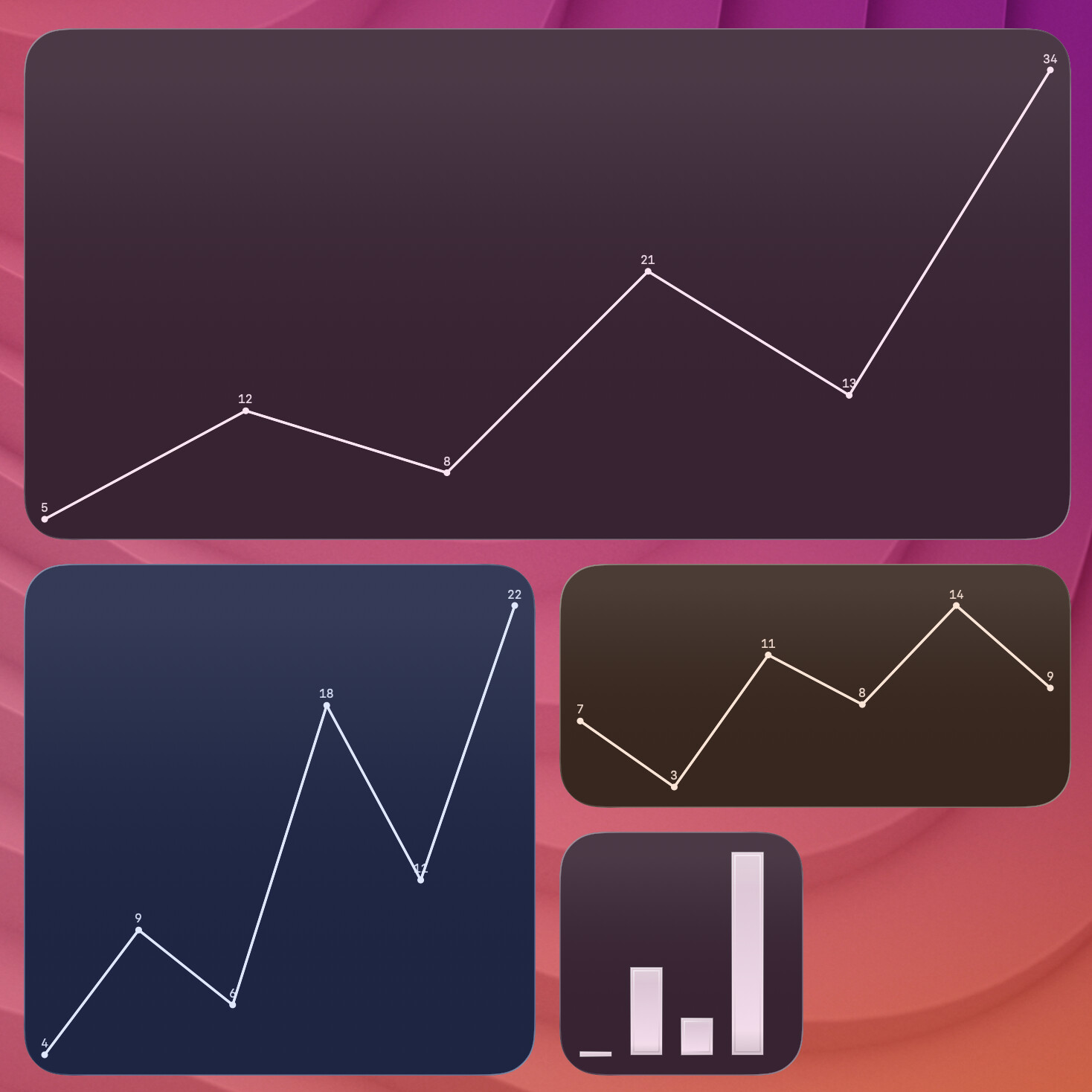
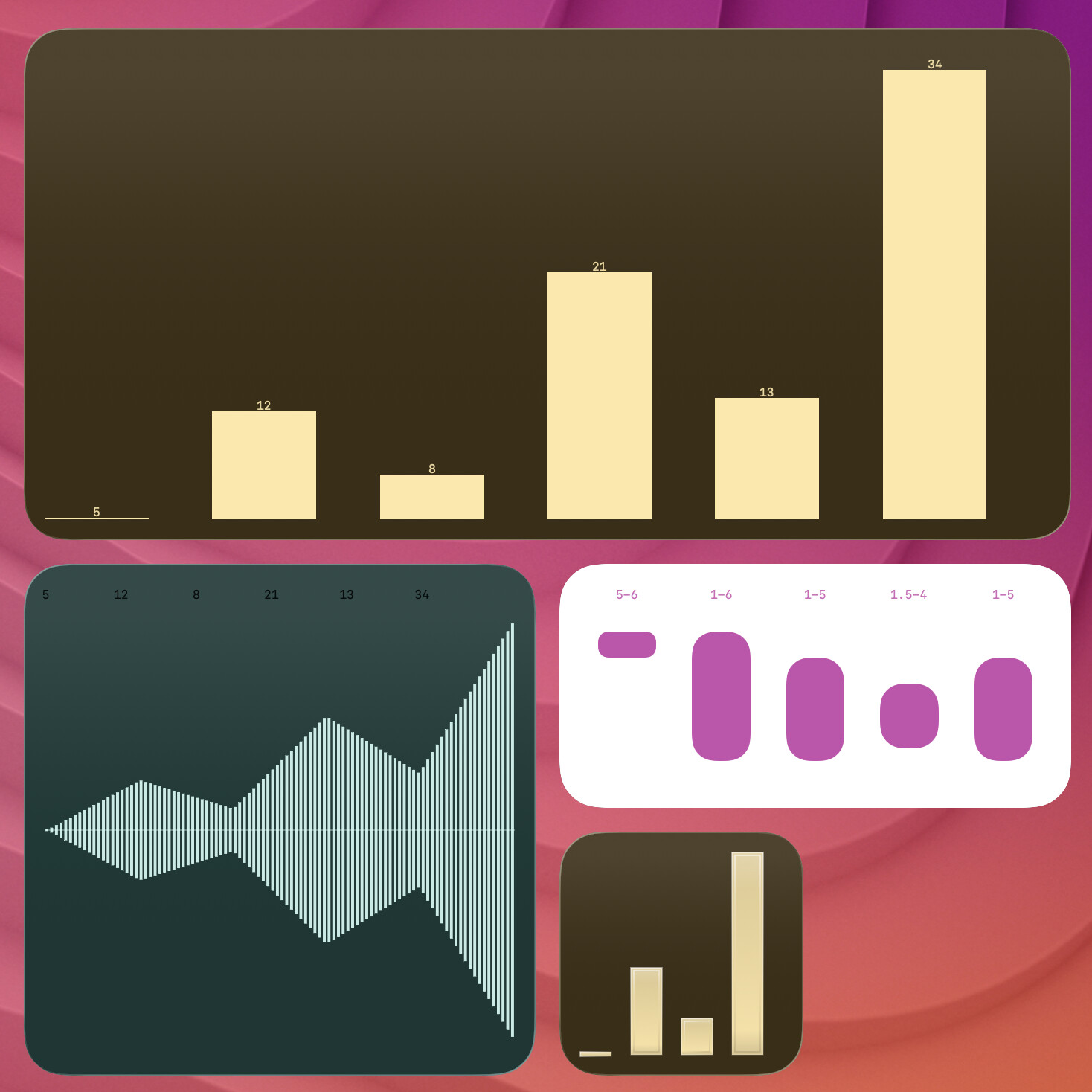
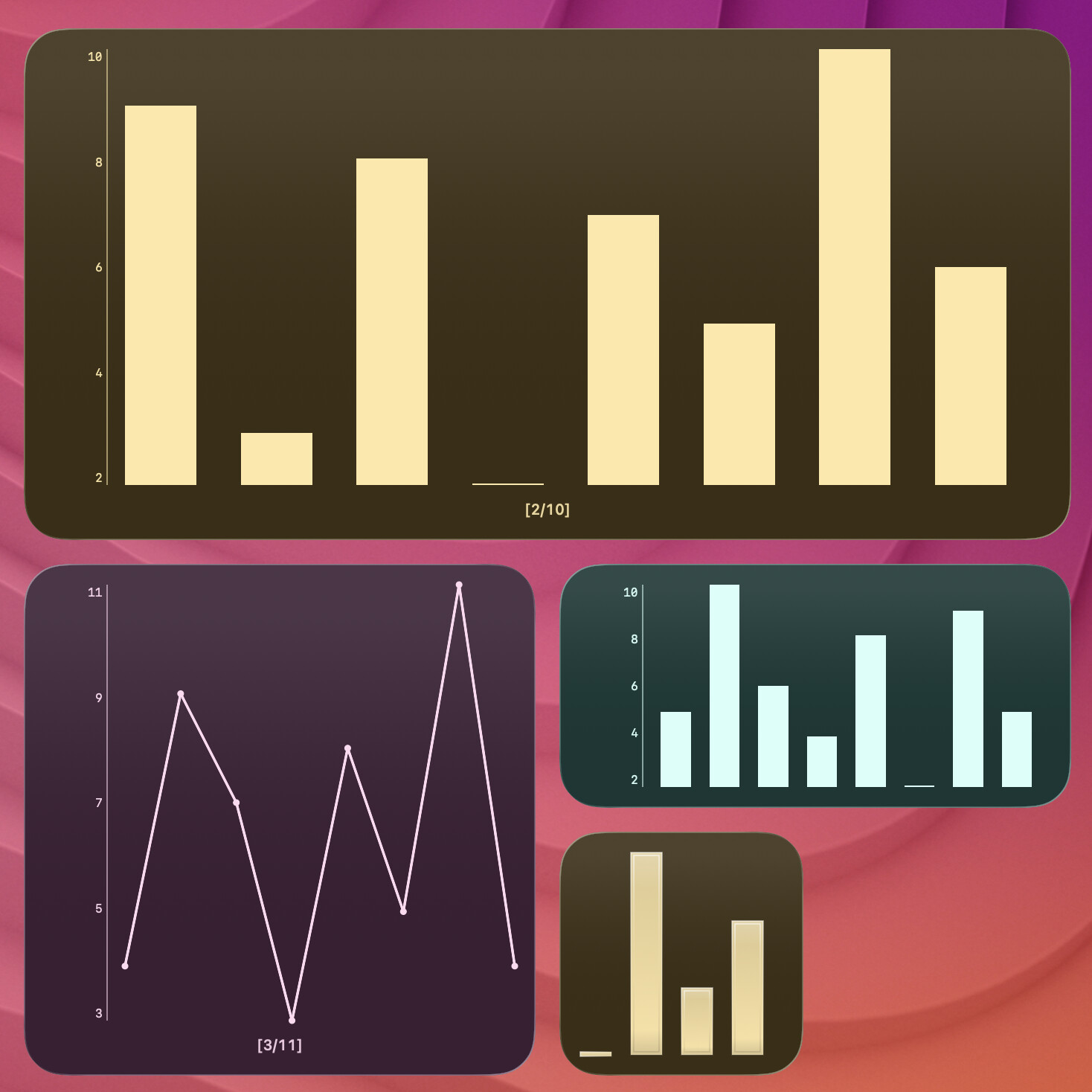
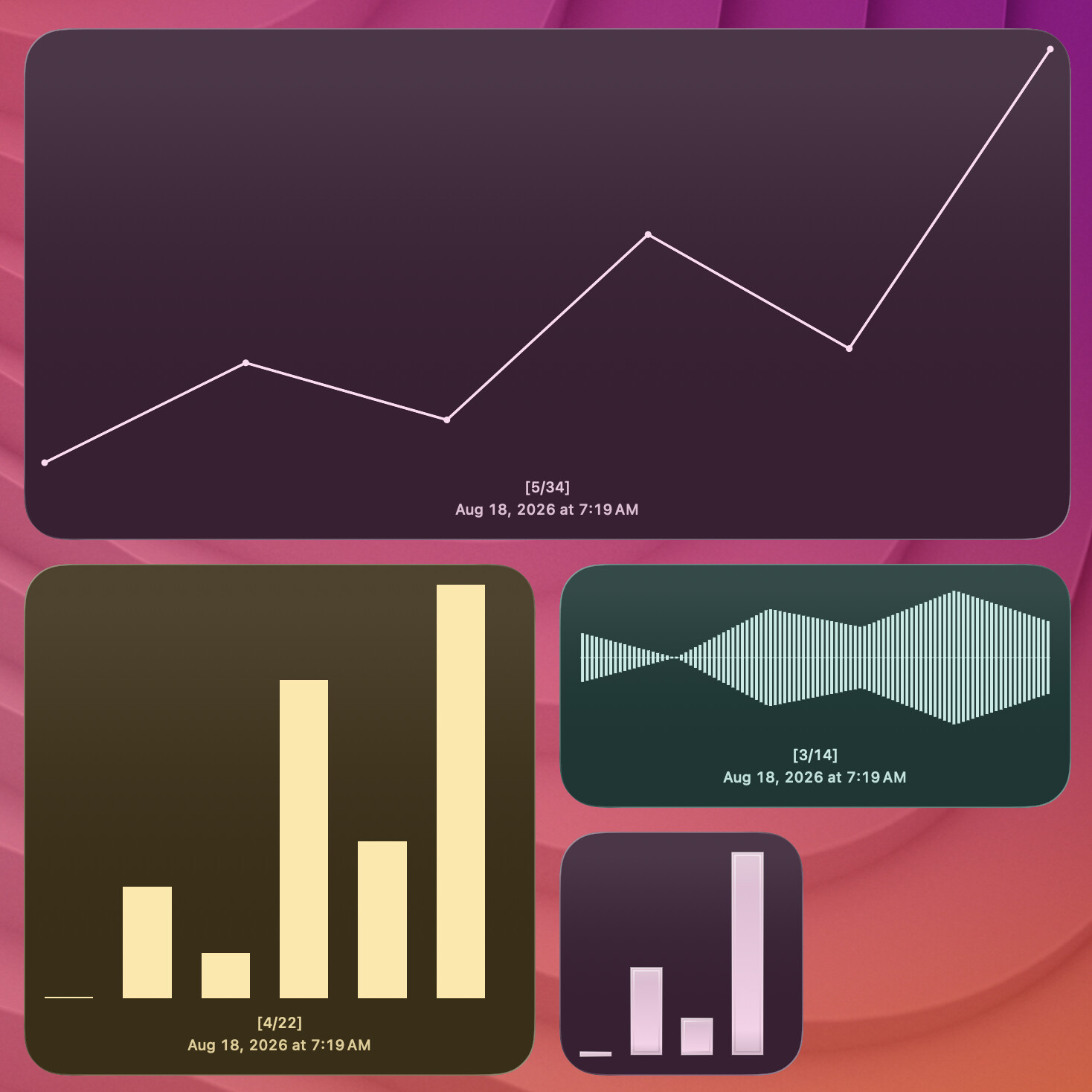
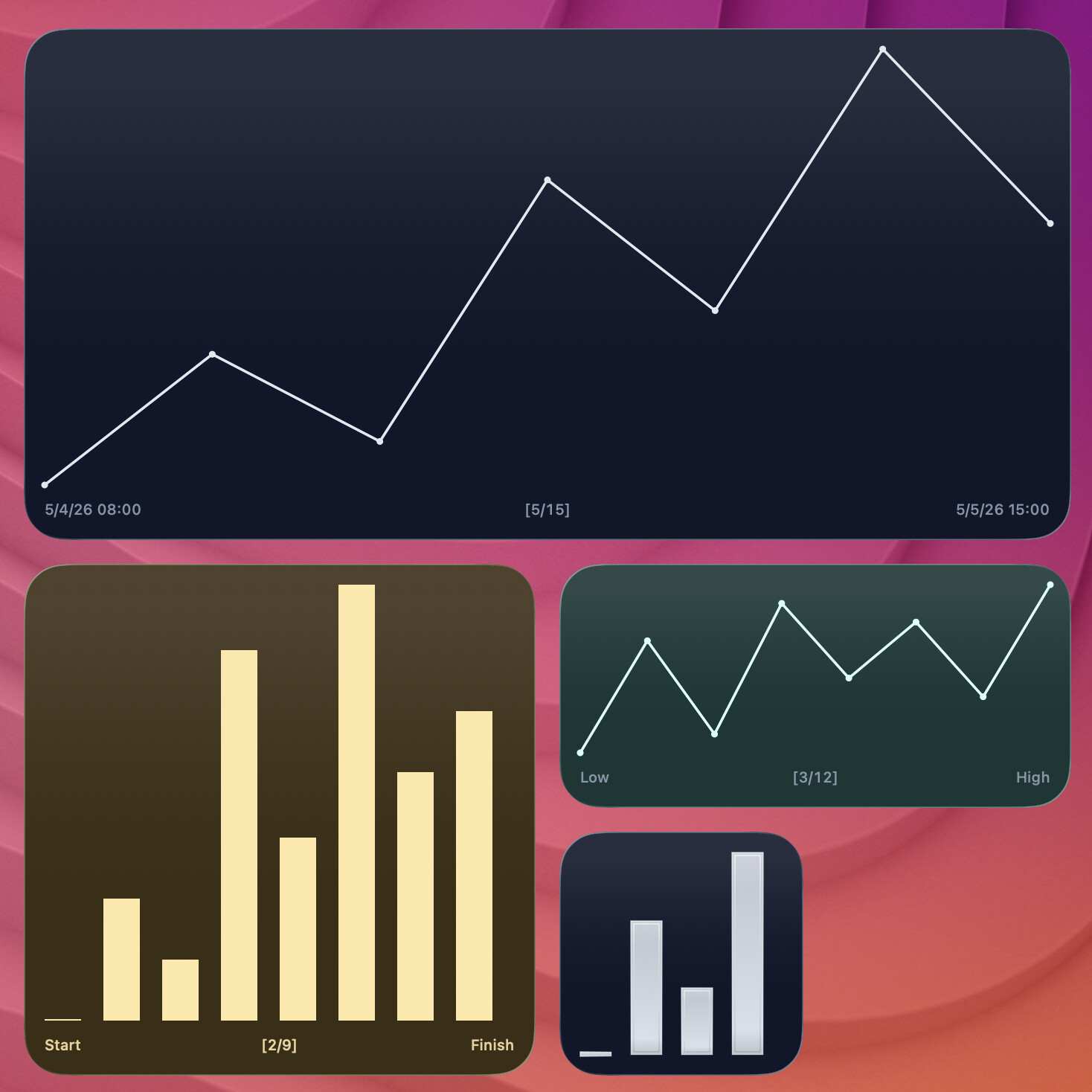
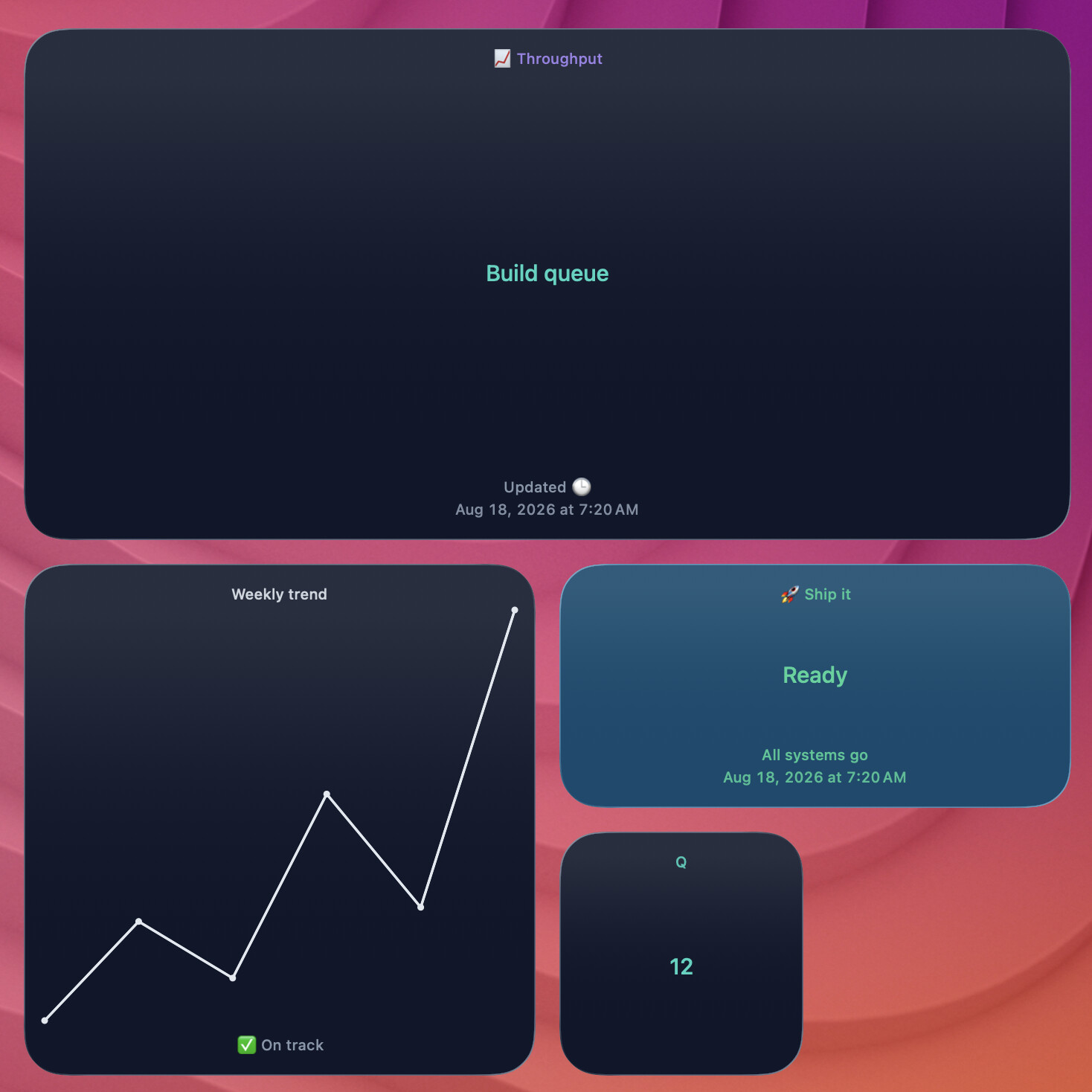
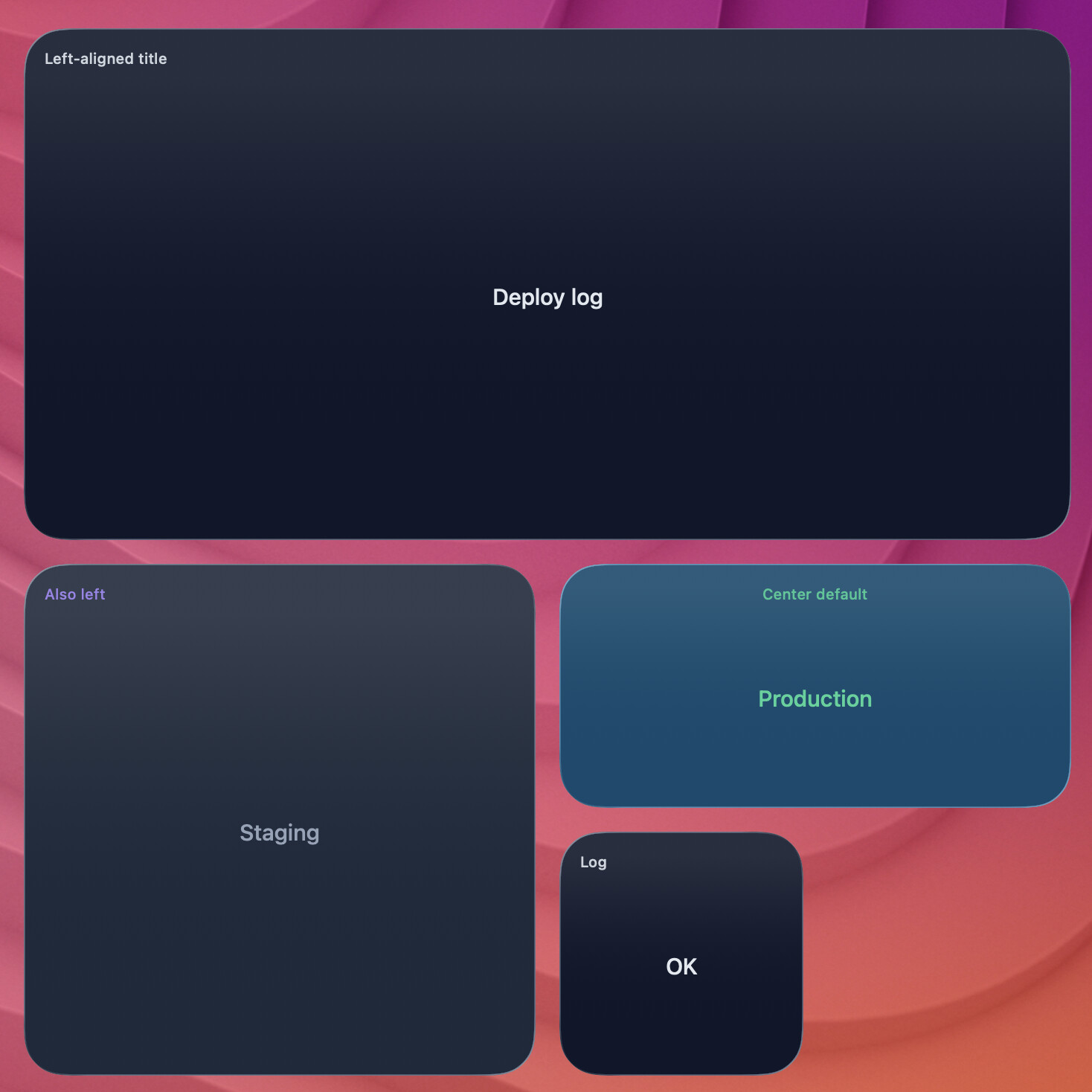


iOS/iPadOS/watchOS
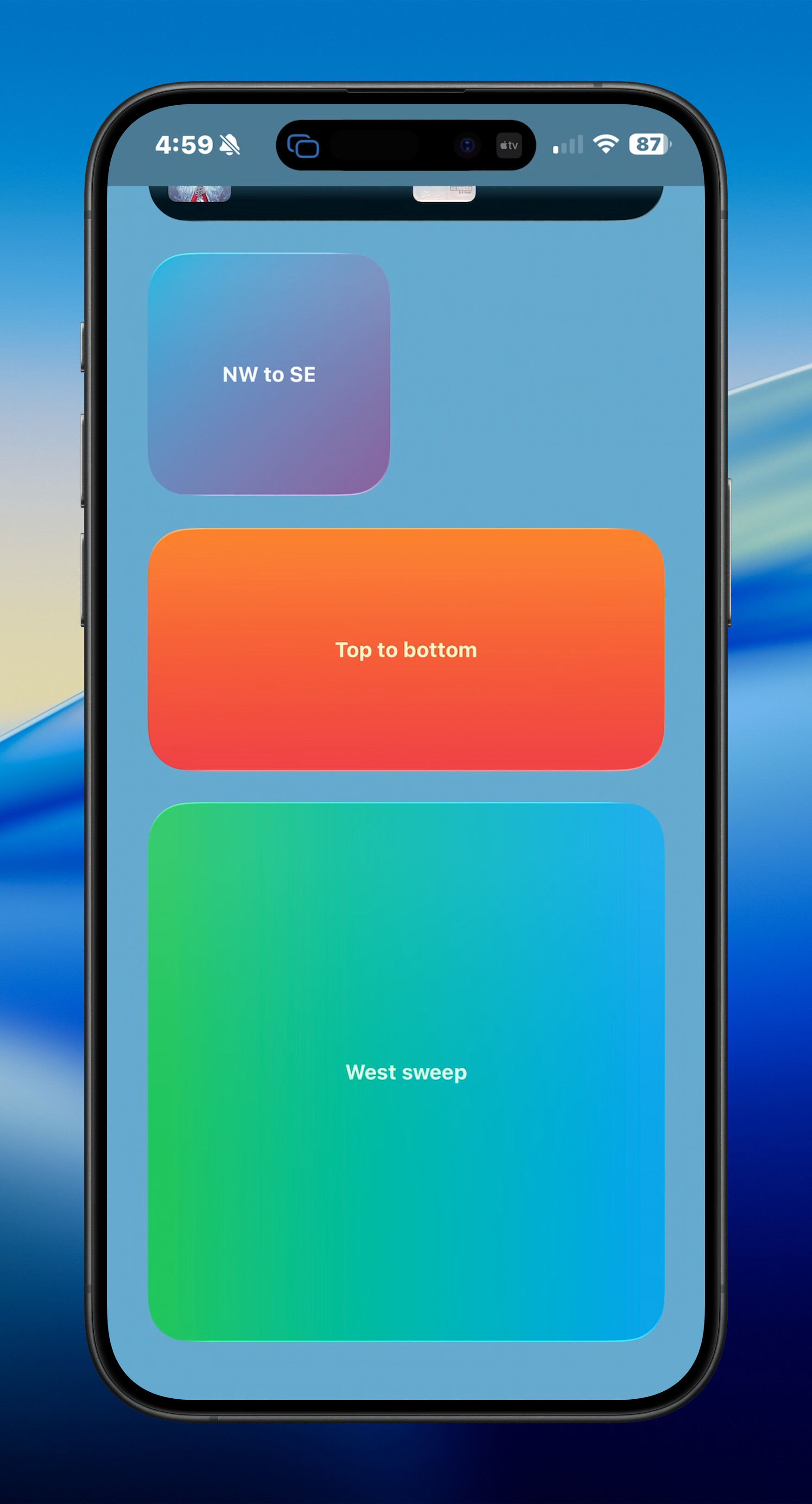
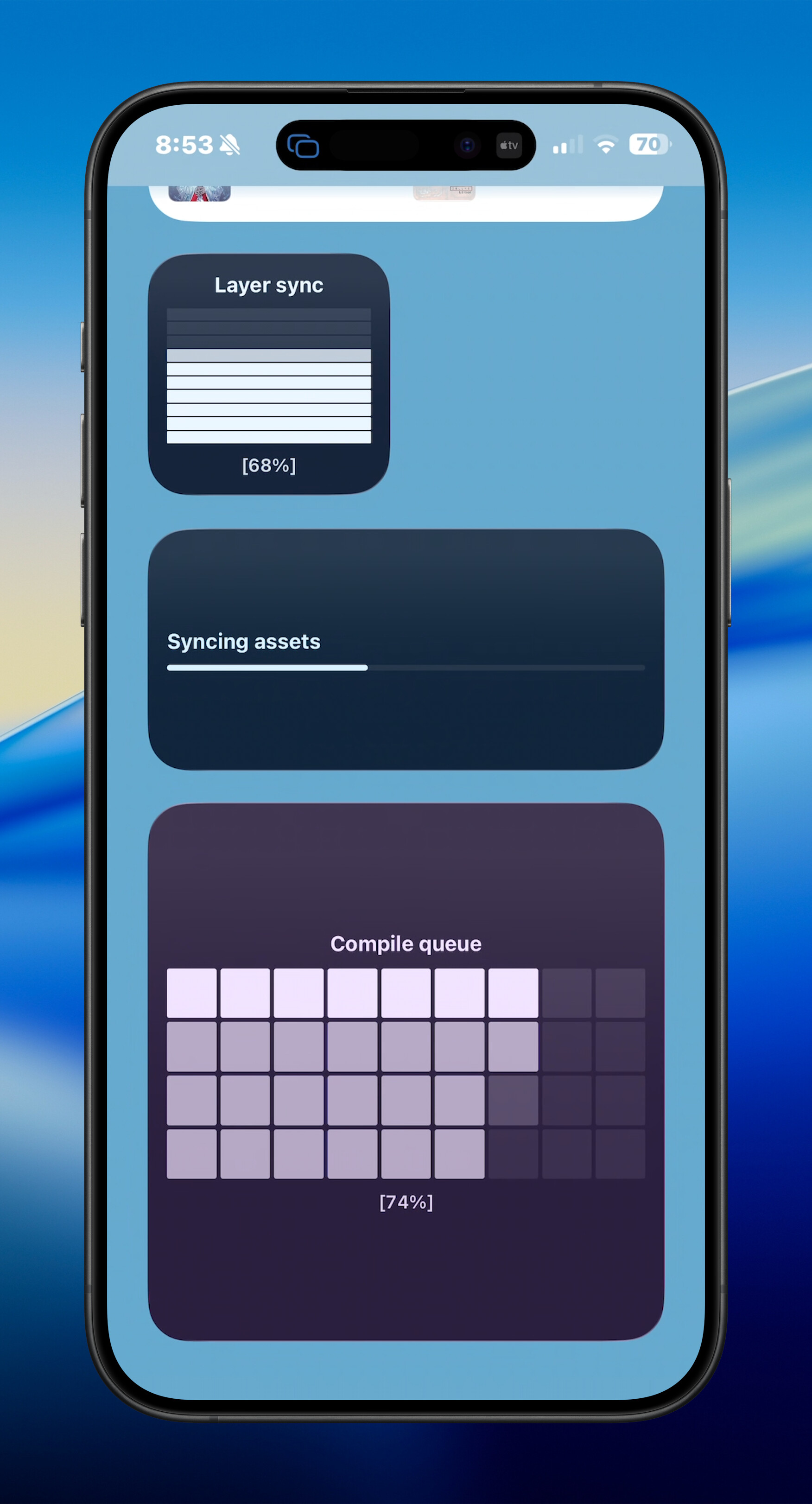
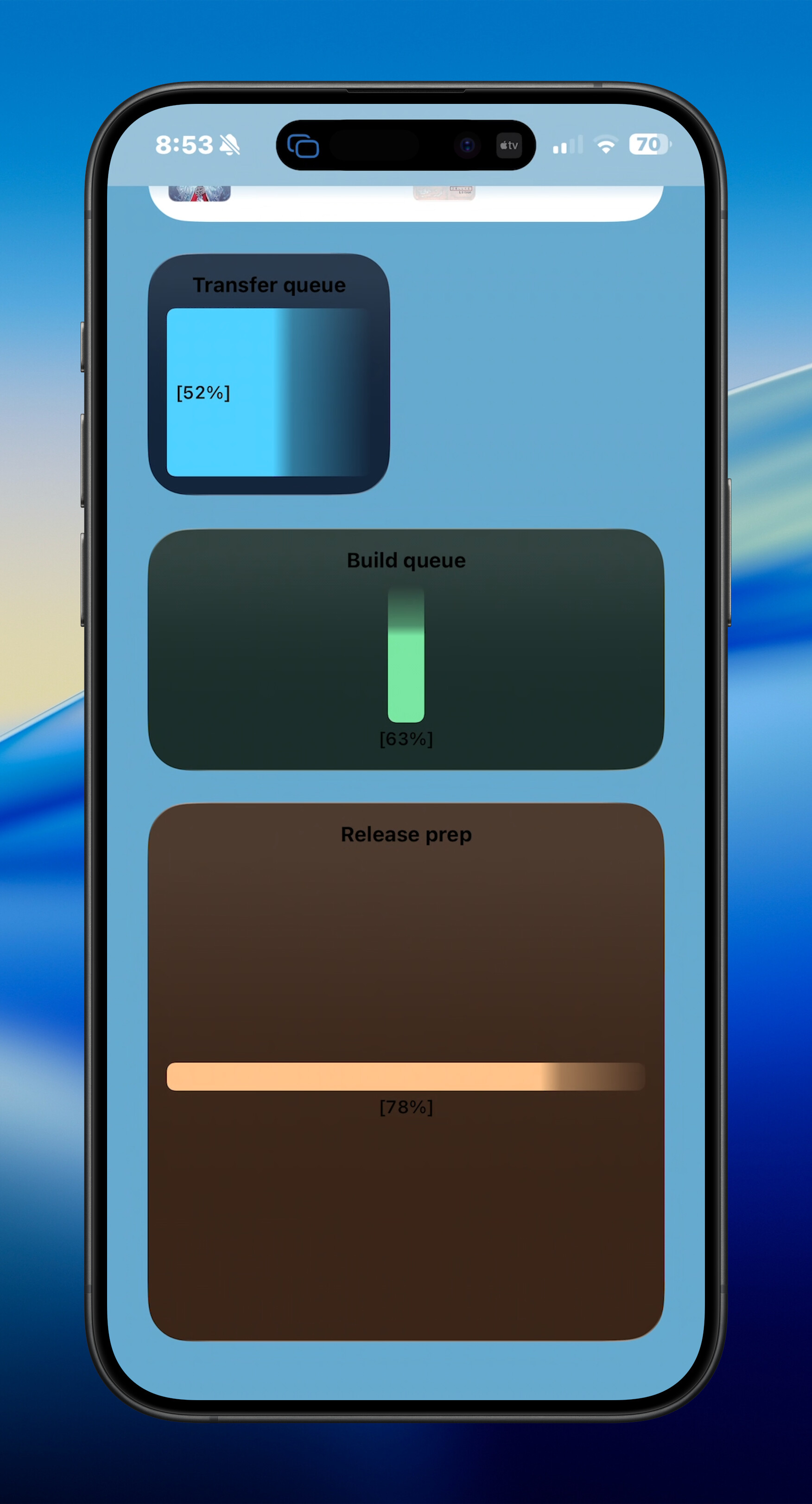
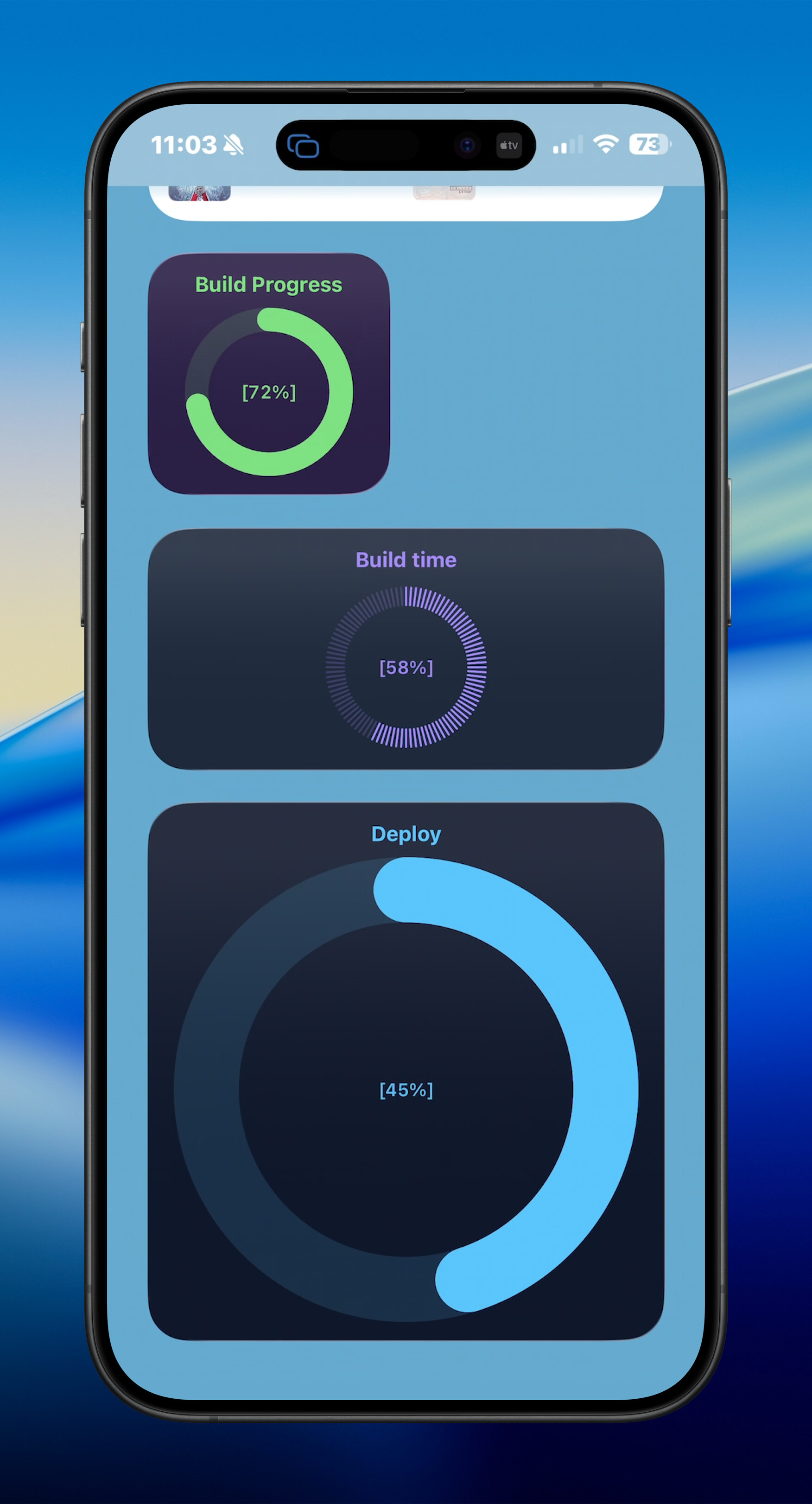
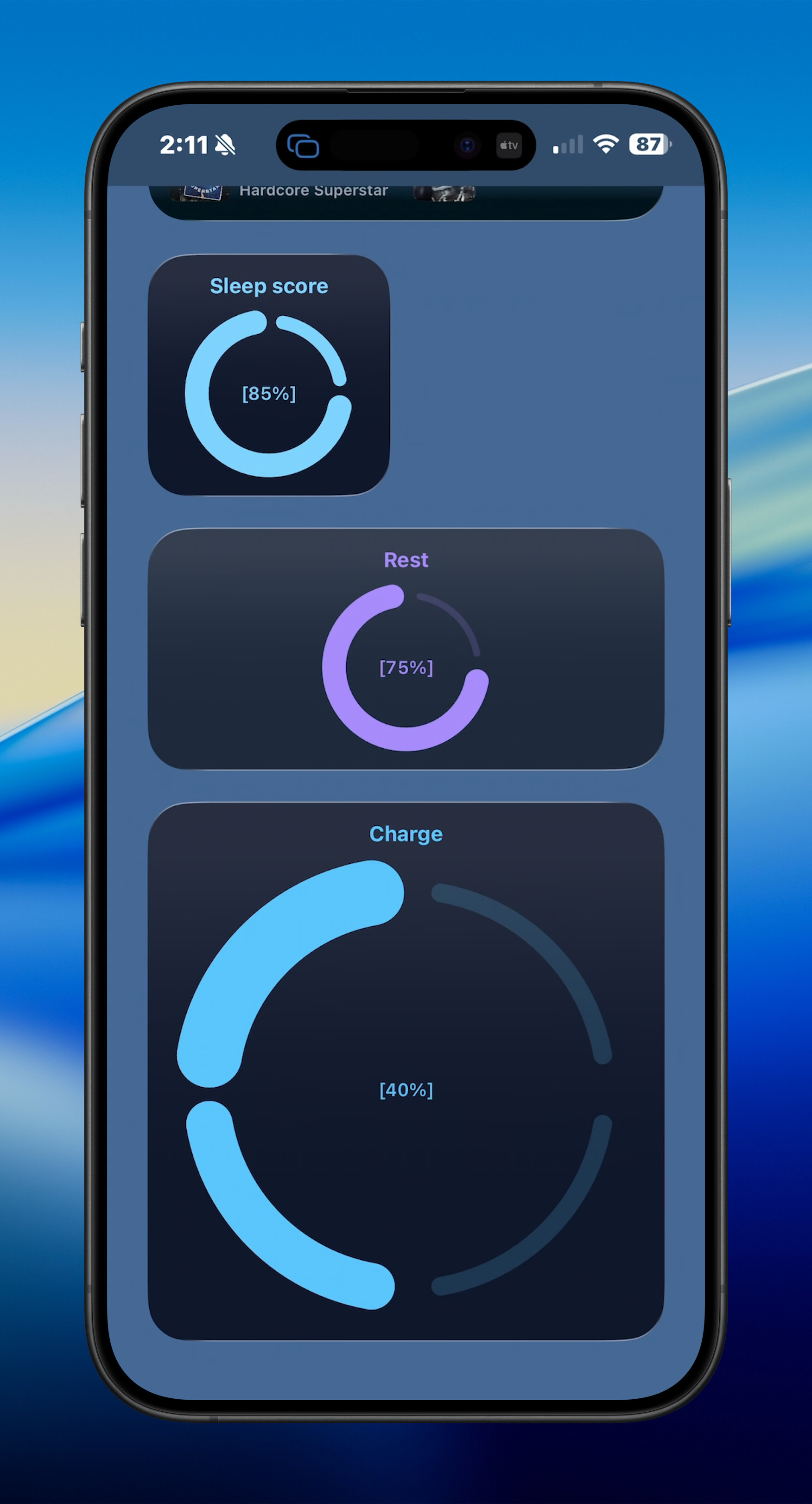
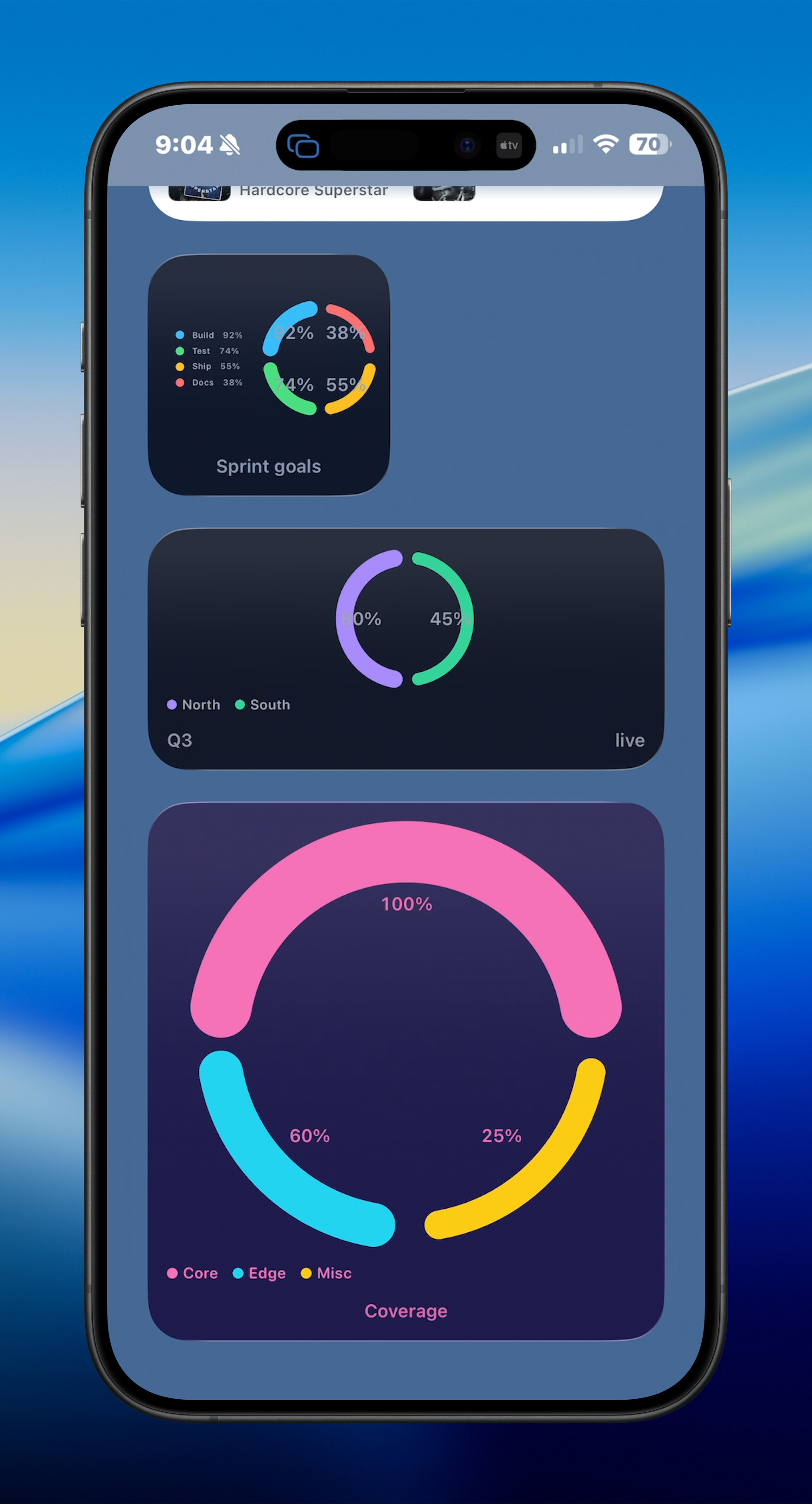
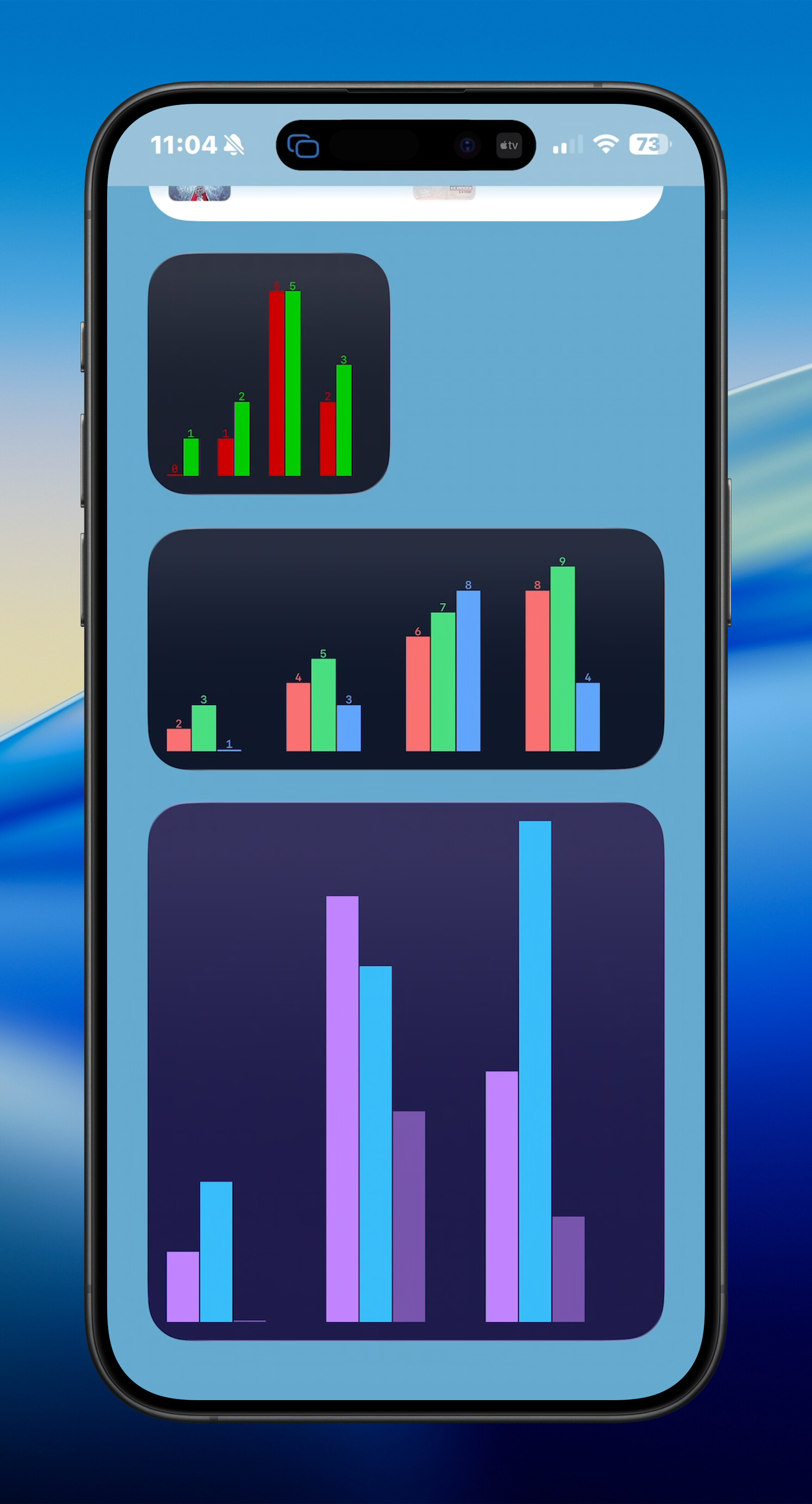
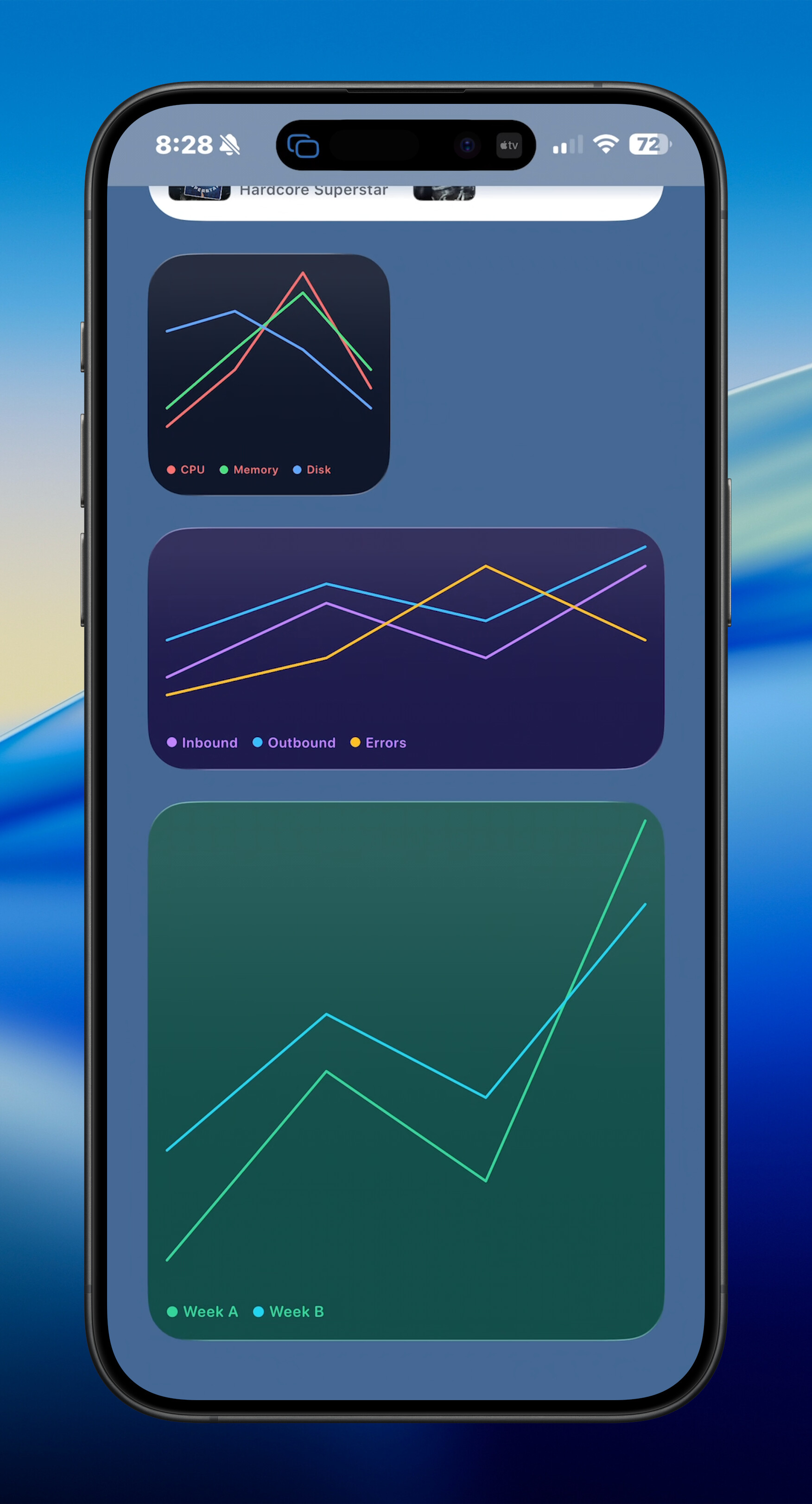
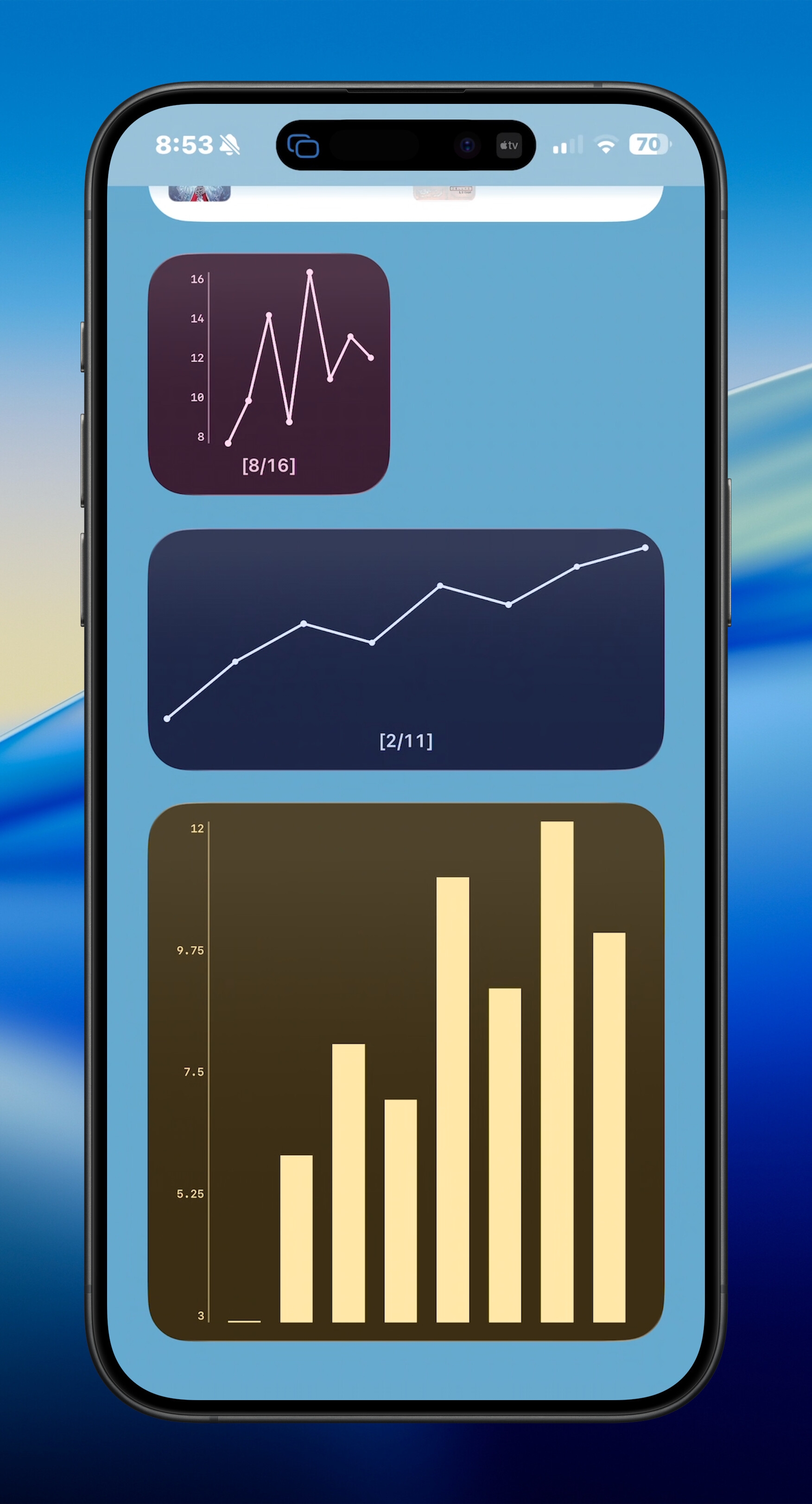
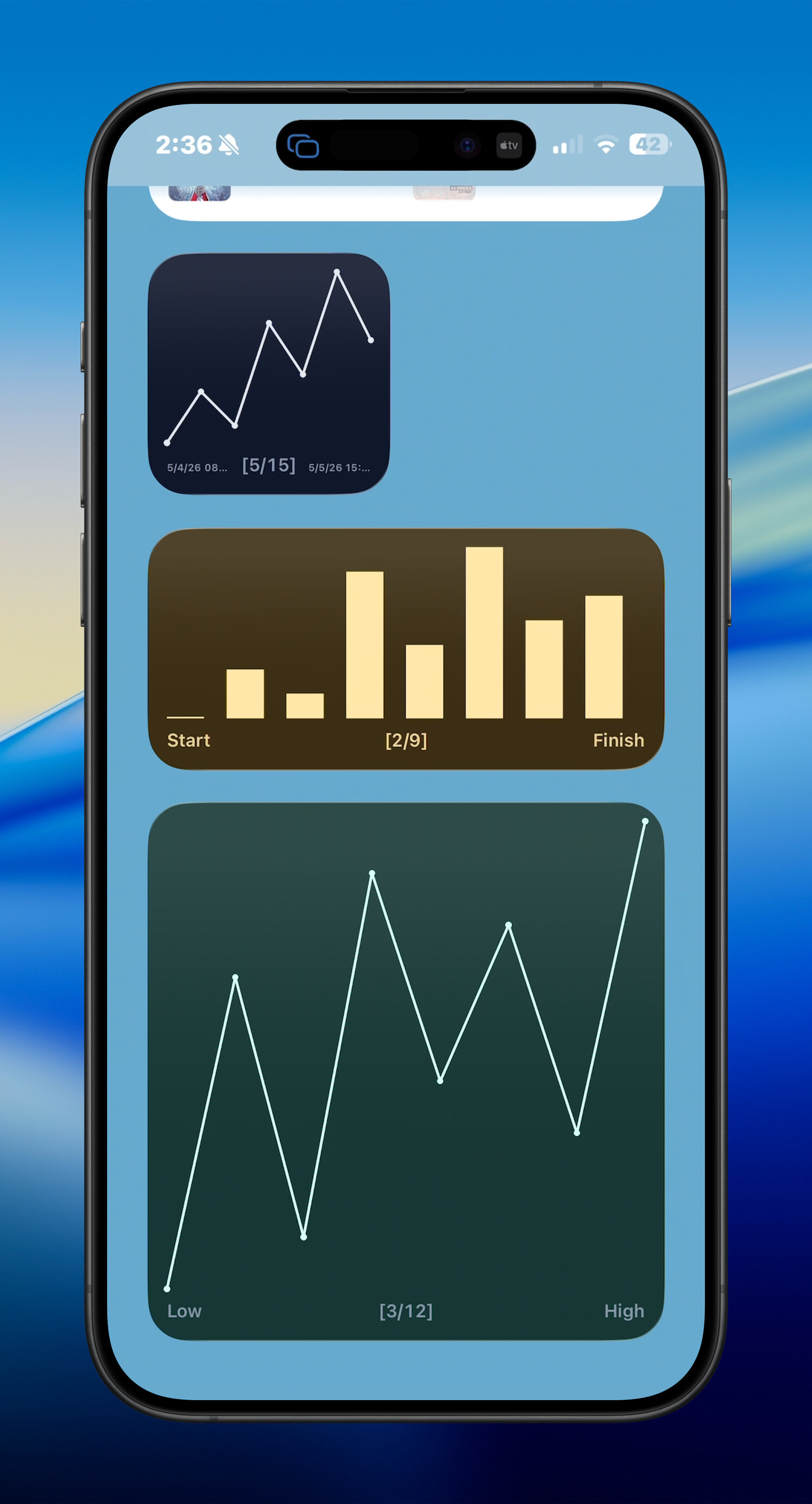
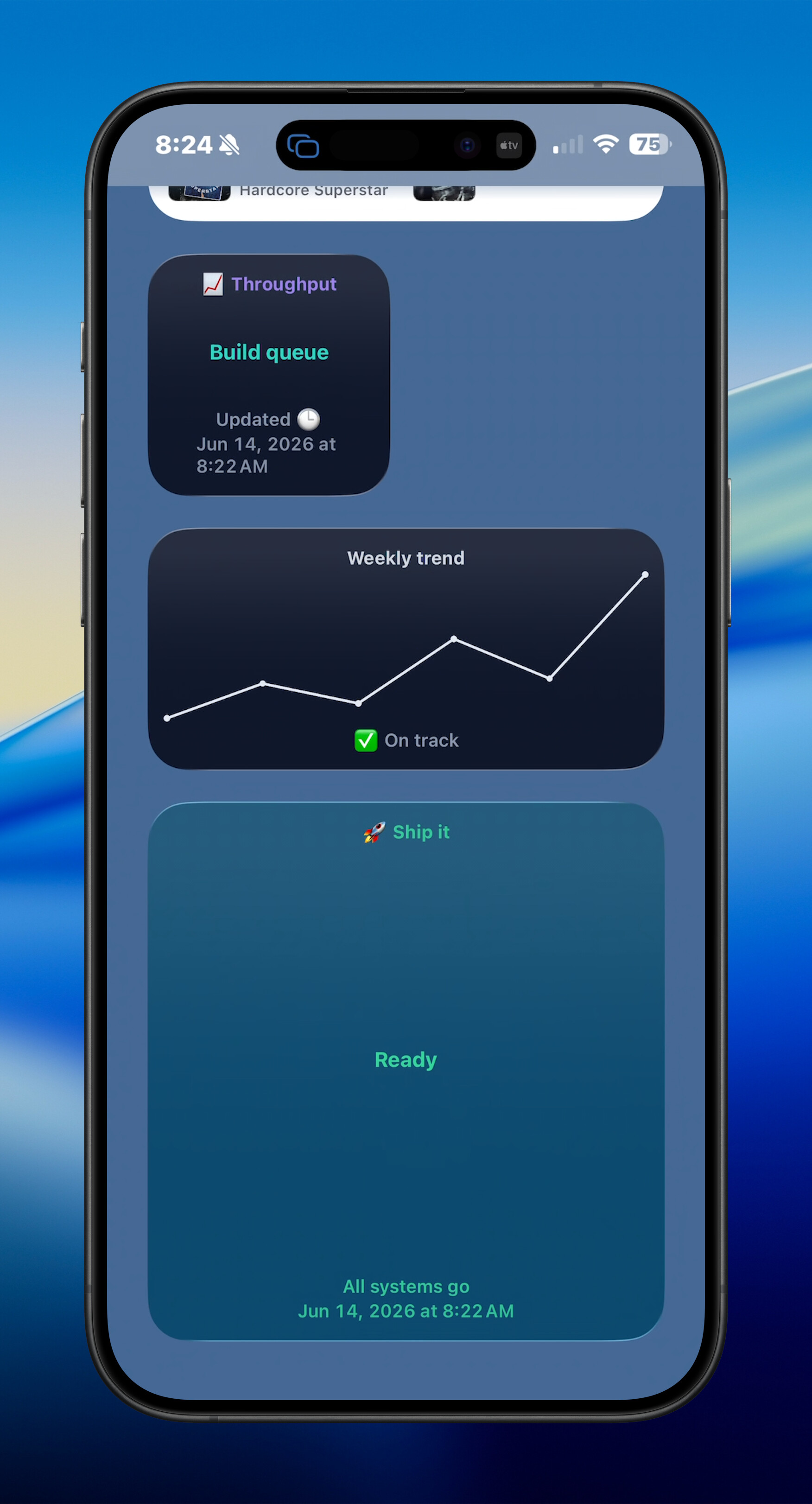
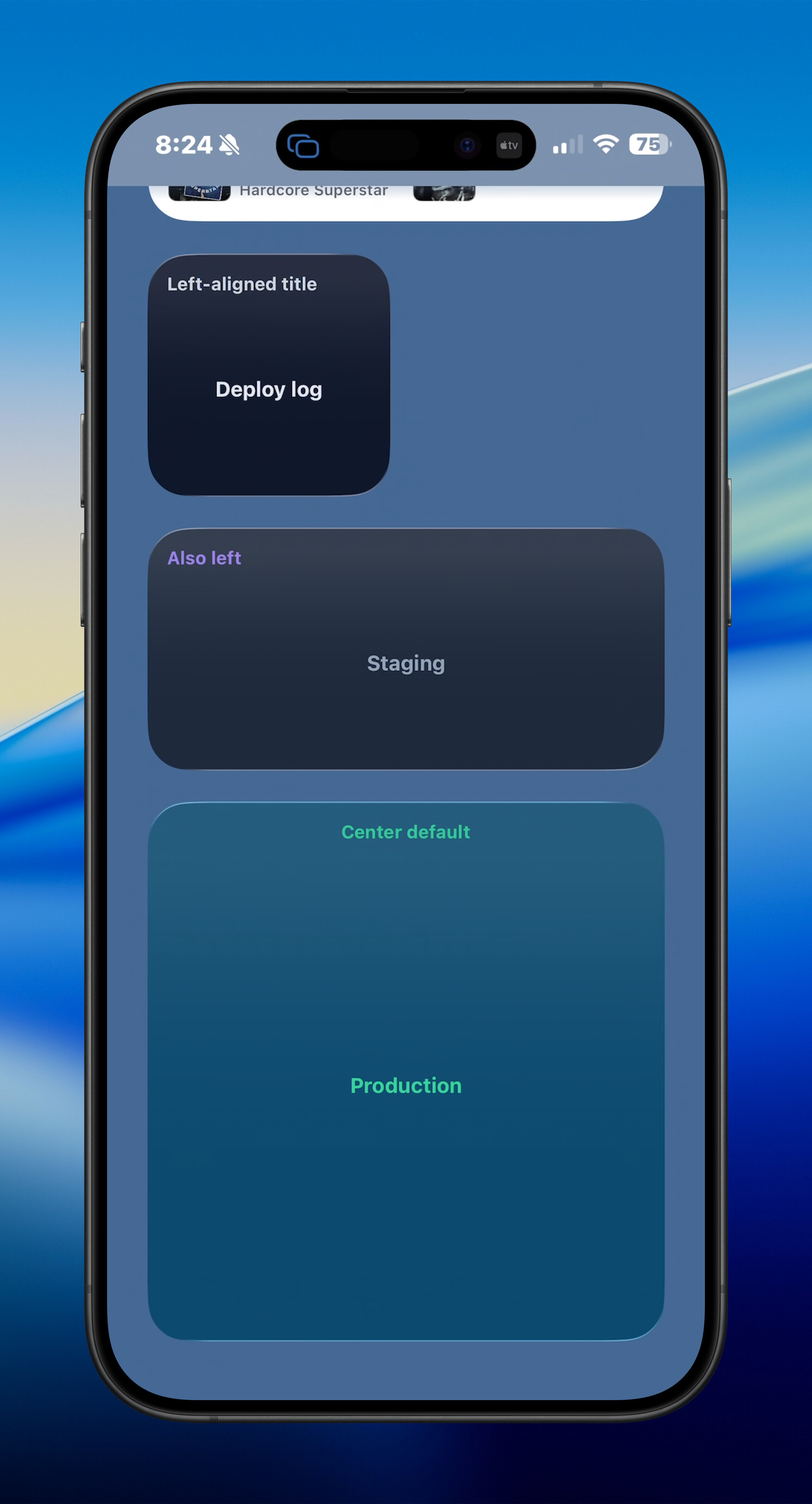
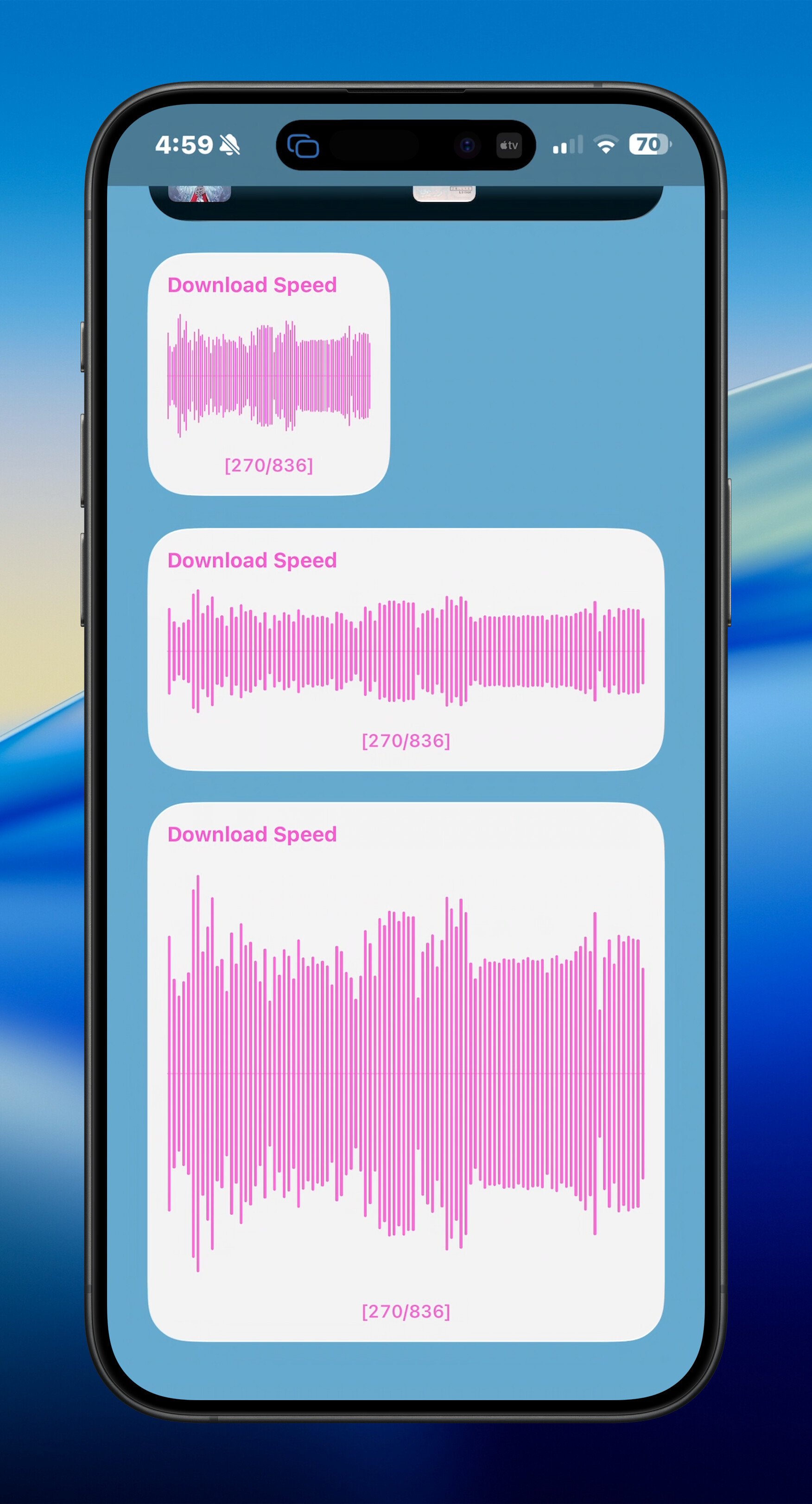
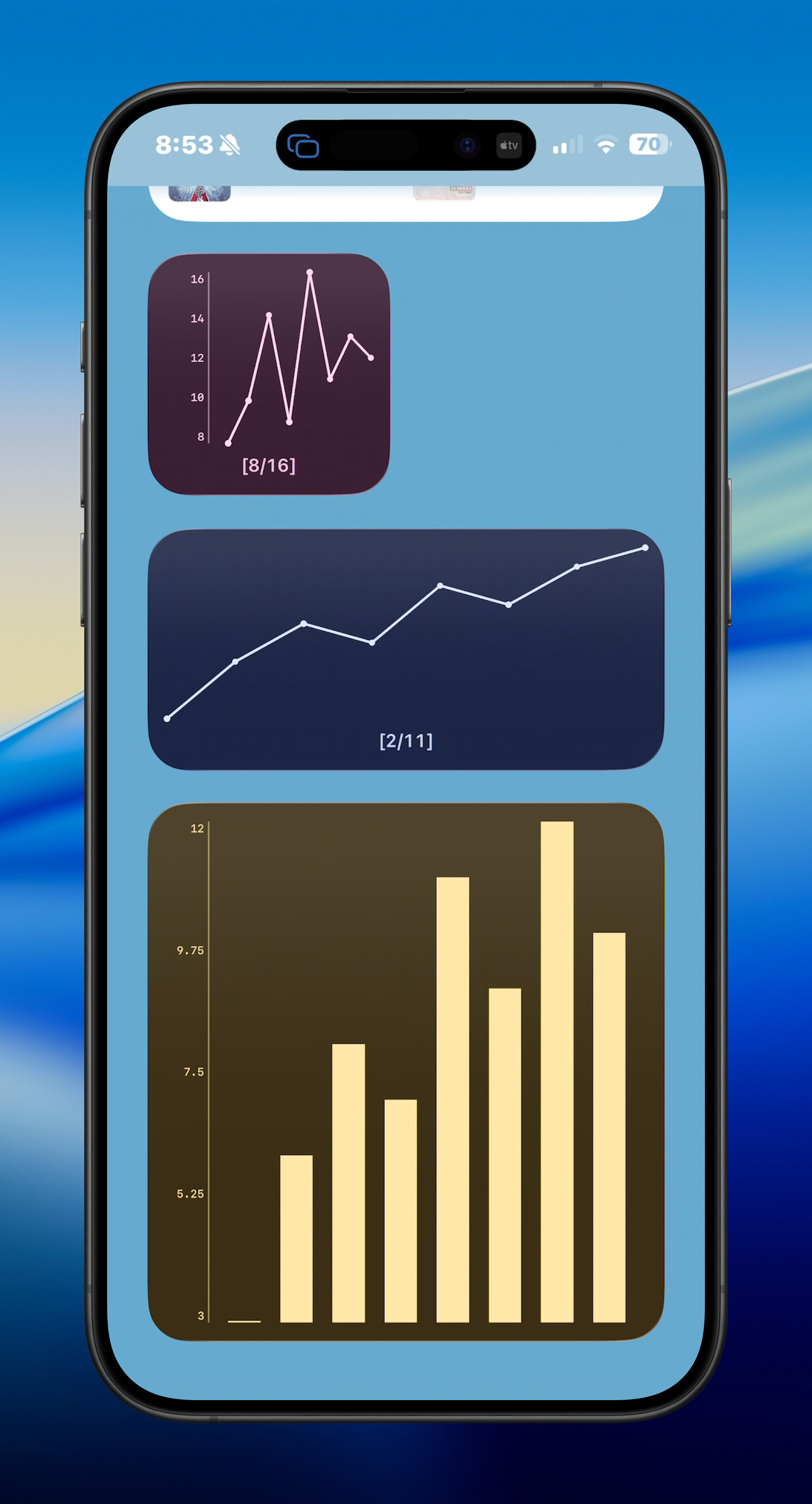
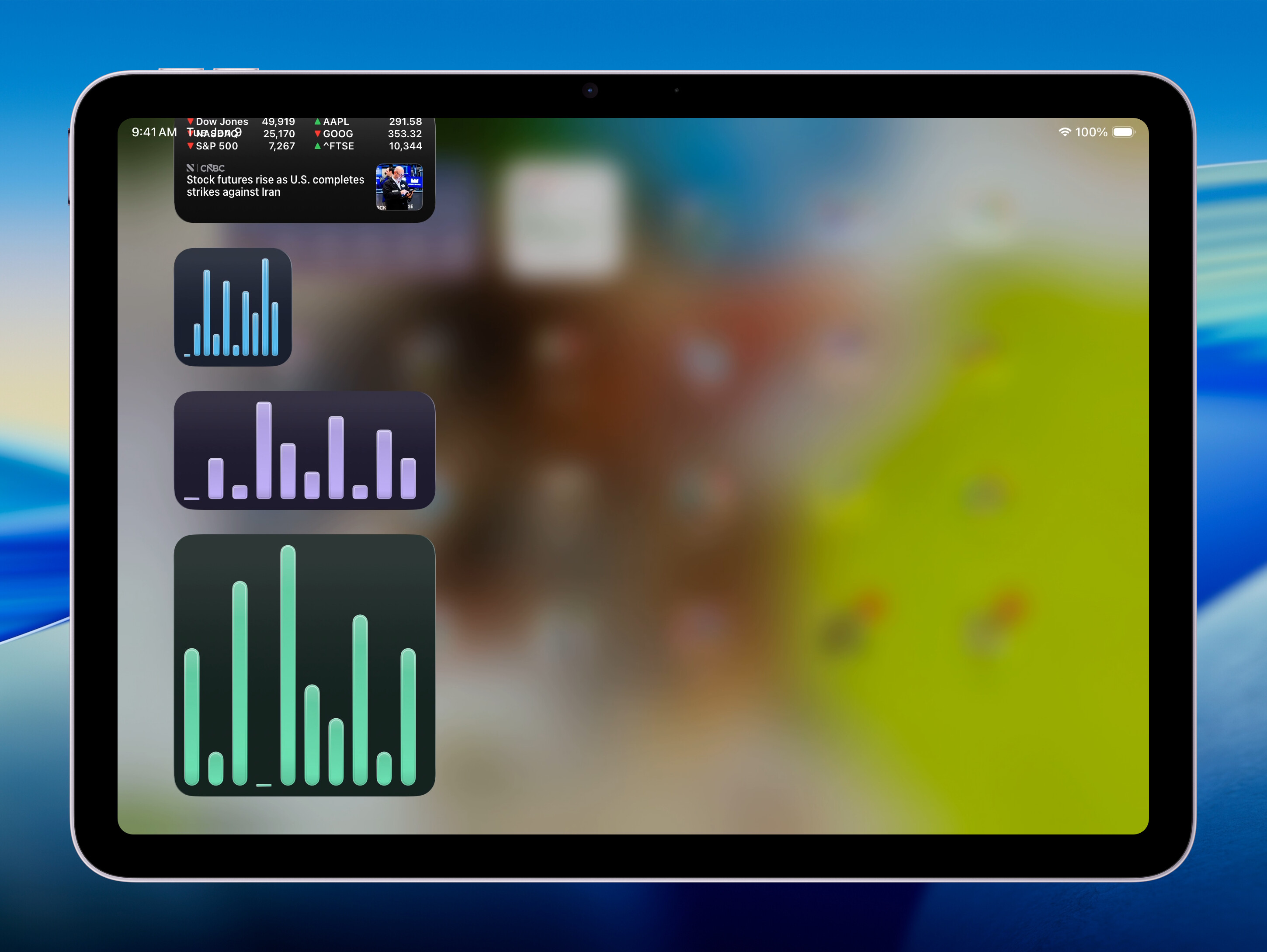
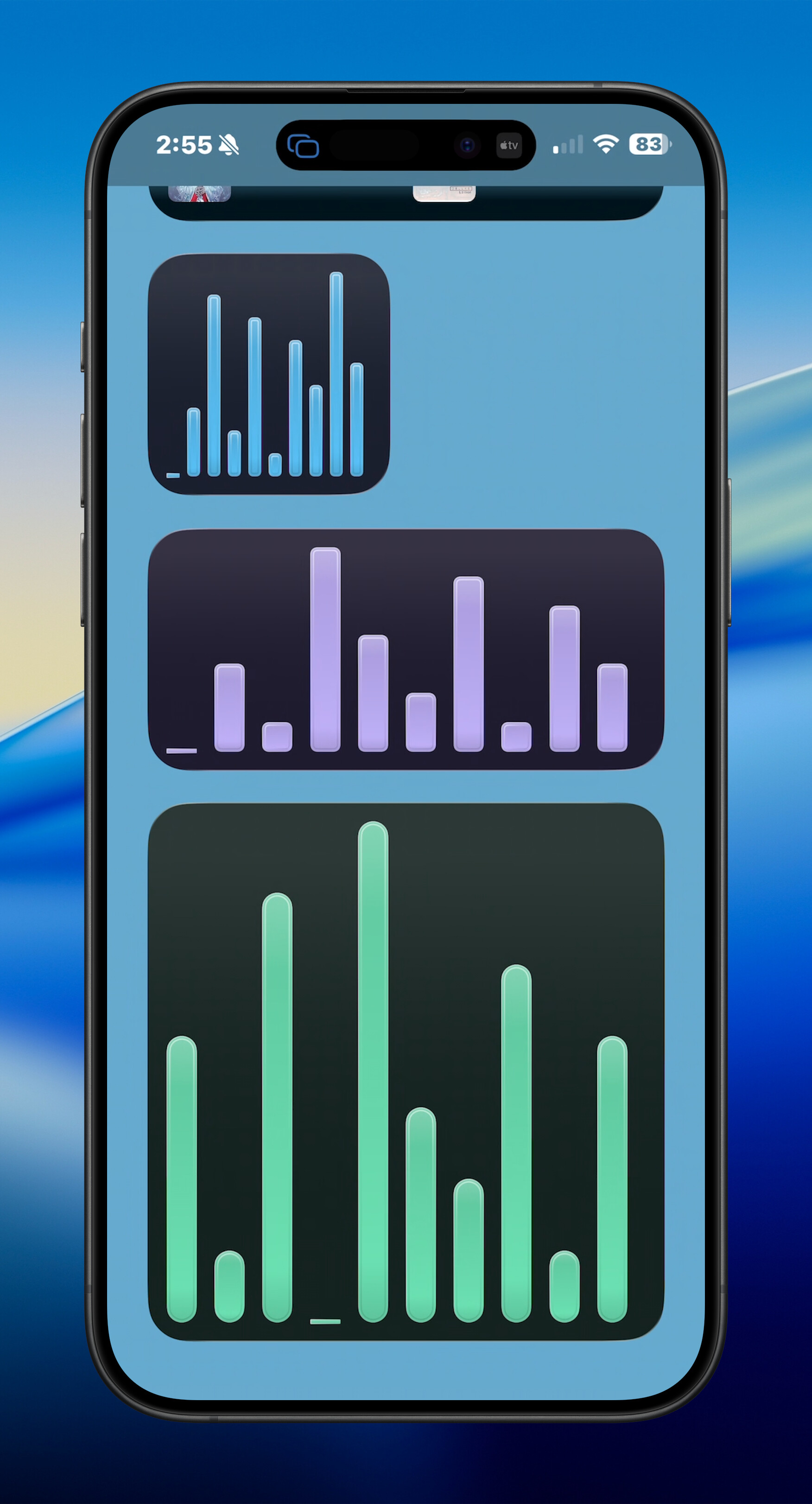
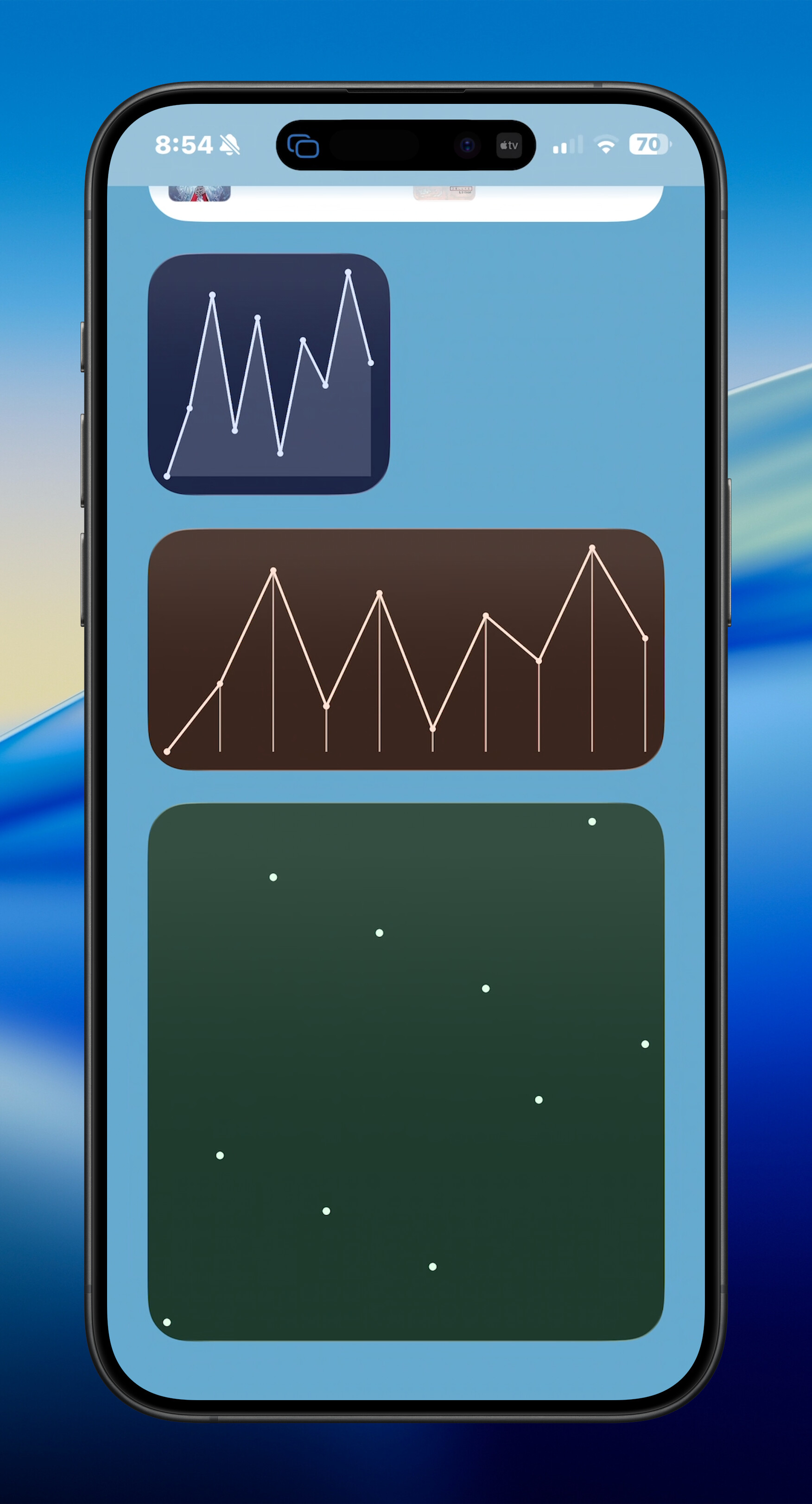
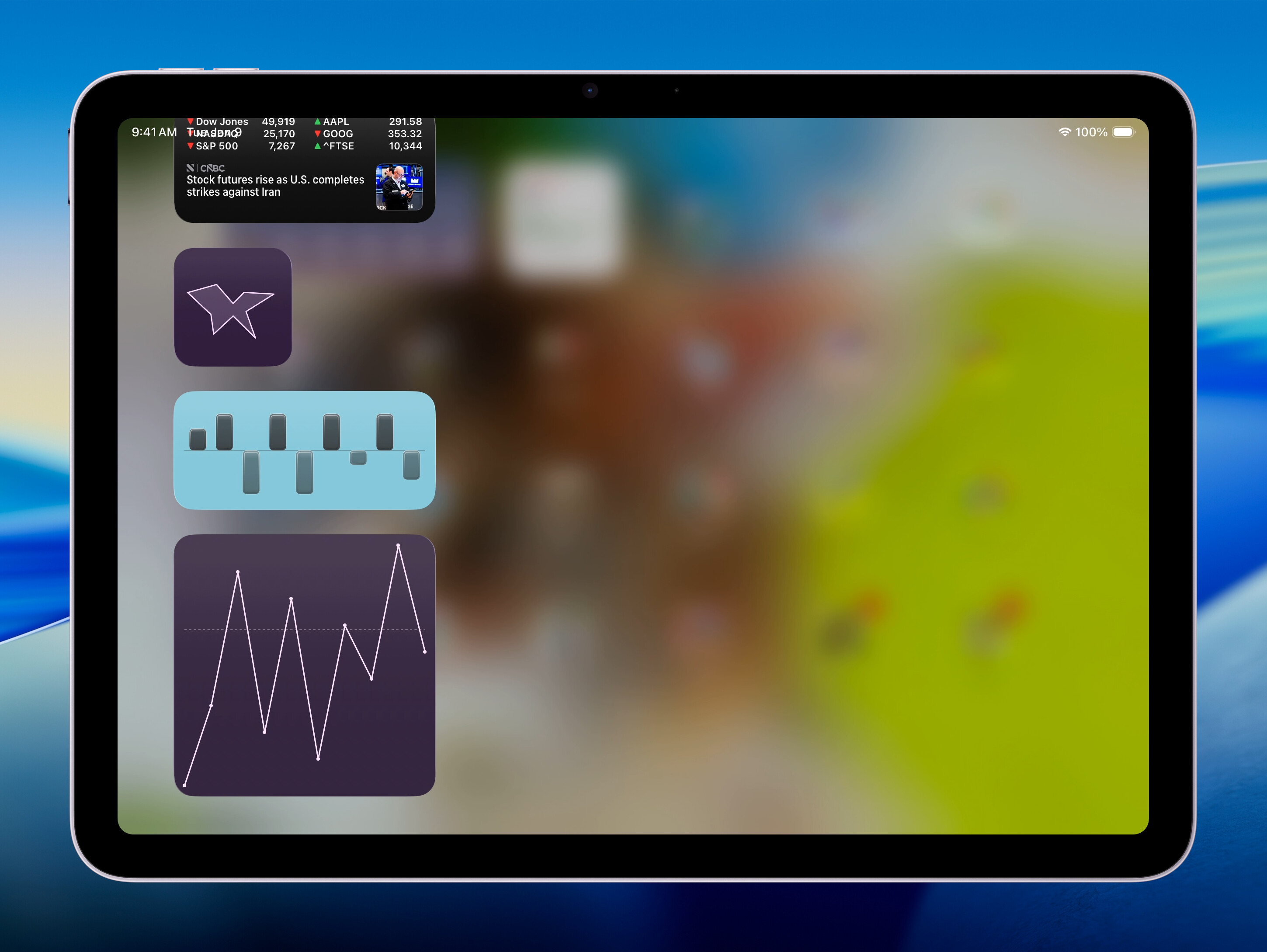
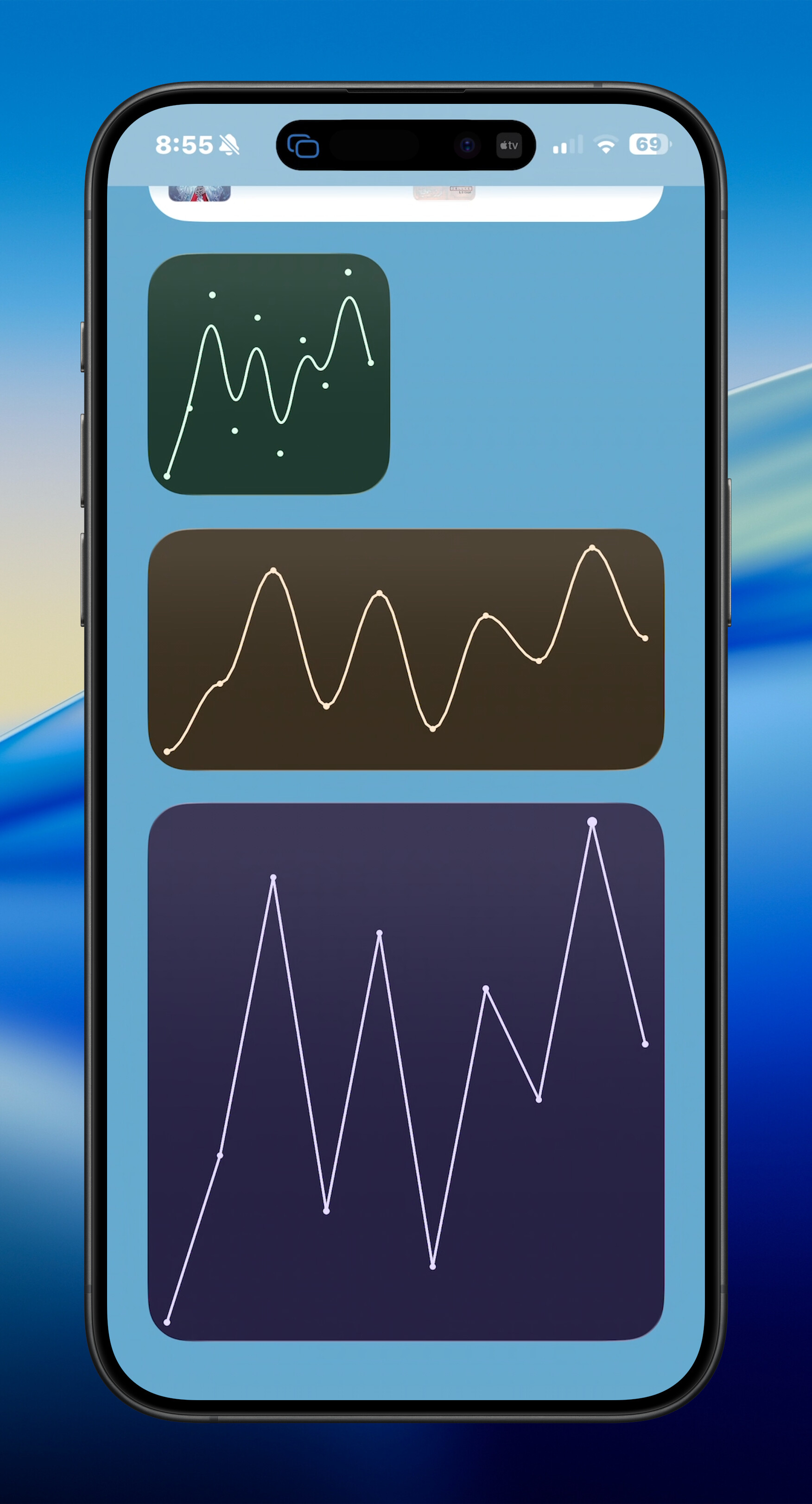
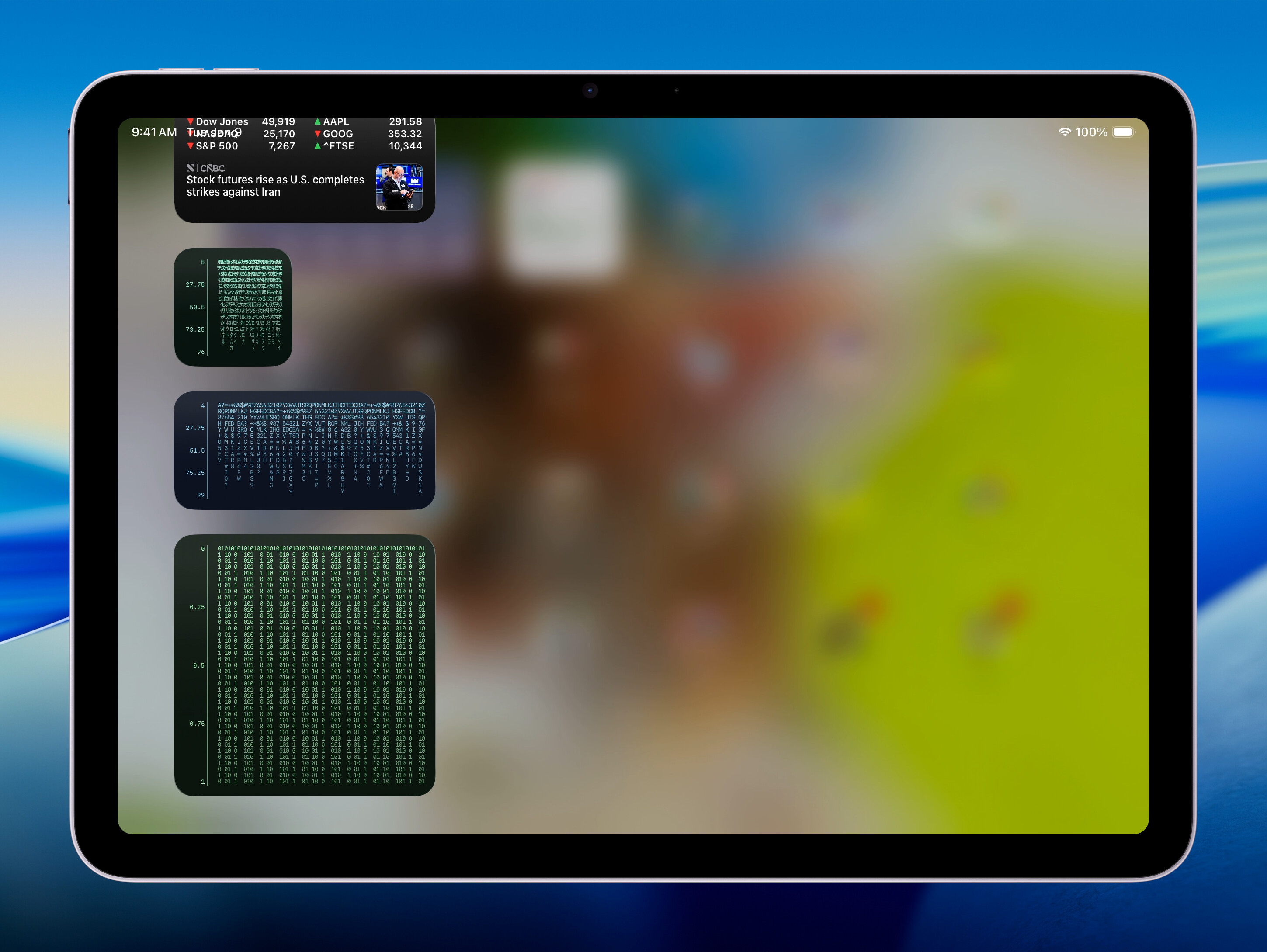
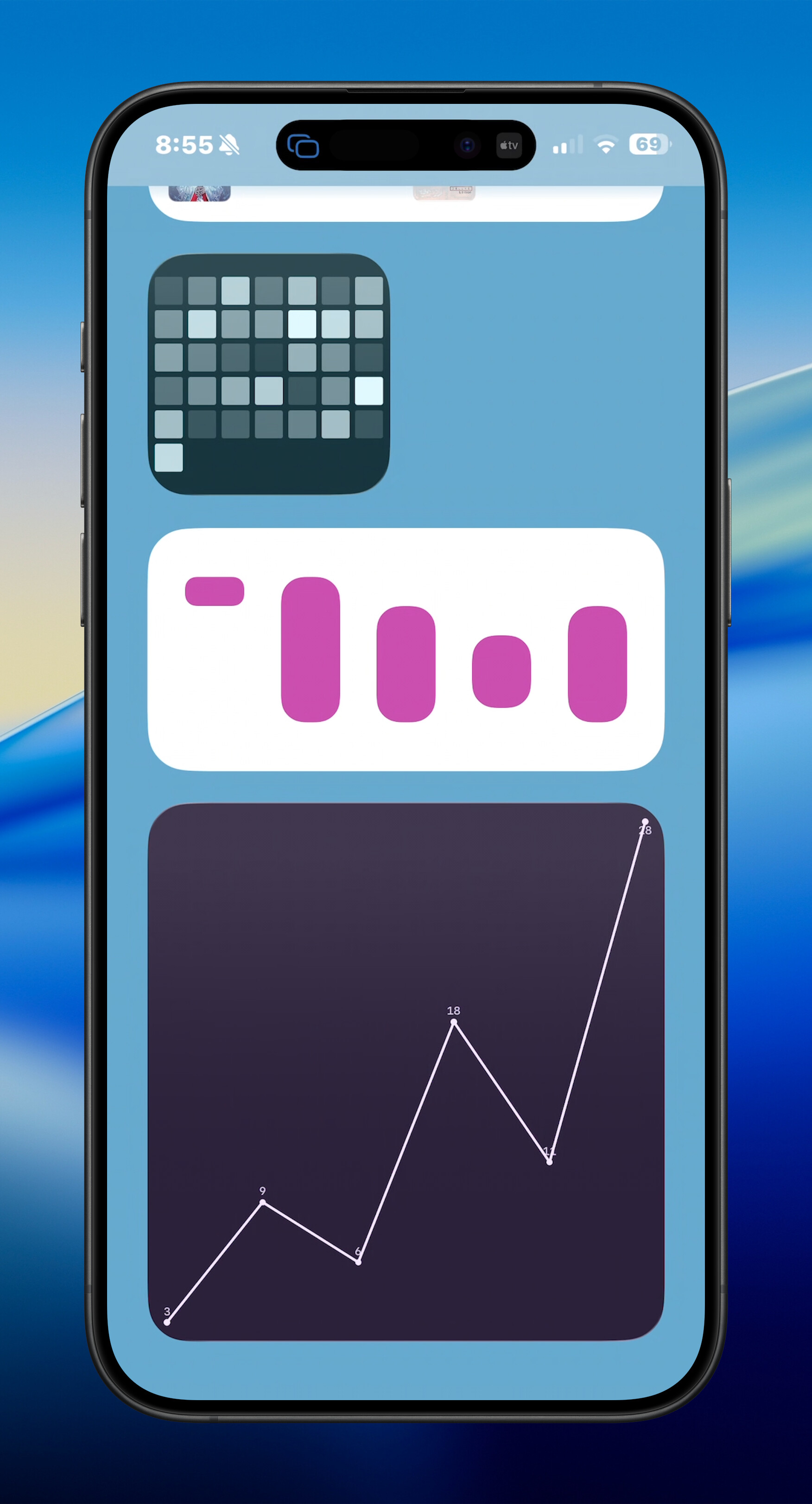
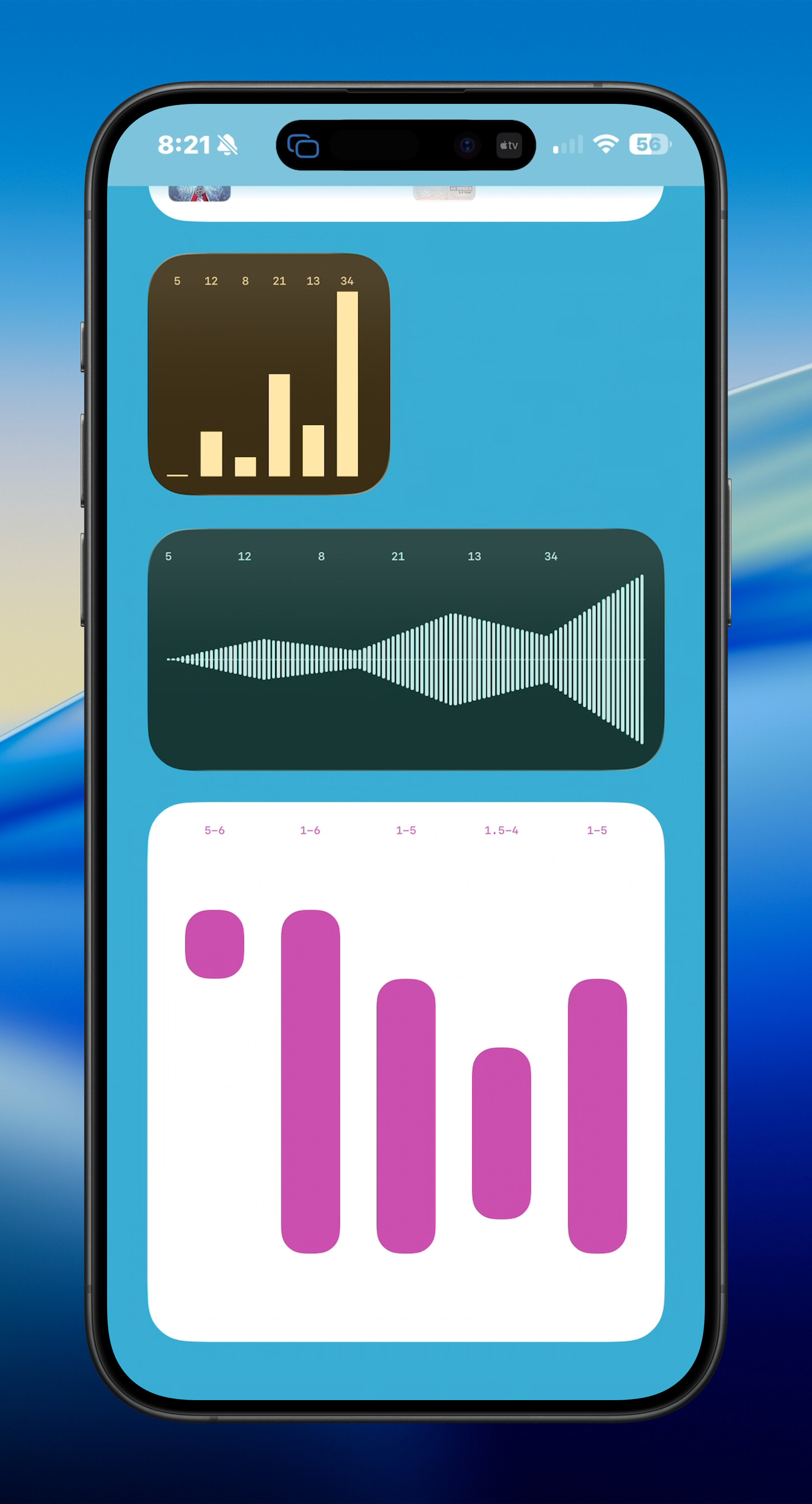
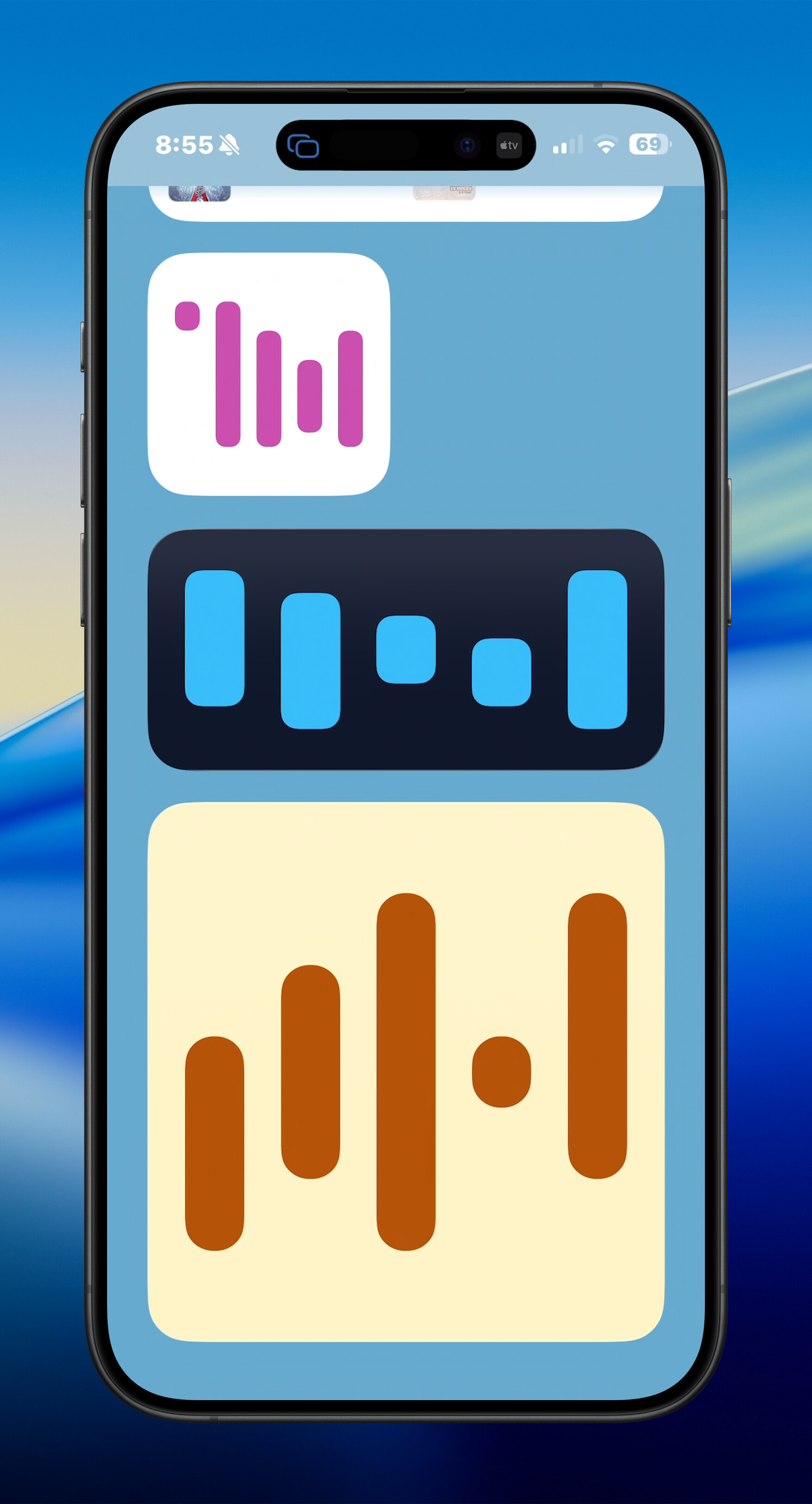
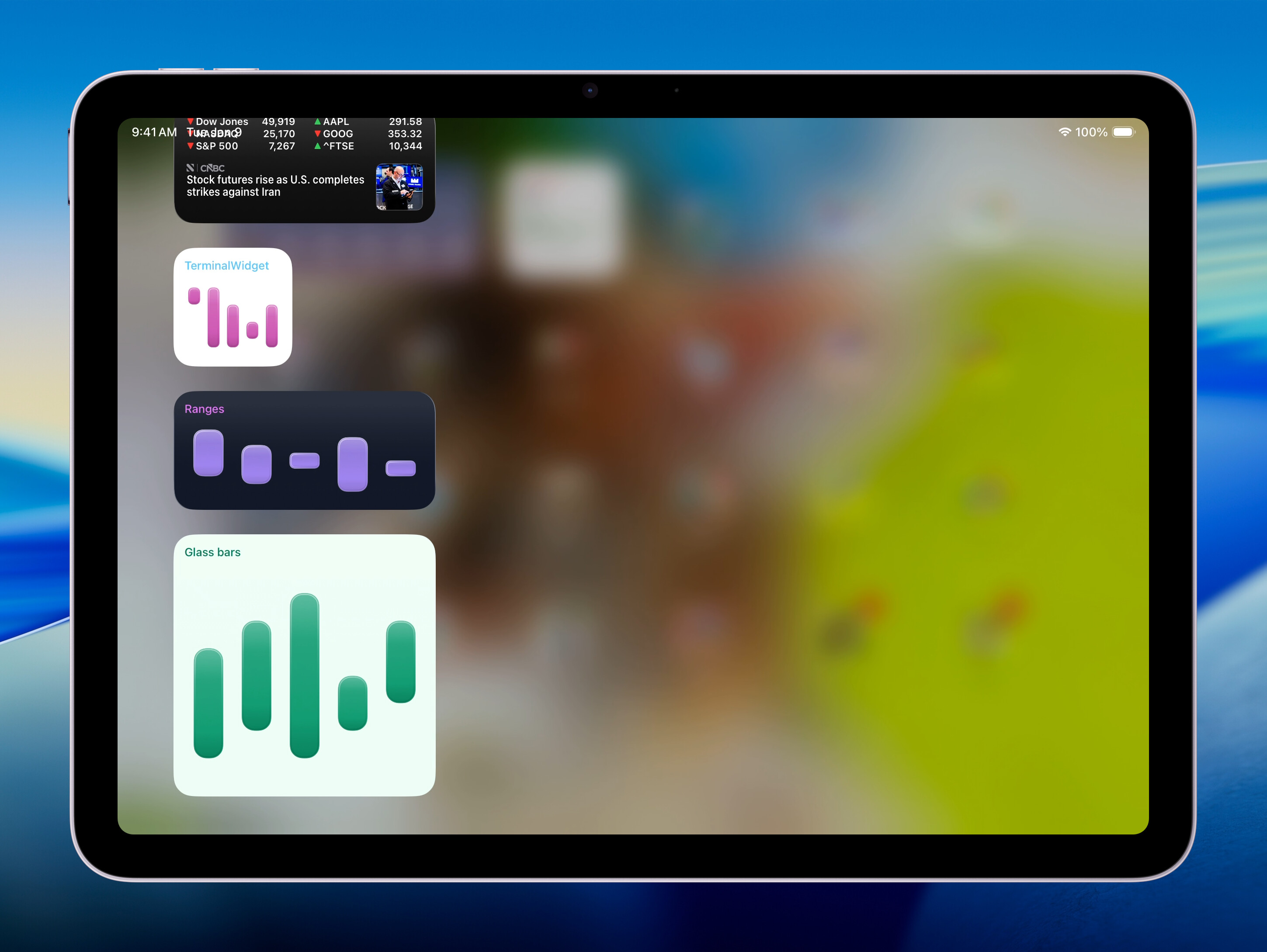
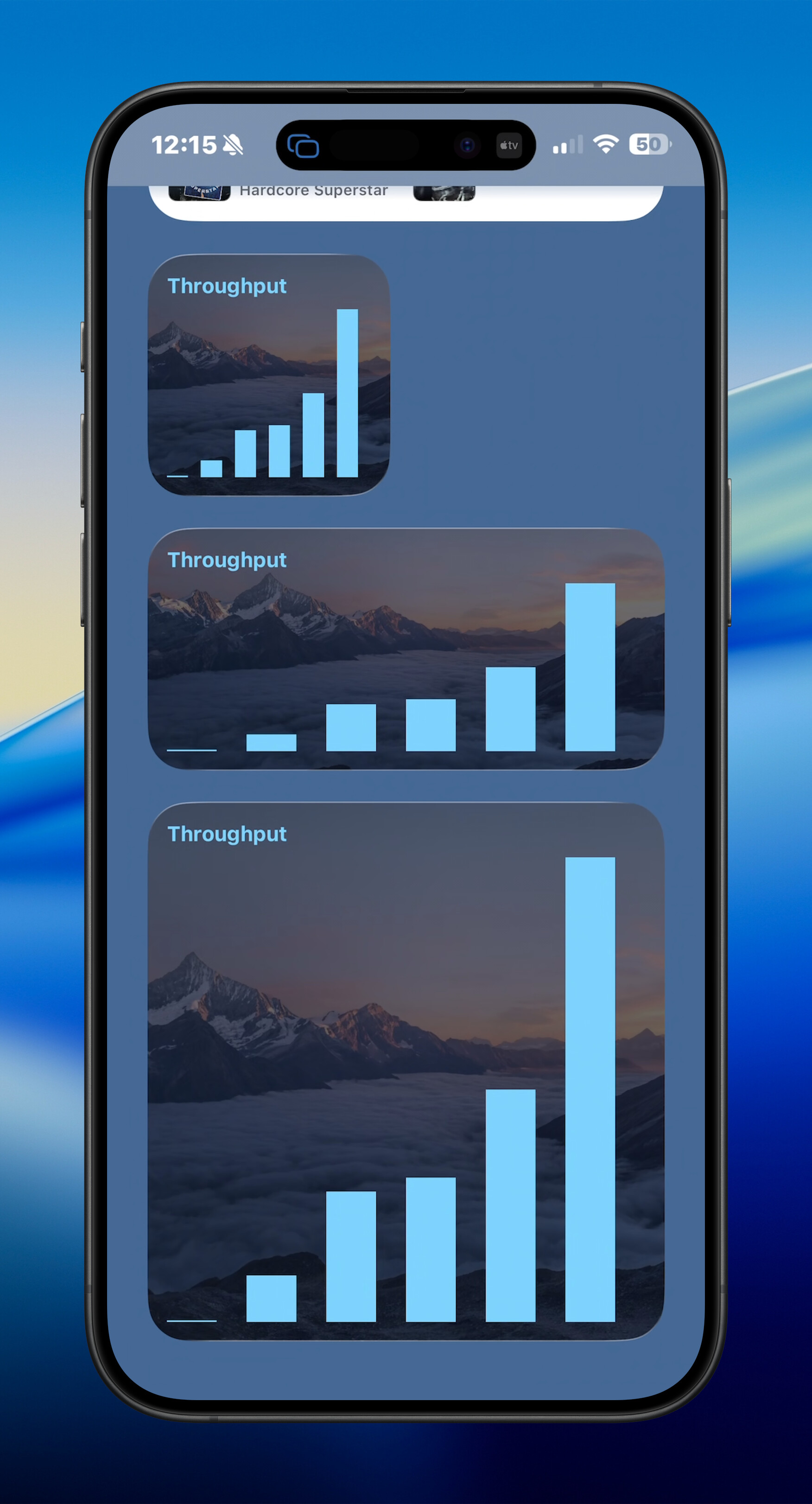
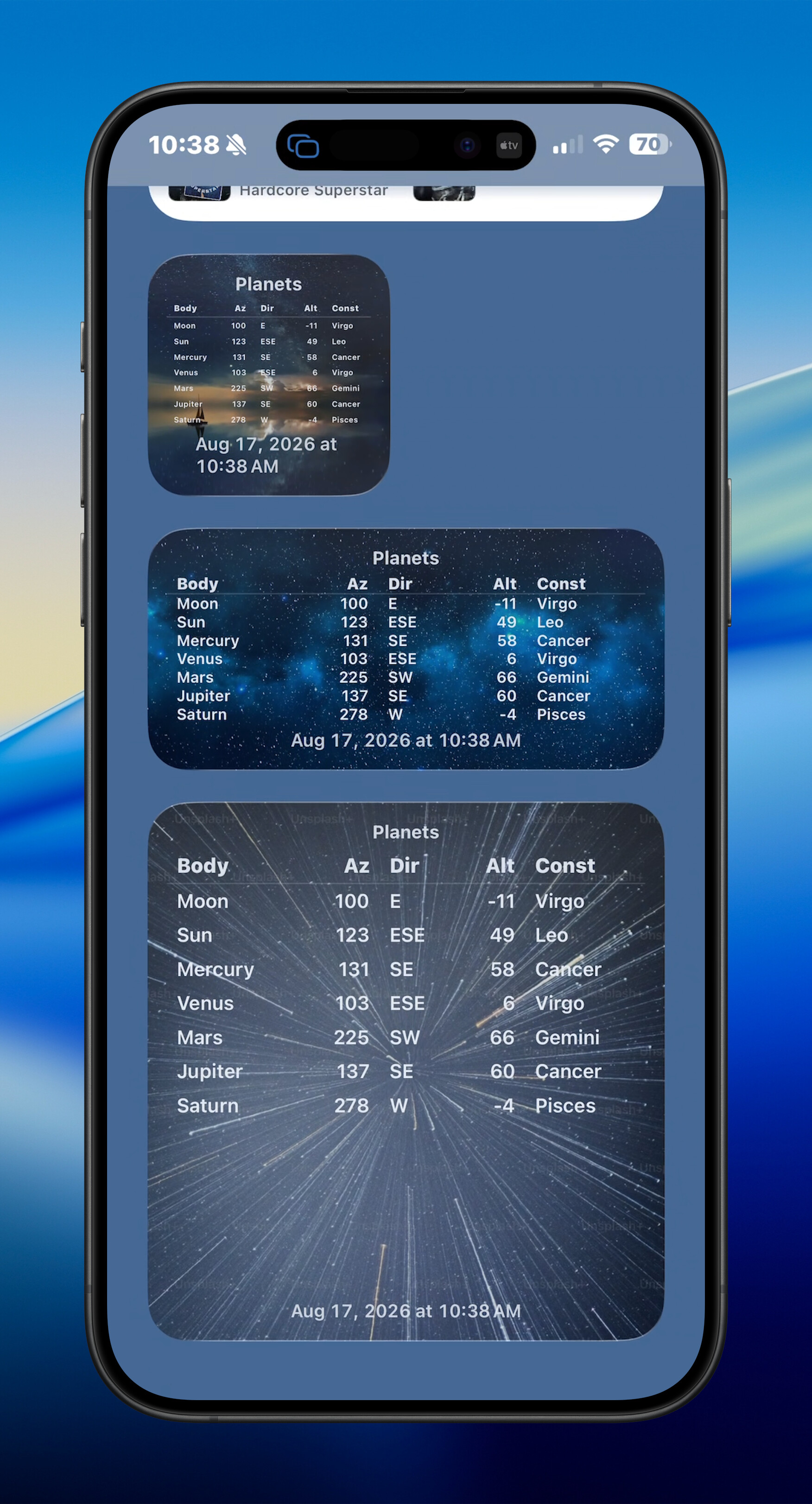
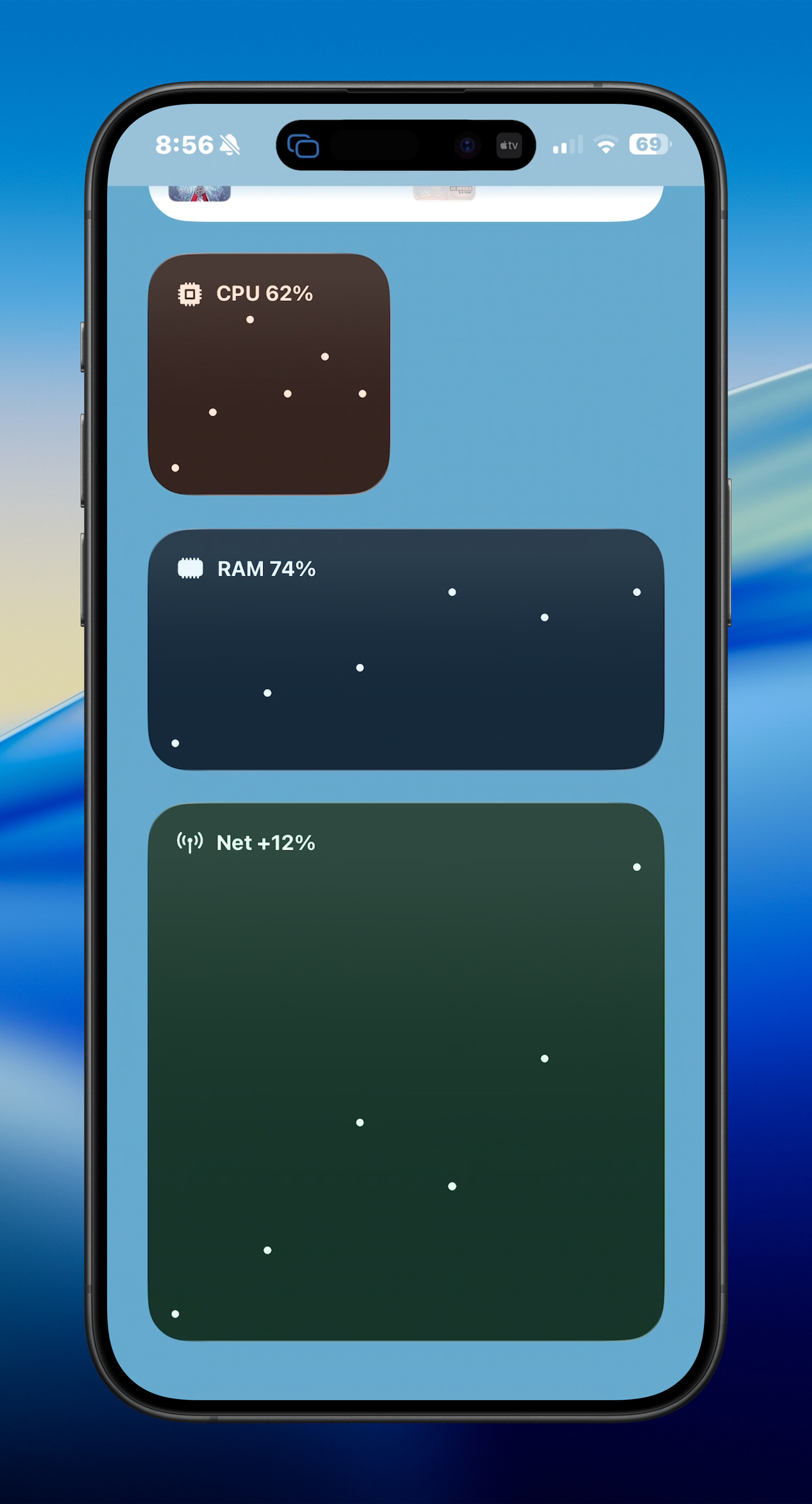
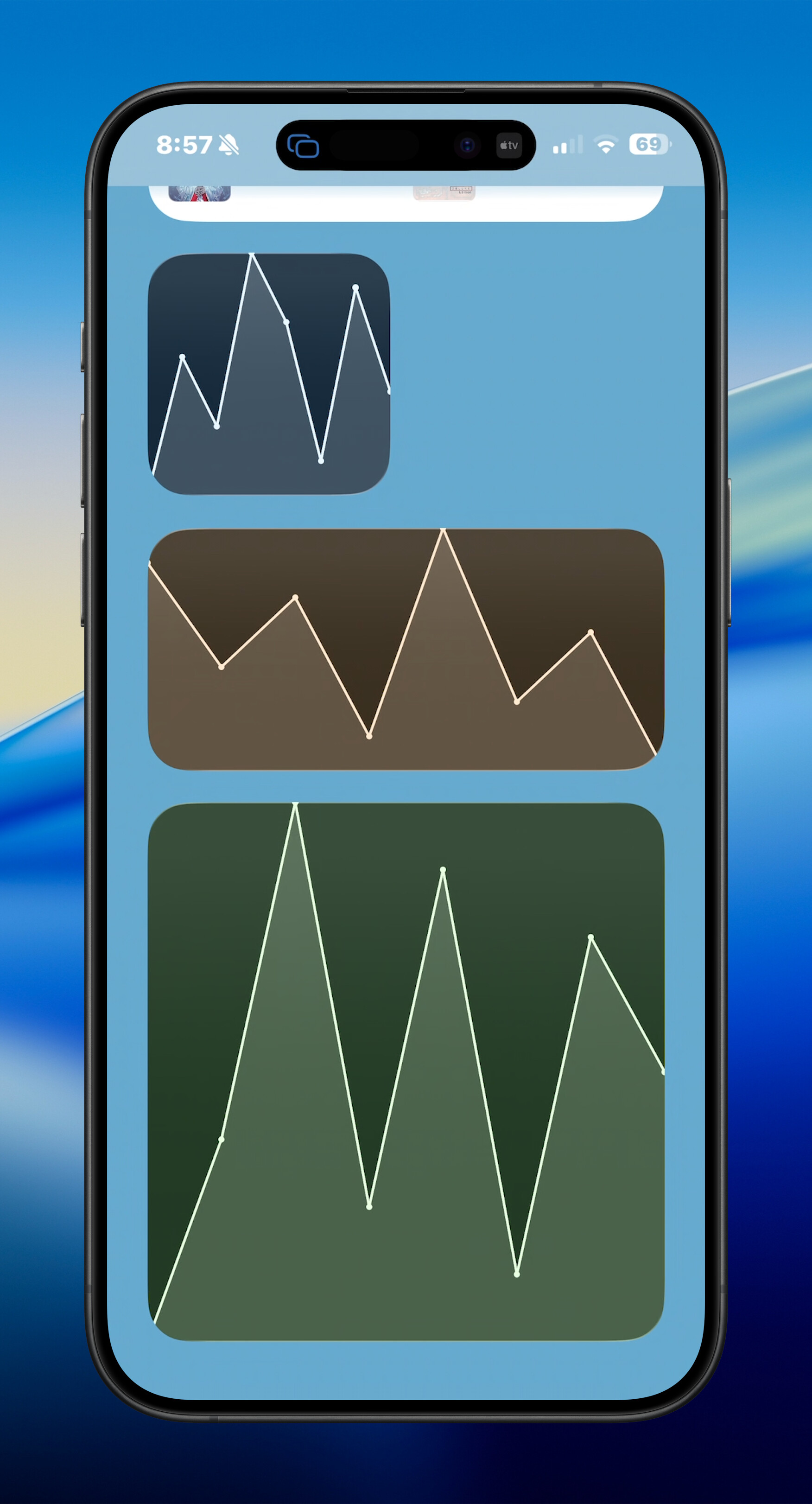
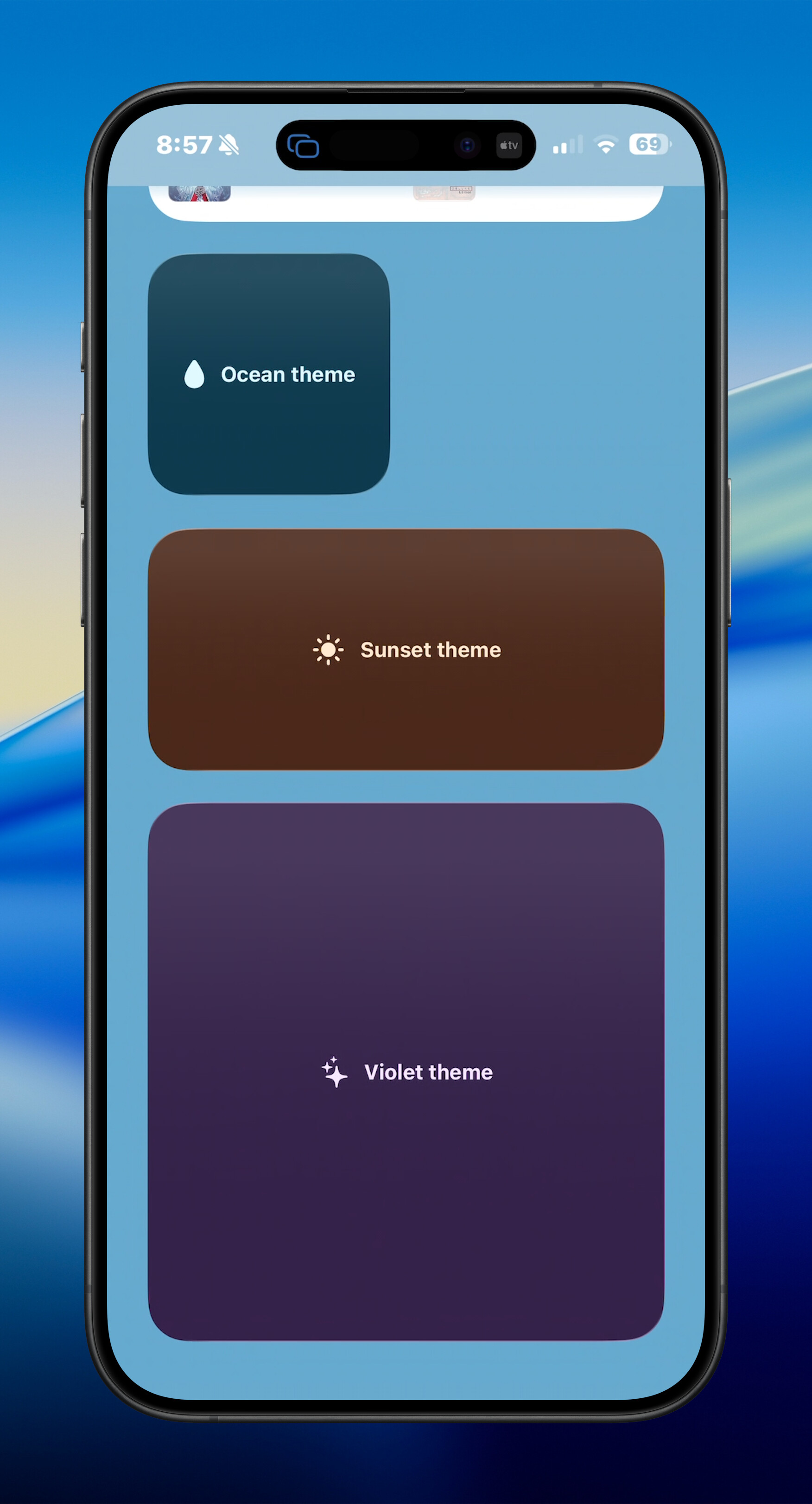
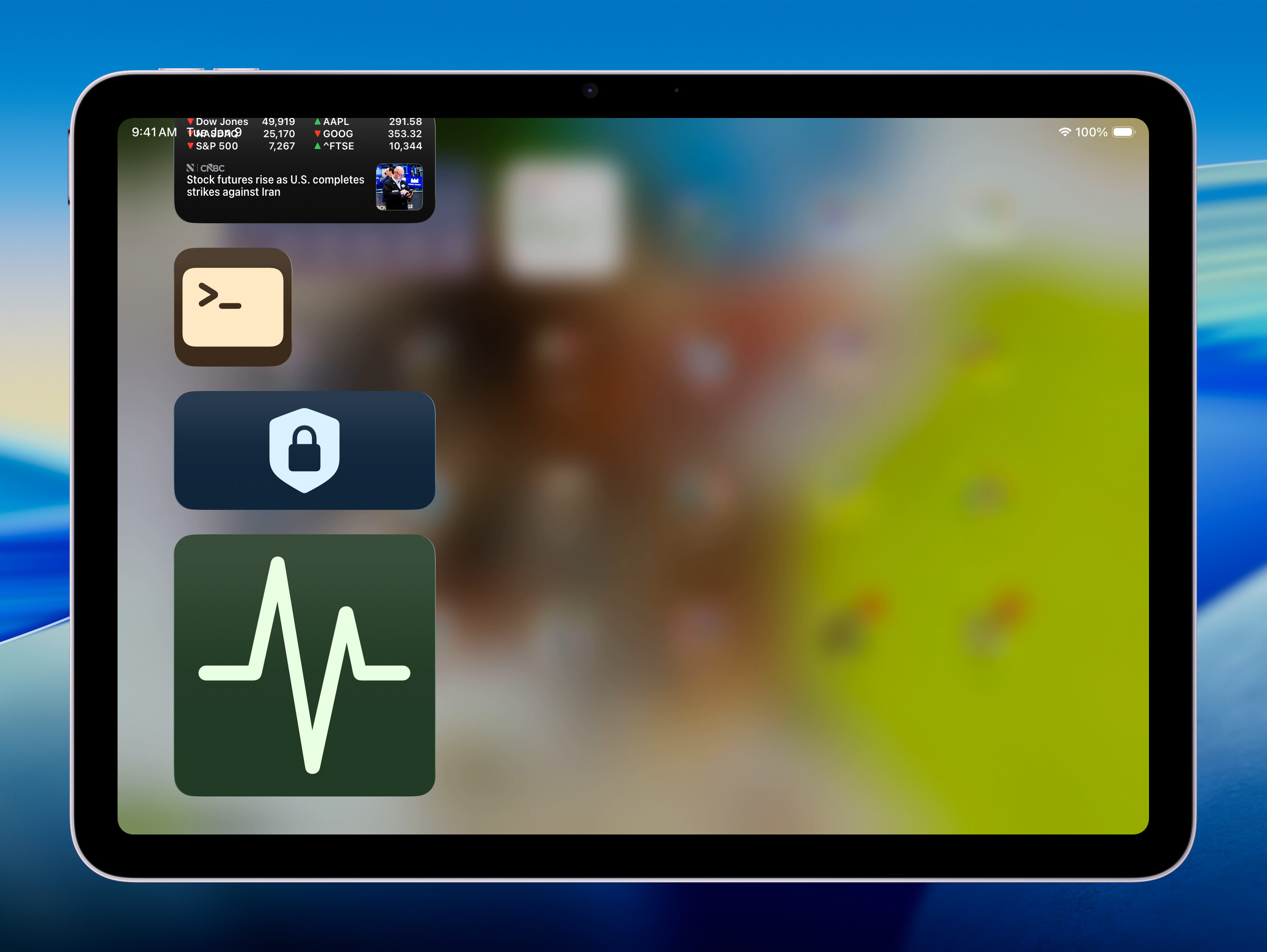
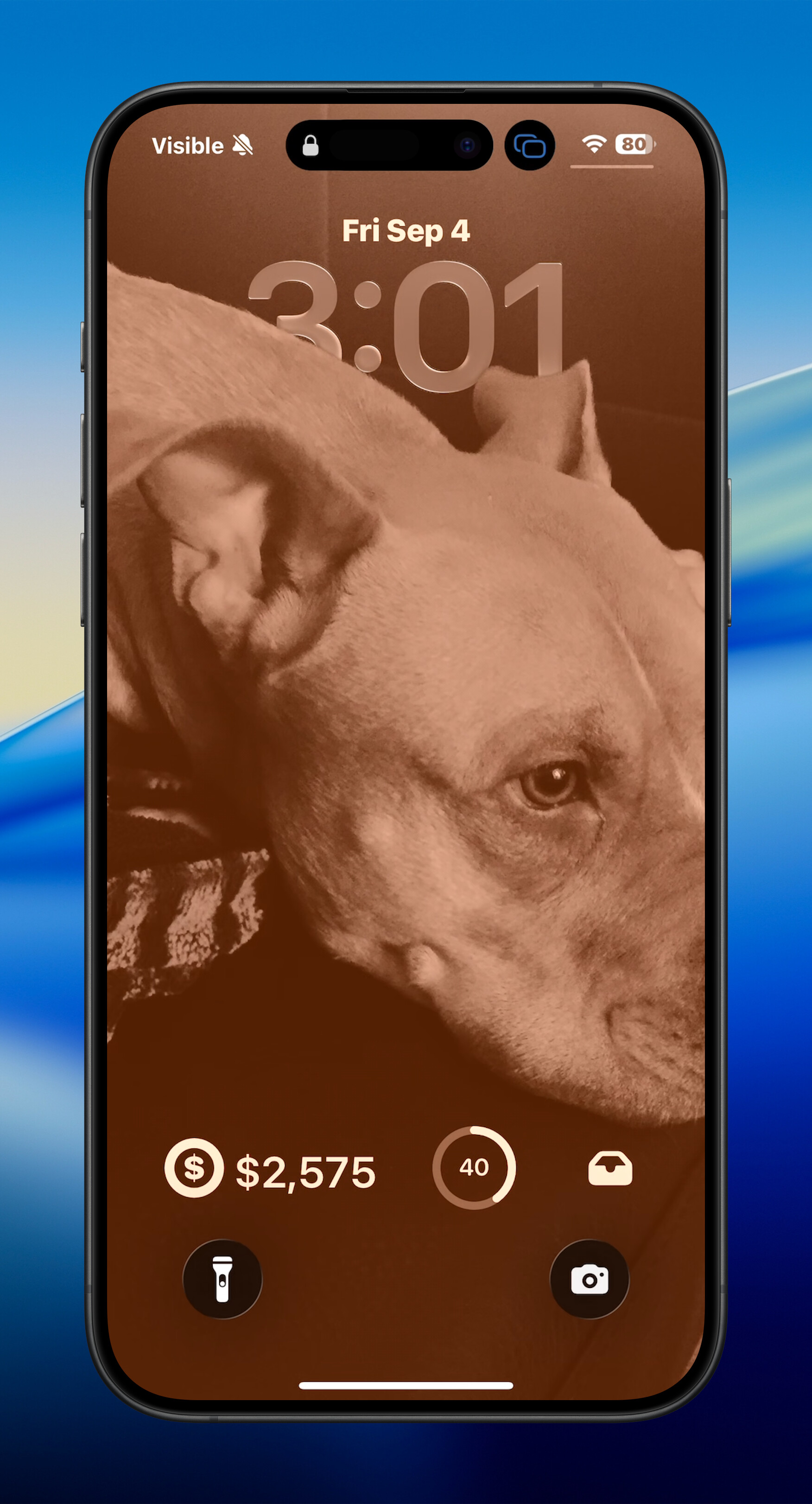
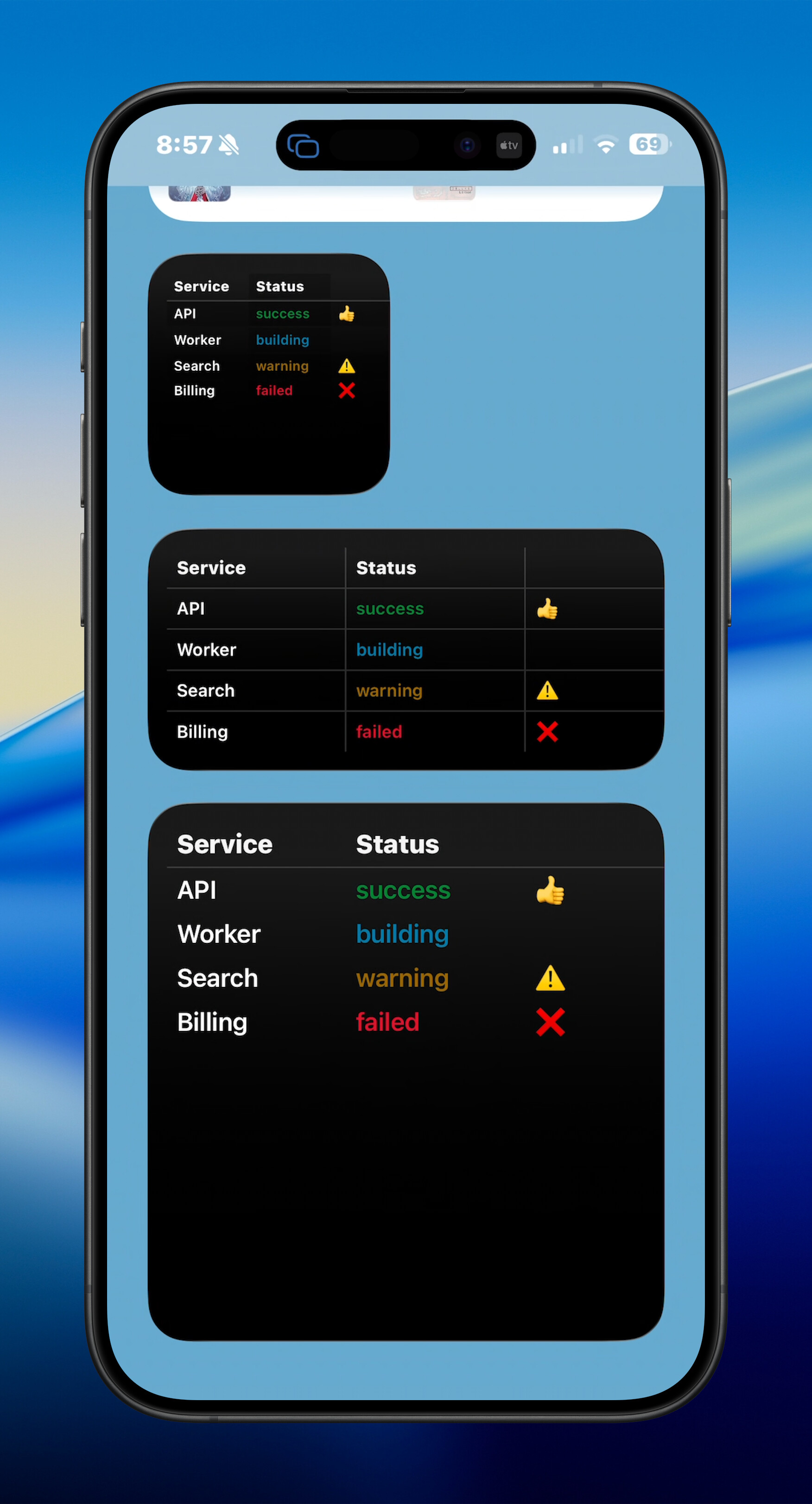
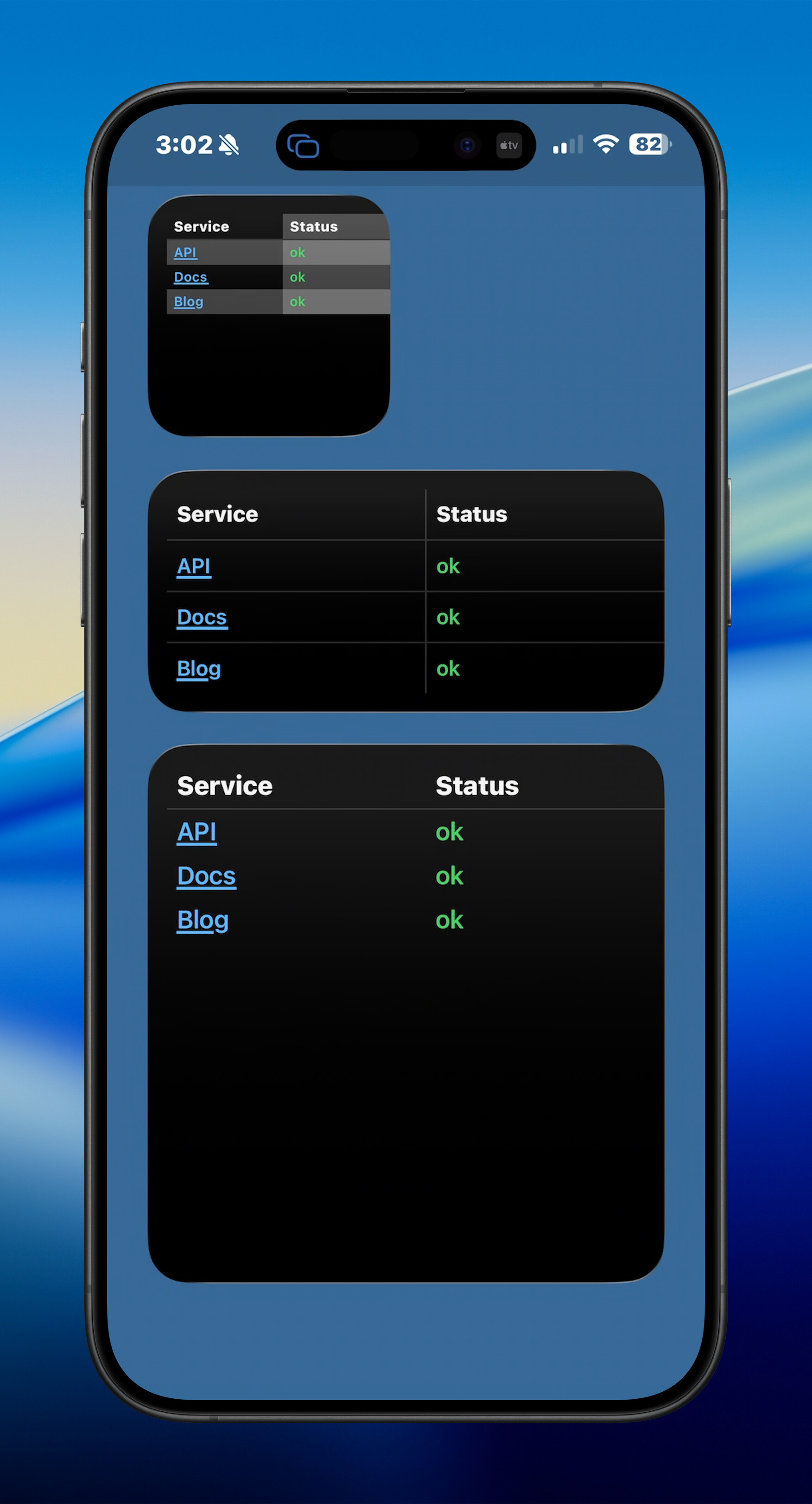
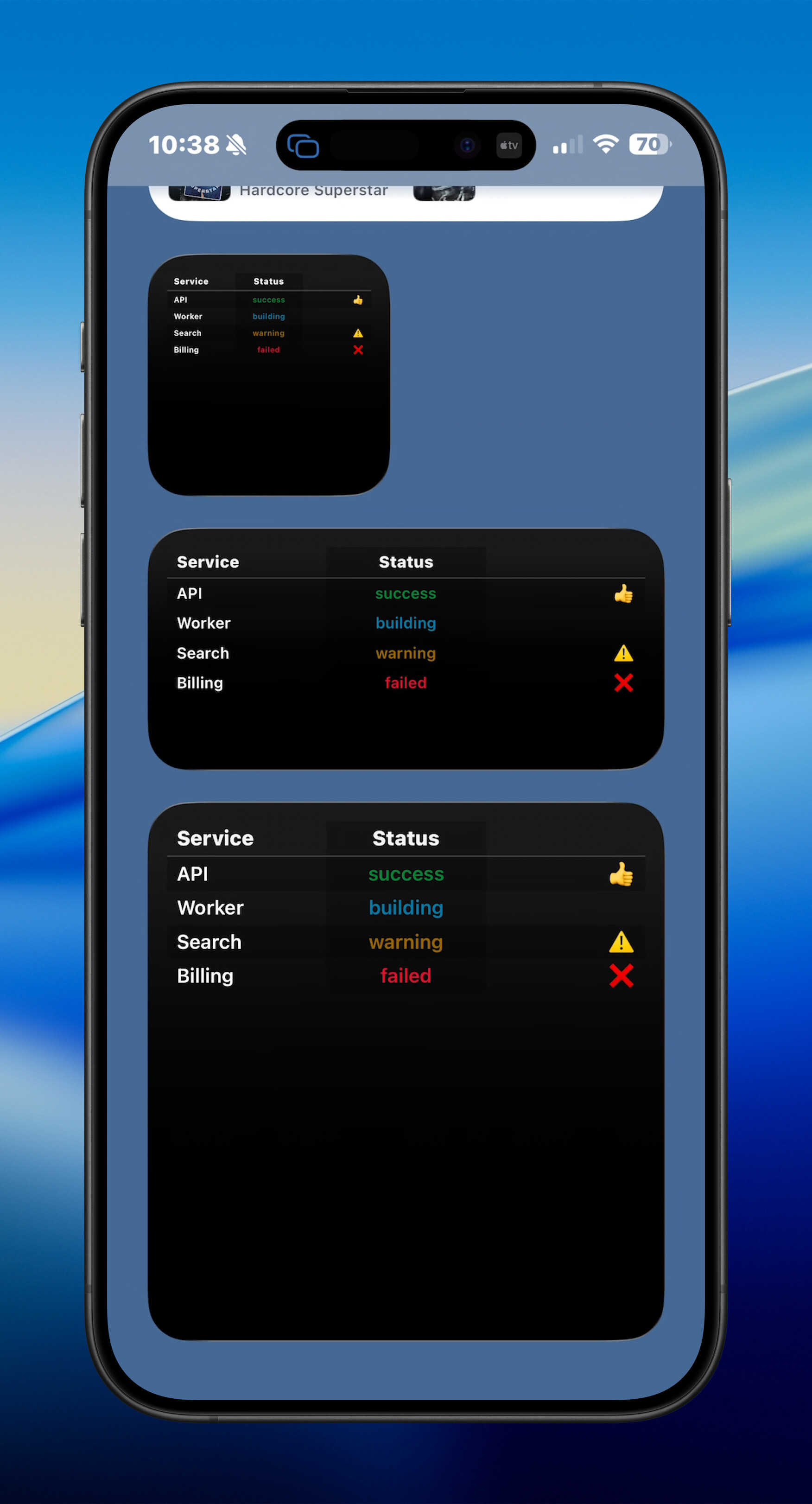
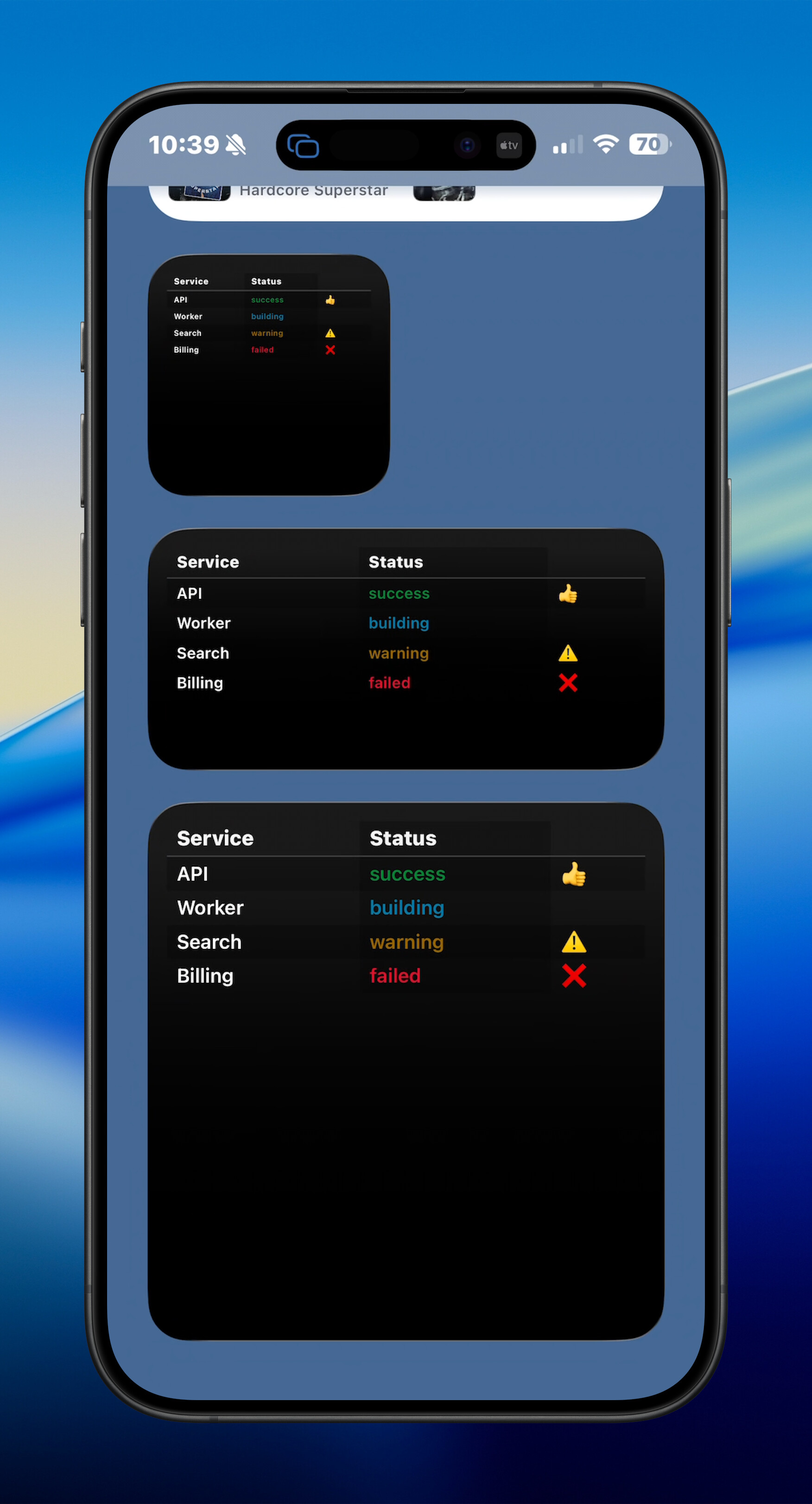
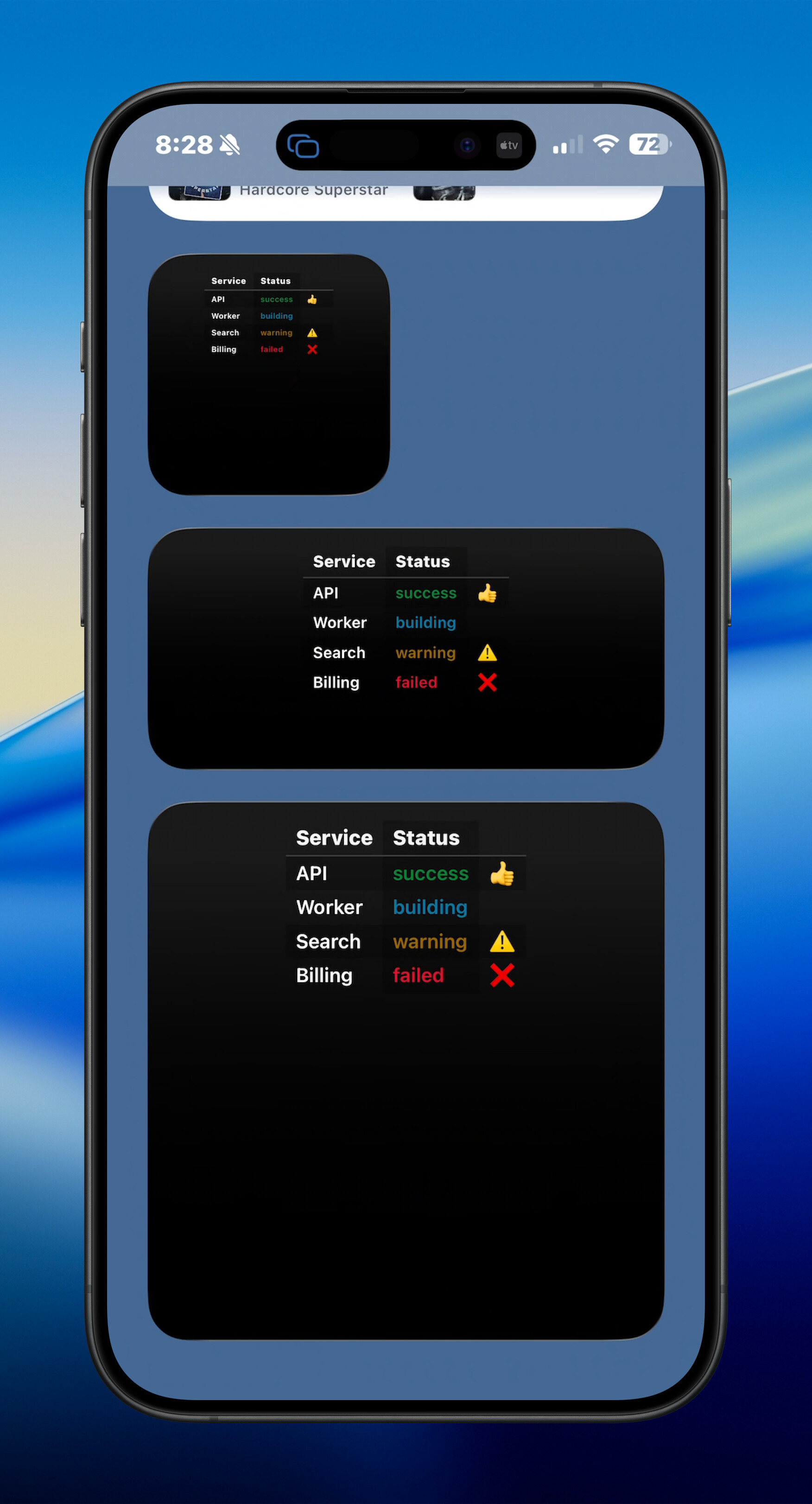
watchOS
Screenshots coming soon.
Text Widgets
Text mode is active when you provide --text or --command without chart/progress-only output.
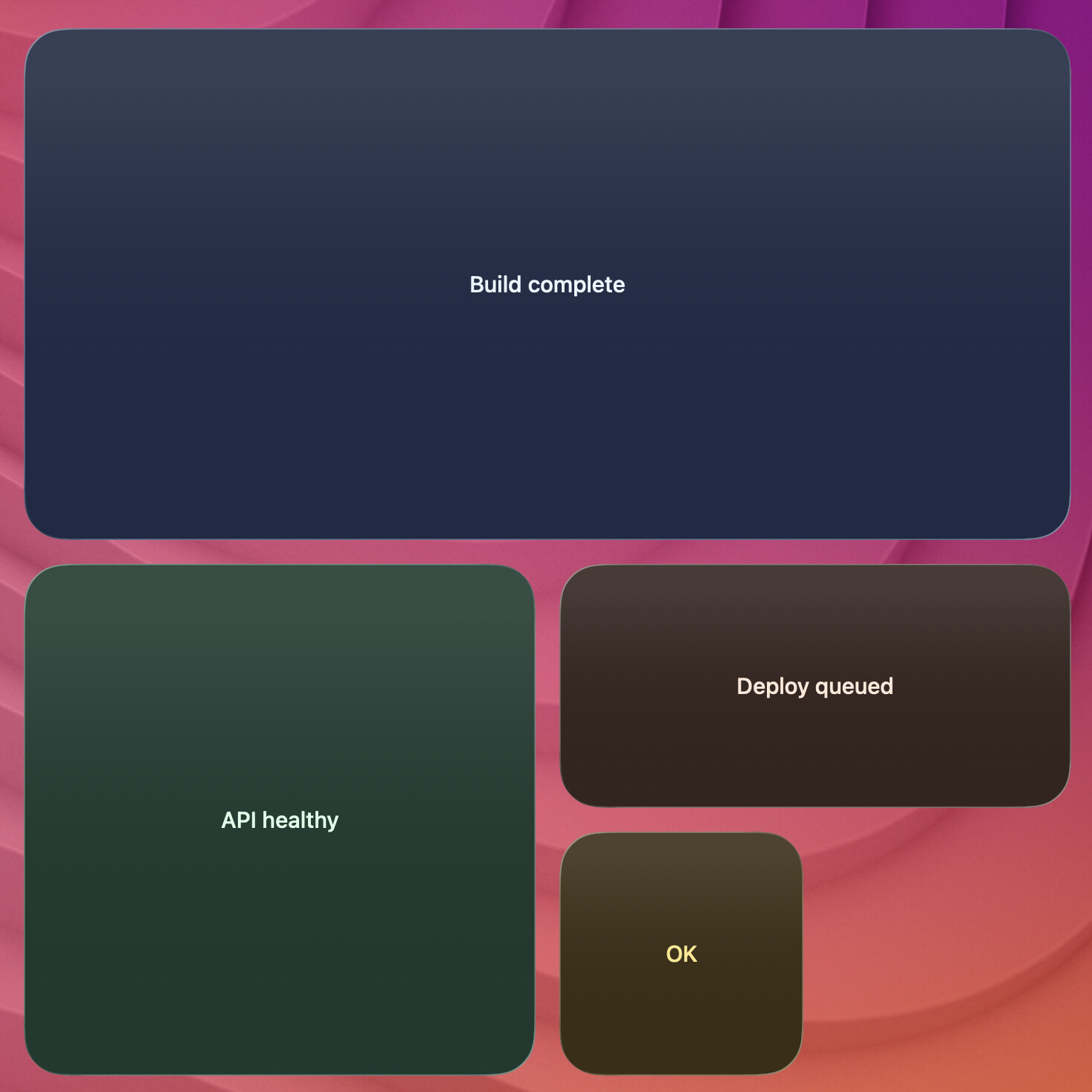
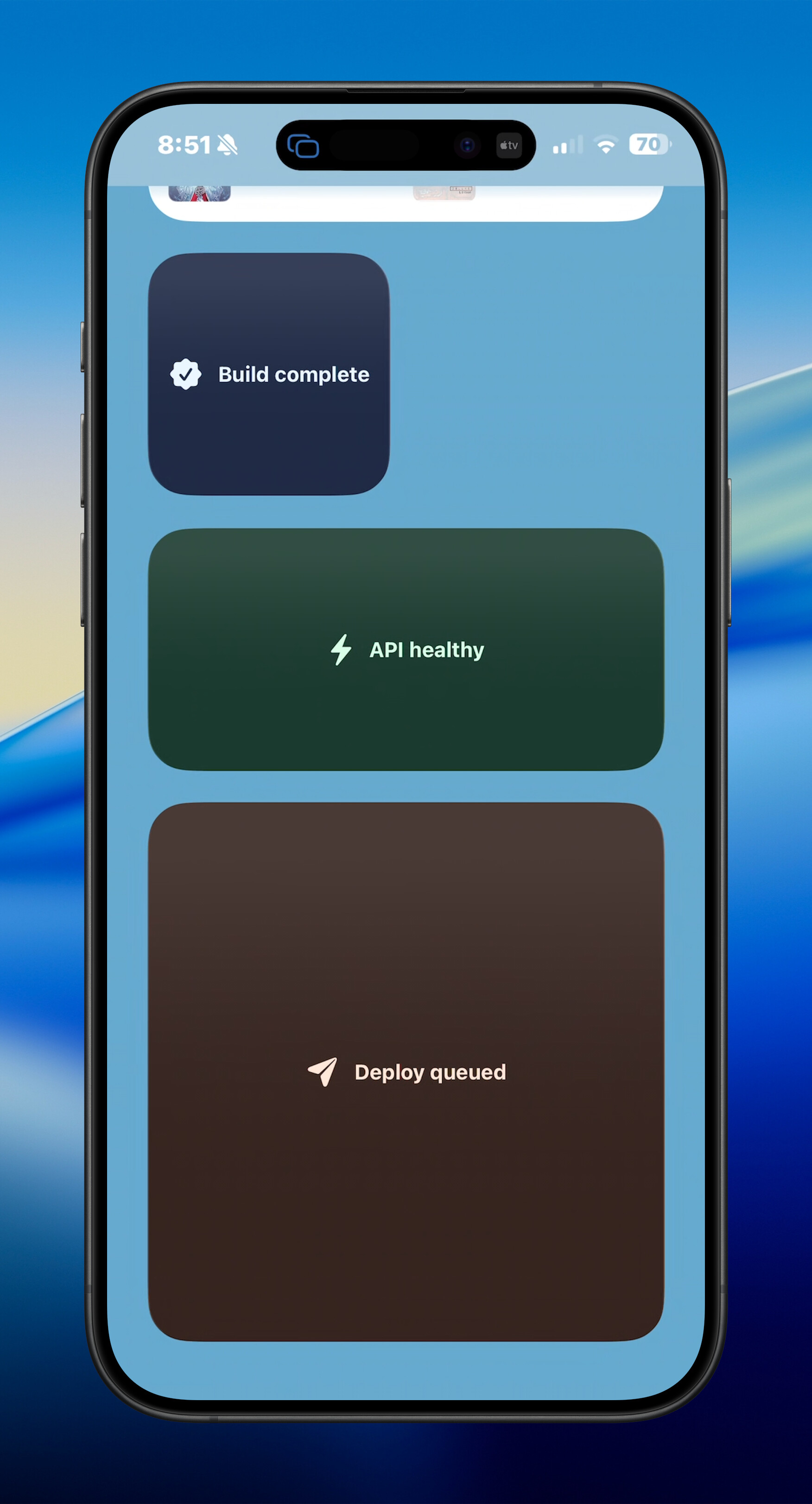
Basic Text
terminal-widget --target widget1 --text "Build complete"
Text + Icon
terminal-widget --target widget1 --text "API healthy" --icon "checkmark.seal.fill"
Markdown links in text
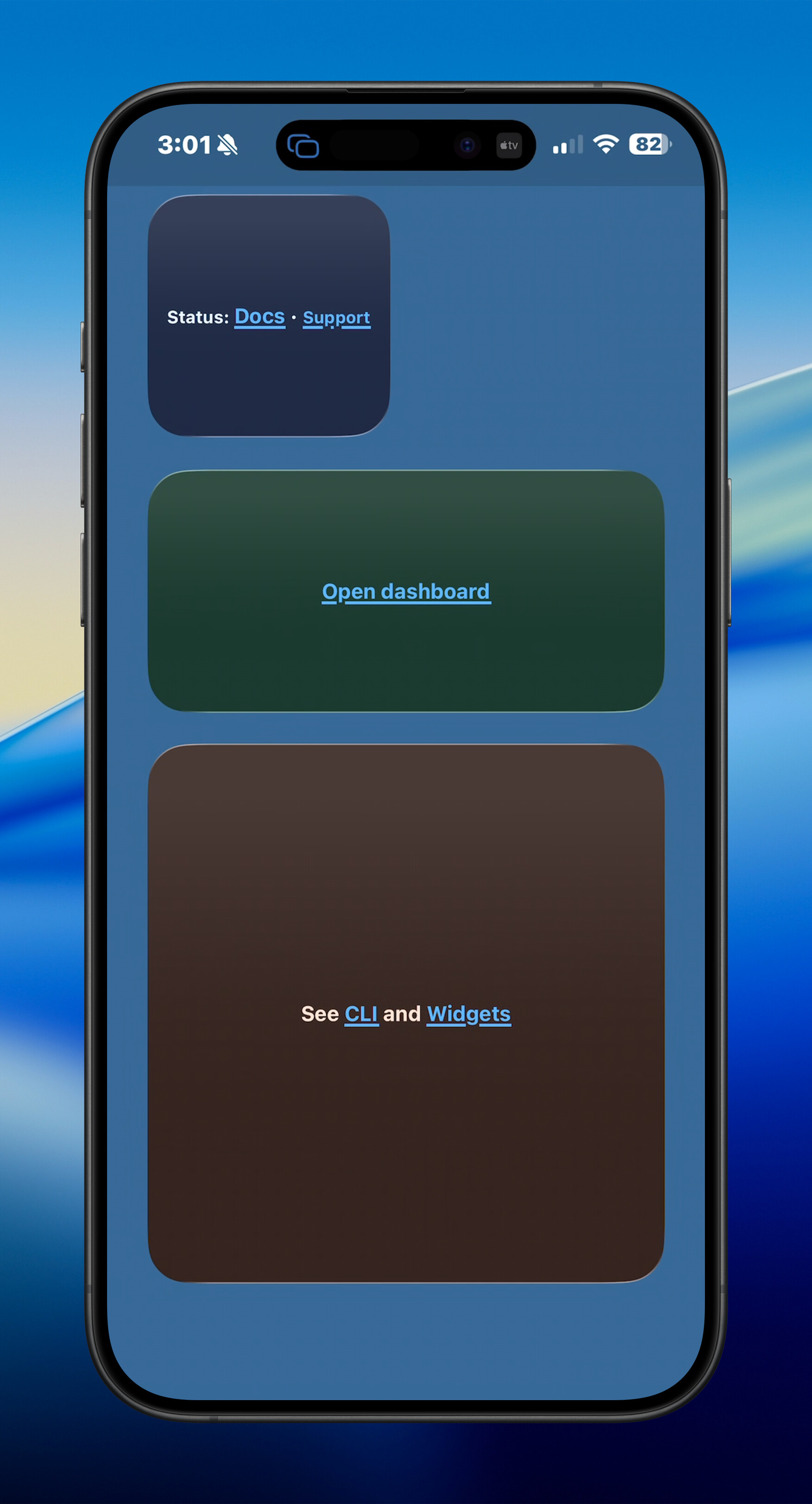
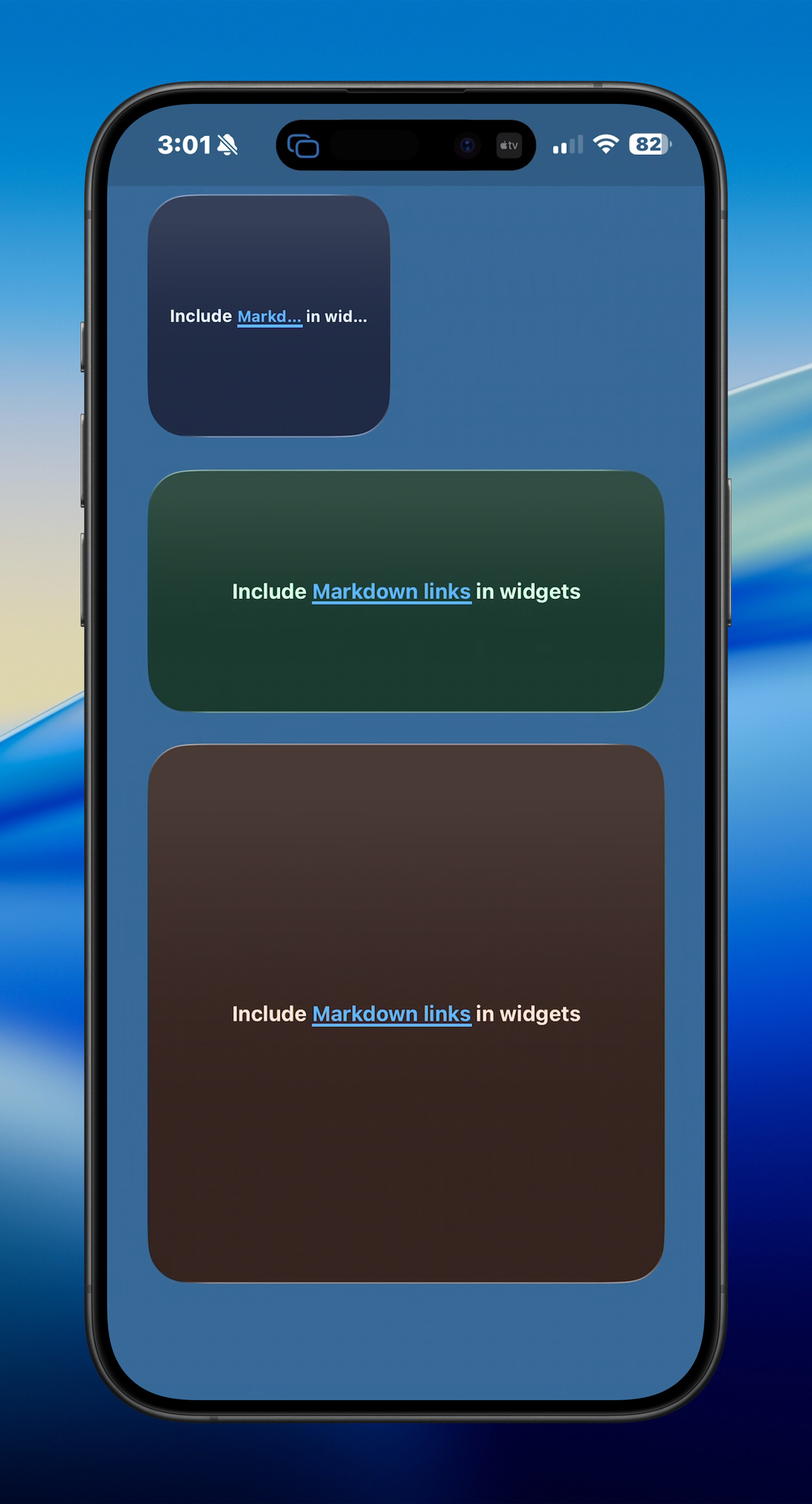
--text accepts CommonMark-style [label](url) links. On macOS and iOS, link labels render as tappable buttons; taps outside links still use the widget’s --action-kind action. URLs need a scheme (https://…, mailto:…, etc.). --fit-text scaling is skipped when any link is present.
terminal-widget --target widget1 --text "Status: [Docs](https://terminalwidget.app) · [Support](https://terminalwidget.app/support)" --fg "#EAF6FF" --bg "#1F2A44"
terminal-widget --target widget1 --text "[Open dashboard](https://example.com/status)"
terminal-widget --target widget1 --text "Include [Markdown links](https://brettterpstra.com) in widgets" --fg "#EAF6FF" --bg "#1F2A44"
Launcher buttons (buttons in JSON)
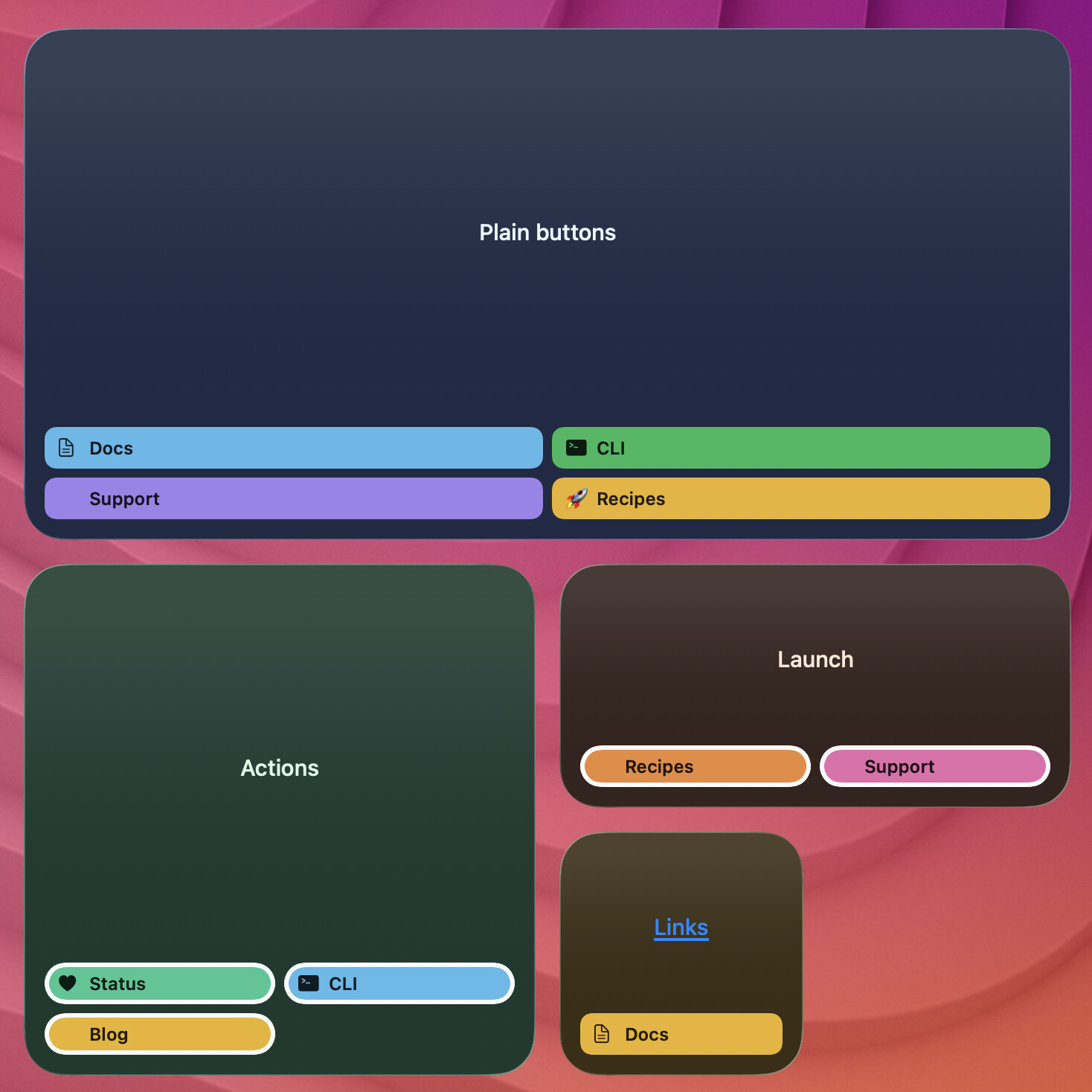
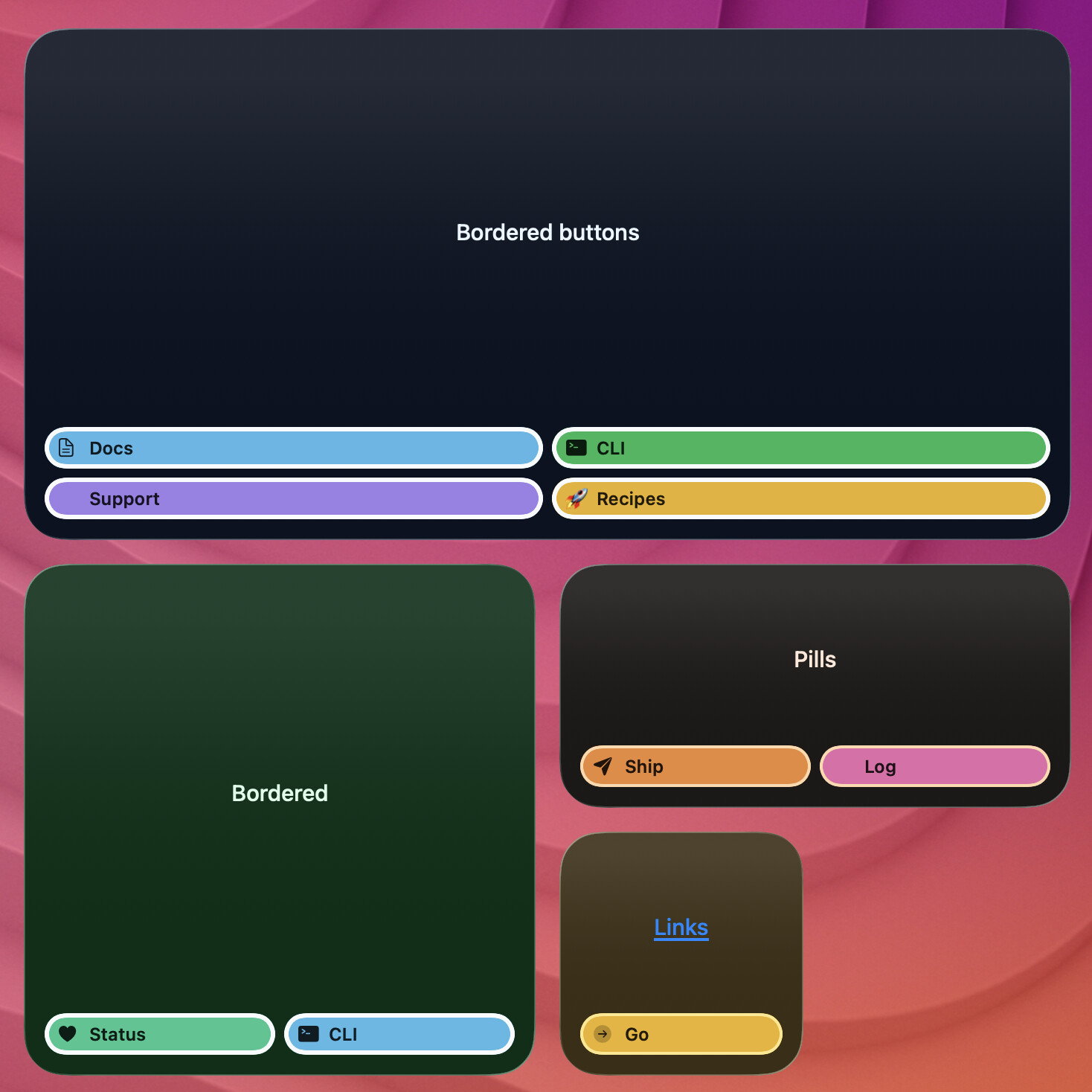
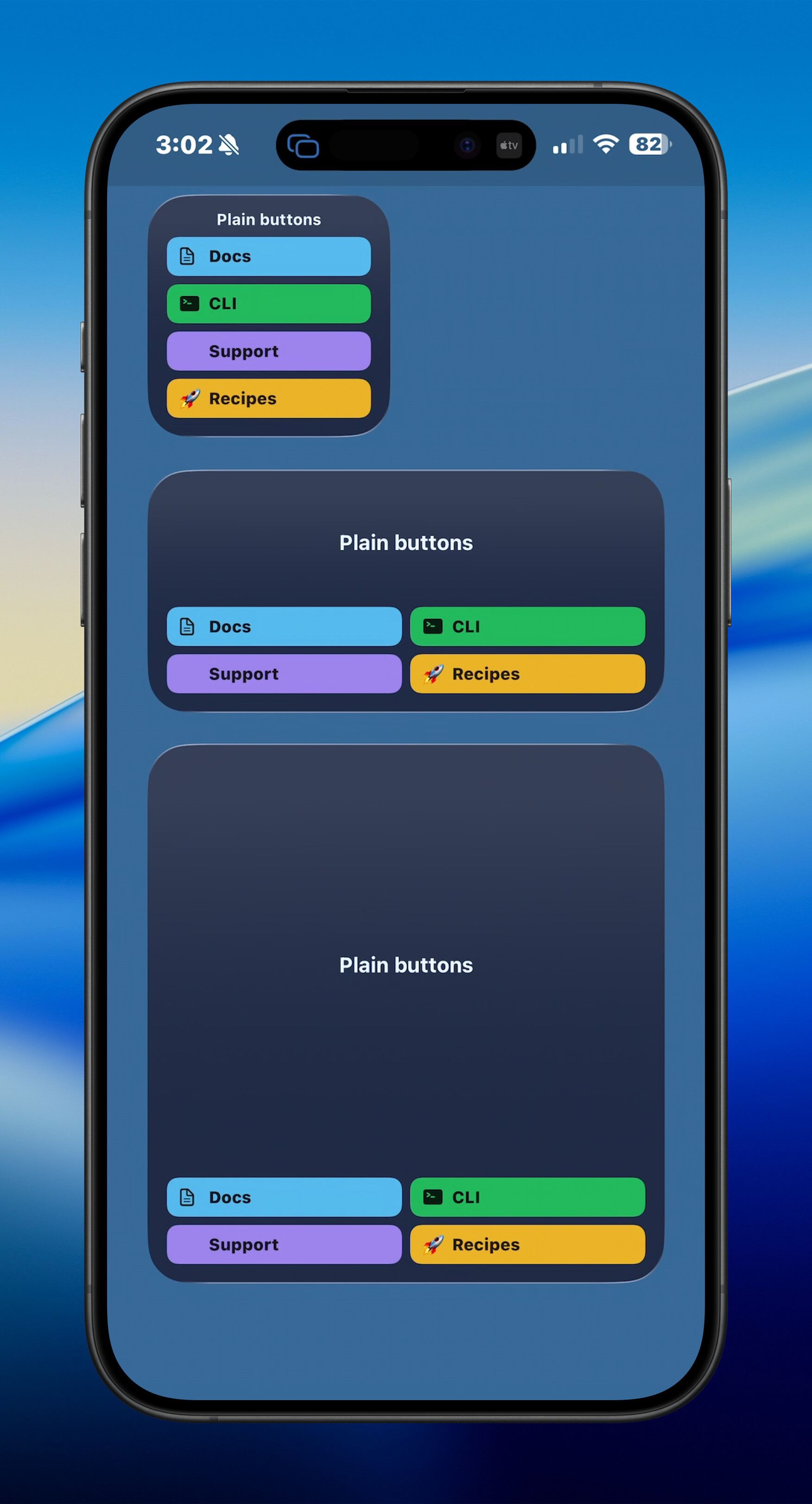
JSON updates (--json) can include a buttons array that renders a tappable footer grid under any widget content (text, chart, progress, image, table), or alone as a buttons-only layout. Max 12 buttons. Set launcher buttons from CLI --json (file, - stdin, inline {...}, or URL); Shortcuts/AppleScript do not expose per-button fields in v1, but any update that sends structured JSON can include buttons.
Button fields
Each entry needs a label and an action:
| Field | Required | Notes |
|---|---|---|
label |
yes | Button title |
icon |
no | SF Symbol name or :emoji: shortcode; left of label. If any button has an icon, all buttons reserve a left gutter so icons/labels line up |
action-type |
yes | Same values as --action-kind: open-url, open-app, run-shortcut, run-command, refresh (aliases: actionType, actionKind) |
action-value |
yes | URL, macOS bundle ID, Shortcut name, shell command, or refresh endpoint (aliases actionValue) |
color |
no | Fill / accent color for the button |
border |
no | Shorthand stroke, e.g. "2px #0f0aff" or "#ffffff 1.5" (see borders below) |
border-color |
no | Stroke color (aliases borderColor) |
border-width |
no | Stroke width in points, 0–12 (aliases: borderWidth) |
border-radius |
no | Corner radius in points, 0–48 (aliases: borderRadius); omit for default 8 |
Button layout (button-columns)
- Small widgets always use one column.
- Medium / large default to smart layout: 3 columns when the button count is divisible by 3, otherwise 2. Incomplete final rows are padded so widths stay equal. A single button stays one column.
- Root
button-columns/buttonColumns:"smart"or"auto"restores smart layout;1,2, or3forces that many columns (capped by button count). - Omit
button-columnsto leave the previous column mode. Clear the footer with"buttons": [](merges onto the previous payload and keeps text, charts, and other content),--clear-buttons, or--json '{"buttons":[]}'. Omit thebuttonskey to leave the previous button list.
Button border styling
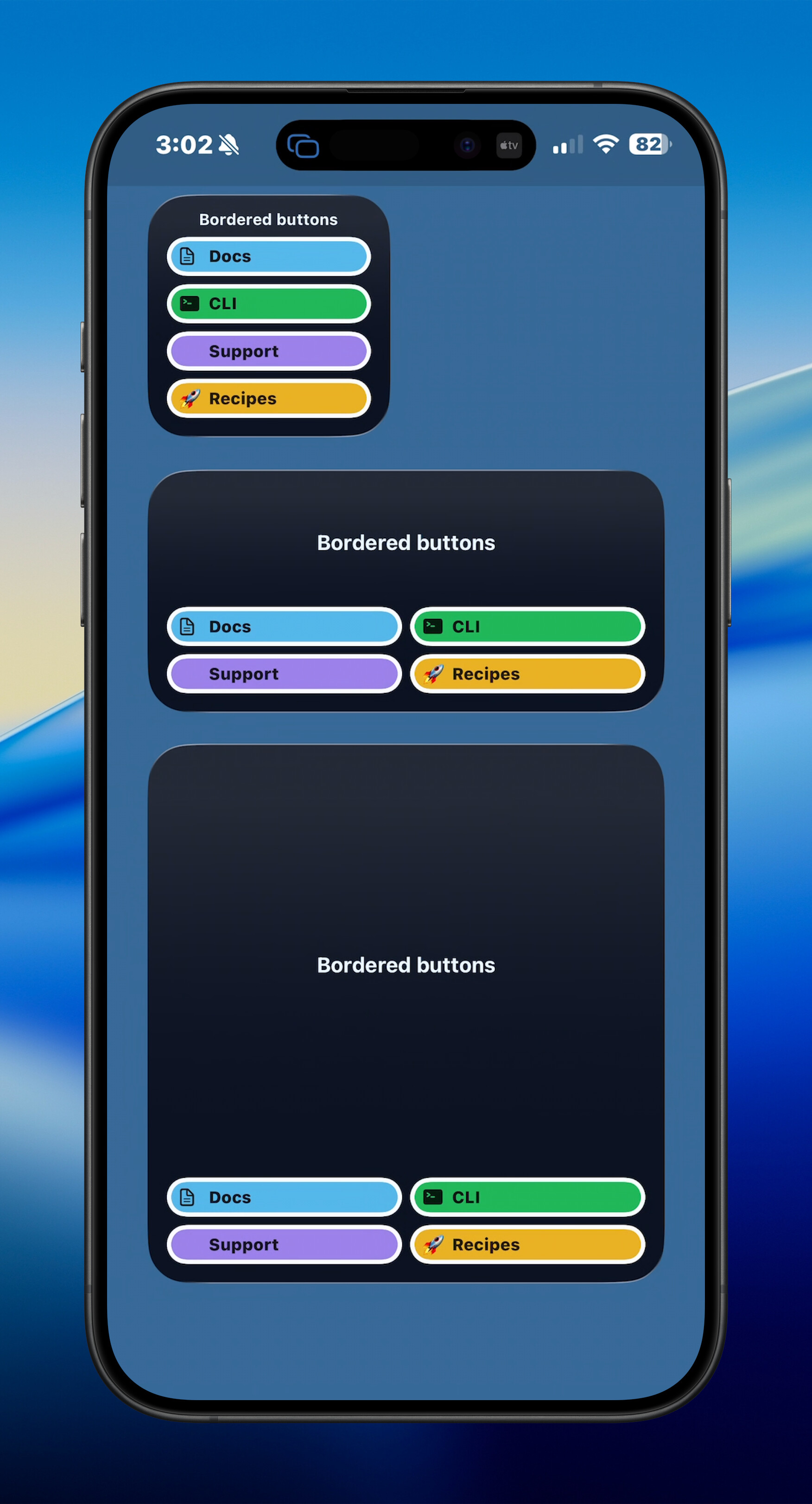
Buttons are borderless by default. Borders come from widget-level defaults and optional per-button overrides.
Root defaults (apply to every button unless overridden):
button-border/buttonBorder— shorthand width + color, e.g."2px #0f0aff"button-border-color/buttonBorderColorbutton-border-width/buttonBorderWidth(0–12)button-border-radius/buttonBorderRadius(0–48)
Per-button overrides: border, border-color, border-width, border-radius win over the matching root default.
Shorthand rules: tokens may be WIDTH, WIDTHpx, and/or a color (#rrggbb, named colors, etc.), in either order. Optional solid / none tokens are ignored. Empty string clears width + color from that shorthand. Explicit border-color / border-width (or root equivalents) after a shorthand override those parts.
Effective stroke: if a border color is set and width is omitted, width defaults to 1. If neither color nor width is set, width is 0 (no stroke). Corner radius defaults to 8 when omitted.
Root border keys persist like other payload fields: send them without buttons to restyle the current grid; omit them to keep previous defaults.
Button platform notes
On iOS, open-app and run-command buttons render muted and do not run (macOS supports all action types). When any launcher buttons are present, the whole-widget tap URL is omitted on macOS so the footer controls stay interactive.
terminal-widget --target widget1 --json - <<'EOF'
{
  "text": "Status board",
  "button-columns": 2,
  "button-border": "2px #0f0aff",
  "button-border-radius": 10,
  "buttons": [
    {"label": "Docs", "icon": "doc.text", "color": "#5ac5fa", "border": "1px #ffffff", "border-radius": 10, "action-type": "open-url", "action-value": "https://terminalwidget.app"},
    {"label": "Marked", "color": "#22c55e", "action-type": "open-app", "action-value": "com.brettterpstra.marked2"},
    {"label": "Refresh", "action-type": "refresh", "action-value": "https://example.com/widget.json"}
  ]
}
EOF
Title and custom caption (--title, --title-color, --caption-text)
--title renders a small caption-style line at the top (inside padding). --caption-text sets custom footer text below the main content and implies --caption (no [min/max] or [n%] auto text). Both accept GitHub :emoji: shortcodes like --text.
terminal-widget --target widget1 --text "Build queue" --title ":chart_with_upwards_trend: Throughput" --title-color "#a78bfa" --caption-text "Updated :clock3:" --timestamp --bg "#0f172a" --fg "#94a3b8"
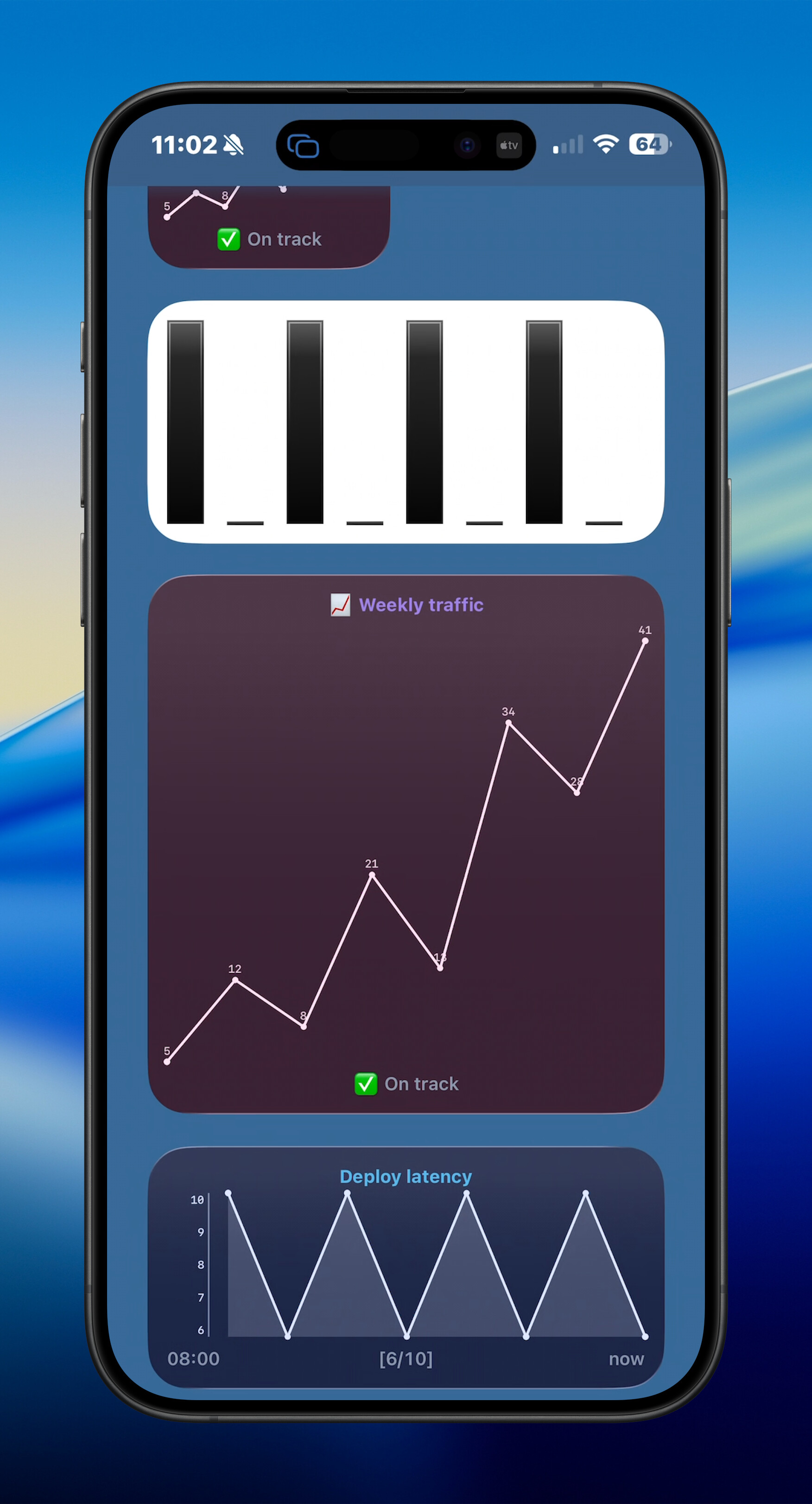
terminal-widget --target widget1 --chart "5 12 8 21 13 34" --chart-format graph --title "Weekly trend" --caption-text ":white_check_mark: On track" --caption-color "#94a3b8" --fg "#e2e8f0" --bg "#0f172a"
terminal-widget --target widget1 --text "Deploy log" --title "Left-aligned title" --title-alignment left --fg "#e2e8f0" --bg "#0f172a"
--title-alignment accepts left, center (default when --title is set), or right.
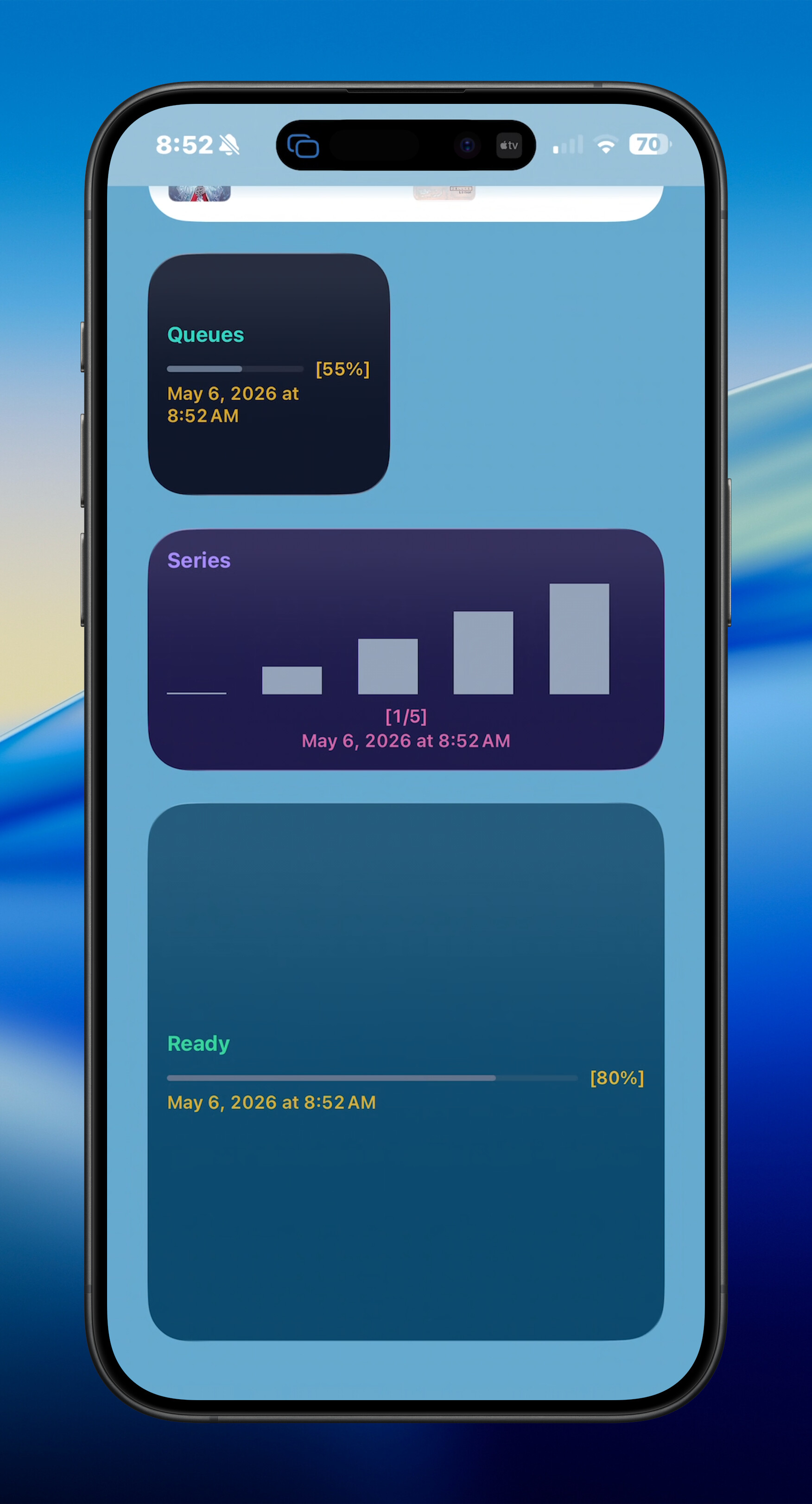
Text vs caption colors (--text-color, --caption-color)
Use --foreground for icons, charts, and progress visuals. Optionally set --text-color so the main --text line (and table defaults) differ from --foreground, and --caption-color for [min/max], [n%], --caption-text, and --timestamp lines.
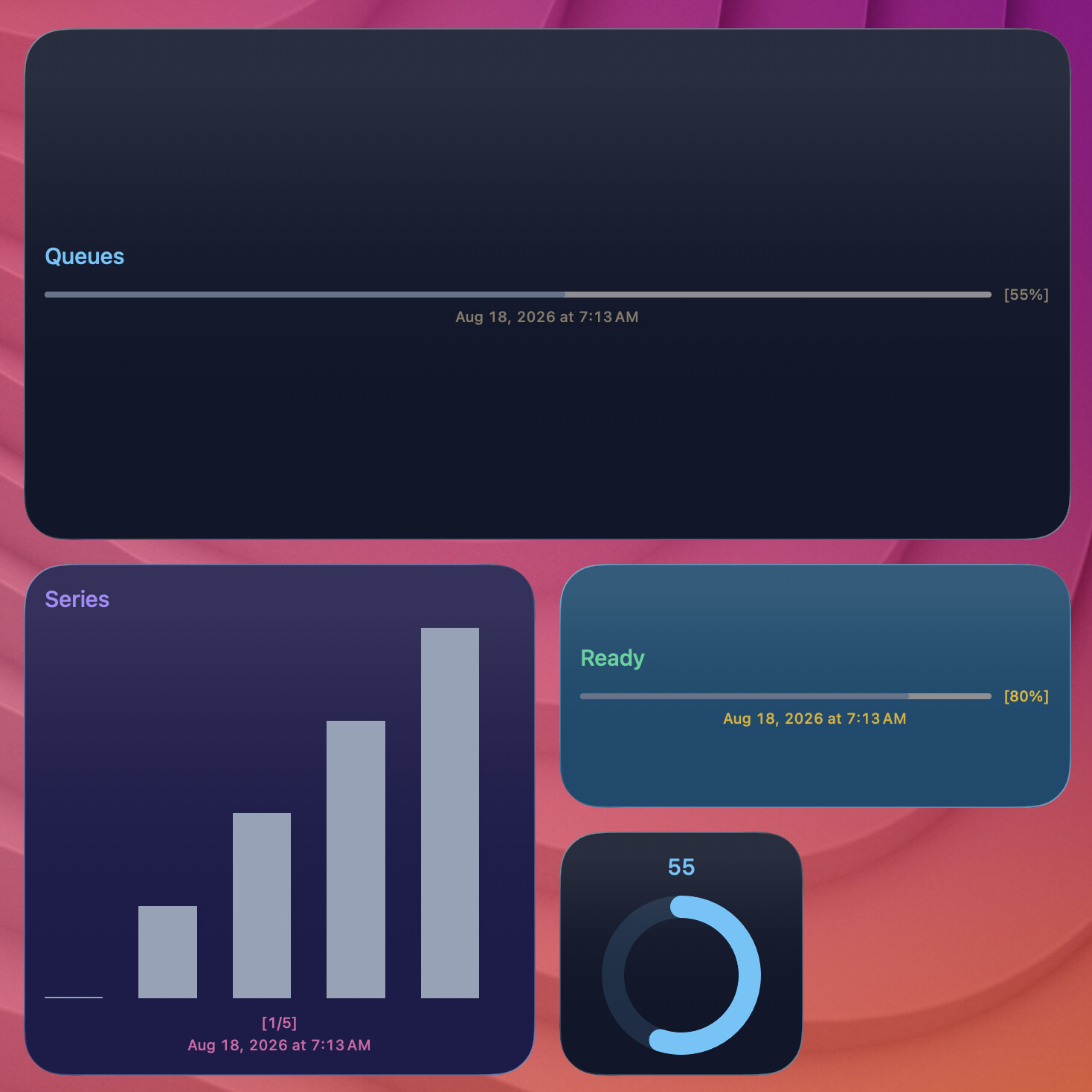
terminal-widget --target widget1 --text "Queues" --foreground "#64748b" --text-color "#2dd4bf" --progress 55 --caption --timestamp --caption-color "#fbbf24" --bg "#0f172a"
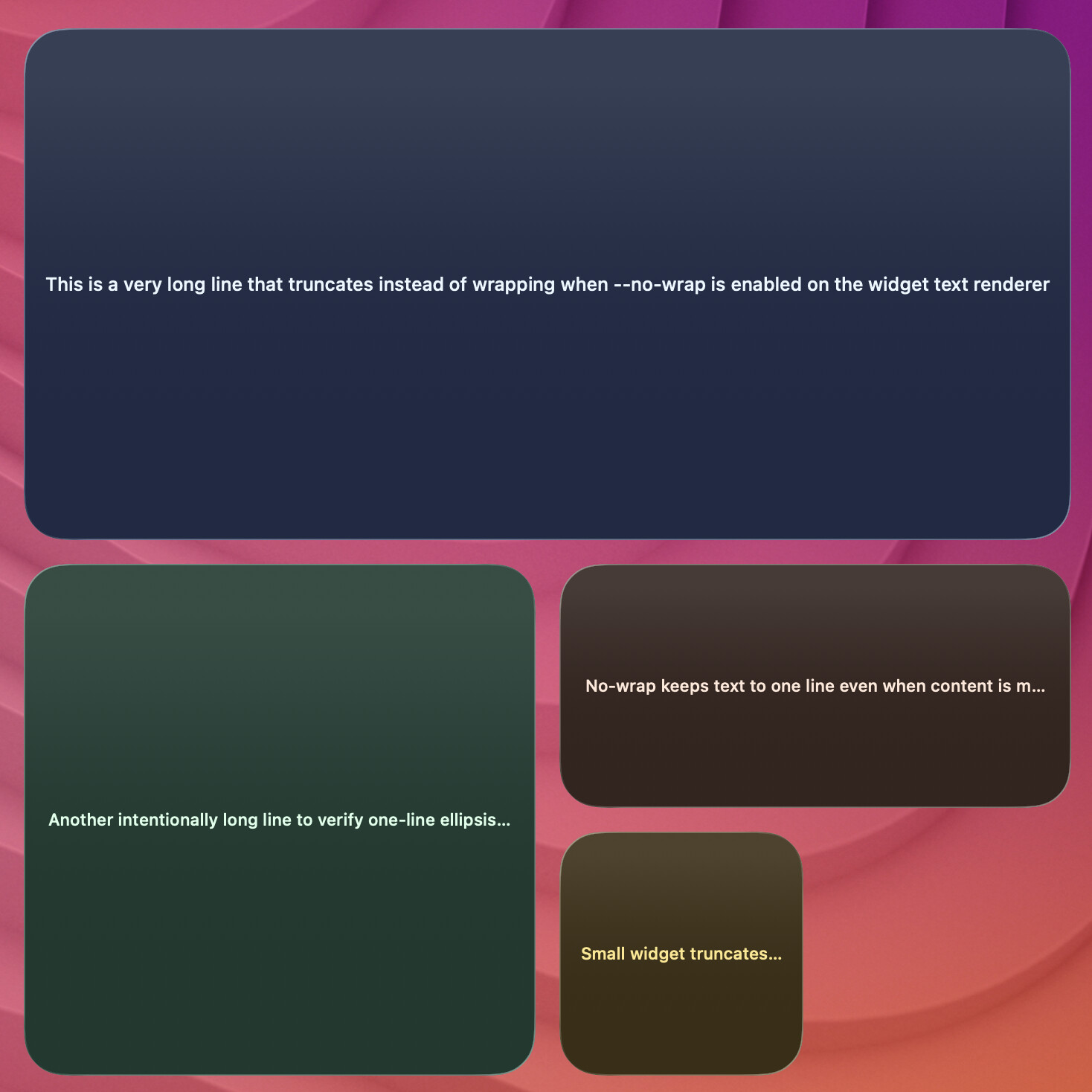
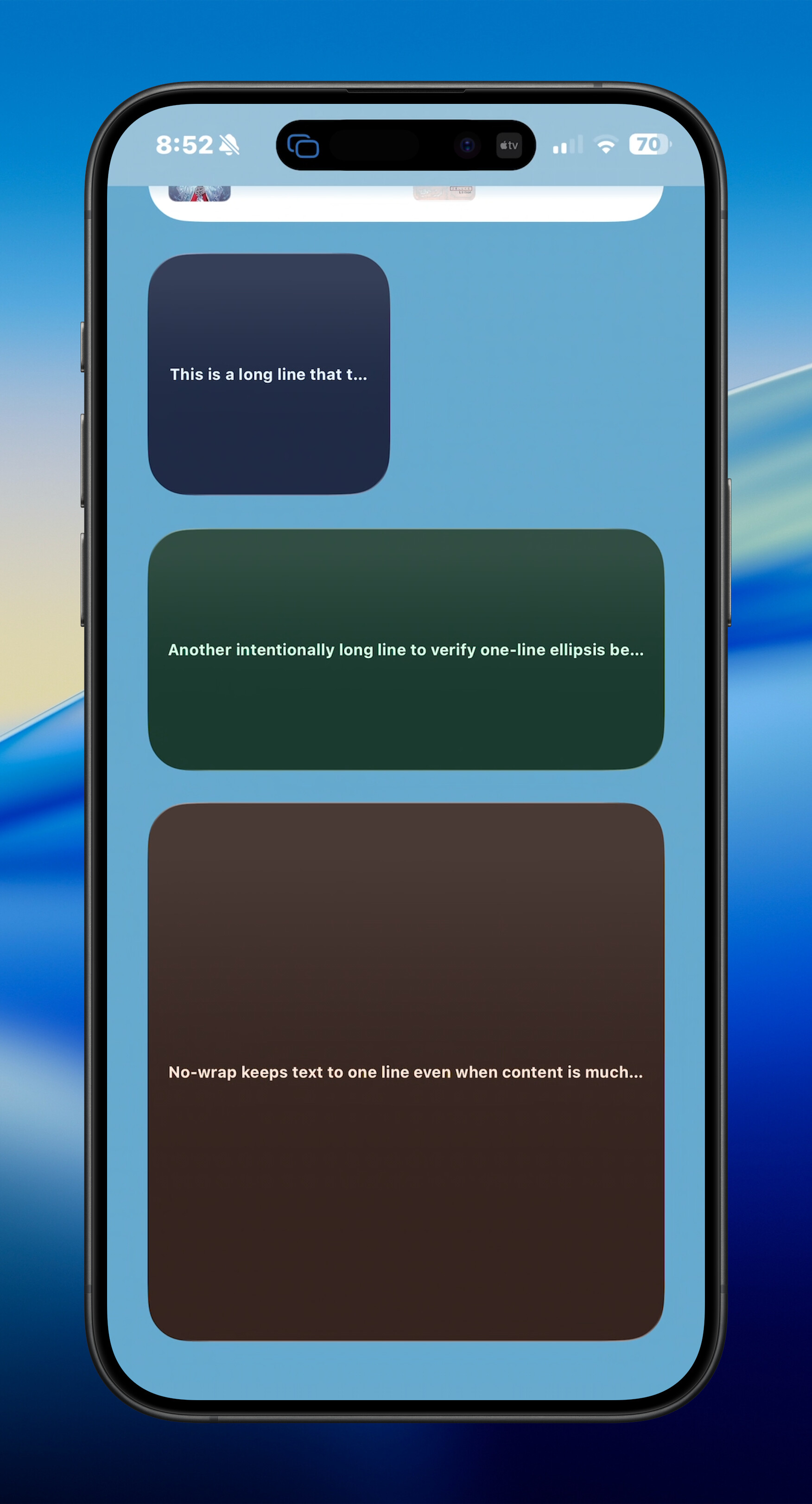
Single-Line Truncation (--no-wrap)
terminal-widget --target widget1 --text "This is a very long line that truncates instead of wrapping in the widget" --no-wrap
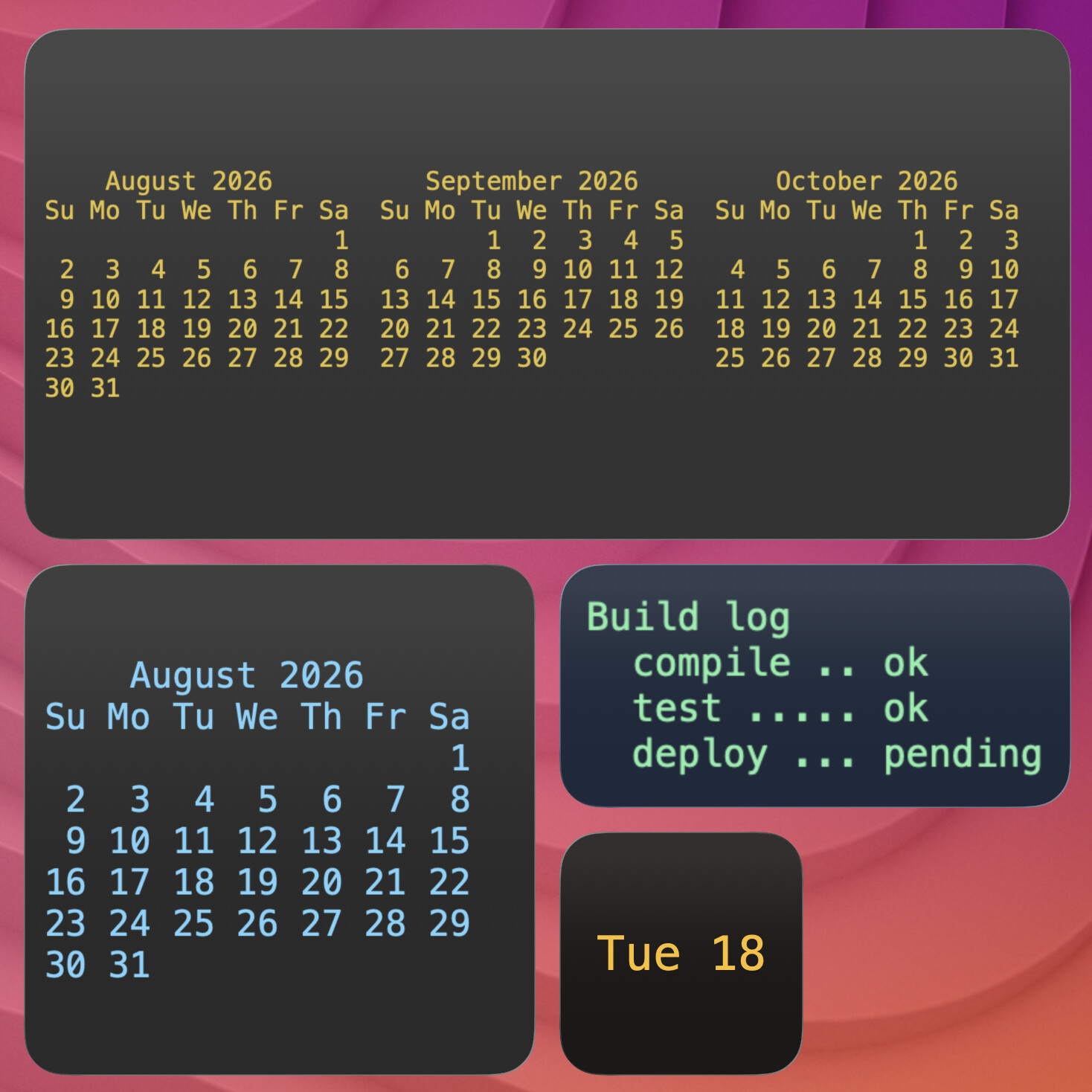
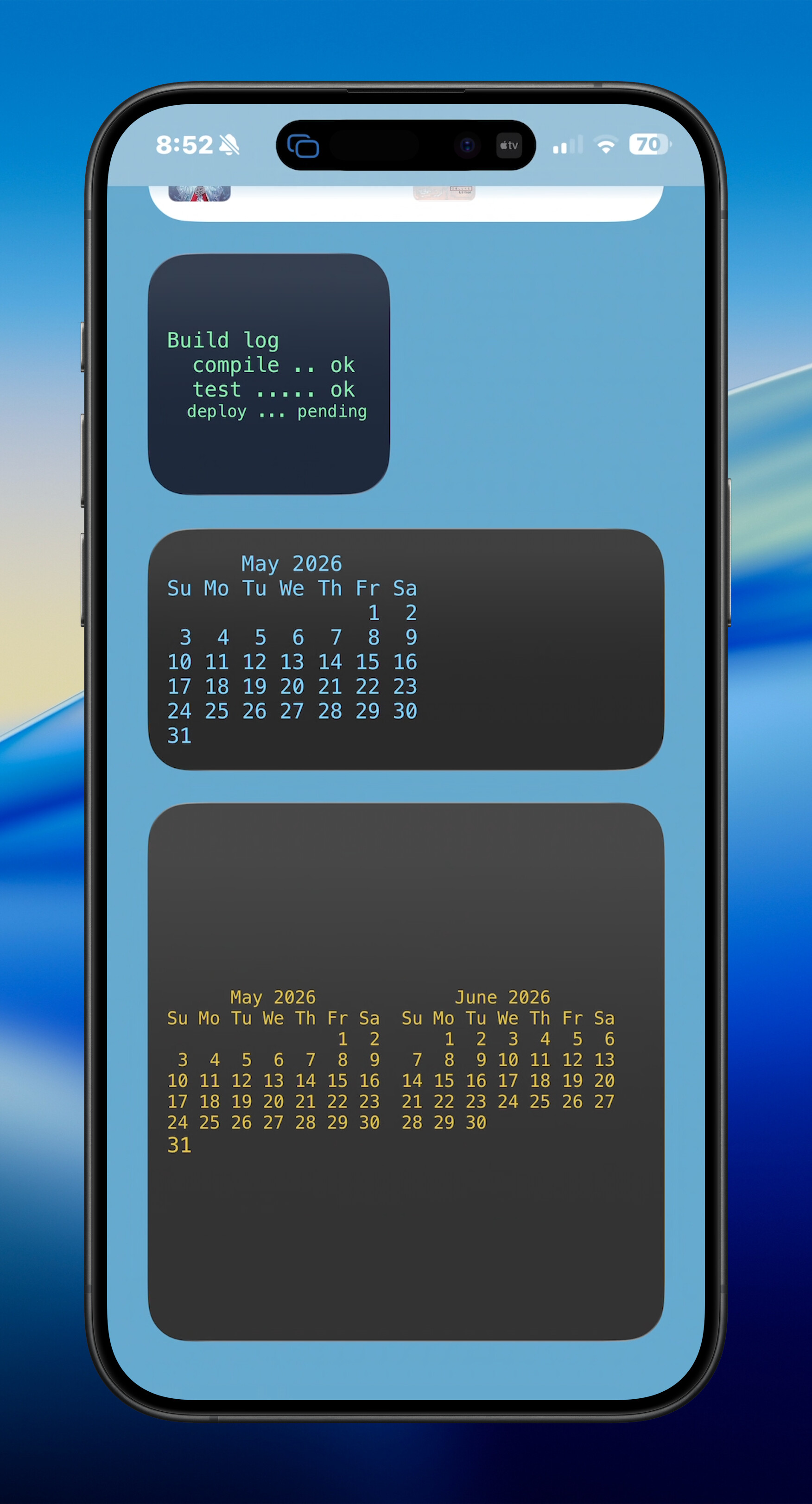
Terminal Output (terminal-output)
cal -A 1 | terminal-widget --target widget1 --text - --font menlo --bg "333333" --fg "#e1c245" --no-wrap
Icon-Only Widget
When no --text, --progress, --chart, --image, or --command is present, the icon is centered and scaled.
terminal-widget --target widget1 --icon "terminal.fill"
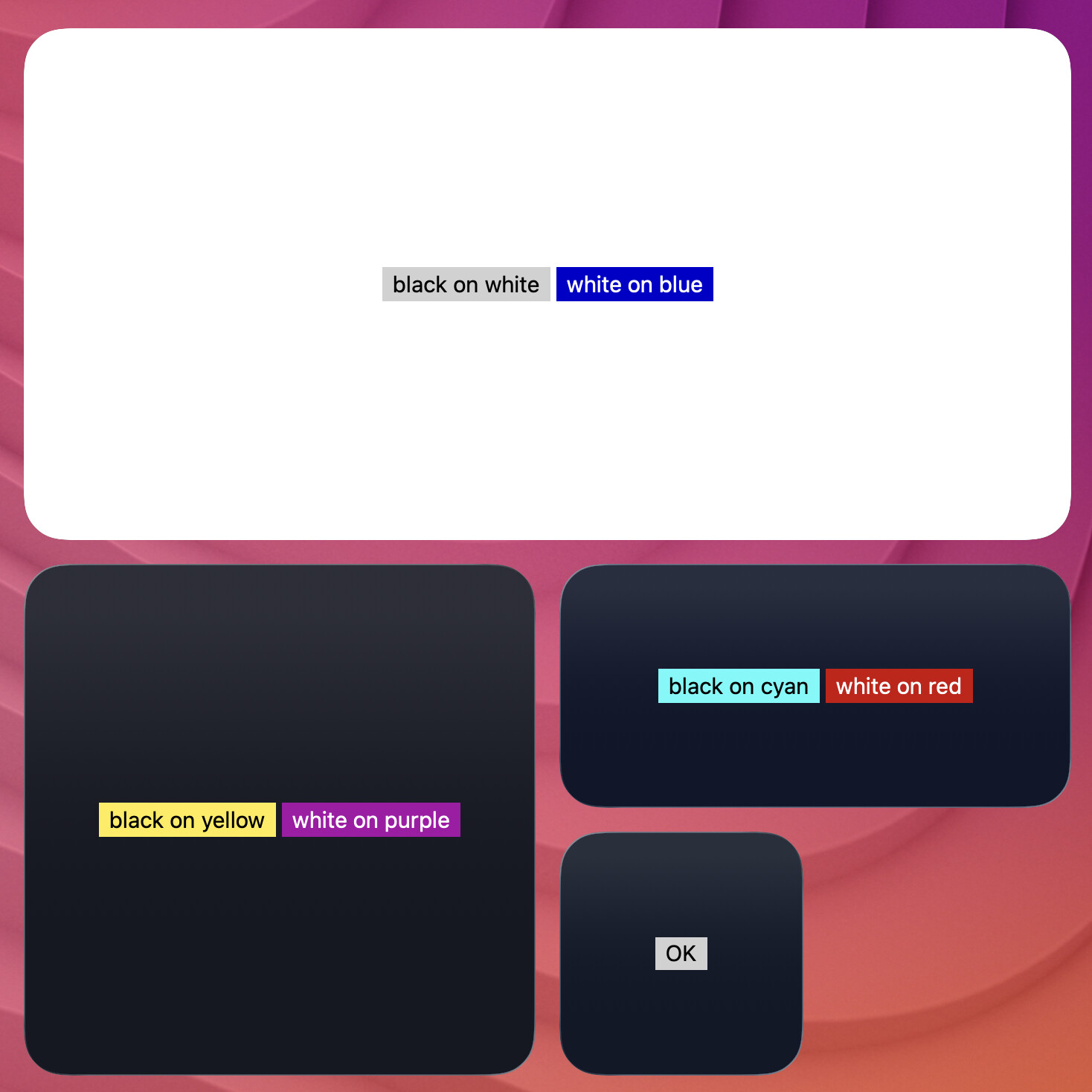
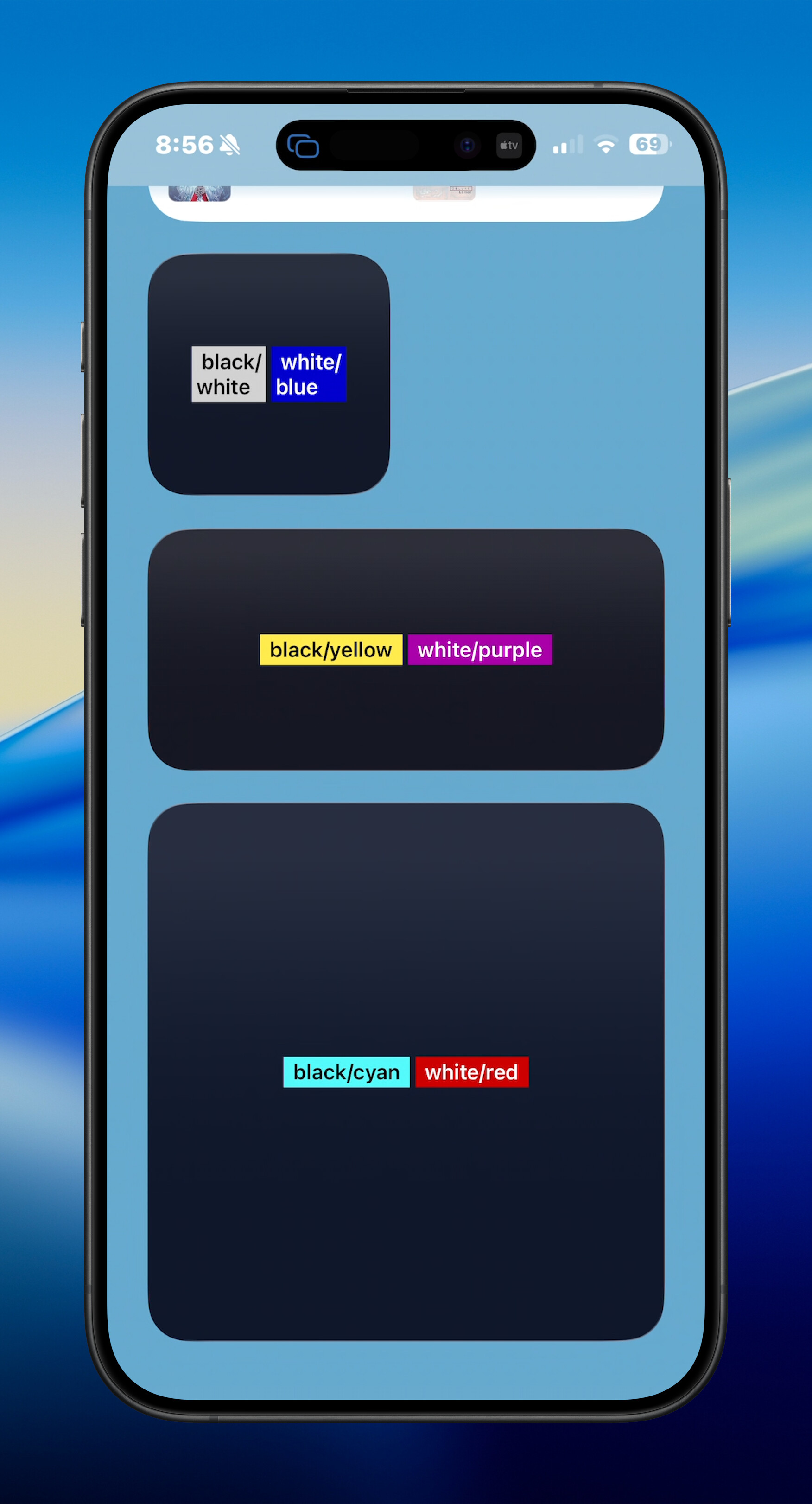
ANSI Text (--ansi-mode, --strip-colors)
Use ANSI escape sequences for foreground/background color blocks in text mode, or strip them when you want plain text.
printf '\033[30;47m black on white \033[0m \033[97;44m white on blue \033[0m' | terminal-widget --target widget1 --text - --ansi-mode on
printf '\033[31mred text\033[0m' | terminal-widget --target widget1 --text - --strip-colors
Progress Widgets
Progress mode uses --progress 0..100. Add --progress-format to choose a visual style.
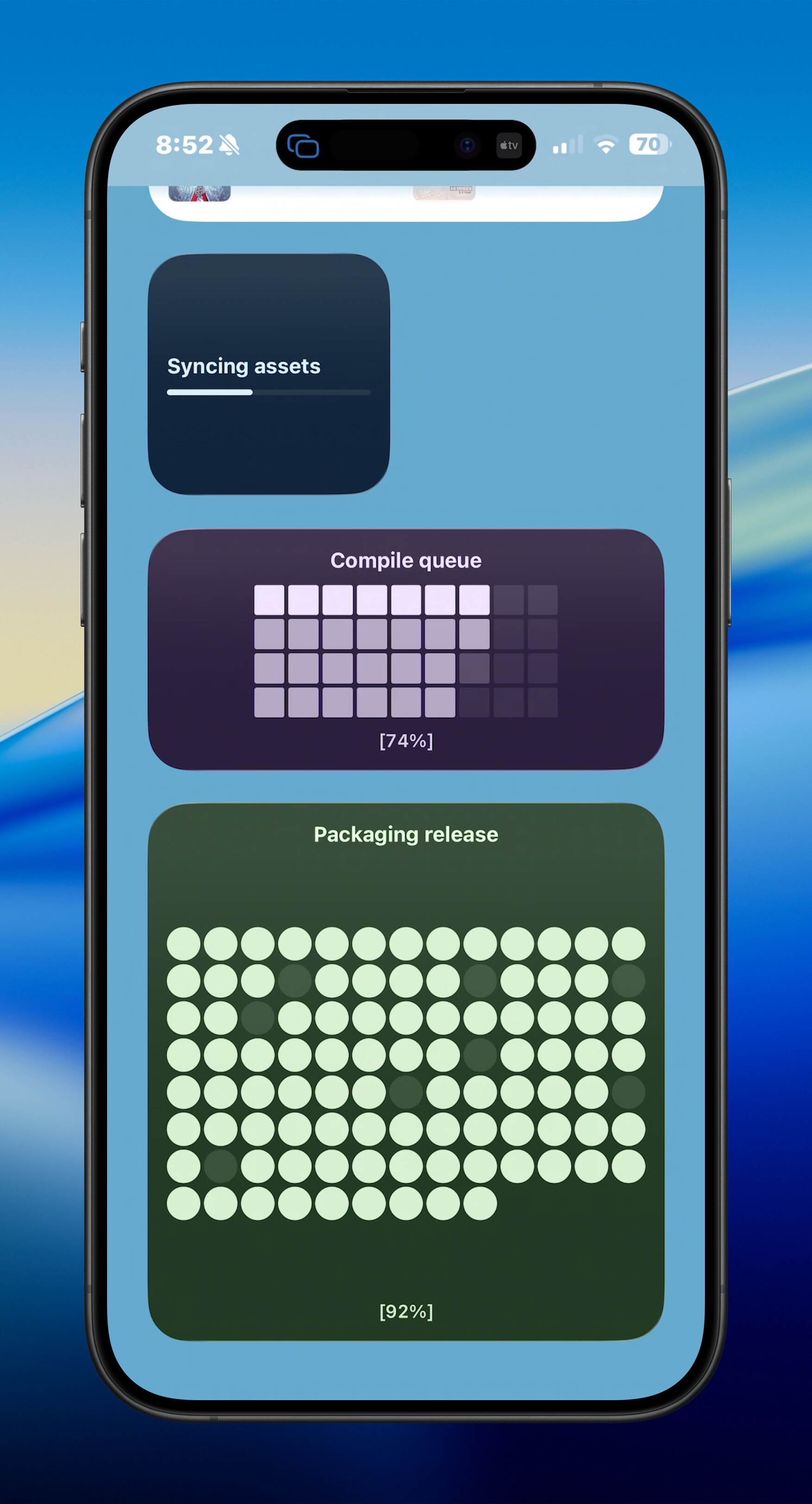
bar (default)
terminal-widget --target widget1 --text "Syncing assets" --progress 42 --progress-format bar
matrix
terminal-widget --target widget1 --text "Compile queue" --progress 74 --progress-format matrix --caption
dots
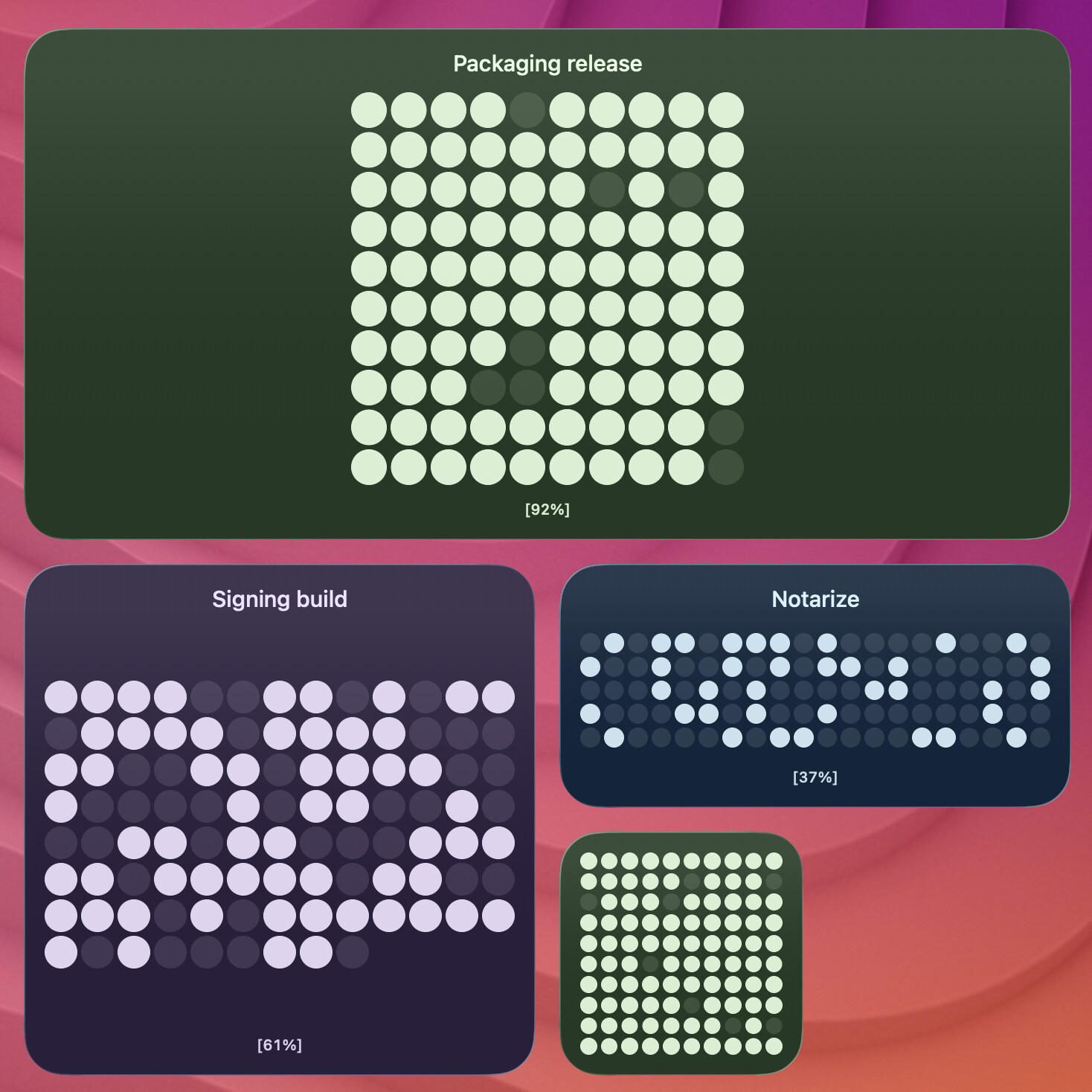
terminal-widget --target widget1 --text "Packaging release" --progress 92 --progress-format dots --caption
stack
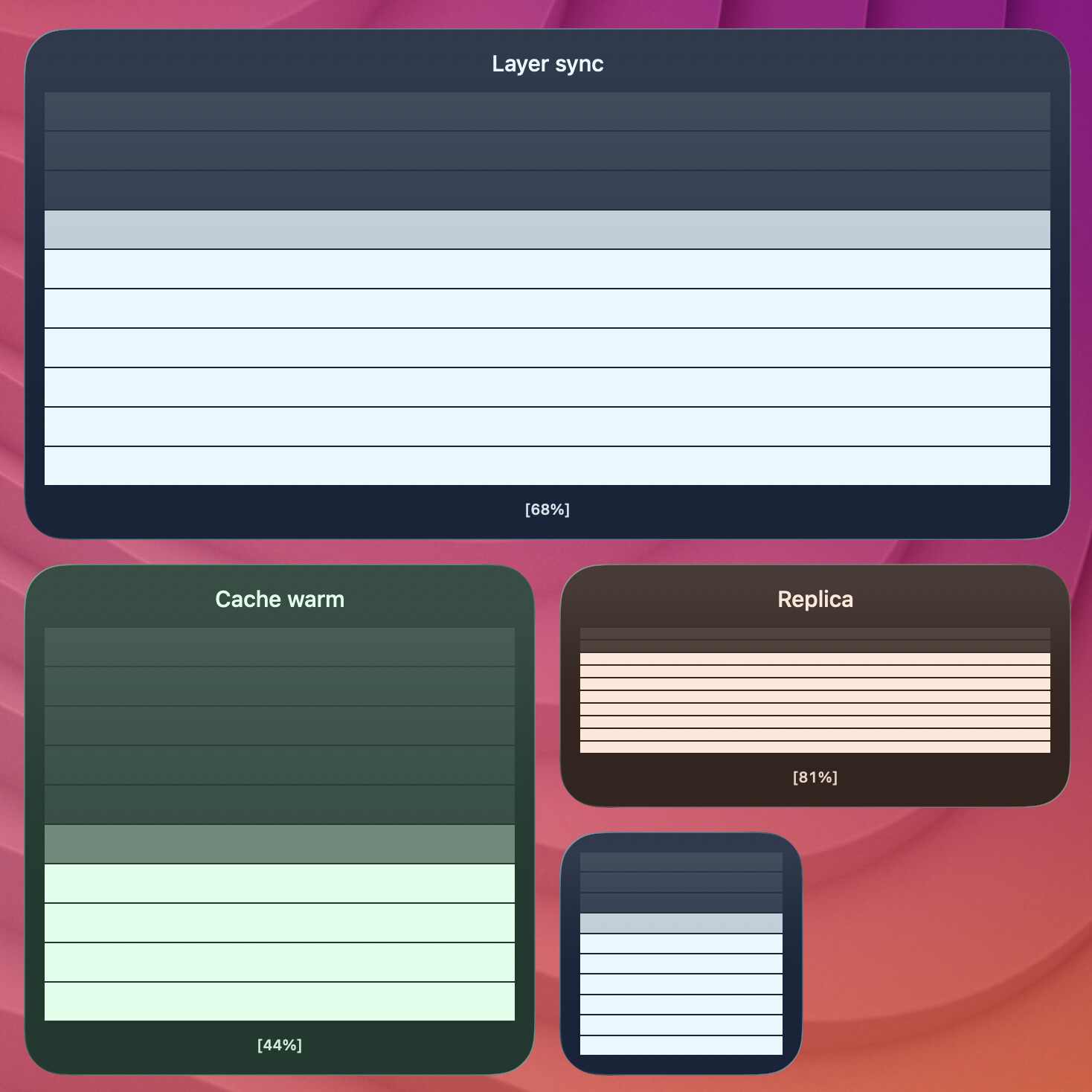
terminal-widget --target widget1 --text "Layer sync" --progress 68 --progress-format stack --caption
gradient / gradient-horizontal
gradient is an alias for gradient-horizontal.
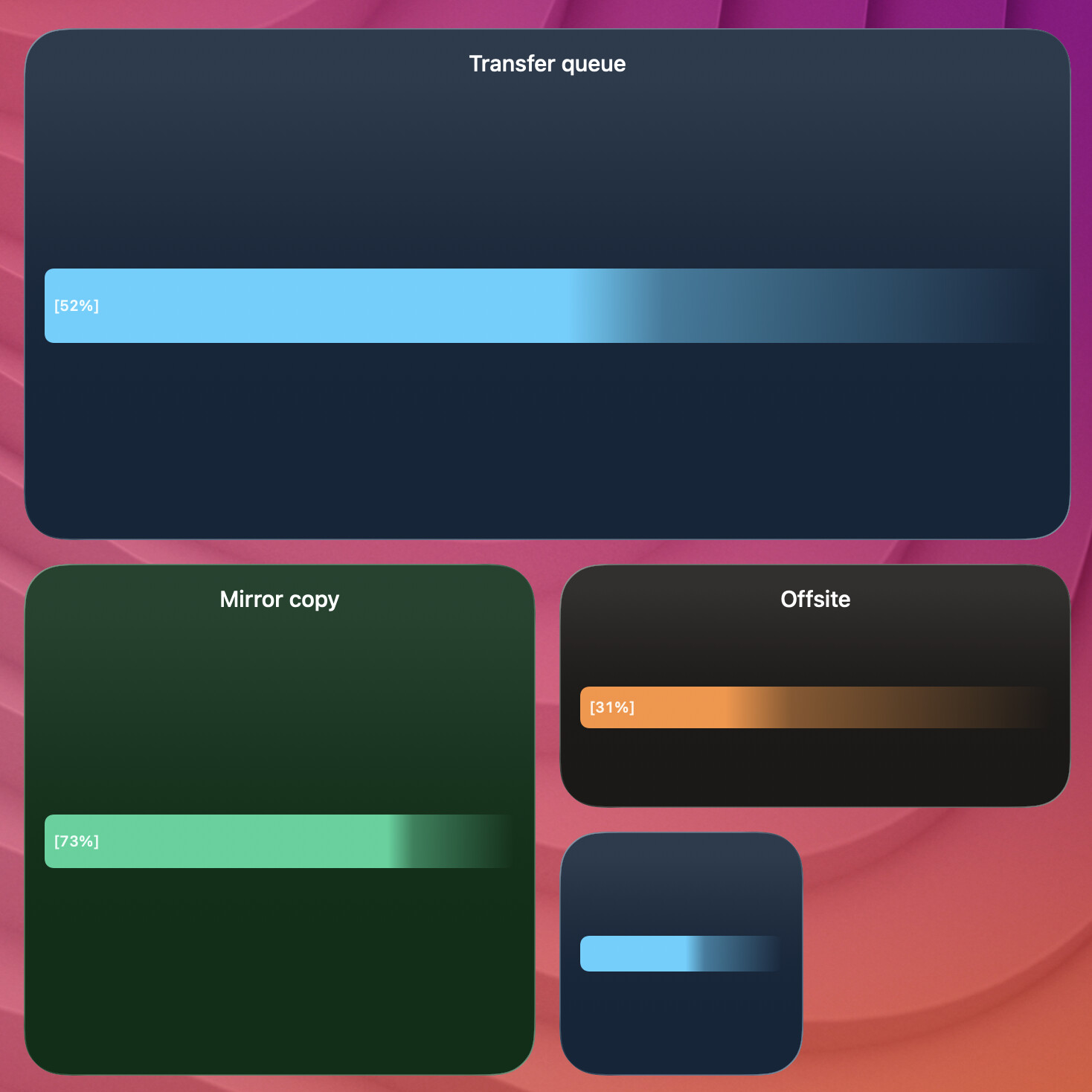
terminal-widget --target widget1 --text "Transfer queue" --progress 52 --progress-format gradient --gradient-from "#4fd1ff" --caption
gradient-vertical
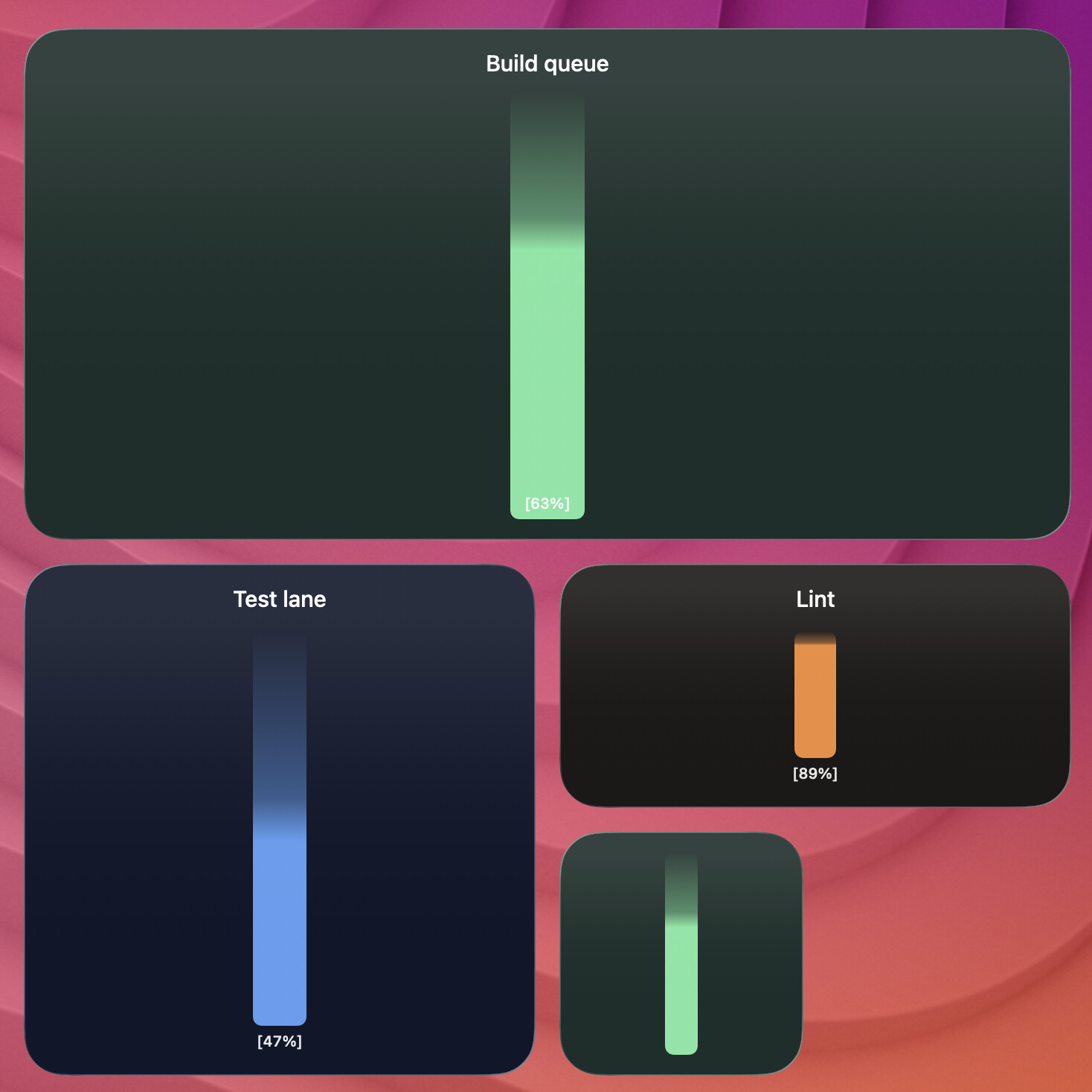
Use --gradient-width to render a narrower vertical progress bar.
terminal-widget --target widget1 --text "Build queue" --progress 63 --progress-format gradient-vertical --gradient-from "rgba(126,240,168,0.95)" --gradient-width 32 --caption
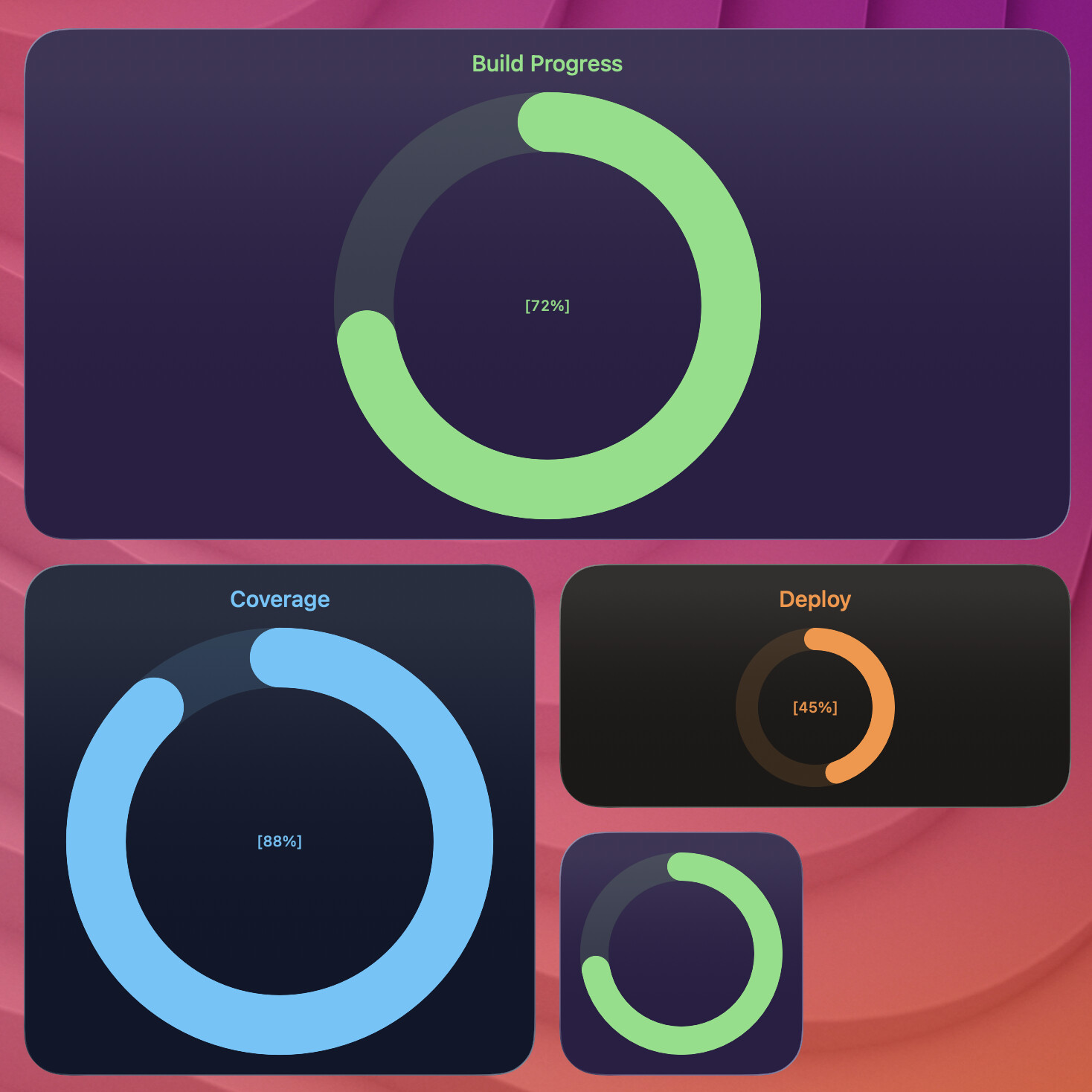
:emoji:` shortcode; left of label. If any button has an icon, all buttons reserve a left gutter so icons/labels line up id="circle">circle
terminal-widget --target widget1 --text "Build Progress" --progress 72 --progress-format circle --fg "#7ee081" --caption --bg "#2a1f44"
macOS gallery slot progress-circle matches the command above (capture-macos-widgets.sh --only progress-circle).
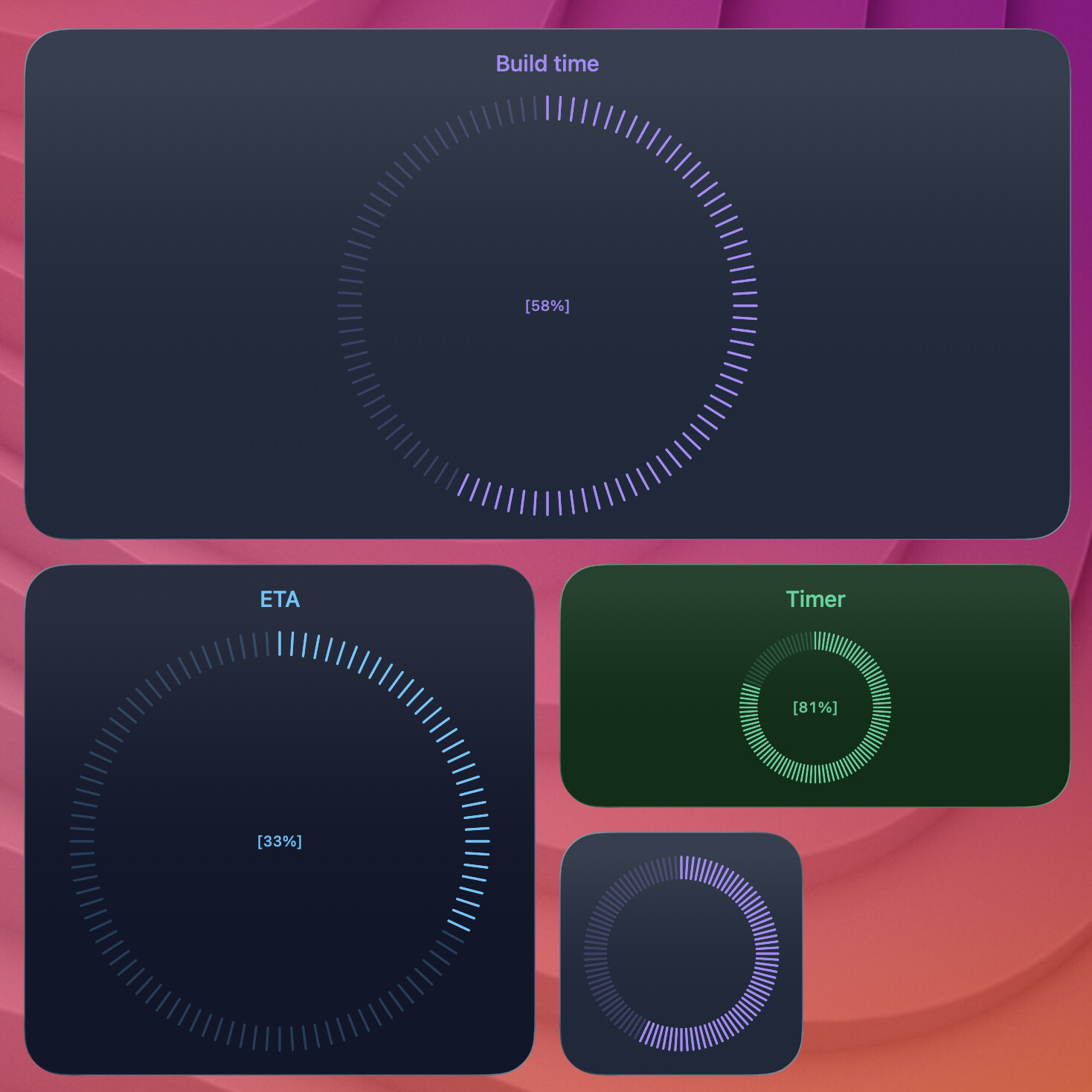
watch (clock-style arc)
terminal-widget --target widget1 --text "Build time" --progress 58 --progress-format watch --fg "#a78bfa" --caption --bg "#1e293b"
macOS gallery slot progress-watch matches the command above (capture-macos-widgets.sh --only progress-watch).
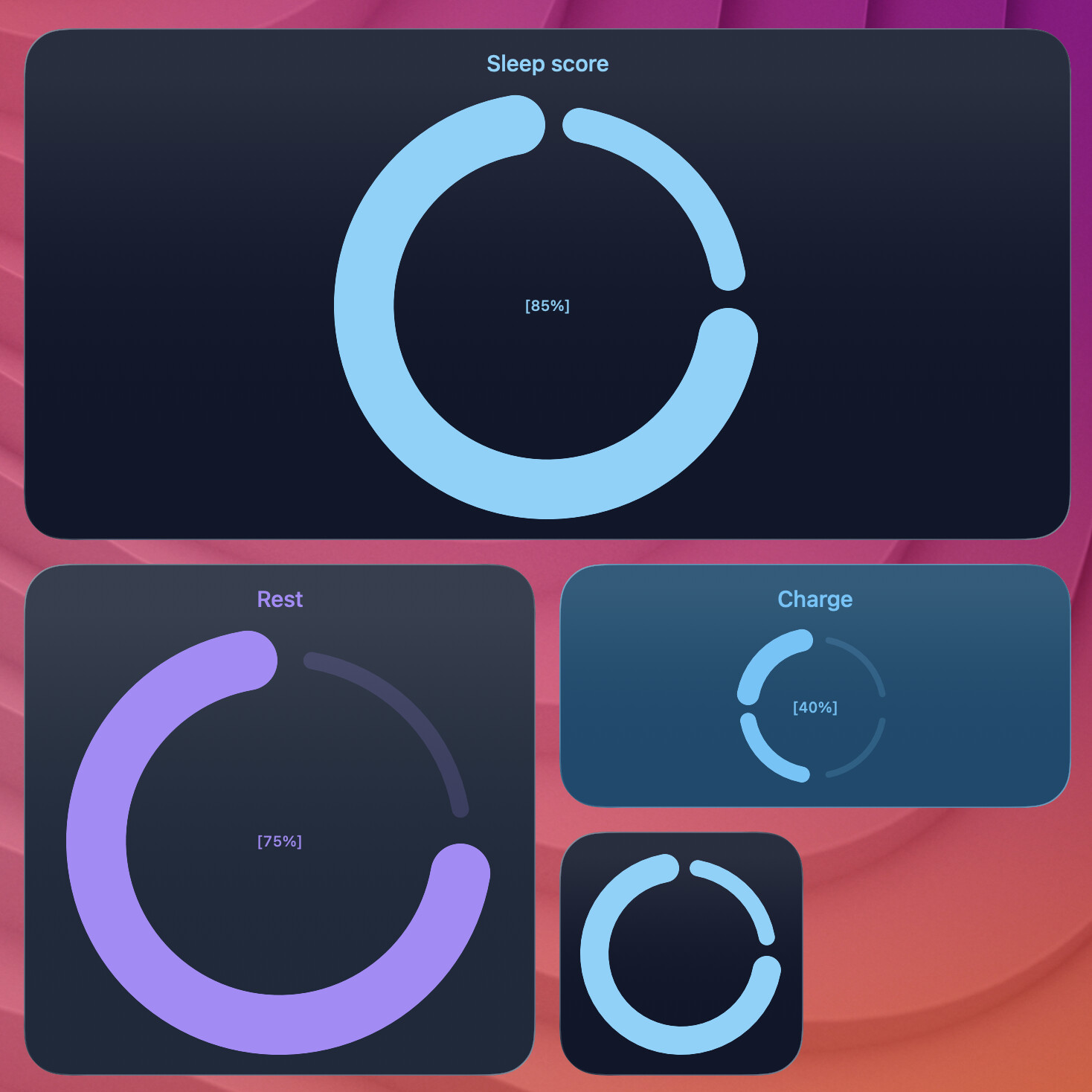
quadrant
Four-quadrant ring (counter-clockwise from 12). Segment thickness grows with progress; completed adjacent quadrants merge.
terminal-widget --target widget1 --text "Sleep score" --progress 85 --progress-format quadrant --fg "#7dd3fc" --caption --bg "#0f172a"
macOS gallery slot progress-quadrant matches the command above (capture-macos-widgets.sh --only progress-quadrant).
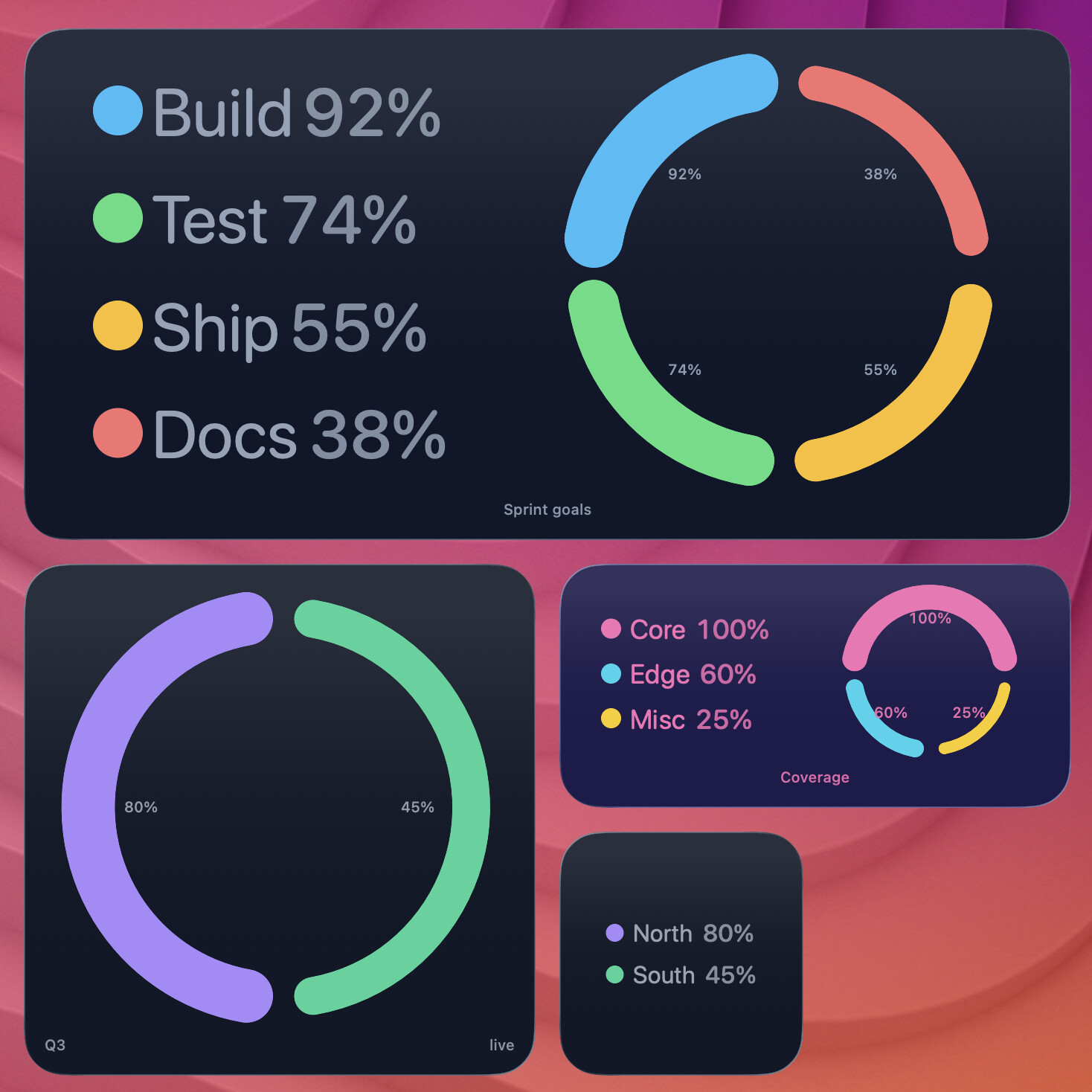
quad4 (multi-goal quadrants)
Pass up to four comma-separated percentages. --progress-layout assigns each value to a quadrant or clockwise quadrant range; omitted values are padded with zero.
terminal-widget --target widget1 \
  --progress 92,74,55,38 \
  --progress-format quad4 \
  --progress-layout 1,2,3,4 \
  --chart-series-labels "Build,Test,Ship,Docs" \
  --chart-key inline \
  --caption \
  --caption-text "Sprint goals" \
  --fg "#38bdf8,#4ade80,#fbbf24,#f87171" \
  --bg "#0f172a" \
  --caption-color "#94a3b8"
quad-4 is accepted as an input alias. macOS gallery slot progress-quad4 matches the command above (capture-macos-widgets.sh --only progress-quad4). On macOS captures, widget2 pushes its legend to widget4 with --chart-key external --key-target widget4.
Chart Widgets
Chart mode uses --chart "N N ..." with --chart-format. rangebar uses low-high pairs instead of single numeric values.
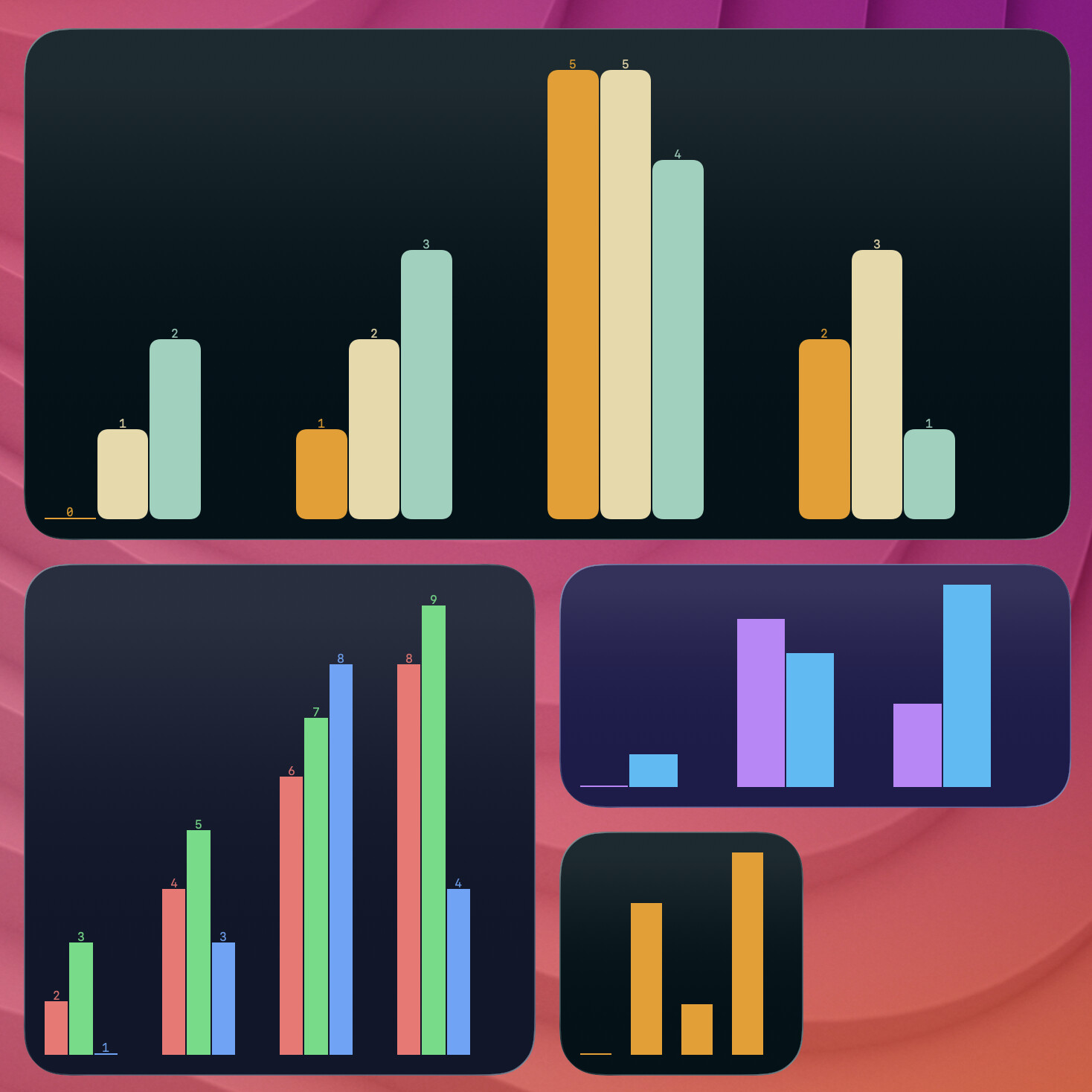
Grouped sparkline/bar (/ series)
Use slash-separated segments for side-by-side sub-bars per column (up to four series). Pair with comma-separated --foreground for per-series colors.
terminal-widget --target widget1 --chart "0 1 5 2/1 2 5 3/2 3 4 1" --chart-format bar --bar-radius 20 --fg "#ee9b00,#e9d8a6,#94d2bd" --annotate --bg "#001219"
macOS gallery slot chart-grouped matches the command above (capture-macos-widgets.sh --only chart-grouped). iOS interactive scene chart-grouped uses the same slash syntax on all three widget targets.
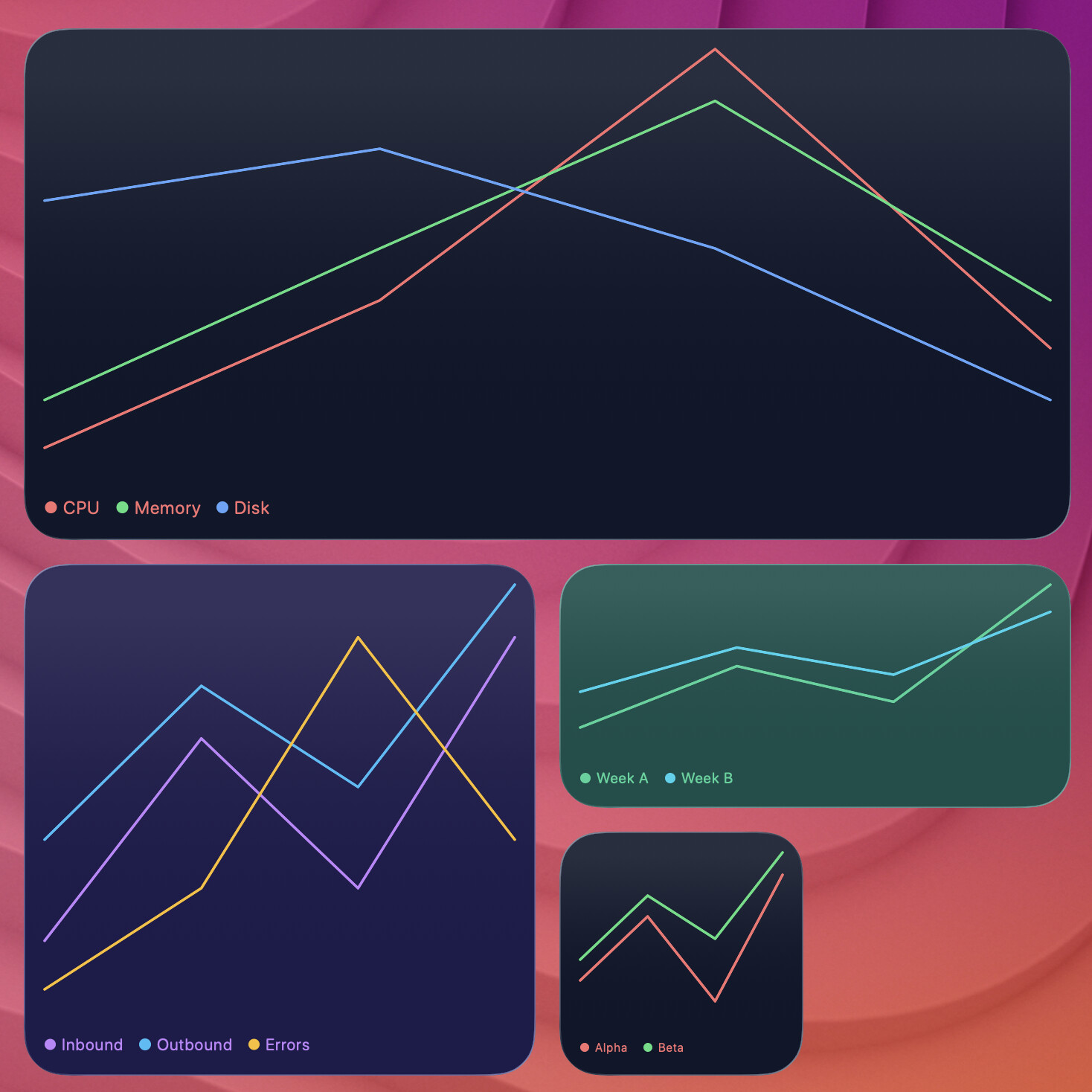
Multi-series line chart (series)
Overlapping line charts with a bottom legend (default for series). Reuse slash-separated groups (same syntax as grouped sparklines). Label each line with --chart-series-labels or JSON series: [{name, values}, …]:
terminal-widget --target widget1 --chart "1 4 9 3/2 5 8 4/6 7 5 2" --chart-format series --chart-series-labels "CPU,Memory,Disk" --fg "#f87171,#4ade80,#60a5fa" --bg "#0f172a"
Gallery slot chart-series (capture-macos-widgets.sh --only chart-series).
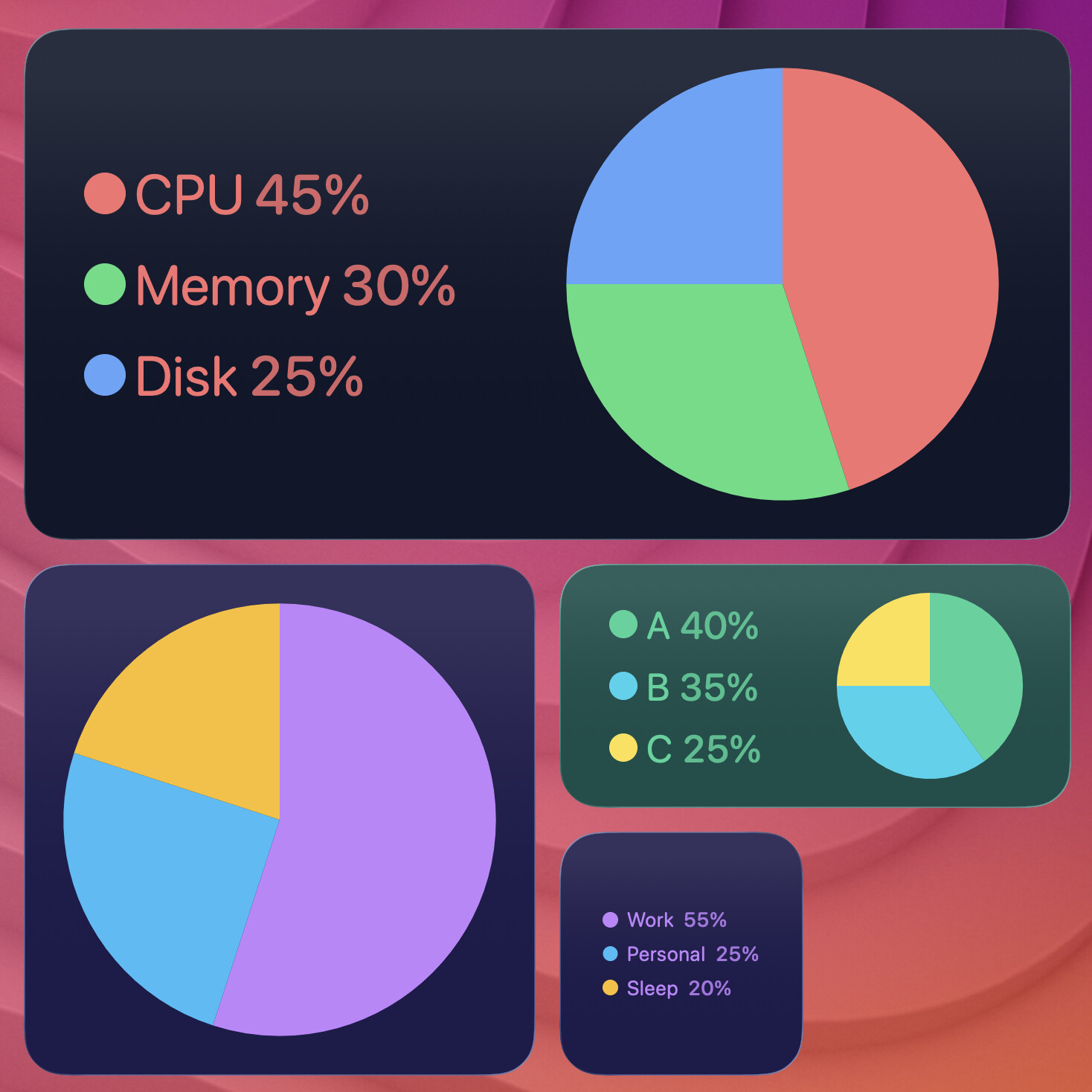
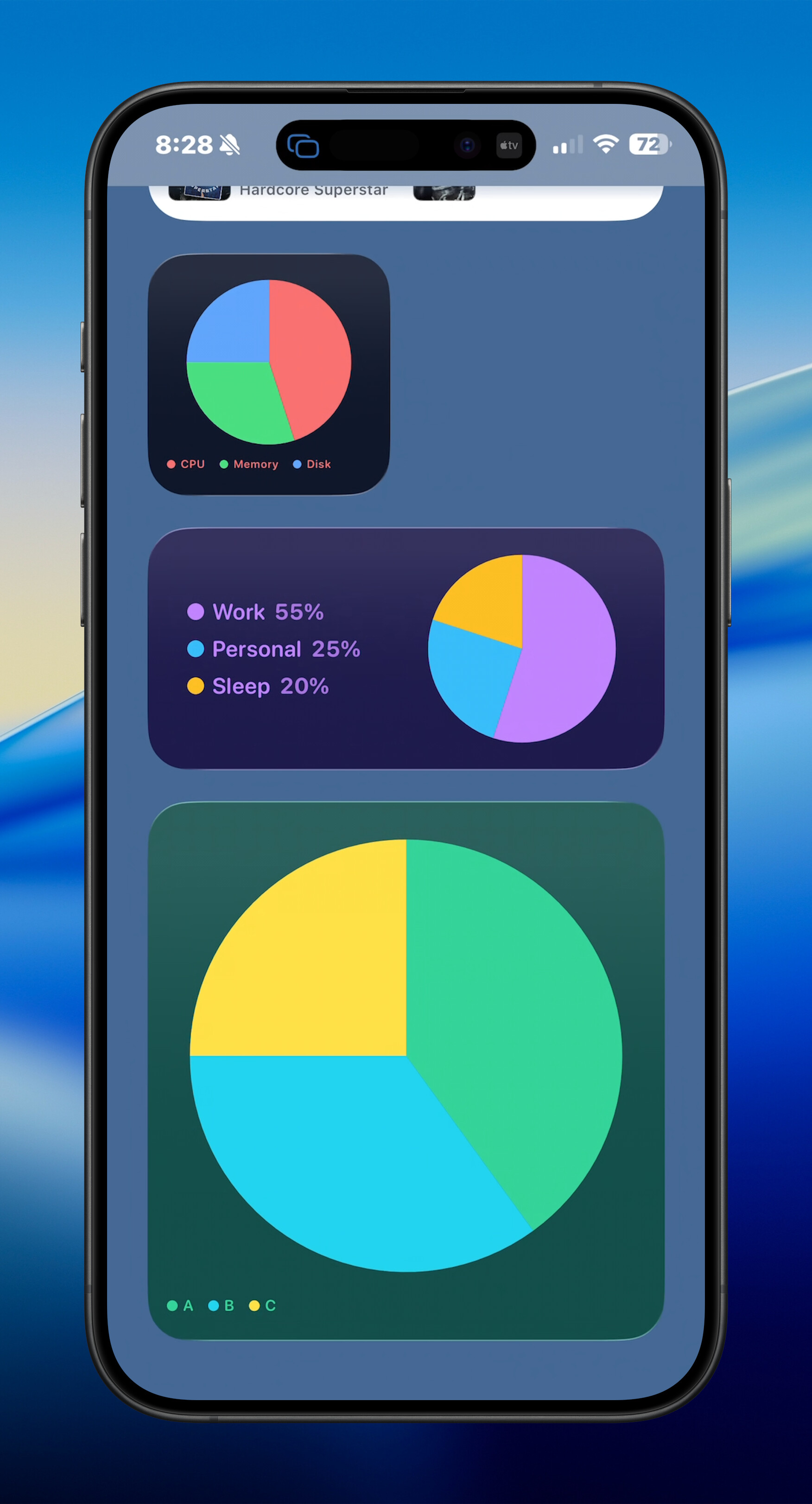
Pie chart (pie)
Categorical slices with percentages in the legend. CLI literal: label:value[:color] tokens; JSON slices arrays also work via structured input.
Inline legend (medium and extra-large widgets): side key to the left of the pie, scaled to fill the left column:
terminal-widget --target widget1 --chart "CPU:45:#f87171 Memory:30:#4ade80 Disk:25:#60a5fa" --chart-format pie --chart-key inline --fg "#e2e8f0" --bg "#0f172a"
terminal-widget --target widget1 --chart "CPU:45:#f87171 Memory:30:#4ade80 Disk:25:#60a5fa" --chart-format pie --chart-bar-style glass --chart-key inline --fg "#e2e8f0" --bg "#0f172a"
On smaller or square layouts, use --chart-key bottom for a legend under the chart, or pair the chart with a dedicated key widget:
terminal-widget --target cpu --chart "CPU:45 Memory:30 Disk:25" --chart-format pie --chart-key external --key-target cpu-key --bg "#0f172a" --fg "#e2e8f0"
Set the key widget’s Target name to cpu-key (must match --key-target). The key widget inherits foreground, background, gradient, and padding from the chart update. Legend rows scale to fill the key widget.
Gallery slot chart-pie (capture-macos-widgets.sh --only chart-pie) demonstrates inline keys on medium/extra-large widgets and an external key on a second target.
Chart legends (--chart-key, --key-target)
| Placement | Behavior |
|---|---|
auto |
Pie on medium/extra-large: inline side legend. Series: bottom legend. |
inline / left |
Side legend (pie on landscape sizes). |
bottom |
Legend under the chart. |
external |
No legend on the main widget; write rows to --key-target. |
none |
Hide the legend entirely. |
External key widgets are legend-only targets. They receive the same colors and padding as the chart widget that produced the legend.
Starter Example
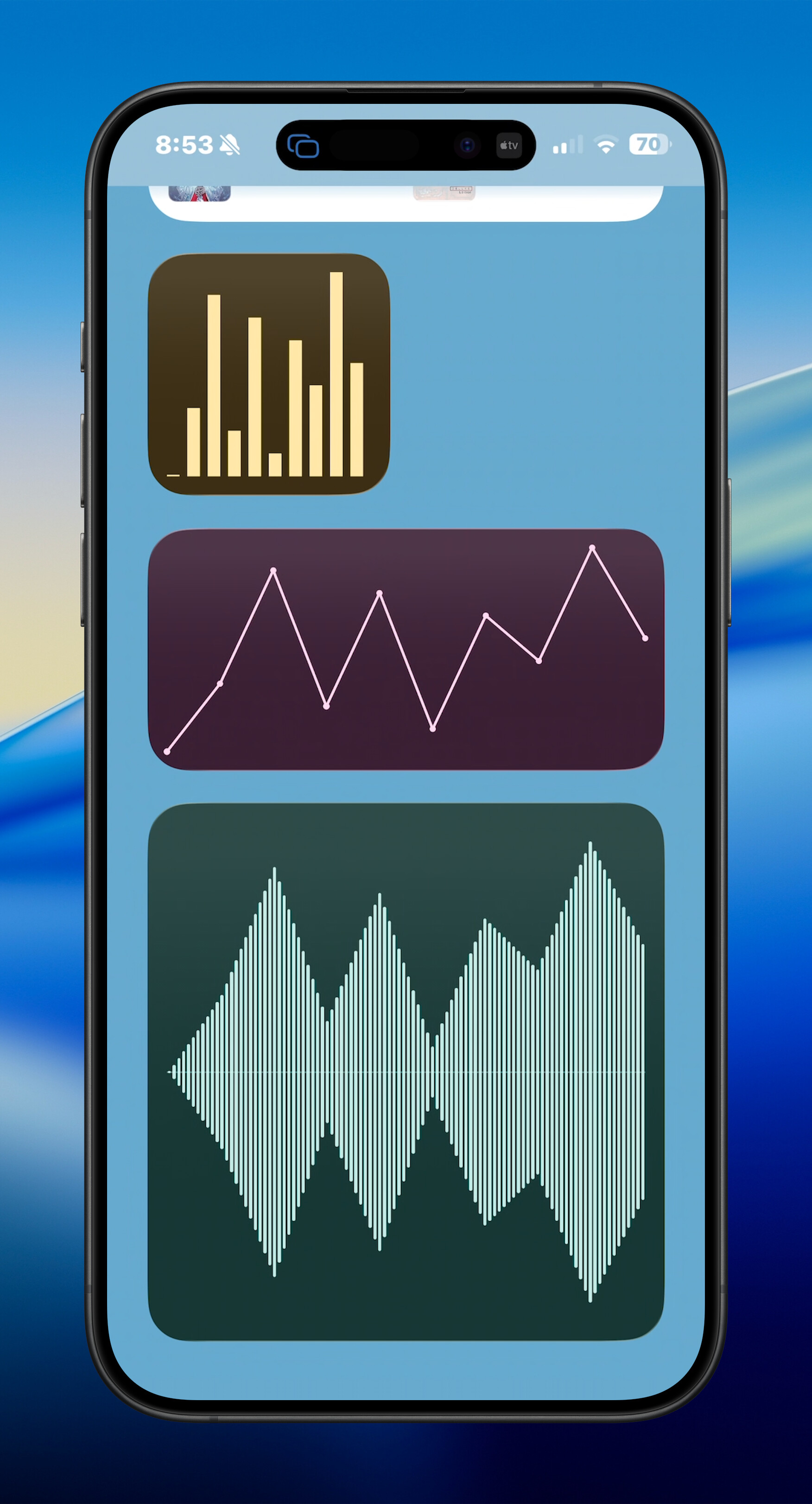
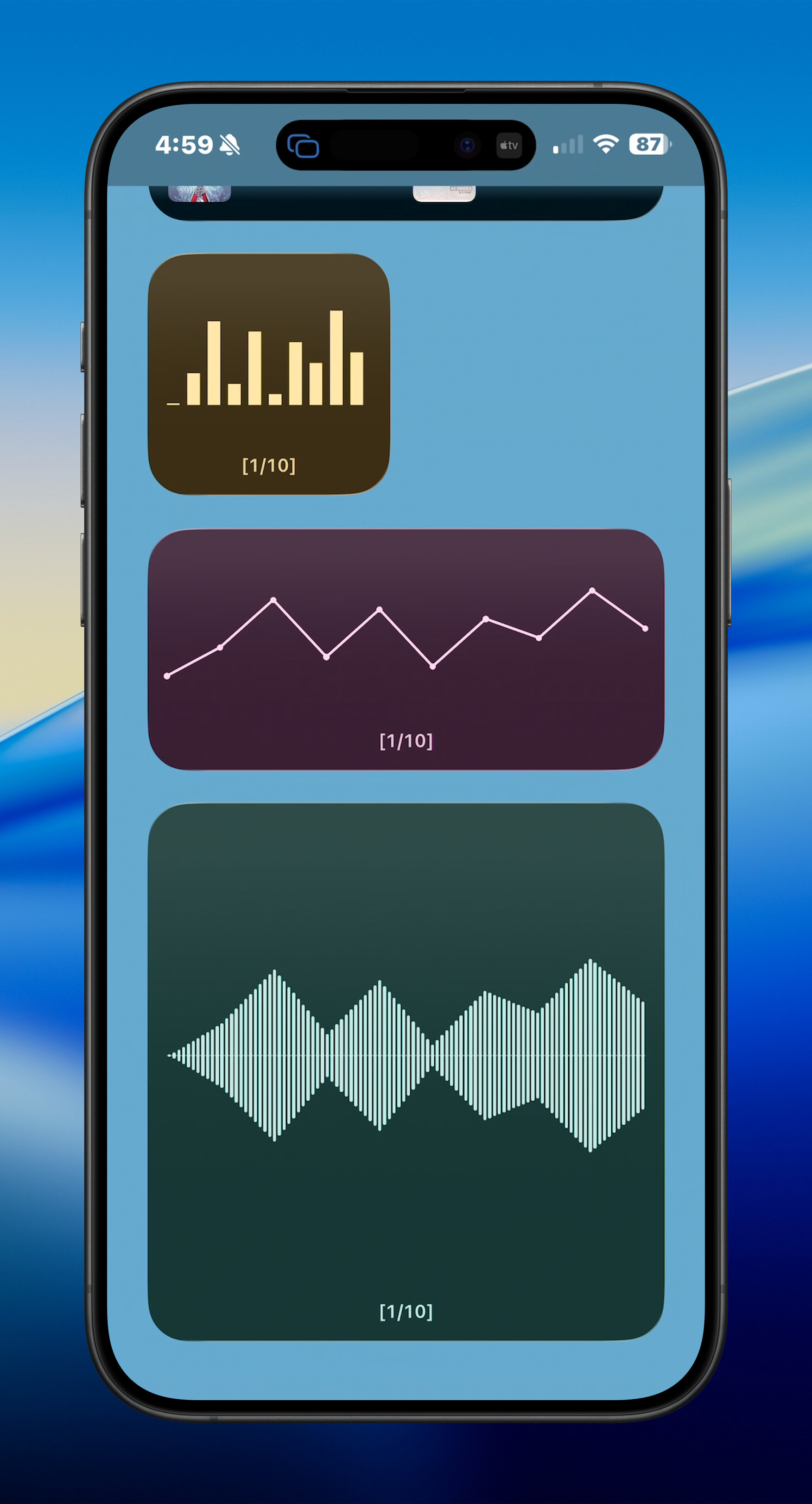
terminal-widget --target widget1 --chart "1 4 9 3 8 2 7 5 10 6" --chart-format sparkline
Append and limit (--append, --limit)
Use --append to add chart columns (same syntax as --chart, including slash-grouped series and rangebar low-high pairs) or text lines without replacing the rest of the widget. Use --limit N for a rolling window of the newest N columns/lines (0 clears the soft limit; charts still hard-cap at 128 newest points).
terminal-widget --target widget1 --chart "1 4 9 3 8 2 7 5" --chart-format sparkline --limit 8 --bar-radius 20 --chart-bar-style glass --fg "#ffffff" --bg "#9b1e86"
terminal-widget --target widget1 --append "10 6" --limit 8
macOS gallery slot chart-append-limit matches the sequence above.
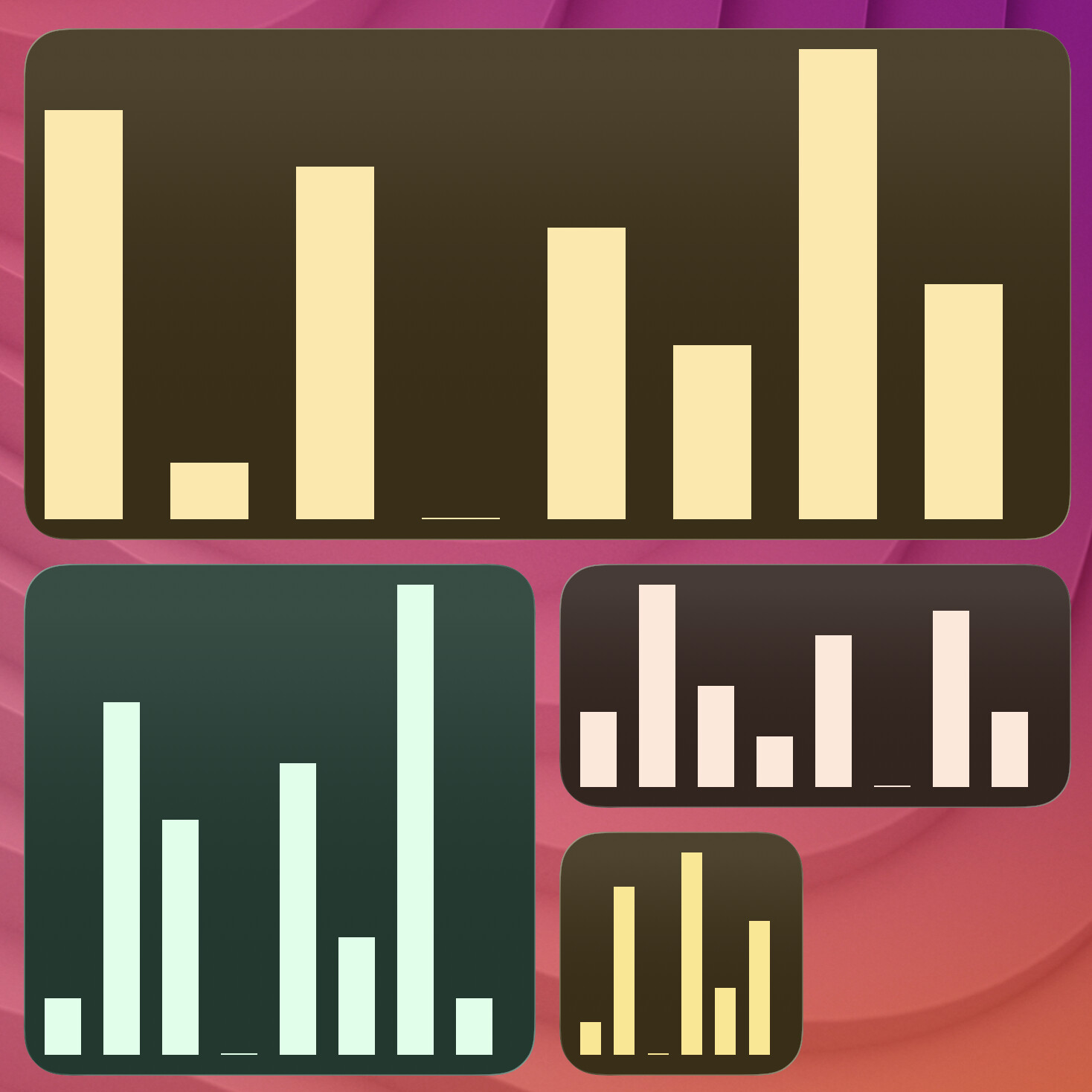
Bar radius (--bar-radius)
Use --bar-radius 0..100 to round sparkline bar corners, or range bar column corners in rangebar mode.
terminal-widget --target widget1 --chart "1 4 9 3 8 2 7 5 10 6" --chart-format sparkline --bar-radius 45
terminal-widget --target widget1 --chart "1-3,2-4,1-5" --chart-format rangebar --bar-radius 40
Chart bar style (--chart-bar-style)
Use --chart-bar-style glass with bar-like formats (sparkline, waveform, rangebar, matrix, pie, delta) for a gradient “liquid glass” bar/cell/slice treatment (default is solid). The same flag applies to circle progress rings (--progress-format circle) without chart data.
terminal-widget --target widget1 --chart "1 4 9 3 8 2 7 5 10 6" --chart-format sparkline --chart-bar-style glass --bar-radius 35
terminal-widget --target widget1 --progress 72 --progress-format circle --chart-bar-style glass --fg "#4a9eff" --caption
terminal-widget --chart "6-8,1-8,1-6,2-4,1-6" --chart-format rangebar --chart-bar-style glass --bar-radius 40 --target widget1 --bg "ffffff" --fg "ca4fae" --text "TerminalWidget" --text-color "#5ac5fa"
macOS gallery slot chart-rangebar-glass matches the range bar example above (run capture-macos-widgets.sh --only chart-rangebar-glass after placing widgets).
All Chart Modes
DATA="1 4 9 3 8 2 7 5 10 6"
terminal-widget --target widget1 --chart "$DATA" --chart-format sparkline
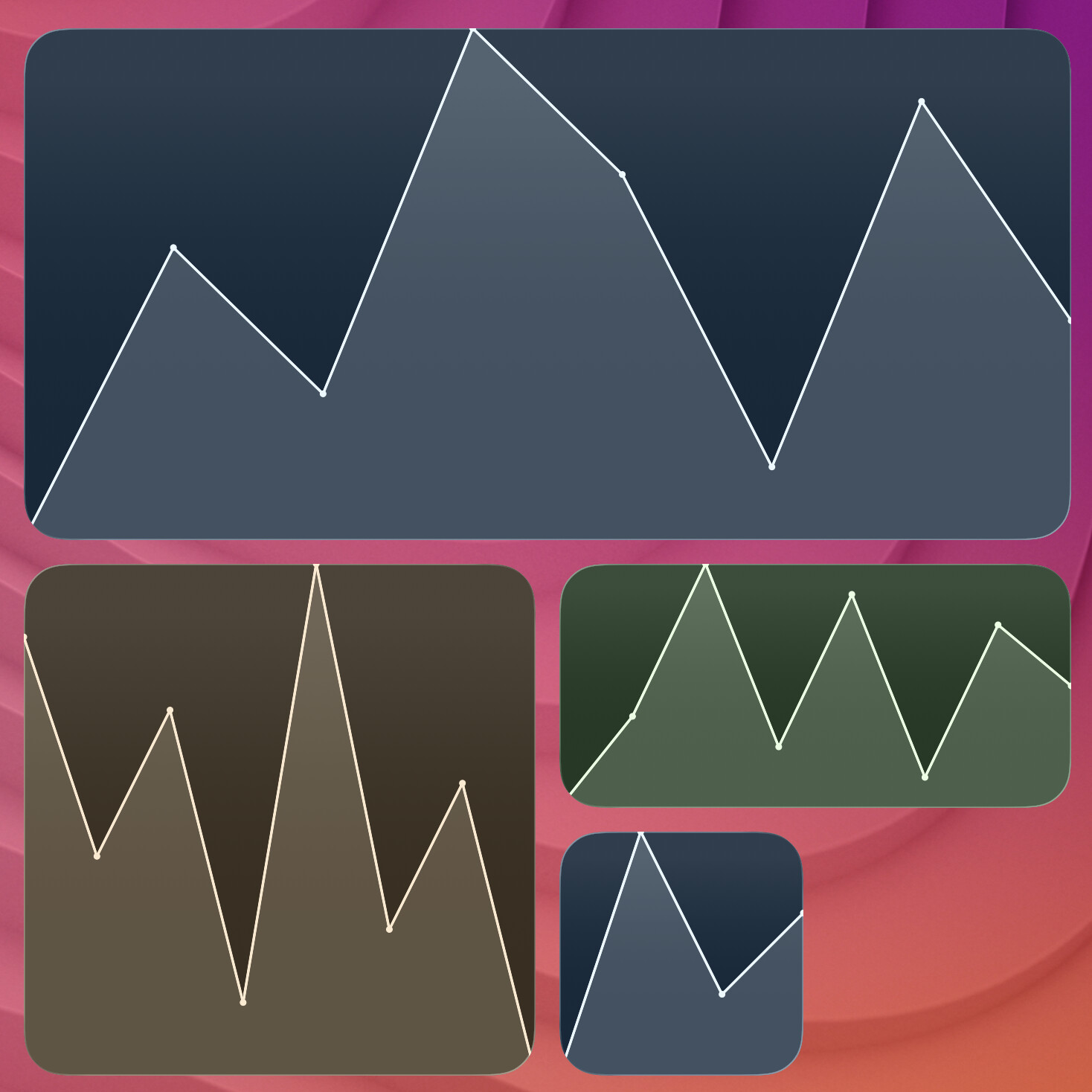
terminal-widget --target widget1 --chart "$DATA" --chart-format graph
terminal-widget --target widget1 --chart "$DATA" --chart-format waveform
terminal-widget --target widget1 --chart "$DATA" --chart-format area
terminal-widget --target widget1 --chart "$DATA" --chart-format lollipop
terminal-widget --target widget1 --chart "$DATA" --chart-format strip
terminal-widget --target widget1 --chart "$DATA" --chart-format radial
terminal-widget --target widget1 --chart "$DATA" --chart-format delta
terminal-widget --target widget1 --chart "$DATA" --chart-format threshold
terminal-widget --target widget1 --chart "$DATA" --chart-format smooth
terminal-widget --target widget1 --chart "$DATA" --chart-format sine
terminal-widget --target widget1 --chart "$DATA" --chart-format peak
terminal-widget --target widget1 --chart "$DATA" --chart-format matrix
terminal-widget --chart "5-6,1-6,1-5,1.5-4,1-5" --chart-format rangebar --target widget1 --bg "ffffff" --fg "ca4fae"
Range Bar
rangebar draws each bar as one contiguous inclusive range. The y axis starts at 0 and scales to the highest range endpoint plus one.
terminal-widget --chart "5-6,1-6,1-5,1.5-4,1-5" --chart-format rangebar --target widget1 --bg "ffffff" --fg "ca4fae"
Chart Annotation (--annotate)
--annotate overlays point/bar labels for sparkline, graph, waveform, and rangebar chart families.
terminal-widget --target widget1 --chart "5 12 8 21 13 34" --chart-format graph --annotate
terminal-widget --target widget1 --chart "5 12 8 21 13 34" --chart-format sparkline --annotate
Gallery captures for bar-style annotations use slug chart-annotate-bars (capture-macos-widgets.sh / capture-ios-widgets-interactive.sh --only chart-annotate-bars).
Y axis labels (--label-y) and update time (--timestamp)
--label-y adds a left axis with five labels spanning the chart’s value range (and 0…max+1 for rangebar). --timestamp shows a short local “last updated” line at the bottom on any widget type when no chart/progress footer already shows it; on charts/progress it can be combined with --caption, --caption-text, or used alone. Both apply to the same update that sets the payload (not the WidgetKit refresh schedule).
terminal-widget --target widget1 --chart "1 4 9 3 8 2 7 5 10 6" --chart-format sparkline --label-y --caption
terminal-widget --target widget1 --chart "5 12 8 21 13 34" --chart-format graph --caption --timestamp
terminal-widget --target widget1 --text "Syncing" --progress 42 --caption --timestamp
Styling and Layout Flags
Emoji + Tables
TerminalWidget expands GitHub-style :shortcode: aliases (same set as GitHub-flavored Markdown) in --text, --icon, --title, and --caption-text, plus table cell strings from --table. Examples: :rocket: → 🚀, :white_check_mark: → ✅, :clock3: → 🕒.
terminal-widget --target widget1 --text "Deploy :rocket:" --icon :smiley:
terminal-widget --target widget1 --title ":chart_with_upwards_trend: Weekly" --caption-text "Updated :clock3:"
Use these exact commands when capturing screenshot slots:
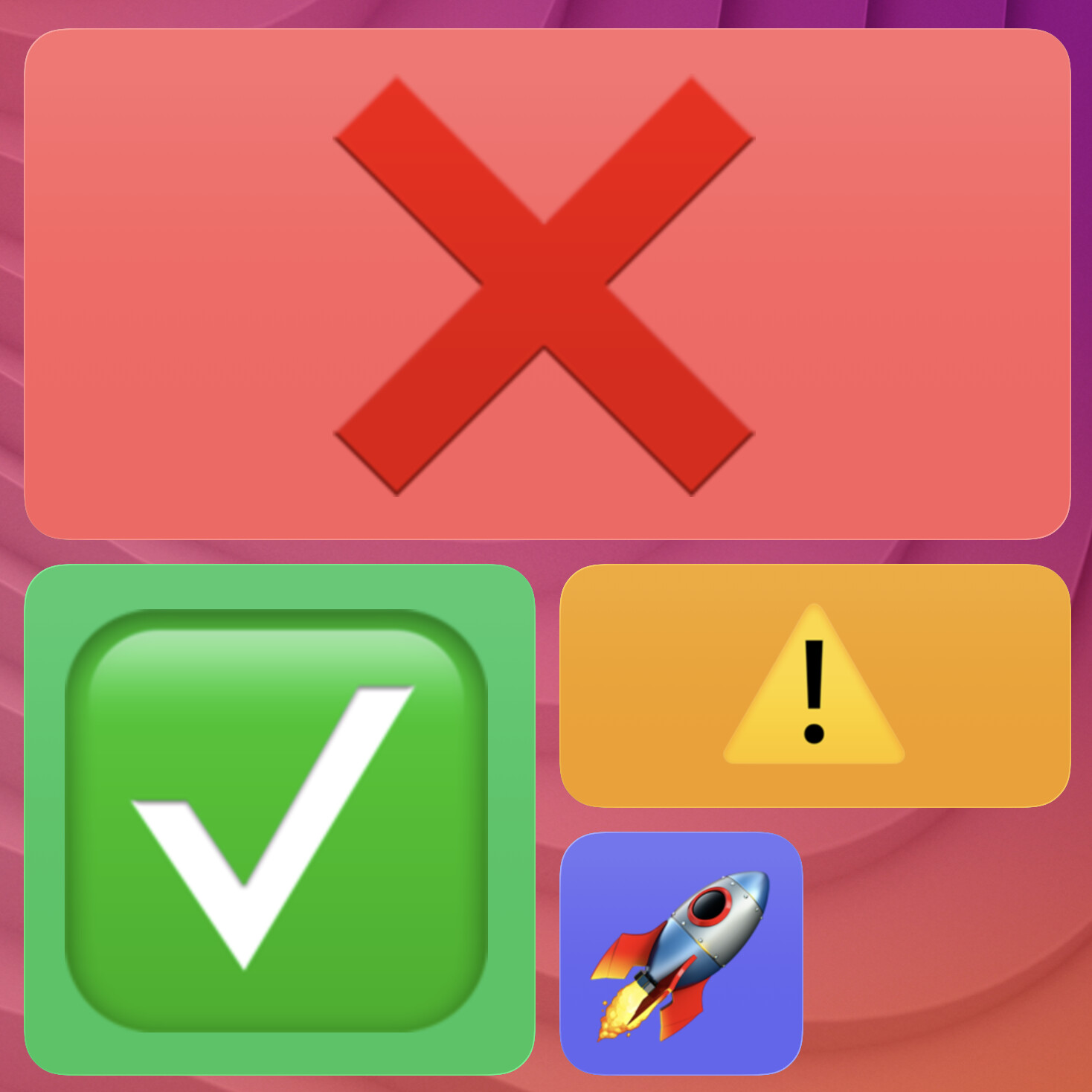
Emoji Icon + Background (emoji-icon-bg)
terminal-widget --target widget1 --icon :x: --bg "#ff5f5f"
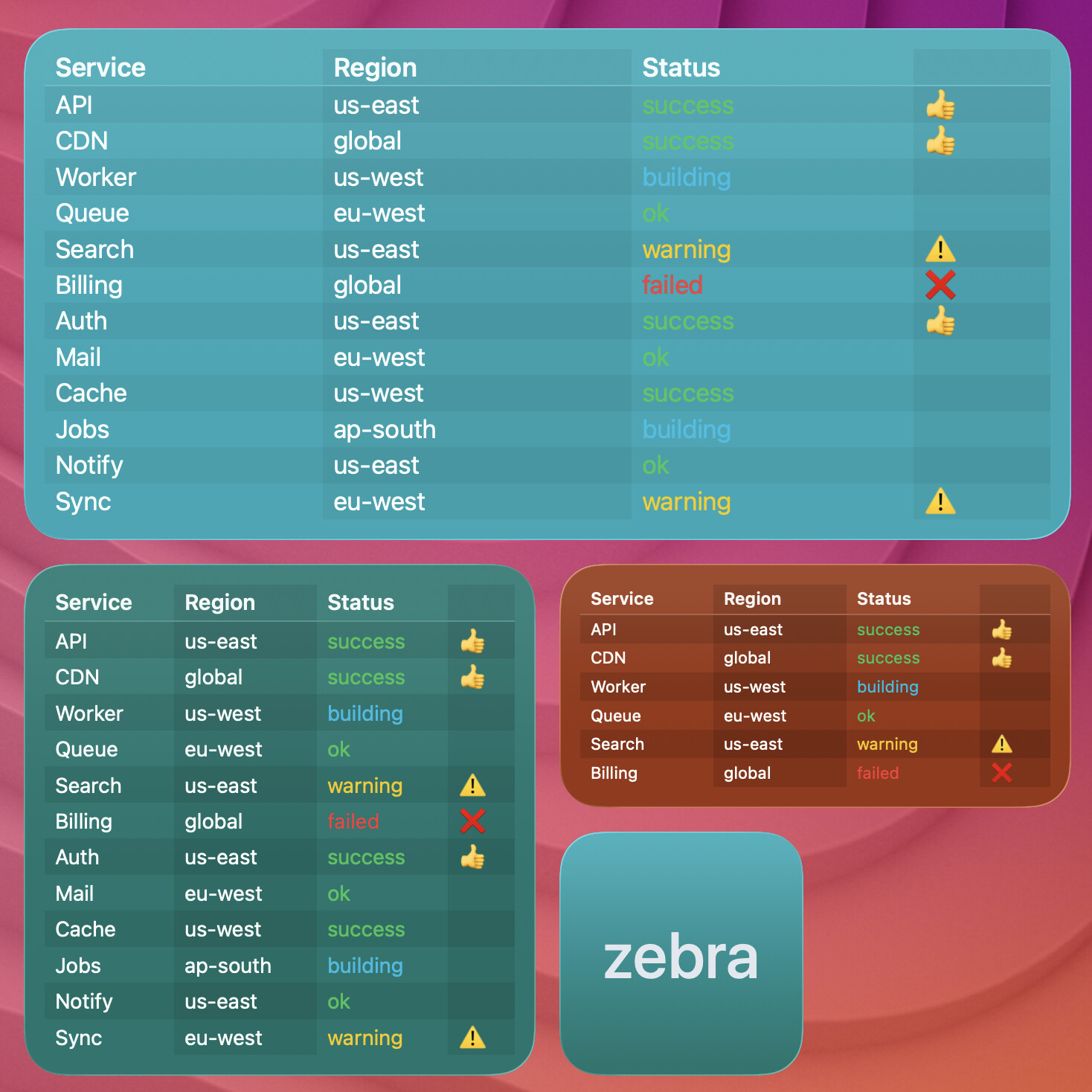
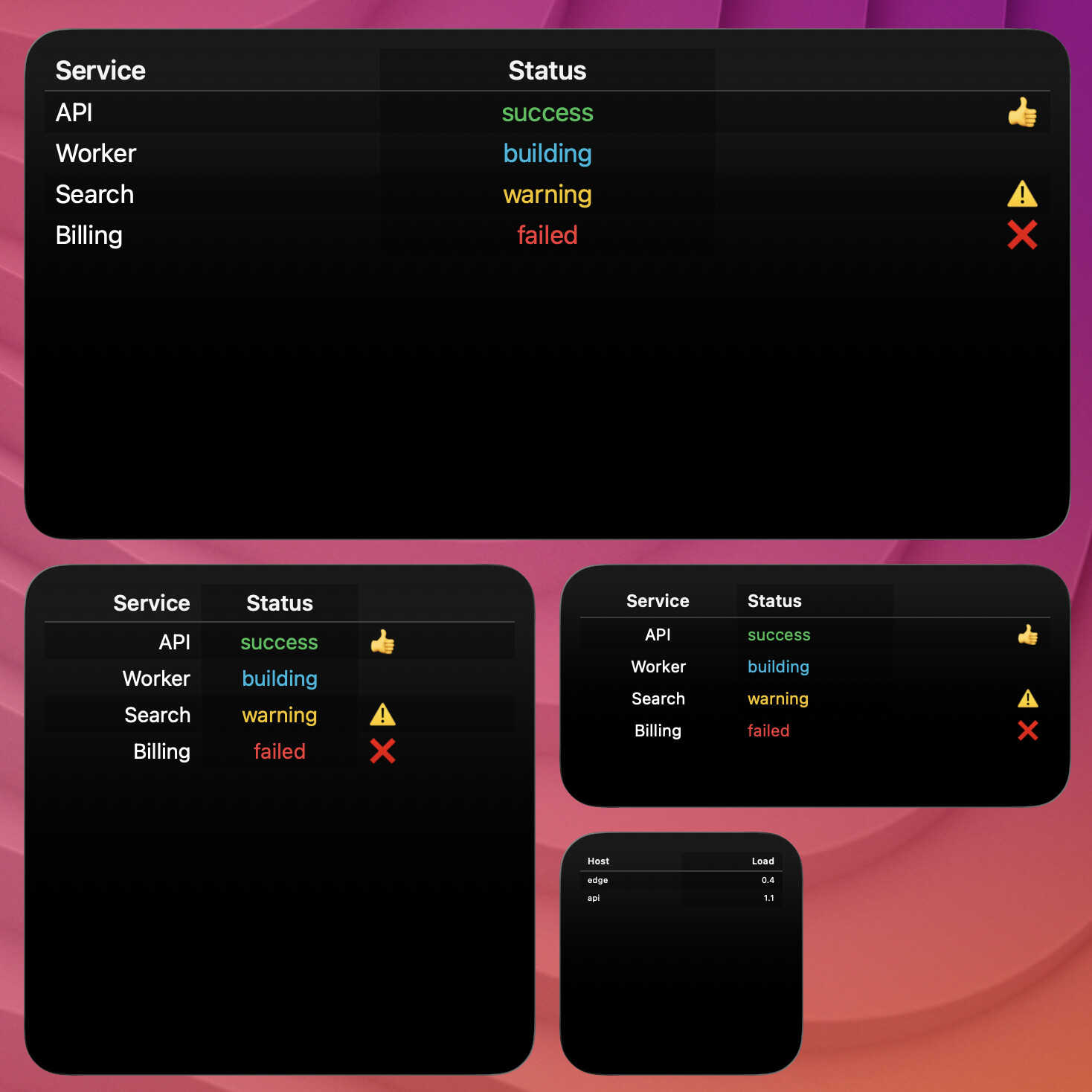
Table with Zebra Grid (table-grid-zebra)
terminal-widget --target widget1 --table ~/status/status.csv --grid zebra --zebra-opacity 60 --mode dark
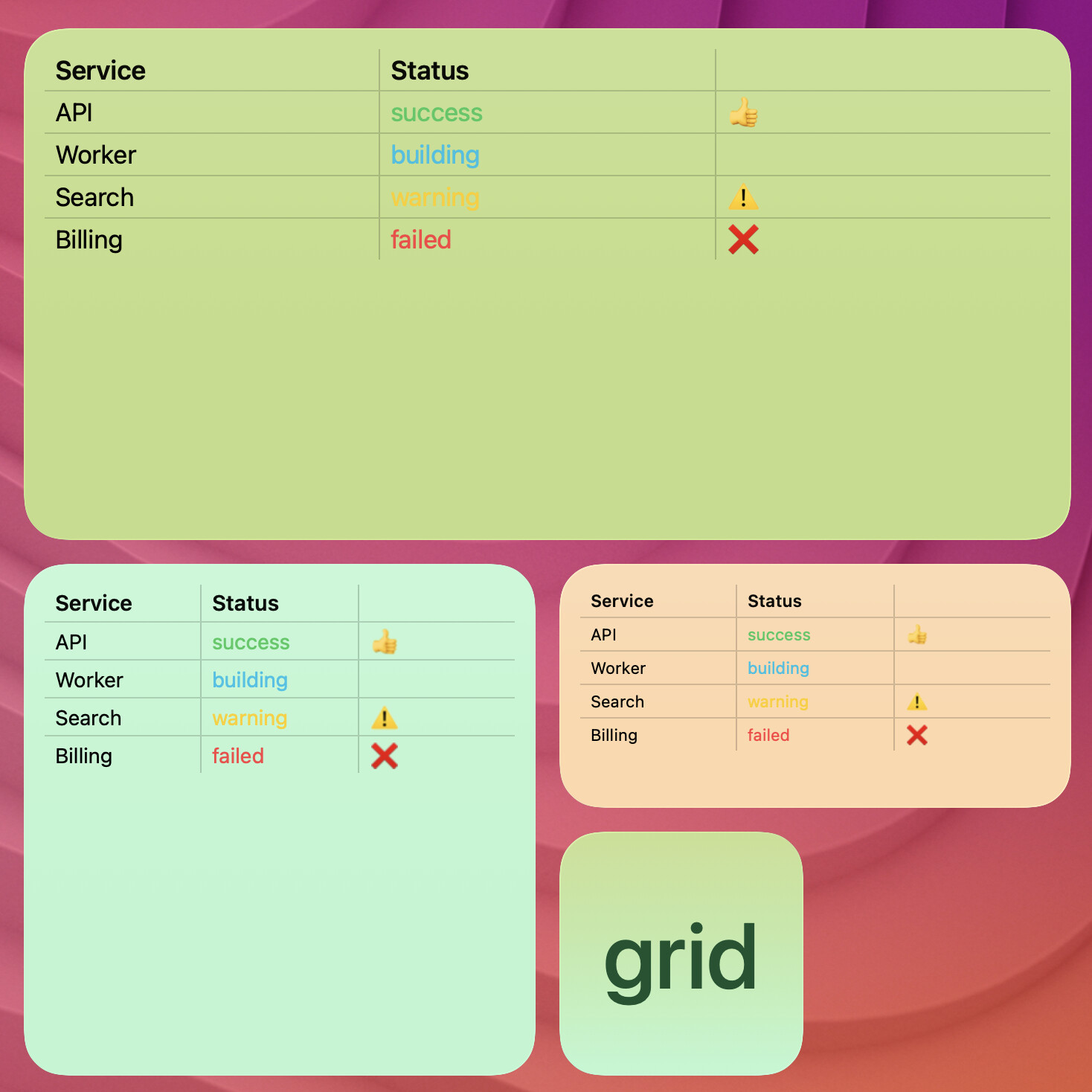
Table with Row + Column Grid (table-grid-both)
terminal-widget --target widget1 --table ~/status/status.csv --grid both --mode dark
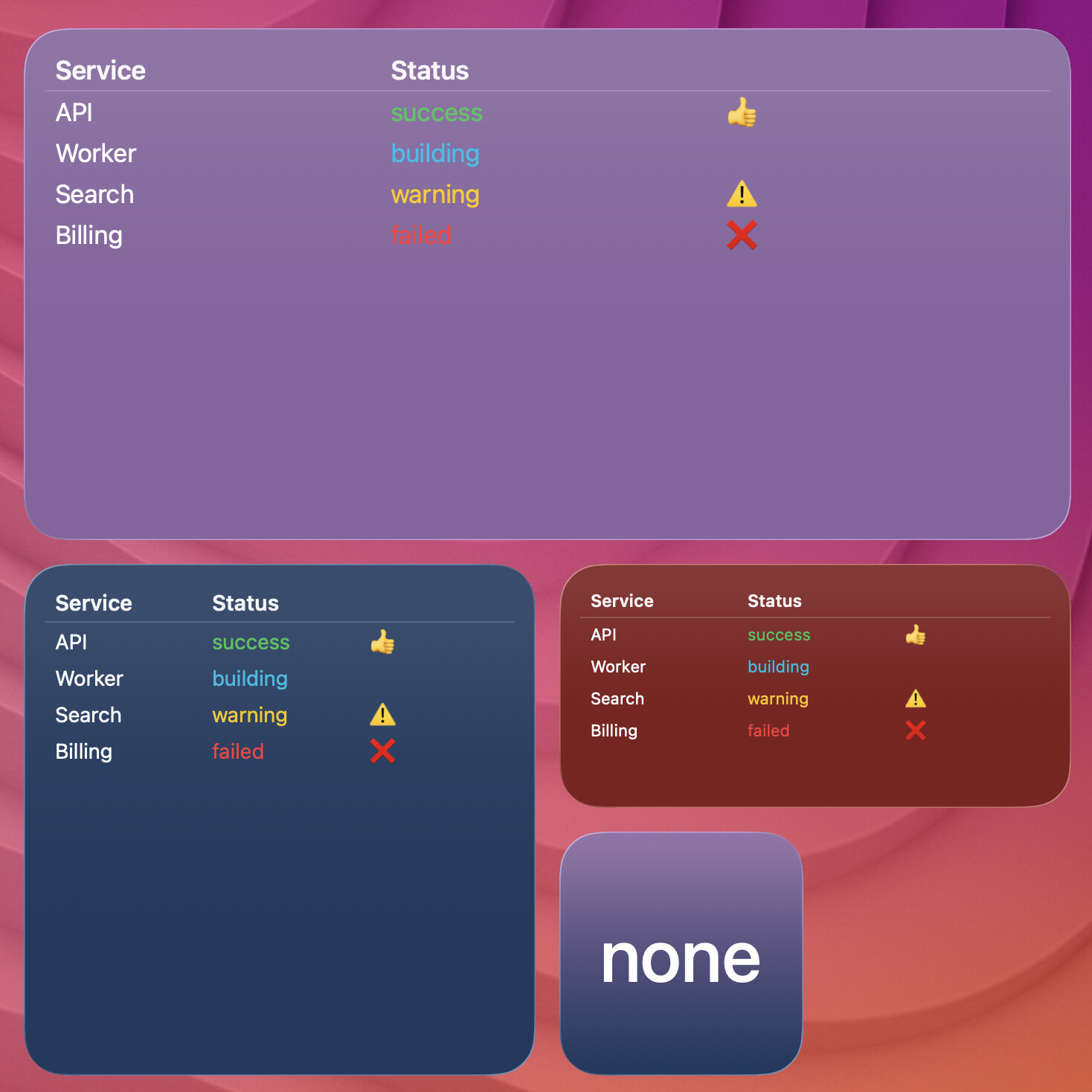
Table with Header Rule Only (table-grid-none)
terminal-widget --target widget1 --table ~/status/status.csv --grid none --mode dark
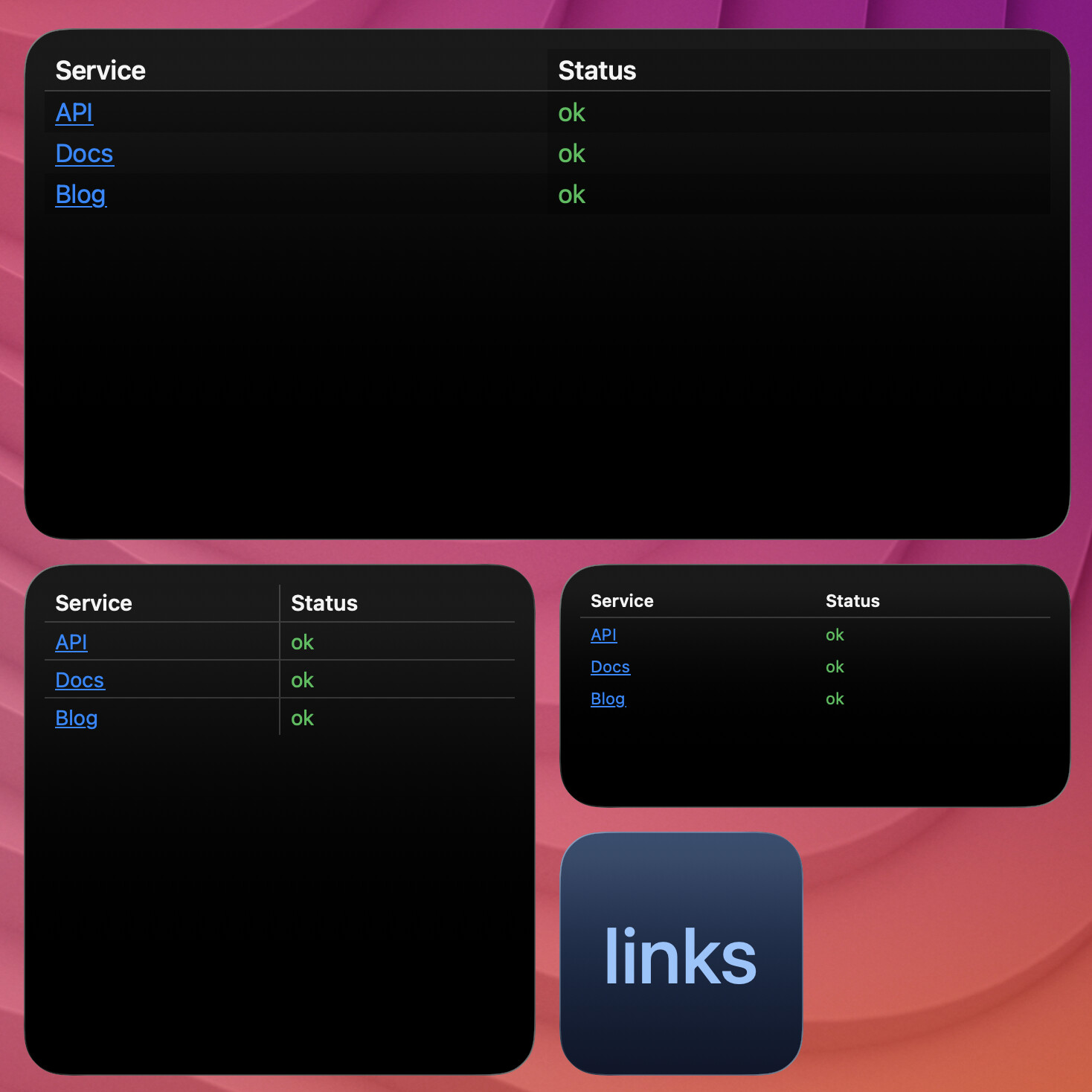
Table cell markdown links (table-cell-links)
Table cells accept the same [label](url) syntax as --text. Linked labels render as tappable buttons; other cell text stays plain.
cat scripts/fixtures/capture-table-links.csv | terminal-widget --target widget1 --table - --grid zebra --mode dark --table-layout equal
Table column alignment (table-align)
Per-column text alignment for header and body (left, center, or right). Remaining columns repeat the last value. Independent of --table-layout.
cat scripts/fixtures/capture-table-sample.csv | terminal-widget --target widget1 --table - --grid zebra --mode dark --table-layout equal --table-align left,center,right
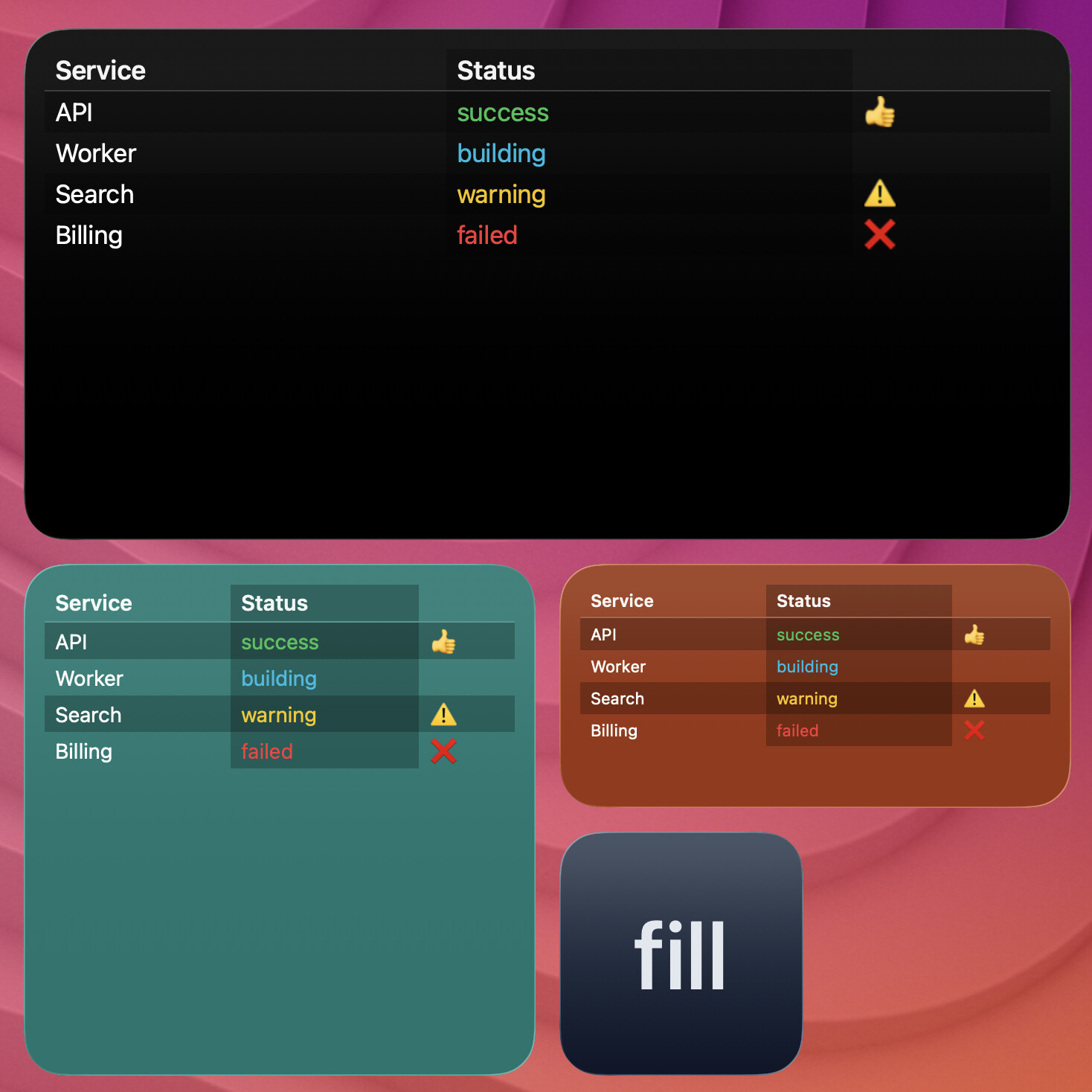
Table fill layout (table-layout-fill)
Content-measured columns stretched proportionally to fill the widget width (the previous --table-layout auto behavior).
cat scripts/fixtures/capture-table-sample.csv | terminal-widget --target widget1 --table - --grid zebra --mode dark --table-layout fill
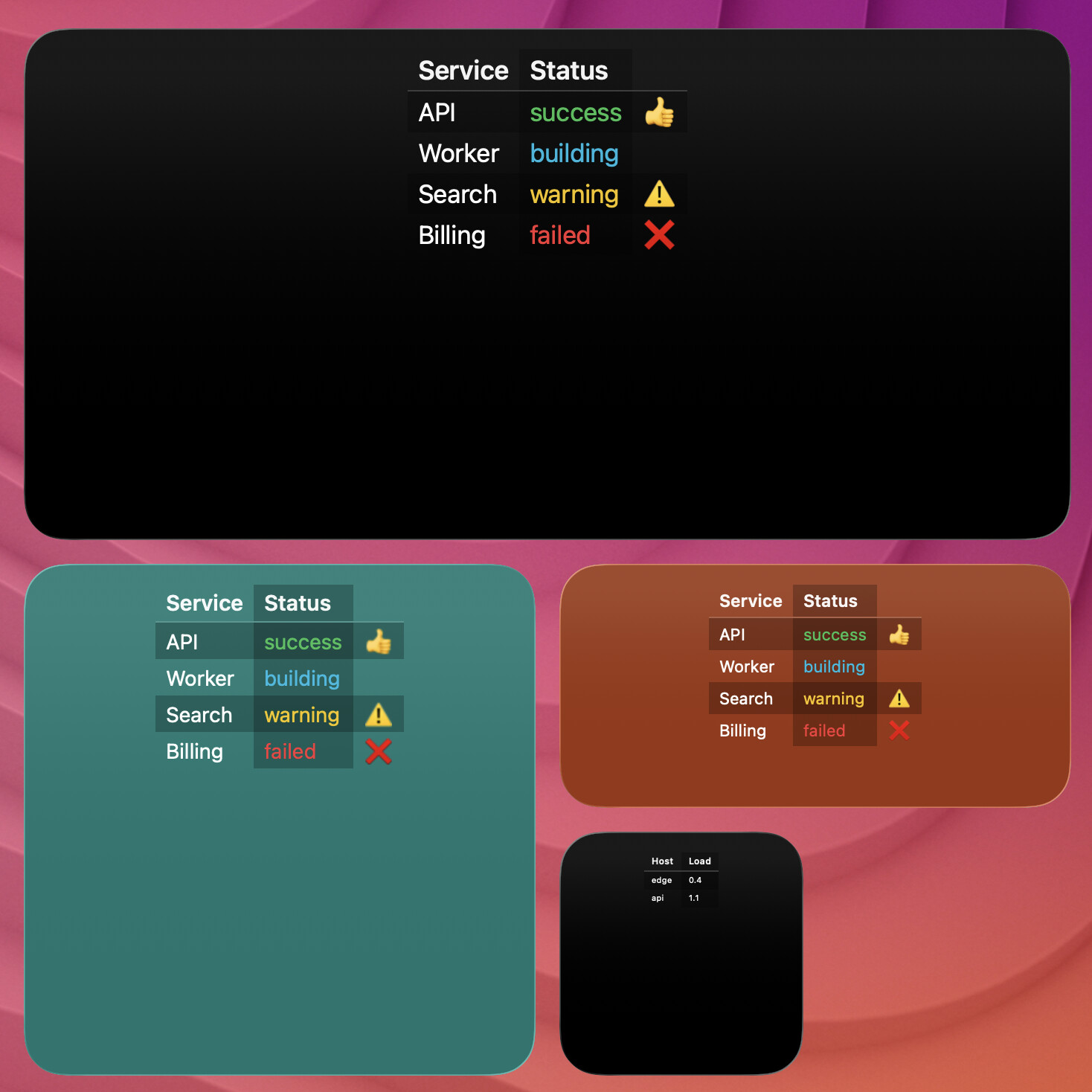
Center auto table (center-table)
With --table-layout auto, leftover width is split on both sides instead of sitting after the last column. Ignored for equal and fill. Horizontal rules span the table, not the full widget.
cat scripts/fixtures/capture-table-sample.csv | terminal-widget --target widget1 --table - --grid zebra --mode dark --table-layout auto --center-table
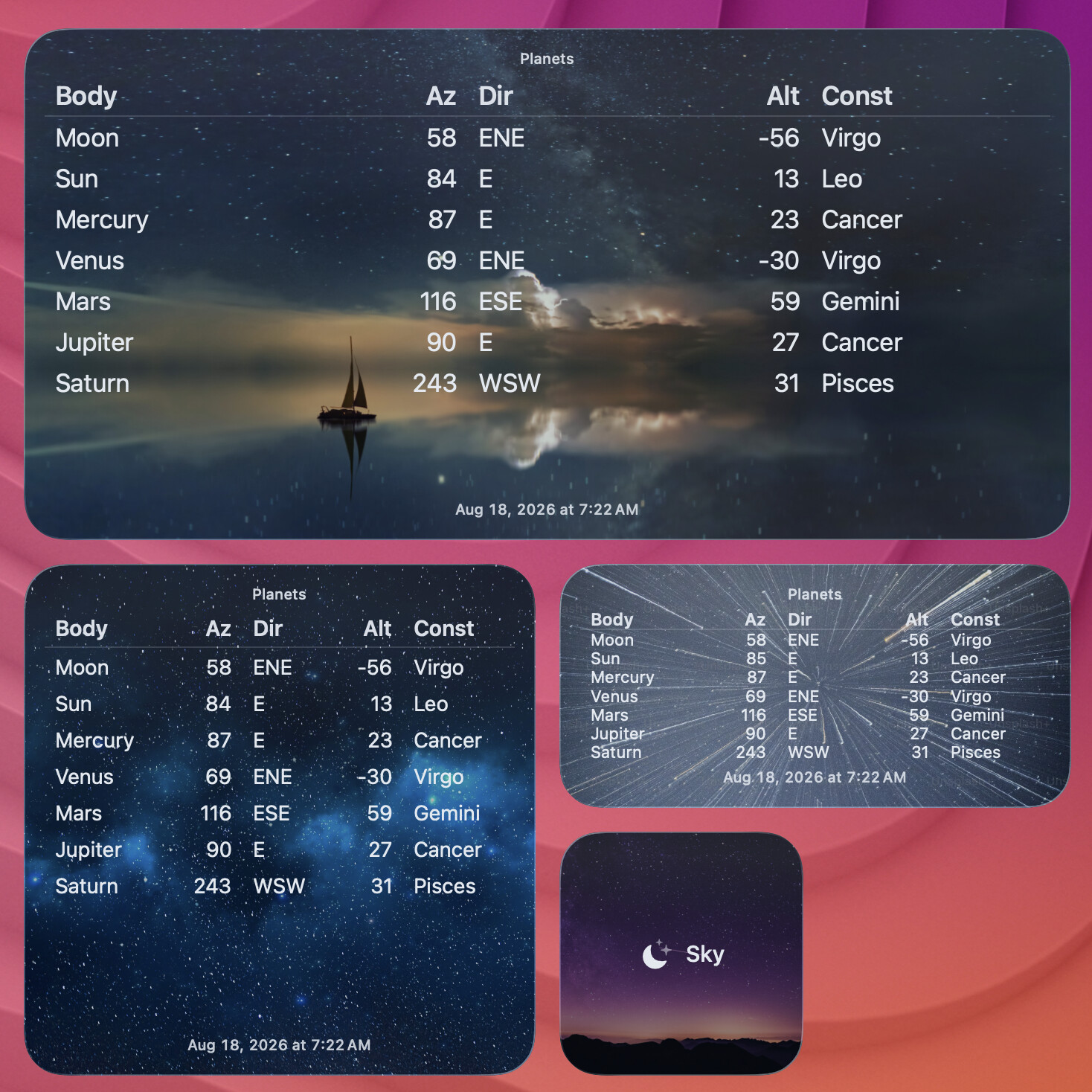
Background image table (background-image-table)
Live planet positions with a night-sky --background-image. Requires python3 and astropy.
python3 scripts/planets.py --all
python3 scripts/planets.py --target widget1 --background 1
python3 scripts/planets.py --target 2
Optional STDIN Variant
cat ~/status/status.csv | terminal-widget --target widget1 --table -
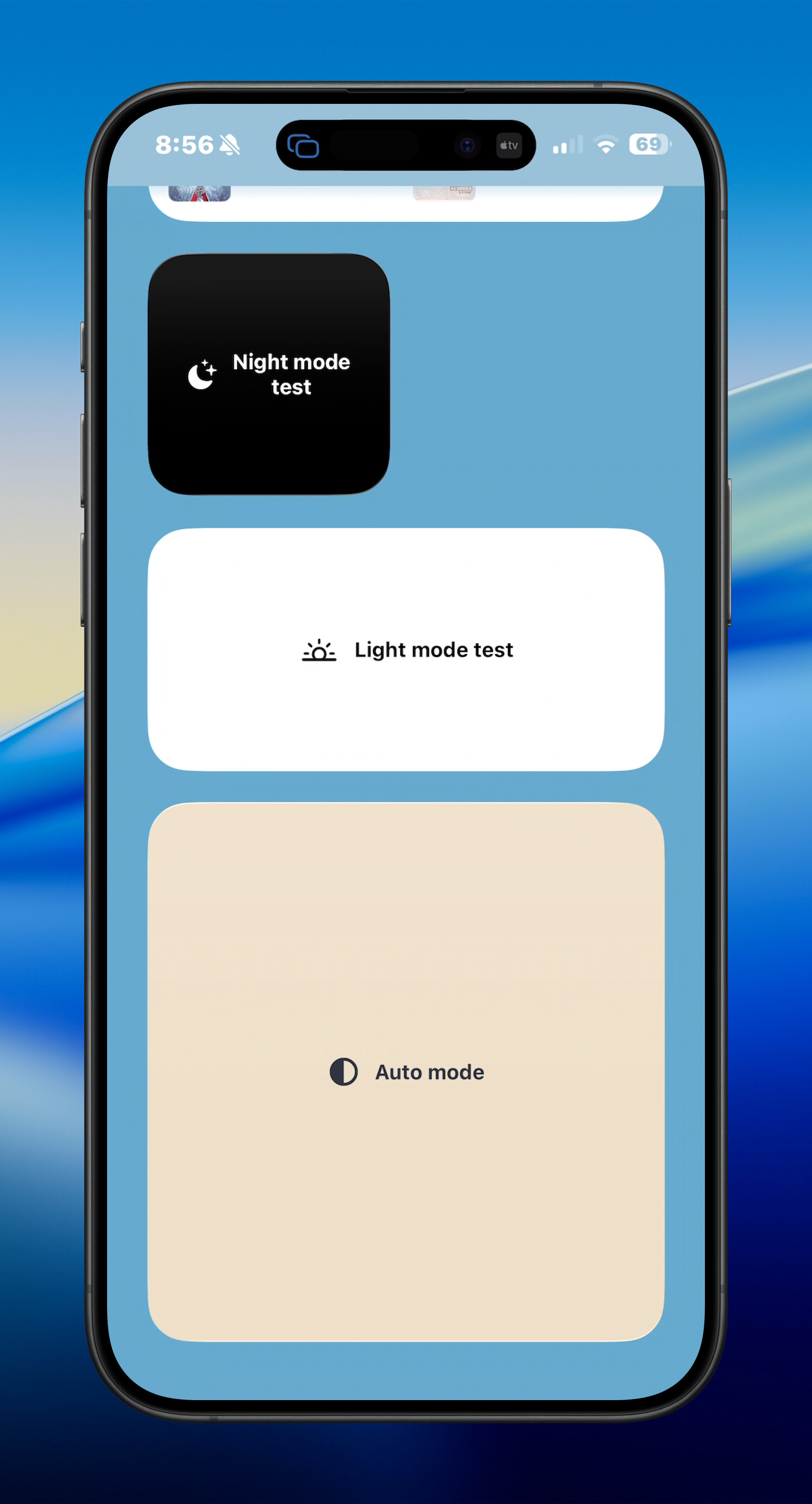
Foreground / Background (--foreground, --background, aliases --fg, --bg)
These set text/icon/chart/progress foreground and widget background colors for this payload.
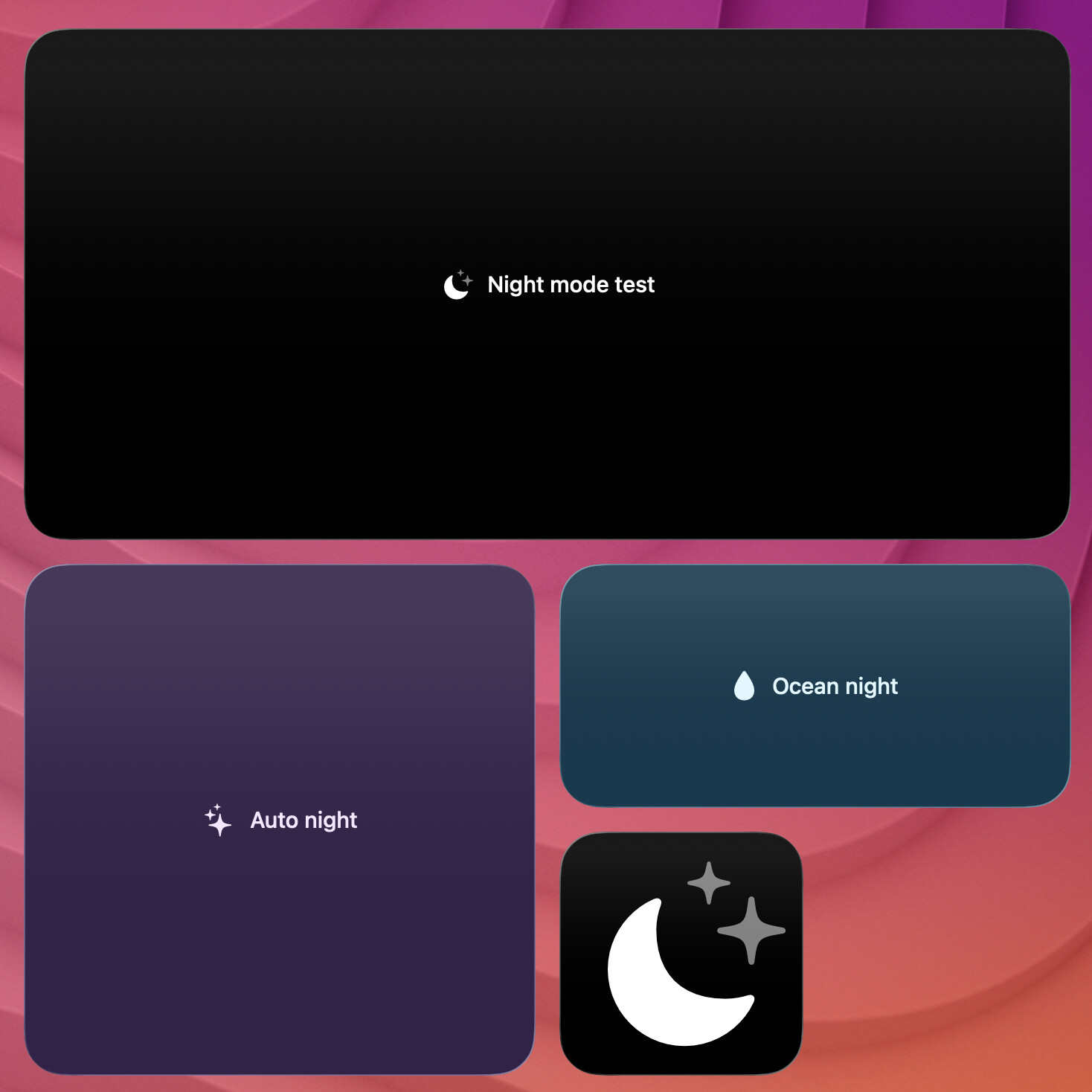
terminal-widget --target widget1 --text "Night mode test" --icon "moon.stars.fill" --fg "#dbeafe" --bg "#0b1220"
Full-size (--fullsize, alias for --padding 0)
Useful for edge-to-edge charts/images and dense visual widgets.
terminal-widget --target widget1 --chart "2 6 4 9 7 3 8 5" --chart-format area --fullsize
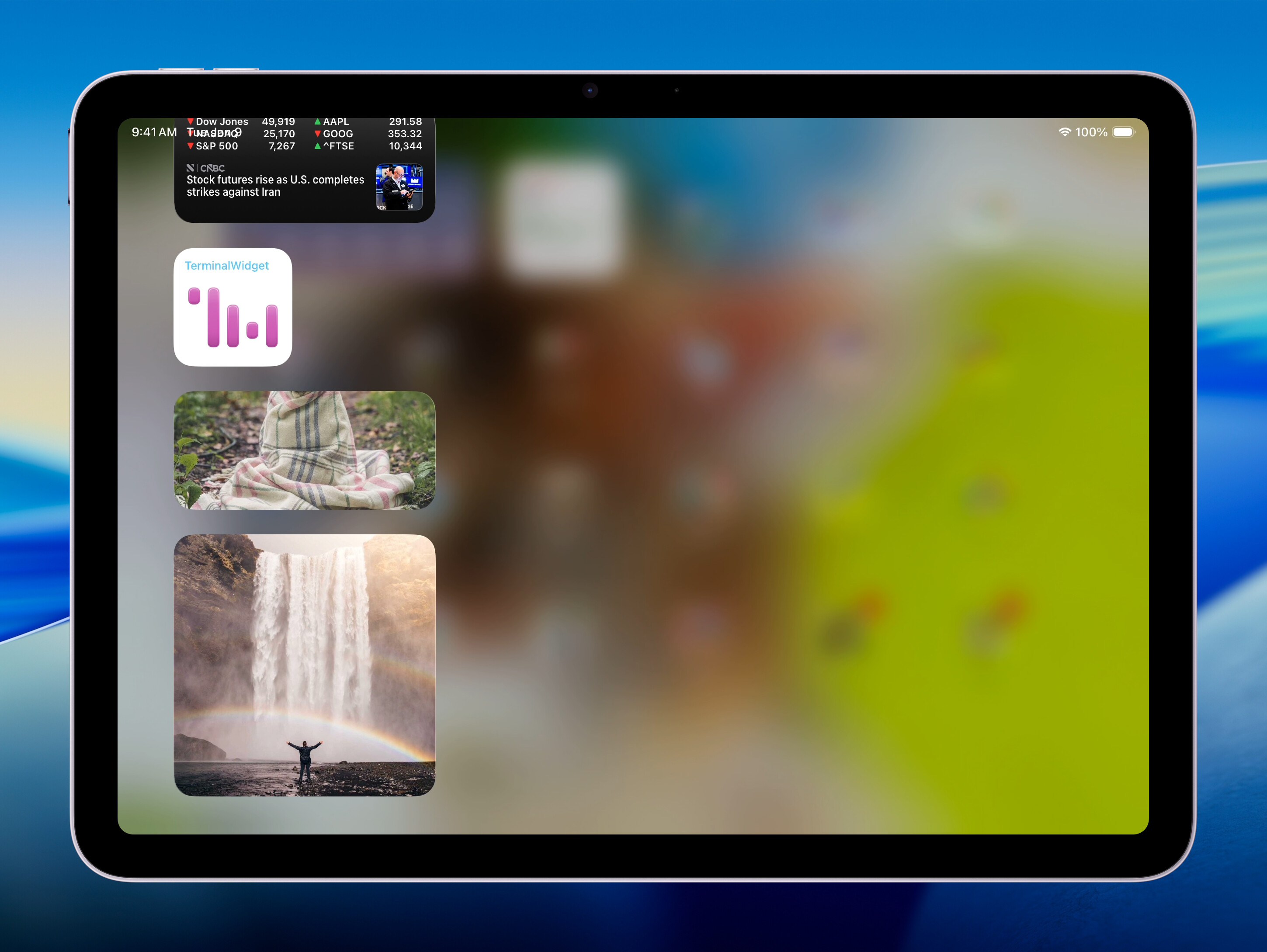
Image + Full Width (--image + --full-width)
Use a remote image source and fill mode for edge-to-edge image rendering.
terminal-widget --target widget1 --image "https://picsum.photos/400/400" --full-width
SVG diagrams
WidgetKit’s SVG renderer is not full WebKit. SVGs that use <text> or <tspan> often look correct in Safari, Sketch, and similar apps, but labels can be missing or wrong in the widget. Convert text to outlines/paths before passing the file to --image — then display is clean.
Easiest conversion is usually the Inkscape CLI:
inkscape treeBoxes.svg --export-text-to-path --export-plain-svg --export-filename=usingPaths.svg
Then point TerminalWidget at the outlined file:
terminal-widget --target widget1 --image ./usingPaths.svg
Image Filters (--filter)
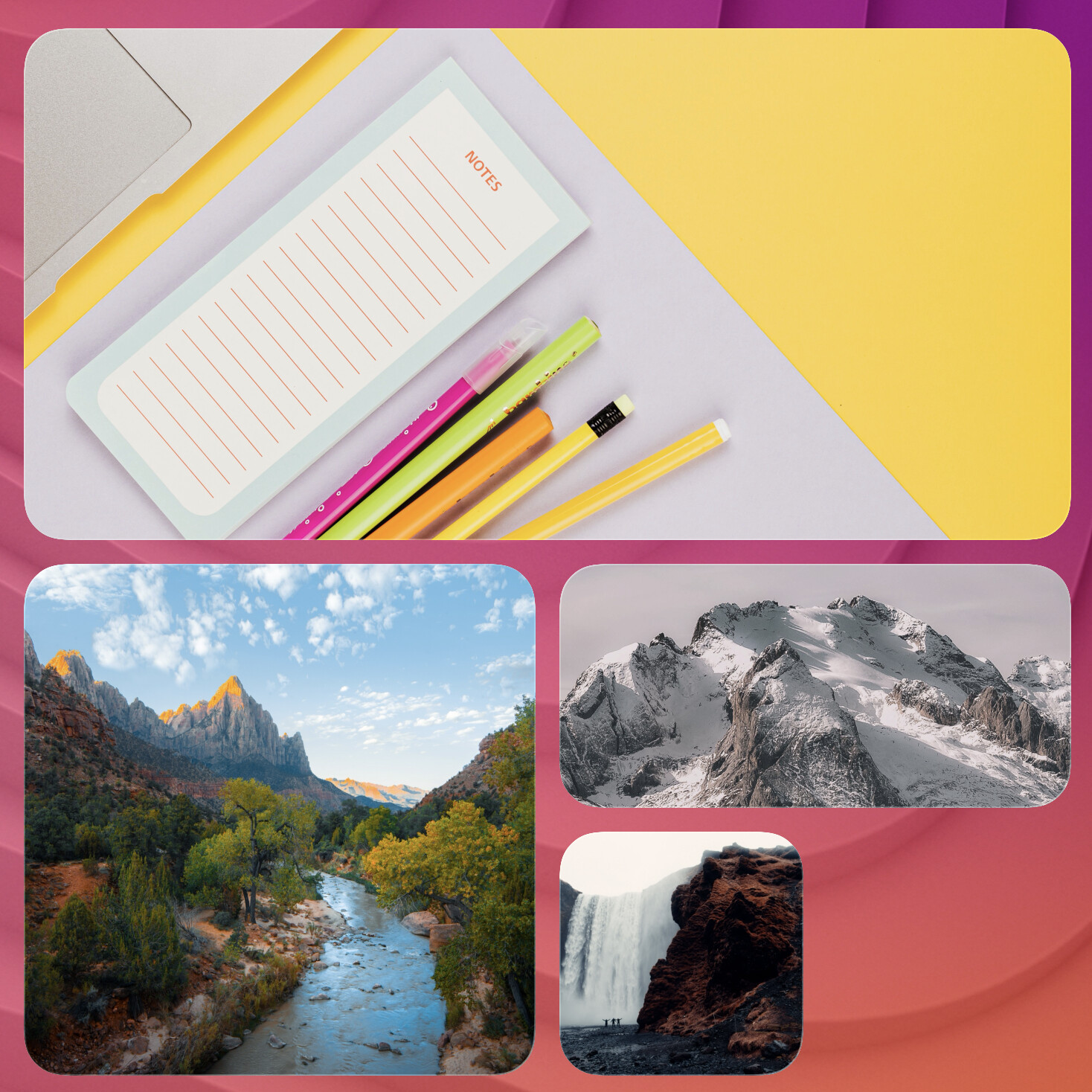
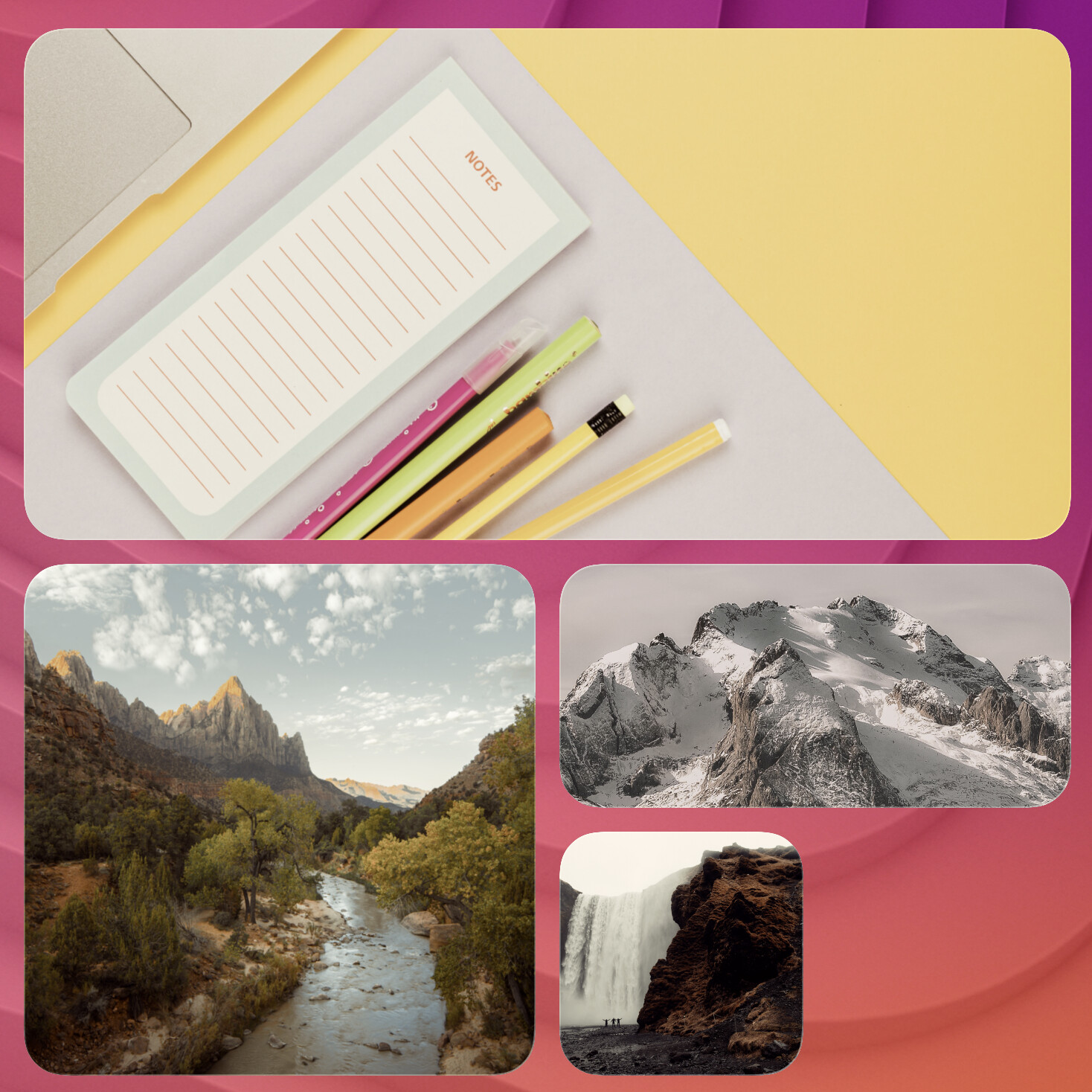
Apply built-in filters to images. You can pass one filter, repeat --filter, or provide a comma-separated filter chain.
terminal-widget --target widget1 --image "https://picsum.photos/640/640" --filter sepia:35
terminal-widget --target widget1 --image "https://picsum.photos/640/640" --filter grayscale
terminal-widget --target widget1 --image "https://picsum.photos/640/640" --filter "sepia:25,blur:8"
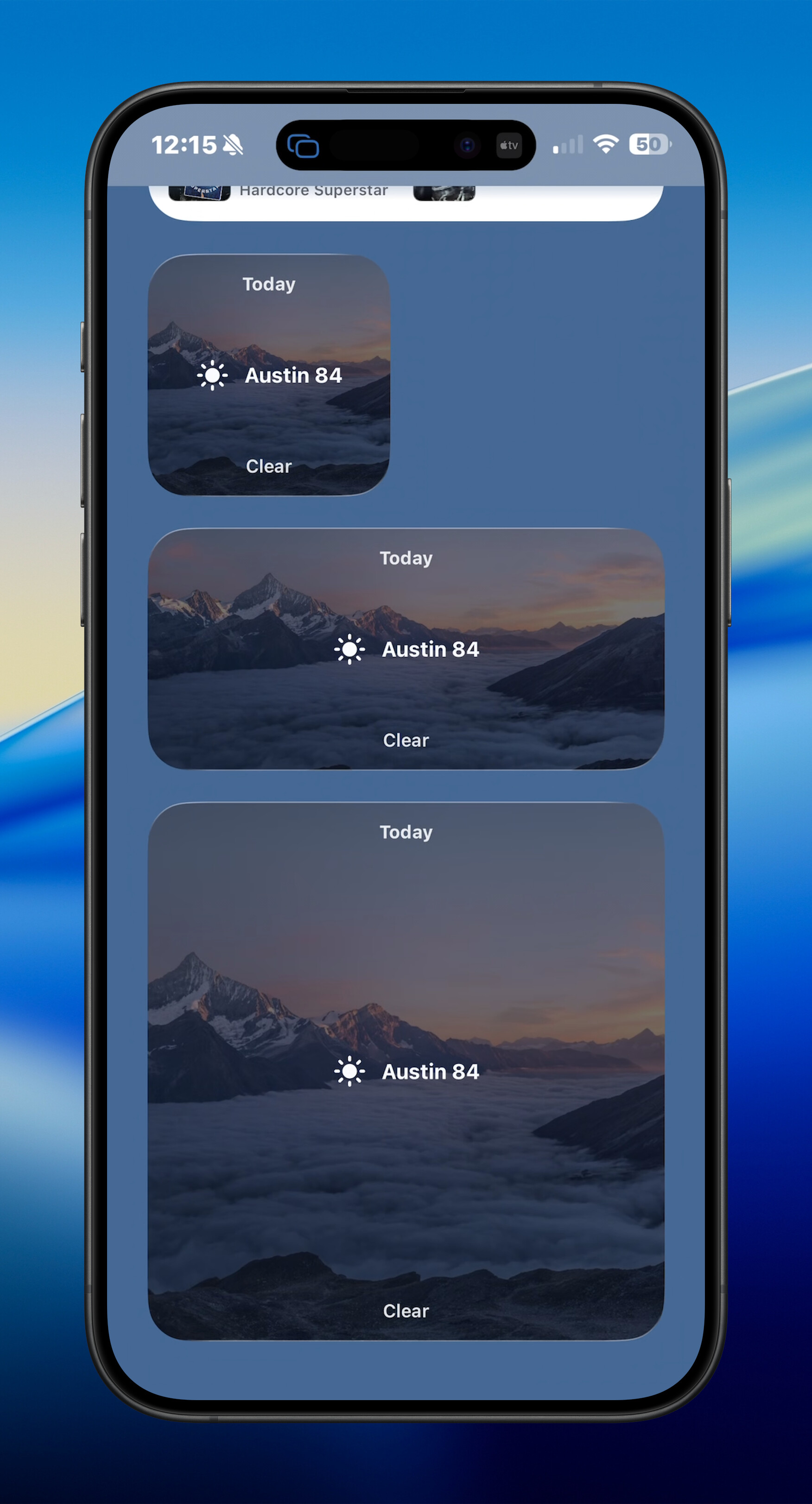
Background image
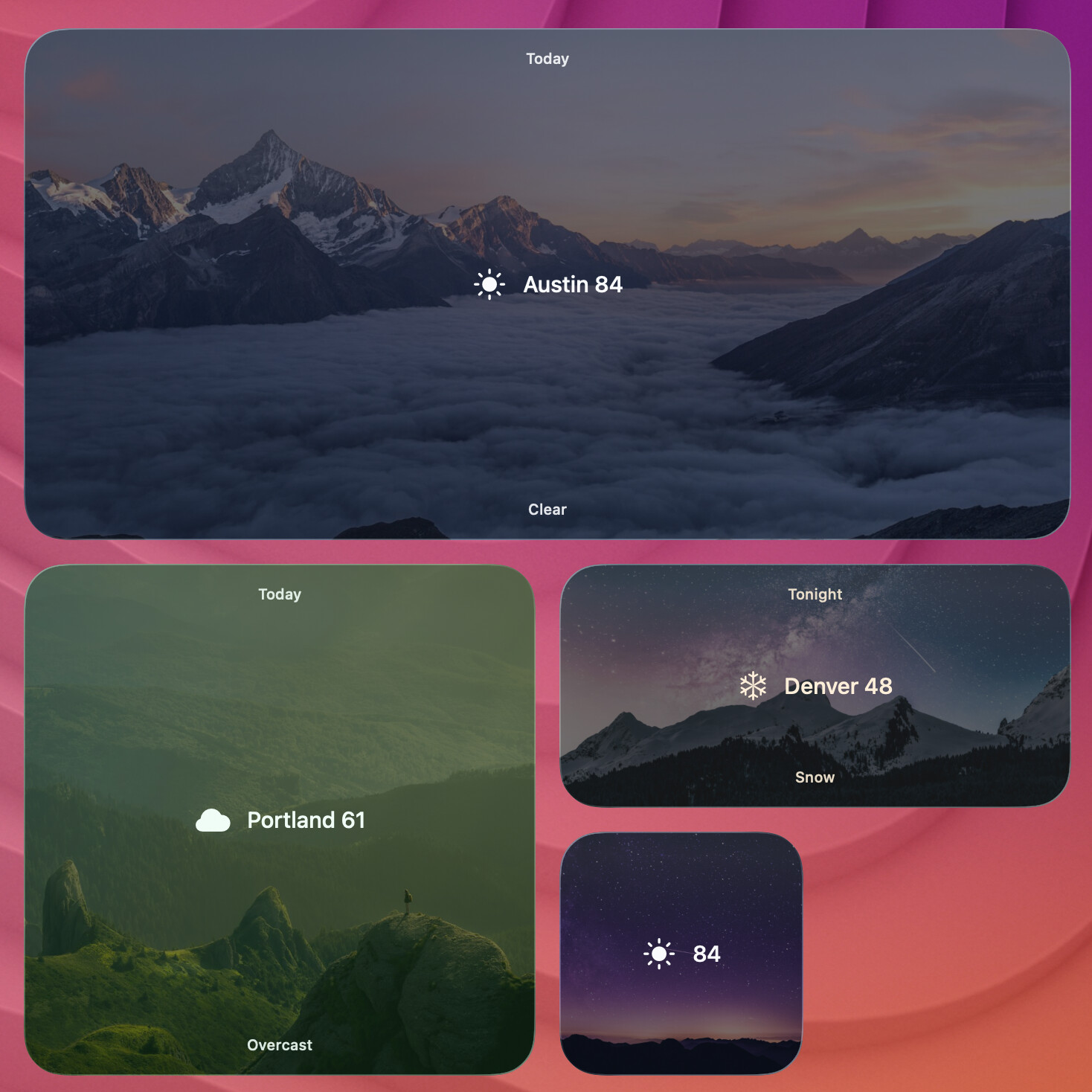
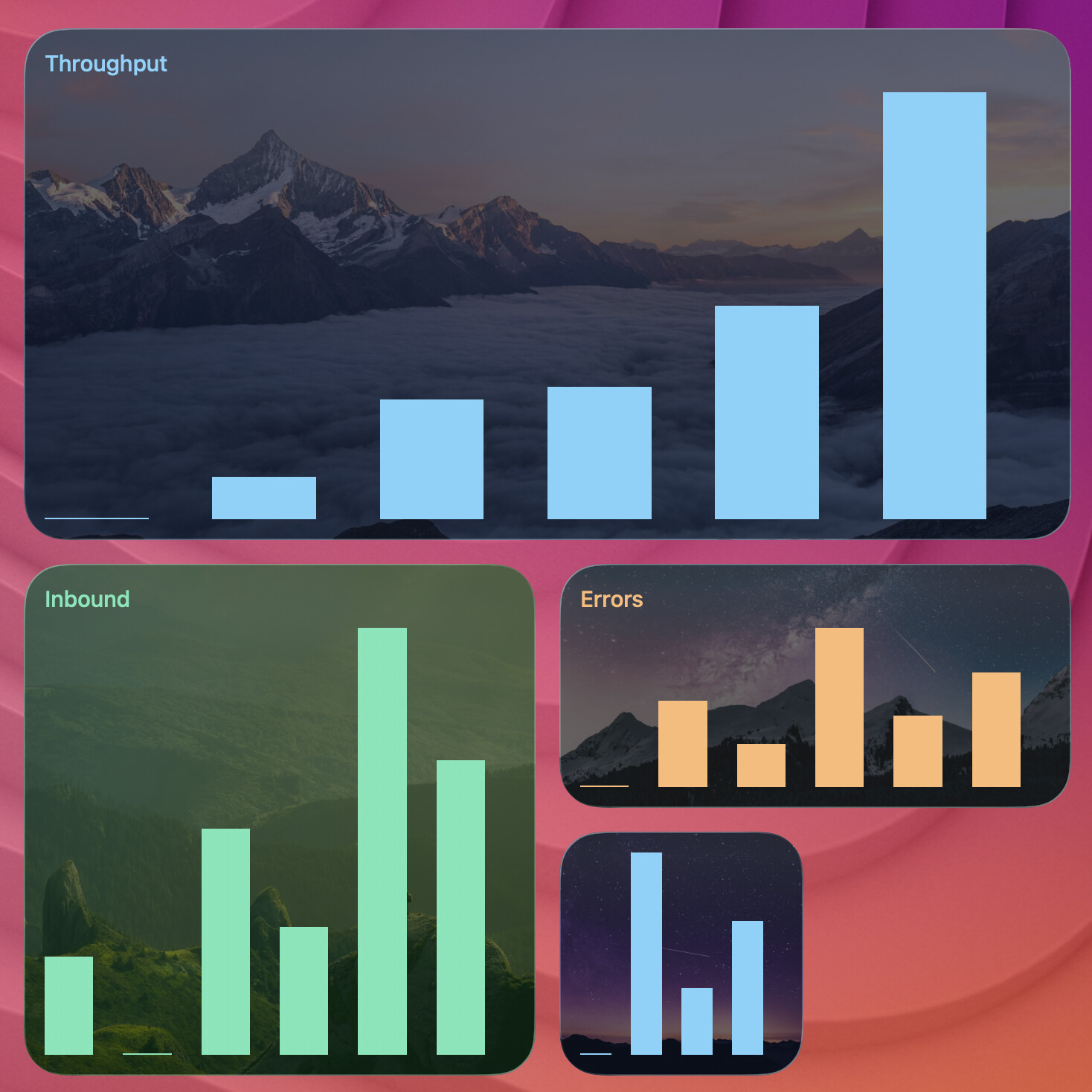
--background-image places an image full-bleed behind text, icons, progress, charts, or tables. It is mutually exclusive with the content --image option. Use --filter alpha:0-100 to fade the backdrop so --bg shows through. Padding insets the foreground only; the photo always fills the widget. Watch complications do not draw the backdrop.
terminal-widget --target widget1 --background-image "https://images.unsplash.com/photo-1506905925346-21bda4d32df4?auto=format&fit=crop&w=1600&q=80" --filter alpha:40 --bg 0f172a --fg "#f8fafc" --title "Today" --text "Austin 84" --caption-text "Clear" --icon sun.max.fill
terminal-widget --target widget1 --background-image "https://images.unsplash.com/photo-1506905925346-21bda4d32df4?auto=format&fit=crop&w=1600&q=80" --filter alpha:35 --bg 0f172a --fg "#7dd3fc" --chart "4 8 15 16 23 42" --text "Throughput"
python3 scripts/planets.py --target widget1 --background 1
macOS gallery slots background-image-text, background-image-chart, and background-image-table match those commands (capture-macos-widgets.sh --only background-image-text,background-image-chart,background-image-table). The iOS interactive script uses the same slugs. Override the photo for the text/chart slots with TW_BACKGROUND_IMAGE_URL. The table slot runs scripts/planets.py (python3 + astropy). macOS updates widget1–4 (extra large through small; the small widget uses a compact sky+icon instead of a table). Lightbox captions still show the widget1 command. iOS uses --all to push widget1–3 with skies 1–3 (sailboat, nebula, starburst).
Icon Behavior (--icon)
--icon is inline with text/progress/chart, or centered if icon-only mode is active.
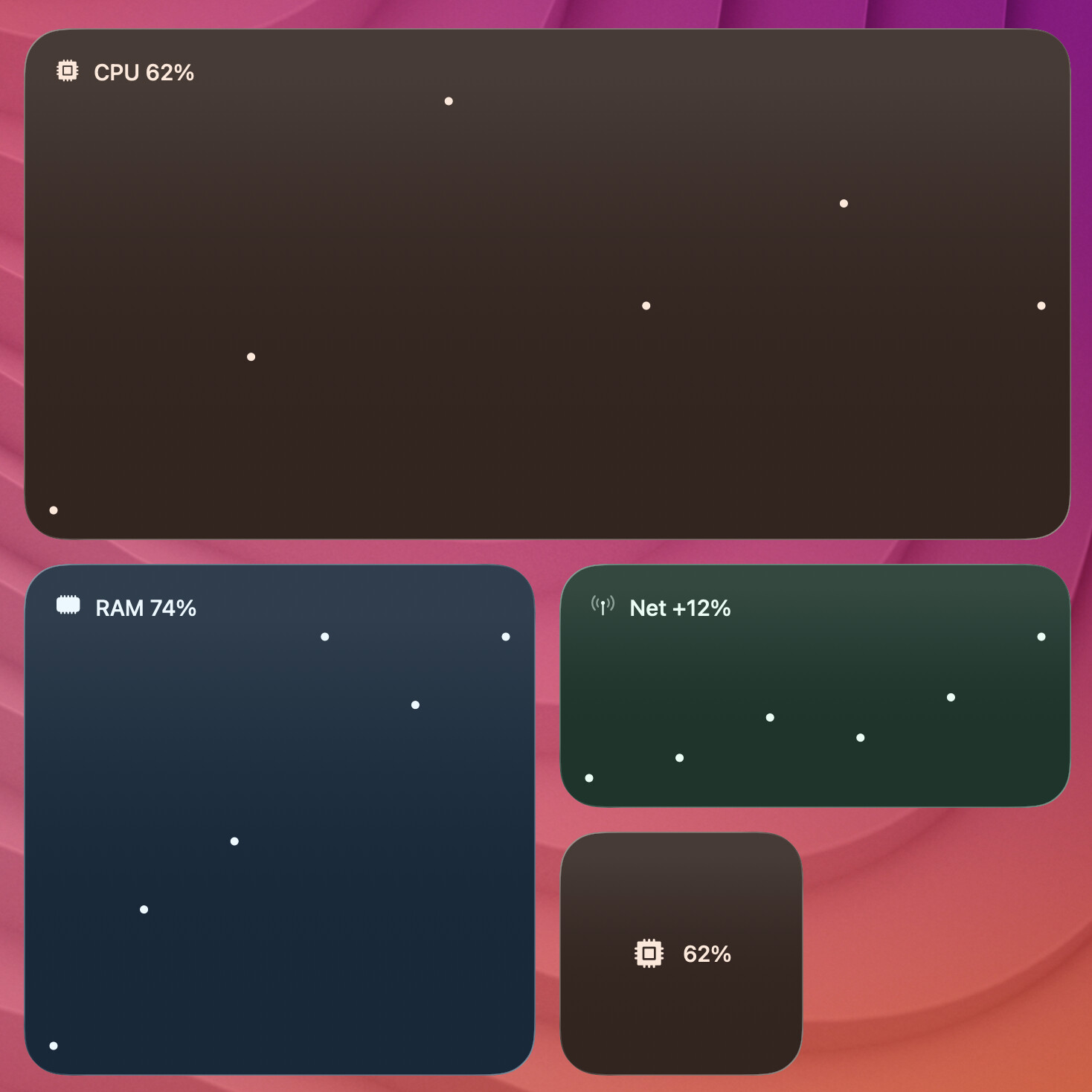
terminal-widget --target widget1 --text "CPU 62%" --icon "cpu.fill" --chart "58 61 66 62 64 62" --chart-format strip