
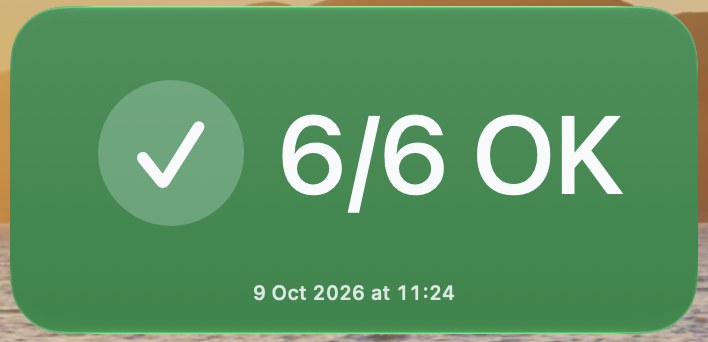
Uptime Kuma widget
uptime-kuma.sh shows the status of every monitor on an Uptime Kuma server as a desktop widget, using the Terminal Widget CLI.
What it shows
| State | Background | Content |
|---|---|---|
| All monitors OK | Green | ✓ 6/6 OK |
| One or more down | Red | ⚠ 5/6 OK, then a Down table listing each down monitor by name |
| Problem fetching | Grey | ⚠ an error message (see Troubleshooting) |
- Monitors that are pending or in maintenance count as OK. Only down monitors turn the widget red.
- Every state shows when the widget was last updated.
- Clicking the widget opens the Uptime Kuma dashboard.
How it works
The script reads Uptime Kuma’s Prometheus endpoint, $KUMA_URL/metrics, which needs an API key. It reads the monitor_status value for each monitor (0 = down, 1 = up, 2 = pending, 3 = maintenance) and updates the Terminal Widget target uptime-kuma.
It uses only tools that come with macOS: curl, awk, jq and security. No status page has to be published.
The script updates the widget once each time it runs. It’s meant to be run every minute by a LaunchAgent (see Running it every minute).
Requirements
- Terminal Widget installed in
/Applications, with a widget whose Target name isuptime-kuma. - An Uptime Kuma server with API keys (version 1.21 or later).
- macOS 15 or later, which includes
/usr/bin/jq.
Configuration
| Variable | Required | Description |
|---|---|---|
KUMA_URL |
yes | Server address, e.g. https://uptime.example.com. A trailing slash is removed. |
KUMA_API_KEY |
no | API key. If unset, the key is read from the login keychain (recommended). |
Storing the API key in the keychain
-
In Uptime Kuma, open Settings → API Keys, create a key and copy it.
-
Add it to your login keychain:
security add-generic-password -U -s uptime-kuma-widget -a api-key -wsecurityprompts for the key, so it doesn’t end up in your shell history.-Ureplaces an existing key, so you can run the same command again to rotate it. -
Check that it can be read:
security find-generic-password -s uptime-kuma-widget -a api-key -w
The first time the script reads the key in the background, macOS may ask whether security may use the uptime-kuma-widget item. Click Always Allow.
The script passes the key to curl through standard input, so it never appears on a command line or in ps. To remove the key:
security delete-generic-password -s uptime-kuma-widget -a api-key
Running it every minute
Use a LaunchAgent, not cron. Cron jobs run outside your login session and can’t read the login keychain. A LaunchAgent runs inside your session, so it can.
Save the following as ~/Library/LaunchAgents/local.terminal-widgets.uptime-kuma.plist. Change the script path and KUMA_URL to match your setup.
<?xml version="1.0" encoding="UTF-8"?>
<!DOCTYPE plist PUBLIC "-//Apple//DTD PLIST 1.0//EN" "http://www.apple.com/DTDs/PropertyList-1.0.dtd">
<plist version="1.0">
<dict>
	<key>Label</key>
	<string>local.terminal-widgets.uptime-kuma</string>
	<key>ProgramArguments</key>
	<array>
		<string>/bin/bash</string>
		<string>/Users/USERNAME/.config/terminal-widgets/uptime-kuma.sh</string>
	</array>
	<key>EnvironmentVariables</key>
	<dict>
		<key>KUMA_URL</key>
		<string>https://uptime.example.com</string>
	</dict>
	<key>StartInterval</key>
	<integer>60</integer>
	<key>RunAtLoad</key>
	<true/>
	<key>ProcessType</key>
	<string>Background</string>
	<key>StandardErrorPath</key>
	<string>/Users/USERNAME/Library/Logs/uptime-kuma-widget.log</string>
</dict>
</plist>
Don’t put the API key in EnvironmentVariables. The plist is plain text that any process running as you can read.
Load it, which also runs it once right away:
launchctl bootstrap gui/$(id -u) ~/Library/LaunchAgents/local.terminal-widgets.uptime-kuma.plist
After editing the plist, reload it:
launchctl bootout gui/$(id -u)/local.terminal-widgets.uptime-kuma
launchctl bootstrap gui/$(id -u) ~/Library/LaunchAgents/local.terminal-widgets.uptime-kuma.plist
To stop it, run only the bootout line and delete the plist.
Running it by hand
KUMA_URL=https://uptime.example.com ./uptime-kuma.sh
Troubleshooting
| Widget message | Cause |
|---|---|
KUMA_URL not set |
KUMA_URL is missing from the environment or the plist. |
No Uptime Kuma API key |
The key isn’t in the keychain, or the script runs where the keychain can’t be read (e.g. cron). |
Can't reach Uptime Kuma |
Wrong URL, server down, network problem, or the API key was rejected. |
No monitors found |
/metrics returned no monitors. |
To check the LaunchAgent and its error log:
launchctl print gui/$(id -u)/local.terminal-widgets.uptime-kuma | grep -E 'state|last exit'
cat ~/Library/Logs/uptime-kuma-widget.log
A last exit code of 0 means the last run succeeded.
Limitations
- Monitors are matched by name, so two monitors with the same name count as one.
/metricsonly reports current status, so the widget shows which monitors are down, not for how long.